OpenAI Just Leveled Up n8n AI Agents (here's how it works)
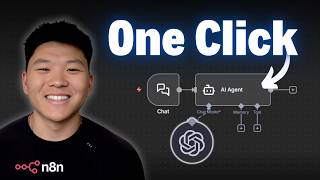
OpenAI's Responses API now works in n8n to give AI agents web search and file search. The demo shows an agent answering questions about the 2025 World Series using live web results, and how to upload PDFs as vector stores for file search with domain filters and pricing differences between OpenAI and Gemini.
Chapters
So if we want to have an AI agent that can search through documents and search the web, we would have to give that agent access to tools. So something like Perplexity for web search and something like a Supabase vector store for file search. So that way I can ask my AI agent, what number is the rule about the flagstick and what is the Chicago Bears' current record? It's going to search Perplexity for the Bears' record. It's going to search its vector store for the rule about the pin. You can see it says that the rule about the flagstick is rule 17. And if I go to the PDF that it's looking at, we have rule 17. About the flagstick, and then the Chicago Bears' current record in the 2025 NFL season is 8-3. Go Bears. So what's important to know here is that it used those two tools to pull its knowledge because inside the AI agent itself, we have no system prompts. All we said is that you are a helpful assistant. So then how come I'm able to come over to this AI agent and ask the exact same question about the rule about the flagstick and what is the Chicago Bears' current record? And you can see this agent has no tools attached at all. And if we look inside real quick, there is not even a system prompt either. So how come this agent with no tools is able to get us the exact same answer? The rule about the flagstick is rule 17, and as of today, the Chicago Bears record is 8-3. You can also see it got that from chicagobears.com. So this is not magic. What we're doing is inside the actual OpenAI chat model, which is the brain for our AI agent, we're enabling web search and we're enabling file search. So that's what we're going to be talking about today using OpenAI's Responses API. Okay, so in a recent update of N8N, I think it was 1.118 or later, what they did is they updated the chat model node for OpenAI. So when you click in your node and you go to settings, you should see version 1.3, which is the latest. Otherwise, you will not have access to the Responsys API. Now, unfortunately, right now you do have to do it through the OpenAI chat model. And if you guys have been watching my channel for a while, you know that I like to use OpenRouter. But unfortunately, even if you're using OpenAI models, we don't yet have access to Responsys API through OpenRouter yet. But anyways, now that we're able to use the Responsys API natively in here, what that does is it allows our agents to have a few more capabilities. So really the big one is being able to have the built-in tools. So the OpenAI Responses API provides a range of built-in tools to enrich the model's response. And the ones that we're covering today are web search and file search. So web search allows the model to actually search the web for the latest information before it creates a response. And the file search allows you to drop in a file into OpenAI. OpenAI will handle the embedding and the indexing and the storage once you drop it in there, and then you can hook that up to your AI agents. We also have the ability for code interpretation and MCP servers, but right now I'm just going to be talking about these top two in today's video. So let's just first start off with a web search example. So what you're going to do is you're going to create an AI agent and you're going to hook up an OpenAI chat model. And then when you click into the chat model, the first thing you have to do if you don't already have a credential is go to OpenAI and get an API key. This is not your typical ChatGPT environment. This is platform.openai.com and this is what it should look like. And then you'll go here and grab an API key, put in your billing information, And once you get that key, it will be as simple as just pasting it right in here in the API key section. So once you're connected, what you have to do is just enable this little toggle that says use Responsys API. And this is what gives us access to adding in those built-in tools, which are web search, file search, and code interpreter. And by the way, I don't see the MCP thing right here. It still may be possible, but you might just have to do a little bit more kind of like coding in order to set up that request to use the MCP servers. So not gonna cover that today. So for the first example, I'm just going to enable web search and we have a few options now. So the first thing is to set the context size. So right here you can see HighLevel guidance for the amount of context window space to use for the search, and you can choose between low, medium, or high. And then what's pretty cool is you can actually select the city, the country, or the region to search within. And then you can also do web search allowed domains. So if you only want to search certain domains like Google or LinkedIn or Wikipedia, you could do that. and I will show an example of this in a sec. So now just to prove that this works, let me go ahead and turn off the Responses API and let's chat with this agent real quick. So with no web search functionality in this agent, if I ask who won the World Series this year, it's gonna come back with something like, I don't have information on the events that occurred after June 2024. So then all we'd have to do is come into the node, enable Responses API, enable web search, and then now that we have that turned on, we could just run this again. and now when it hits its OpenAI brain, it's actually searching the web in order to figure out who won the World Series this year. So that just came back. The LA Dodgers won the 2025 World Series, defeating the Blue Jays in a thrilling 7-game series. And it also is pulling the actual websites that it got this information from. It even included a visual recap of the final moments of Game 7 at the end. So nice. Now real quick, let me just show off the actual domain thing. So if I come in here and I choose that I only want to search within a domain, which is upat.ai. .com, which is my really old AI agency website that has no information about the 2025 World Series in there at all. And I go ahead and rerun this question, we're gonna see that it's basically not able to find this because, okay, I forgot about this, but I'm glad it happened. You can't use that filter if you're using GPT-4.1 or probably some of those older models. So what I'm gonna do real quick is I'm just gonna go ahead and grab a GPT-5 mini instead, and we should be able to see some success here. So I'll grab 5 mini and we will just go ahead and run this again. And like I was saying before I got rudely interrupted, There's no information about the World Series on that website right there, so it's not going to be able to answer it and it's gonna say, hey, I'm limited to only this domain. I can't find that. There you go. I can't find the answer on the domain that I'm restricted to, which is upatai.com. All right, now for file search, which is also really, really cool. What we're doing in this node is once again, we are using the responses API. We're gonna turn off the web search and we're using file search this time, but you certainly can use both at the same time as you saw earlier in that demo. So you can see here what we need is a vector store ID and a filter. Now I'll explain the filter thing in a sec because this looks pretty weird, but first let's just talk about how do you actually get a vector store ID. So you're going to go once again to the same place where you got your API key, platform.openai.com. And on the left-hand side you can see storage and this will let you upload files, but it will also let you create vector stores. So you're going to go ahead and create a vector store, give it a name and drop in some files. So here you can see once again I've dropped in the rules of golf PDF. And what this does is it gives you a vector store ID, which is right here. So you copy this value and you would put it right here as an array. So if there's just one, you put two double quotes on each side, but if you had multiple vector stores that you wanted to be able to query through, you would just put a comma and then do the exact same thing. Now, if you just try to do this without filters, it's going to error. At least it was erroring for me. So I was able to figure out based on the documentation over here of how to use these tools for the Responsys API with web search and file search that I needed to add this filter that looks like this. and I'll be honest, it wasn't super intuitive. So good thing I've got this right here for you guys. Go ahead and take a screenshot of it and then you can paste that into your OpenAI chat model node. And then the other option that we can add in here is about max results. So we could just set a number here if we wanted to. So before we test that out again, I just wanted to call out the whole pricing thing. So if you haven't yet watched my video about Gemini file search, I will go ahead and tag that right up here. Definitely give it a watch because it's basically the exact same thing that we're doing here with OpenAI's vector store file search. Except for Gemini's was so much cheaper because you can see here that OpenAI is going to charge you 10 cents per gigabyte per day. So if you have a vector store sitting here with data and you're not even using it, you're still going to get billed. And Gemini only charges you for uploading files, which is why everyone was like, whoa, this is awesome. So I just wanted to call that out real quick. But as far as actually what's going on on the backend when you drop in files to either Gemini or to OpenAI and indexing and like what's going on and which one's better at retrieval. I haven't explicitly tested them out yet. Right now I'm kind of leaning towards Gemini because it comes back with a lot more metadata than what OpenAI does, which I'll show you guys in a sec. But I just wanted to say, 'cause I know I'm gonna get comments about that, I haven't explicitly tested it yet, but maybe a video's coming about that. Okay, so I'm gonna ask it to explain what should happen if a ball at rest moves in golf. And what it's doing, of course, is it's using its brain to think about what it needs to do. There are no tools to call, so it's gonna search through the files. You can see the answer we get is, if a ball at rest moves, what happens depends on what caused the ball to move. If X, this happens. If Y, this happens. If Z, if A, if B. As you can see, this is pulling from our document. Now, by default right now, with no system prompt, it's not actually exactly citing where it got this information from. And if we click into the actual chat model node, we can see this is the actual answer that it gave us. But what we don't see is an exact source or an exact section that it pulled it from. And that's what Gemini does give back when which is super helpful. Now you could get this to be a little bit more specific with that sort of stuff by prompting our agent. But once again, there's nothing in here as far as the system message. Now the last thing I wanted to hit on real quick was the other options that we actually get in addition to the built-in tools. So with the Responsys API, we get these built-in tools as you guys saw, but we also have more options to choose from in here. So in the options, if we scroll all the way down, if Responsys API is enabled, we have some extra things like conversation ID, Prompt Cache Key, all the way down to Prompt. And just to show you guys, if I turned off Responses API, we don't have those options anymore. I don't want this video to go too long, so I'm not gonna run through an example of every single one, but here are what these additional options do. And also, if you're curious, in here you can pretty much get information about all of them a little bit more detailed, and you could of course go to the OpenAI platform for the Responses API to read more about how these all work. But at a high level, the prompts lets you have saved prompts in your OpenAI dashboard that you can reference with some sort of ID to pull those into your chat model. You can have a service tier, so you can have sort of the balance between speed and cost for that use case. You can have a safety identifier to tag individuals. You can have a conversation ID, which is really cool because then you have sort of your memory being held in OpenAI rather than having like a simple memory or a Postgres memory in NN. You can have a prompt cache key, which basically lets OpenAI cache some of those prompts and responses rather than having to run it through and burn more tokens every time. You can have metadata, so custom key-value tags. And then you can have top log probs, which honestly I don't fully understand and I'm not sure when I would use it. But once again, if you're curious, chuck this into Perplexity and figure out how that works, or check out the OpenAI docs. But if you're interested in diving deeper with all this kind of stuff, then definitely check out my Plus community. The link for that is down in the description. We've got a great community of members who are building with Enidyn every day and building businesses with Enidyn every day. We also run one live call per week in the community, so I'd love to see you guys in those calls in the communities. But that's gonna do it for today. If you enjoyed or you learned something new, please give it a like. It definitely helps me out a ton. And as always, I appreciate you guys making it to the end of the video. I'll see you on the next one. Thanks everyone.










