Research ANYTHING and Get a PDF Report (free n8n template)
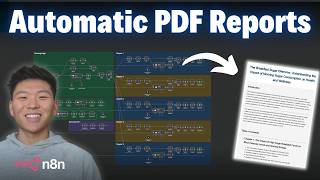
In this tutorial Dr. Violet Howard demonstrates a fully automated n8n workflow that turns a simple search query into a 30‑40 page, source‑cited PDF research report. The process begins with a form submission, after which a planning AI agent splits the main topic into five sub‑topics (chapters). Each chapter is researched via the Tavily API, retrieving five advanced‑depth sources per chapter (25 sources total). The raw results are stored in Google Sheets, then fed to writer agents that generate HTML content for each source using a consistent style guide. After all chapters are written, the workflow aggregates the content, extracts titles for a table of contents, formats the full source list in HTML, and combines everything into a single HTML document. This HTML is sent to apitemplate.io to produce a PDF, which is then emailed to the requester via Gmail. The video also covers cost (under $1 per run using Claude 3.5/3.7 on OpenRouter), performance (≈6 minutes), and compares the output to ChatGPT/Perplexity deep‑research results. Limitations such as lack of parallel execution, hard‑coded source counts, and maintenance overhead are discussed, along with ideas for optimization.
Chapters
All right, so all we have to do is hit test workflow and this form will pop up and we just have to enter a search topic for a deep research report. So here I'm typing in sugar for breakfast, just putting in an email to send the report to, and we'll hit submit. And now the workflow has started. The first thing we're doing is we're hitting a planning topic agent that has taken our search topic and it's spitting out 5 different in-depth search topics. And then we're having an agent create an introduction in the different chapters so that we can send them off to the different types of research agents for each chapter to to make this a really in-depth analysis. So as you can see, we're just firing off to this first branch, which is chapter 1. We're doing our research with Tavoli on 5 different topics within that chapter, and now we have an agent writing it all together. So this process is pretty much the same for each of the 5 chapters, so I'll be back when they're finished up. Okay, so the chapter 5 writer is finishing up right now. As you can see, we're We're pushing all of this data into Google Sheets so we can pull it all back later, as you'll see up here. Now we're finalizing all this content. So we're pulling in all the sources so we can make a source section at the bottom of our report with a numbered list. Then we're gonna be sending those back to the Google Sheet. We'll be pulling in all the contents once again so that we can make a table of contents based on the chapters and based on the different subjects within each of the chapters. And then we're pretty much putting it all together and we're sending it off to create that PDF. So there you can see the source is just finished up. Now we have a different assistant that's writing the table of contents for us. And so why you're seeing all these Google Sheets nodes is because we're sending all the data into Google Sheets, because at the end you're gonna see this is like a 30 to 40 page PDF. Finally, we just combined all that content together. We're hitting off the API call to make that PDF, and we should be getting an email any second now. Okay, so we're gonna hop over to the Gmail and we can see we got a new email, Deep Research Report, Sugar for Breakfast. As you can see, there's an attachment, which is our PDF, and we'll click into here and actually we'll just download this real quick. And once we open the downloaded PDF, we can see that this is a 40-page PDF. So it's gonna start off with a title, The Breakfast Sugar Dilemma: Understanding the Impact of Morning Sugar Consumption on Health and Wellness. We have a quick introduction right here talking about the breakfast landscape and how it's evolved. And then it says that this report delves into the physiological impacts of morning sugar consumption, explores hidden sugar sources in common breakfast foods, blah, blah, blah. And then we have a table of contents. So as you can see, each chapter has 5 different sections, so you can quickly skim and see which ones sort of pique your interest. Chapter 1 is on blood glucose levels and morning energy. Chapter 2 is on common sources of hidden sugars. Chapter 3 is on nutritional comparison. And then you have Chapter 4 and 5. And as you can see, this is Chapter 1, and it's gonna start to break down morning sugar rush. And what you'll notice is that every section has a source. So if we open up this link, we can see it brings us to an article about the association between sugar at breakfast and energy. As we continue to scroll down into the different sections, you can see the link numbers are changing. Representing a unique source. And you can see that it's not just pulling back general articles, it's pulling back research findings and studies and experiments. So here's one with an actual experiment. We can open this one up and you can see this source talks about an actual study they did and what they found. Anyways, let's scroll all the way down to the bottom on page 40 where we can see we should have a sources section that should be numbered for all the sources that we just looked at. So as you can see, we have 1 through 25, and you can see right here that the last source we have is indeed Number 5, but all of these are also clickable links. So that's a quick look at the output of our workflow here. As you can see, 40 pages, super in-depth. It breaks down the table of contents. You can skip around and it has all of the sources linked. Now comparing that to something like ChatGPT Deep Research or Perplexity Deep Research, where you can click on this button right here, as you can see, you have a limited amount per day. So that's one thing. But this workflow that I just built, you can run it as many times as you want. It's gonna cost less than a dollar. So I'll break down the price when we do another demo. and also it's significantly faster. So right here, this took about 6 minutes and it's not even optimized to have all of the 5 chapters running in parallel. If we did that, it would significantly decrease the time that it takes to run this workflow. And here's an example of me using ChatGPT for sugar for breakfast deep research, and this one took about 15 minutes. So it has 17 total sources. It's a pretty in-depth report, and I copy and pasted this into a Google Doc so we can look at it real quick. But what you'll notice is that there's just a brief introduction. There's really no table of contents, so you don't really know what you're getting into. But because I have to copy and paste this into a doc, now we can see the different headers, which are short-term effects on sugary breakfast, long-term health implications, sugary breakfast versus high protein options, dietary guidelines, and then also age-specific considerations like with children and with adults. So this is definitely in-depth and it was a good report, but it was only 13 pages and it wasn't as structured as our workflow. So now that we've seen what this automation can do, let's hop into AnyDen and break down what's going on. Alright, so before we hop into a live breakdown of this workflow, I wanted to tell you guys how you can actually access this and plug it in for free. So all you have to do is join my free school community. The link for that is down in the description. You'll come into here, you'll click on YouTube resources, and you can search for the title of this video, or you can just find the post associated with the video. You'll click into that post, and then you'll see right here there's gonna be the different files that you need. And I'm also going to provide the Google Sheet template that you'll need in order to just plug this in, because the Google Sheet template is gonna be really, really important. Okay, so now that that's out of the way, I'm going to do a high-level breakdown of what's going on within each of these different sticky notes, and then we're going to test it out. We'll do another different deep research topic, and we'll walk through every single node. Okay, so if you ask ChatGPT, what is deep research? There's 6 key aspects, which are diverse sources, critical analysis, comparative review, data-driven insights, iterative process, and long-term investigation. So what I did in N8N is I tried to break down this workflow to encompass all of those different elements. So what we're doing in this stage is we're trying to plan the structure of the entire sort of research report. In the demo you saw, all I typed in was like sugar for breakfast, which is only 3 words, but it was able to spit out a really in-depth report because we have this planning stage. So basically what's going on here is we're taking a topic and we're splitting it out into 5 different chapters so that we can send it into this next part, which are the different research assistants in order to write all the content for each chapter. Now, if you remember, within each chapter there were basically 5 sections and each of those are going to be a different source. So the logic of all 5 of these different chapters are basically the same. Like I said, I wanted to visually show you guys how this is working, but if you wanted to build this more optimally, you would probably want to send this off and have each of these chapters executing in parallel. And there are also some other tweaks we can make along the way to make all of this logic a little more dynamic, but for a V1, this is a great start. So you may have noticed that there's a lot of Google Sheets nodes in this workflow, and the reason for that is because we can't just keep all of our data within N8N and expect to make a 40-page PDF. Like you saw in the demo. What we have to do is, as we're moving through the process and gathering more and more information, we're storing it in the Google Sheet so that later at the end over here, when we're finalizing our content, we can pull all of it back, combine it all together, and then send that stringified text through an API call to make a PDF. So like I said, we're gonna do a demo and I'll walk through every step, but basically what's going on over here is we're pulling in all the sources as a list of 25 sources sending them back in, and then we're pulling all the content back to make a table of contents, because we can only make a table of contents once we actually understand what sections the report has. And then down here, we're just using an HTML to PDF API, downloading it, and sending it off in Gmail. Okay, so we're about to do another live run and walk through every single node, but before that, I wanted to talk about the price. So all of the different chat models here, I'm using OpenRouter, as you can see. And they're all using Claude 3.5 Sonnet. So far throughout my testing, each run has been a little bit less than a dollar, but we're gonna do a live run and you'll be able to see that. So in my OpenRouter right now, I have $1.77, and we'll come back to that after this first run. Now, as far as the API calls that we're making, for all the research, we're using Tavaly. So as you can see, chapter 1, 2, 3, and 4, we're all using Tavaly. And the great thing about Tavaly is that it's a pay-as-you-go model, but also on the starter plan, which is free, you can get 1,000 credits per month. And then the other API call is apitemplate.io, which is basically just turning our HTML content into a PDF. And if we click into there, we can see that you're gonna get 50 free credits. It may be total or per month, but 50 for free. So you'll be able to test out, and all my testing so far, as you can see, I've only really done 8 new API calls. Okay, so now that we have the pricing stuff out of the way, let's zoom in over here. We're gonna test this workflow, we'll do a new run, and then we'll break down what's going on within each step here. So when I hit test workflow, the form submission pops up. I'm gonna do the importance of sleep for young adults, and then we're gonna send that off and watch the workflow start. Okay, so what's going on in this first agent, and I'm only calling them agents because they're an AI agent node. They're not actually doing tool calling or anything, so it's not an agentic workflow, but this is technically an AI agent anyways. What's going on here is we're feeding it in a search topic. So in this case, it is exactly what we just typed in. Which is the importance of sleep for young adults. And as you can see, it's already output 5 different topics. So this is basically just helping us structure the entire research report. So if we open up the system prompt here, we can see that its instructions were to break down the topic, identify 5 distinct yet interconnected subtopics that when researched provide a well-rounded understanding of the main search topic. We wanted to ensure depth and relevance and also avoid redundancy. I don't want to break down the whole system prompt entirely, but if you download the template, the system prompts will be in there for you. And then of course we had to require a specific output format so that it could output the 5 different search topics in their own object. And we did this by attaching a structured output parser with 5 different topics. And then we have 3 different branches that we're merging back together. When you use merge nodes in NN, it's going to wait for all of the inputs before it moves on. And also it's going to execute the top one first. So it went up here and then it finished, and then it went here and finished. And then it passed down here, and then the next intro agent started. So what we did up here first was we just set topics. So I just wanted to set an array, and this is hardcoded. We're outputting topic 1, topic 2, topic 3, topic 4, topic 5. And then after that, we basically just wanted to split them out so that they came through as individual items, so that we could merge them with the split out items that are the actual topic names, so that when we merge them together, we basically have topic 1 is this, topic 2 is this. And the only reason I'm doing this is to get that association so that we can branch each one off to the different chapter section. But before we get over there, then the workflow comes down here and it executes the intro agent. So what we're doing here is we are giving this agent the search topic, which as you can see was the importance of sleep for young adults. And then we're giving it the 5 topics that the previous agent output. So now it has the total search topic as well as the 5 different chapters. So it's going to use all this information to create a title of the report. An introduction section for the report, and then it's also going to output everything in HTML format. So if we click down here, we can see that we have the title, the introduction, and all 5 chapters already formatted as HTML. We'll just do a real quick skim through of the system prompt. We basically told it, you are a report title and introduction generator AI. Your task is to create a compelling title, a concise introduction, and 5 clear chapter headings for a research report based on a given main search topic and 5 subtopics. Once again, we connected a structured output parser so it knew how to output its information, as well as we gave it some example outputs so we could show it how we want the HTML formatting to be consistent. So I know I may be going through this stuff a little bit fast, and if you're really serious about understanding, you know, what's going on in every step and how you can build these types of systems on your own, then I would definitely recommend checking out my paid community. You can 100% learn how to build these types of systems by watching free YouTube tutorials, but if you're looking for a more hands-on approach and you're looking for a community of members who are trying to do the exact same thing as you are, then joining a community is definitely going to speed up that process. We've got a great classroom section with different deep dive topics like building AI agents, vector databases, APIs and HTTP requests, step-by-step builds, and also we have 5 live calls per week that are always recorded so you can make sure you're not getting stuck and also meeting other people in the space. So I'd love to see you guys in these calls, but let's get back to the video. And then what we're doing is we're creating a new row in that Google Sheet template that I showed you guys. And this is basically sending over the search topic, the title, the introduction, and then the first 5 chapters. And if we switch into the Google Sheet, you can see that we have the importance of sleep, we have the title, the intro, and all first 5 chapters already formatted in HTML. And once again, this is so crucial, storing our chunks of information in this Google Sheet so we can pull it back later, because if you tried to just run one workflow and have an agent output a 40-page PDF, it wouldn't work. So now you can see the workflow's already ahead of us, but we have sources for each topic, sections for each topic, and the content, and it's already moving on. Right now it's doing chapter 4, But then we're able to just pull this back as we need it to create that PDF. So now that we've done all this structuring and planning, we have the 5 topics that we can send off to the research portion. So quick disclaimer, all 5 of these chapter sections are basically doing the same thing. Copy and pasted the logic all the way down except for one small tweak, which I'll get into. So I'm really only gonna break down the first chapter because they're all the same. Cool, so we start off with doing our Tavelly request. So I'm gonna click into Tavelly and I will show you guys what we're doing here. So we're making a POST request to Tavaly's search engine. We have our credential predefined as a header auth, and really what's going on here is we're sending over a body request. And really we're just sending over one request, which is, as you can see, the neurological effects of sleep deprivation on young adult brain development and cognitive function. So this is just one of the chapters that the very first agent output, and this is chapter 1 of our research report. You can see here we defined a few things. So the topic is general, the search depth is advanced. So instead of just using 1 credit on a general search. We're doing advanced and it's gonna use 2 credits. And then really the important thing here is that we're getting 5 results every time so that we can get a total of 25 sources because we're doing 5 different chapters. So then you can see in our results, we're getting 1 item, but there are 5 total URLs that it brings back as well as some general content. So as you can see, URL number 1, number 2, number 3, number 4, and number 5. So from there, what we wanna do is we wanted to split out each of these items. So we're splitting out the results so that we have 5 individual items, which is the URL, the title, and the content. Now that we have that stuff split out, we're using a quick code node to assign numbers to those sources because that's gonna be important to make sure that our agents don't overlap source information and all this kind of stuff so that at the end, our source section is 1 through 25 and it makes sense. Once again, don't worry about the code or any of the system prompts. You can download the template for free and it will all be in here. So then we have another merge node. What's going on here is we are basically aggregating those 5 individual items into one list. So as you can see over here, we have 5 items which were each of the sources, and we wanted to just basically get them in an array so that we could put it into one cell in Google Sheets much easier. And then once that finishes up, it's going to come down here to the writer agent, which is actually going to be creating all the content for us. So looking at the writer agent, it's going to be writing 5 different chunks of HTML. As you can see, 5 items are coming in and 5 items are coming out. So let's open up the user message so we see what is actually getting each time. The first thing that it's gonna get is the title of the article that it's getting. So this first one was How Lack of Sleep Impacts Cognitive Performance and Focus. Then we're getting the actual research, so the content that the Tably tool pulled back. In this case, it didn't pull back very much, but typically it will pull back more. And we can see up here in the result, we can make sure that it is getting all 5 items. So here was number 1, here was the second source, here was the third source, the fourth source, and the fifth source. And as you can see, the number is changing each time on the source section so that it can put those inline citations and have clickable links. Anyways, like I said, we're giving it the source, and then finally we're giving it a style guide example from something that we've already created so that the whole research report is consistently styled in HTML. And all we did was we pulled in the introduction section that had been generated earlier in the workflow, because whatever HTML that style is, now this agent will be writing in that similar style. So now that this writer has looked at all 5 different sources and wrote content for each source, we're gonna aggregate all of that back together and merge it together once again. So now we have a list of 5 sources as well as a list of 5 articles. And then right here, we're using an extract from HTML node in order to pull back the titles for each of the contents, because we want to have all the titles put back into the Google Sheet so that when we're making the table of contents later, it it makes sense. You know, chapter 1, you have these 5 titles. Chapter 2, you have these 5 titles. We're doing a quick code node to turn these 5 items into an array of just 1 item so that we can pass everything into the Google Sheet. And as you can see, what we're doing in here is we're just updating a row. So earlier when we have that first agent that's creating the introduction and the title and the different chapters, that's creating a new sheet and it's creating the new sheet using the search topic that was entered in the form. Now when we're updating a row, all we have to do is we have to match on the search topic. So for search topic, basically I went to schema, I went all the way down to the form submission, and I pulled in search topic because that's the row that we're gonna update. And then the only columns we want to update here are the 3 columns associated with this first topic or chapter. So for Chapter 1 sources, we're pulling in the numbered list that we made earlier, and all we did here was we did a quick join with a newline so that it comes through in a nice format. If we didn't have this join, as you could see, they would basically just be It would basically just be an array and it would come through all messy. So what we can do is type in.join and then in the quotation marks, or sorry, in the parentheses, if I just put a newline, now it comes through all pretty. We did pretty much the same exact thing with the sections and the content with the join. And then for the sections, we're pulling in the different titles that we had just extracted. We're also doing a join once again to clean everything up. And then same thing for the content. We went down here to the merge node, pulled in our array of different content, and then we did two newlines as the join so that in between each section of HTML, we're just gonna have a nice break. And also with NN's new update, if you change something in a node that's already been connected or ran, it'll go this like orange thing with a little triangle. The node's fine, it just means that you changed something. And real quick, just wanted to go into the sheet so you can see how it comes back in here. So as you can see, this run's already finished up, but we're putting everything in here. So the topic 1 sources, 1 through 5, topic 1 sections, and then topic 1 content, which has all of the different articles. And then you can see the same exact thing is happening for the next chapters. So 6 through 10, 11 through 15, 16 through 20, and then finally 21 through 25. So like I said, chapter 2, 3, 4, and 5, the logic is the exact same. All the writers are using the same. But let me talk about real quick the limitations of this type of system. So the first one obviously is that because we're merging everything together, they're not running in parallel. So chapter 1 has to finish up all the way before chapter 2 can even start. So it would be a lot more efficient if we could send off our 5 different chapters to different workflows that would all be running at the exact same time. And obviously that means that we would get our final PDF in about 20% of the time that it took to get this one. So that's one. The second one is the way that we're making our numbered list for our sources. So as you can see, this is the code node that is basically saying, okay, you'll have these 5 items and you just have to assign a number to each of them and you're going to count up each time. Now because we've basically hardcoded in here that we want 5 sources for each chapter, all I did was in the code node, I said you're gonna do the exact same thing, but in this one you're gonna start at 6 and then you're gonna count up. And in this one you're gonna start at 11 and then you're gonna count up. So if you wanted to make this system a little more dynamic with how many sources you could have per chapter or total, you'd have to work in different type of logic here. And then finally, of course, is just the aspect of if you made changes to one flow or one branch, you'd have to manually go make those updates to each of the other branches. So let's say we adjusted the system prompt a little bit for the writer. We'd have to go do that in all the other writers. Or we wanted to switch out a chat model, we'd have to do that in all of the different writers. So like I said, those are the limitations. It definitely can be optimized from here, but I think that visually understanding how the merge works and sort of the logic that I had in my head of making this workflow, this is a great V1. Okay, so anyways, once all 5 chapters have been researched, and populated into the Google Sheet, we're gonna come up here to the top right where we are finalizing our content, and then we're generating a PDF. So the first thing I'm doing is I'm limiting it to 1 item. As you can see, we have 5 coming in and 1 coming out, and the only reason you wanna do that is so you're not making 5 requests again to Google Sheets or to an agent. And this is just because we're merging 5 different inputs over here, which was each chapter. Cool, so the first thing I wanted to do was I wanted to tackle, okay, now that we have all of our different sources, How do we get them into one cell to just make a source section as well as format it in HTML? So we're hitting the Google Sheet and we're just pulling in the one and we're matching it based on the search topic that was submitted in the beginning of the workflow. So we're searching for the importance of sleep for young adults. We're pulling in that entire row. As you can see on this right-hand side, we have the entire row. And now all we really want is we want to grab all of the different sources. So topic 1 sources, topic 2 sources, topic 3 sources, and so on. So once we have that information, I fed it into this next agent where, as you can see, we gave it the list of sources. It's 1 through 25, and basically we just told it that you need to make this into HTML formatting. So here's the quick system prompt if you want to take a look at it. Obviously we wanted them to be clickable links. We gave it a quick example. Once again, if you download the template, this prompt will be in there for you. So now that we have the sources section output in HTML, we're basically just feeding it back in. So once again, we're matching on the search topic from the beginning, and then we're just updating the column called sources with the output from that agent. So back in our Google Sheet, you can see here is the sources section, which is an HTML-formatted block of sources. And then really the last thing to do is to create the table of contents. And also something I thought about is this would be a great time to create a summary as well. If you were able to feed an agent most of the content that you have, and it could kind of highlight some key findings or like key takeaways from the whole report. Didn't want to mess with that here, but we are making a table of contents based on the different chapters that have come through already. So we're getting all the content, we're just pulling in the same Google Sheet, and then we're going to be feeding it into this next agent where, as you can see, we gave it Chapter 1 and the sections within Chapter 1, Chapter 2 and the sections within Chapter 2, and then the same for the next 3 chapters, as well as I gave it the style guide from the very beginning when it made the introduction in HTML. So that every time, like I said, we want the whole report to be very consistent in the way that it styles its, you know, its bold or its font color or its background color. And then for the system prompt of the table of contents agent, pretty similar thing. We told it what to do, we told it how to style, and we gave it an example output. And then from there, similar to the way we did with our sources, we're just feeding that into a Google Sheet. So we're matching once again on the search topic from the beginning, and we are filling out the column called TOC for table of contents with the output of the agent. And as you can see in our Google Sheet, we now have the table of contents is a huge block where we're having, you know, chapter 1, here are the 5 subjects, chapter 2, here are the 5 topics, and all of the other ones. So at this point, we have everything we need to create that PDF. And I'm curious to see how long this one actually is. But then what we're doing is we're once again pulling in all of the content. So now we have everything we need. and then I structured it with a code node. I used Claude 3.7 to help me write this code. But as you can see, what we're doing is we're basically just pulling in the stuff from our Google Sheet over here on the left. And a, a really good thing you can do with writing code nodes with Claude is you have the JSON right here that's coming in. You can just copy this JSON and then feed it to Claude and say, hey, here's what I need help with. So that's what I always do. So anyways, I wanted this text to be combined in a very specific order so that we could just pass it into an API call. So we're pulling in the title, the introduction, and then the table of contents. So that makes sense. And then we're pulling in the heading for Chapter 1 as well as all of the content for Chapter 1, and then the same for Chapter 2 and all the content for Chapter 2. And we do that for all of the other chapters. And then finally, we end it off by pulling in the sources section. So basically what that looks like, if we scroll all the way to the right over here, is we have a section called combined content. It's all formatted in HTML, as you can see. So this combined content is basically everything that's going into the PDF. So now we have everything combined and we can generate that PDF. So we're using, um, apitemplate.io and we're doing a PDF from HTML endpoint. You, you can get in there and you can create templates and then fill in certain parameters, but in this case it was so much easier to just feed a bunch of HTML and then get a PDF back. So we're hitting that endpoint. What we're doing here is we're setting the file name. So I put in the search topic and then at the end I just had to put.pdf as you can see. So this is the file name that's coming through in our Gmail. And then we sent over a body request. So basically in here we can set up different things like the actual text, different sizes, the custom header and the custom footer. So I didn't really touch much. The only thing I did was I changed the size of the header and footer because it came through way too big. And then we just basically put in the body of our JSON. Now one thing we did have to do was we had to do these different functions to replace sort of like the newlines and the quotes, because as you know, we're wrapping up this string in quotation marks. And if we have any quotation marks within the actual string we're trying to wrap, it's going to say, you know, invalid JSON. And now when we're sending over a body, it's going to clean up all that stuff automatically. So after we make that request, we get a download URL for our PDF. We can see this one was 42 pages, so that'll be interesting to look at. But anyways, then we're just doing a standard GET request using that URL that came back from this previous node. We didn't have to do any credentials here because it's just basically a public link. And now you can see we have our PDF. So it looks great. We'll dive into that once we actually download it in Gmail. But now we have this coming through as binary data, as you can see. And because we have the binary right here, it's really easy for us to attach it into a Gmail node. So I have my Gmail node. All I had to do at the bottom was click Add Attachment, and then we're pulling in the field name called Data. So right here, how it says Data, That is the binary field that contains our PDF, and then we're just throwing that in there. So then the only other thing going on here is who do we send this email to? Obviously we're pulling that in from the form submission of the person that originally filled out this form. So if I scroll all the way down, and actually I'll get rid of this, you guys can see something. We want to send this to whoever filled in this form. So if I drag an email, what it's gonna do is it's gonna say can't determine which item to use. And that's because throughout the flow, we've had things like 5 items coming through, and then we're limiting it, and then we're pulling in. So basically, there's 5 instances of this email. And so because we know that the email is always the same, no matter which item it was, we can just double-click on item, and we can replace it with first, hit enter, and now it's gonna be able to pull in the right email that we need. So if you're ever getting that error message, you know, can't determine which item to use, you can try using first, but that's only if all 5 of your items, or all X many of your items, are the same. Otherwise, you're probably going to want to loop through. We're filling out the subject called Deep Research Report, and then we're pulling in the search topic. And then finally, just a real quick body that says, your deep research report on blank is complete. You can find it attached below. So let's hop into email and take a look at that report. Okay, so here's the one that came through, the deep research report on the importance of sleep for young adults. We can find our attachment right here, so I'm going to download that. We'll open it up and take a look. So we have Sleep and Success: Understanding the Critical Role of Sleep in Young Adult Development and Performance. We have a quick introduction. In an era where productivity and constant connectivity are highly valued, young adults increasingly find themselves sacrificing sleep to meet the demands of their academic, professional, and social lives. This comprehensive report examines the multifaceted role of sleep in young adult life, from its fundamental impact on neurological development to its influence on mental health, academic performance, and overall well-being. So now we can see our table of contents, of course, our different chapters and our different sections within each chapter. So we have the neurological effects, we have sleep patterns and mental health, we have impact on modern technology and social media. That one sounds interesting. And then as always, you can scroll all the way down to the bottom if you want to just look at the sources section, which should have 25 that we could click on the links. And just a reminder that all of these numbers directly represent these numbers that we have linked up here. And also, don't worry guys, did not forget about the price. So OpenRouter, we are at $1.77. If we hit refresh, $1.277. So that one costed only 50 cents. So it's really not too bad considering we're using Claude 3.5. The writing is coming through really nice. You can even make it cheaper if you use a different model. I just really like the way that Claude is able to write stuff, and we're getting unlimited executions, and it's going to be faster, and it's not even optimized yet. All right, so that's going to do it for this one. Like I mentioned in the video, this is definitely not the most optimal system. Just wanted to give a, a quick V1. If you're interested in talking about, you know, how to optimize this, how to make it a little bit quicker, how to make the research even more in-depth, then definitely check out the paid community. That's a lot of the stuff that we like to talk about in there. But anyways, appreciate you guys making it to the end of this one. As always, if you learned something new or if you enjoyed this video, please give it a like. Definitely helps me out a ton. Really appreciate all the support lately. Can't thank you guys enough. It's so fun to make this type of content for you, and I'm glad that, you know, it's helping. So thanks once again, everyone, and I will see you in the next video.










