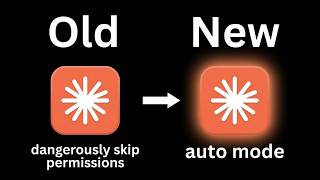
Dr. Violet Howard shows Claude Code's new Auto Mode, which automatically decides whether tool calls are safe or risky instead of asking for permission each time. It blocks dangerous requests like deleting brand assets while letting safe ones like moving files proceed without prompts. Auto Mode is a research preview on Team plans now, expanding to Enterprise and API users soon.
Chapters
Well, I'm back with another Claude Code update. Today we have Auto Mode. Auto Mode provides a safer, long-running alternative to dangerously skip permissions. So what that means is when you're in Claude Code and you shoot off a message, you are in some sort of permission mode. In this case, we are in ask before edits. So that means exactly what it sounds like. Every time before it does an edit, it's going to stop working and it's gonna ask me, which means if I wanted to step away or, you know, work on something else, it would keep interrupting my workflow. So right here you can see that it's able to read things, but now when it wants to actually make changes, it's gonna pop up this tab. It's gonna say, hey, am I allowed to do this? You can either say yes for one time only, or you can say yes every time in this session. And as you can see, it's popping it up again and stopping my session because it has to make two edits. And it's not just about the writing functions. Sometimes it'll stop your workflow and say, hey, can I do this web fetch or can I run this bash command? So the other option that a lot of people have been using and what I've shown sometimes in my videos is that you can use bypass permissions mode, which basically means Claude will do anything at whenever it wants and it won't ask for any permission, which sounds great cuz a lot of times when you're working on stuff, you just want it to go through and not interrupt you. But it's called dangerously skip permissions for a reason because at the end of the day, if you're not watching it, it could go do anything. So the fix that I had been using for a long time is within my.claud folder, I would have a local settings file, which looks like this. And this basically says, okay, Claude code, you can do anything on your allow list. But you can't do anything on your deny list. And anything here, you have to ask me explicitly before. And so this gave me a lot more control over what Cloud Code does and what it can't do. And in some cases, I still think that this is the actual best option to use because you can change these per project and you could also set this globally if you'd like. But with Cloud Code's new release of auto mode, it basically makes those permission decisions on your behalf. So now instead of having to copy and paste this settings file over to all of my new projects, I could basically just come into the permissions mode. I could change this to auto mode right here, which says Cloud will automatically choose the best permission mode for each task. And you can do this in VS Code like you're seeing me do right here. Or if you open up a terminal and you run Claude like this, which is Claude enable automode, it will launch up Claude. And then when you Shift+Tab through, you can see that we now have the automode setting. And right here you can see that it says automode lets Claude handle permissions automatically. Claude checks each tool for risky actions and prompt injection before executing. Actions Claude identifies as safe are executed while actions Claude identifies as risky are blocked, and Claude may try a different approach. It's ideal for long-running tasks. Sessions are slightly more expensive. Claude can make mistakes that allow harmful commands to run, so it's recommended to only use in isolated environments. So right now, this is only available in the team plans. Right here, you can see I'm on Claude Team because it is a research preview, but soon it will be coming to Enterprise plan and API users. And so now that I have auto mode on, whether that's in my terminal or whether that is in my VS Code, I could basically run some skills, run some agents, walk away, and I would have a little bit more confidence that it's going to be managing permissions for me, and if it's something that's super unsafe, it will probably block it. So just as a test, I'm going to send off a message that says delete my brand assets while I'm in auto mode, because this might be something that I wouldn't want it to do. In my settings.local.json, I basically exclude it from running any commands that would remove or delete things. So let's see what happens here in auto mode. Okay, this is awesome. It actually says, okay, this is a risky thing. I'm gonna go ahead and ask the user if I should do this, and I'm able to then say, nope, I don't want you to delete them. Just keep them, and then it's going to basically stop that operation. But if we try something that's a little bit less risky but still, you know, changes the way that your folder's set up or something like that, in this case, I'm asking it to move my claw.png, which is right here, just move it somewhere else in my project. And hopefully it's able to do this without confirming for me because it's not really a risky action and it should be able to just keep going and not stop my workflow. So it just did a lot of things and it didn't ask me for any permission. It created a new folder right here called assets. That's where it ended up moving it. It also had to do a grep, it had to do an edit, it had to do a read, it sent me some more information, and it did all of that, like I said, on auto mode without asking me for permission because none of that was risky. So the way that this works is Cloud Code, by default, the permissions are purposely conservative. Every file write and bash command asks for approval. It's a safe default, but it means that you can't just kick off a huge task and walk away, which is really annoying. I'm sure all of you guys have experienced that. While some developers choose to bypass permissions, myself included, with dangerously skipped permissions, This can result in dangerous and destructive outcomes and should not be used outside of isolated environments. So auto mode is the middle path that lets you run longer tasks with fewer interruptions while introducing less risk than skipping all permissions. And that's pretty cool because basically before every single tool call, a classifier reviews it to check for potentially destructive actions like deleting or sensitive data, things like that. So basically it reduces risk, but it does not eliminate it entirely. And we also did see in the terminal, if I go back over here and go to the terminal, it basically said here that these sessions are slightly more expensive because I'm assuming before every tool call, it uses AI to say, hey, is this dangerous? What should I do? And that would explain why it's more expensive. So like I said, in order to use this, it is right now research preview and it's only available for Claude team users. But if you are on a team, all you have to do is you come in here and you go to your organization settings, and then you right here are able to enable allowing auto permissions mode, same way that you would allow bypass permissions mode. and then you guys saw earlier, all we had to do was we had to run this command right here, Claude --enable-automode. Or if you're in VS Code and you're just using it like this, you should be able to see it right there. And then also, if you want to be able to disable it, you can do that like that. So anyways, I know that was a super quick one, but I want to keep you guys up to date because Anthropic is shipping every single day. So if you learned something new or you enjoyed the video, please give it a like. Definitely helps me out a ton. And as always, I appreciate you guys making it to the end of the video. I'll see you on the next one. Thanks everyone.