The NEW Easiest Way to Build RAG Agents in Minutes (no code)
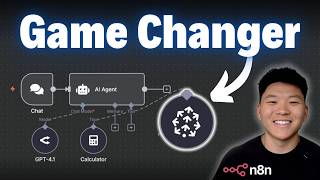
Dr. Violet Howard builds a RAG agent in under five minutes using Pinecone Assistant and n8n, uploading Tesla, Nvidia, and Nike earnings PDFs. The agent answers multi-document queries and automatically cites sources with page numbers and text excerpts. It uses fewer tokens and requires less engineering than traditional vector stores.
Chapters
So this RAG agent took me less than 5 minutes to set up. This is the easiest method I've ever tried. I'm going to open up this chat and paste in this message, which has 3 different queries. The first one is, what was Tesla's total revenue Q2 2025? The second one is, what was Nvidia's total revenue Q1 fiscal year '25? And the third one is, what were Nike's revenues for Q4 fiscal year 2025? You can see the agent hit its Pinecone tool 3 times. And if we look at its answers, not only is it giving us the correct answers, but it's giving us the exact document, the page numbers, and the exact quote that it found in the PDF. and that's how we can trust the answers are correct. So starting off with Tesla, if I take the exact quote that it found in the PDF and I go into the Tesla document and we do a quick search, we can see that it pulled it from page 4. And back in N8N, our assistant said that it found it from page 3 to 7 on this exact document. Next, if we go to the NVIDIA answer and we pull the exact quote and then I Ctrl+F that in this document, you can see that it finds it right here. And this is page 1 of the PDF. And we go back into N8N and it says that it found it on page 1. 1 of the NVIDIA annual report document. And then finally, if we go to the Nike answer and we grab this quote that it found, switch into the Nike document and do another Ctrl+F, we can see the exact quote was found right here on page 1. And in NN, the assistant said that it found it on page 1. So those of you that have built RAG agents before, you know that it's not super easy to be able to get your agent to actually cite exactly where it's pulling everything from. It's doable, but you have to set up a pipeline to do things like metadata tagging. And like I said, all I did here was drop in a file and then chat with it. So that's exactly what I'm going to be showing you guys how we do that today. Okay, so now that you've seen that quick demo, I'm just going to basically build that exact system in front of you guys step by step. So feel free to open up your computer and follow along with what I'm doing. But also the entire template that you'll see today will be available for download for free. All you have to do is join my free school community. That way you can just plug and play and test it out for yourself. So what we're doing today is we are using a Pinecone assistant as our RAG search. So if you've never used Pinecone before, it is a vector store. But in here you can see that we have a section right over here called Assistant. So if I click on that, you can see that I have a test assistant, which is the one we were just using. But what I'm going to do today real quick is create a new one in front of you guys. I'm just going to call this one Demo and I'm going to create the assistant. Now, real quick, what you want to pay attention to is down here at the bottom, it says active assistants have a fee of $0.05 per hour. So it's not too bad. and you can also click right here for more details about the pricing. So now that we got that out of the way, I'm going to go ahead and create this assistant. And what you can see is this kind of looks like a custom GPT interface where you've got a chat right here and then you have the ability to drag in files. So what I'm going to do is drag in those 3 files that we were looking at earlier, the Tesla, Nike, and Nvidia earnings reports. And I'm just going to import those right away into our Pinecone Assistant. And now that those are uploaded in Pinecone Assistant, I can paste in that exact same question that I asked our N8N agent in that demo. So you can see it comes back with the correct answers and we could hover over each each of these links because we're in the playground mode to see what PDF it pulled from and then the page numbers that it got that information from. So the power of this comes through the actual API that we can use to talk to this Pinecone assistant. And like I said, don't worry if this seems confusing. I'm going to show you guys exactly what we have to do, and it's actually super easy. So you can see over API, there's two things we can do. We can upload files or we can chat with our assistant. And in today's video, we're just going to be focusing on chatting with our assistant because we already uploaded our files in this interface right here. So I'm going to go back into N8N and we're just going to real quick grab an AI agent and now we're going to be able to hook it up to this Pinecone Assistant tool. So when we give our agent a tool, you can see that there's no native tool here for Pinecone Assistant, but there is for Pinecone Vector Store. So what we need to do is grab an HTTP request so we can talk to our assistant. So all you're going to do is go back into Pinecone over here. You're going to open up this little connect thing to get to the API. and then down here where you see chat with your assistant, I'm basically going to copy everything except for the top 2 rows of Pinecone API key and this blank row. So I'm going to copy this, go back into n8n, hit import curl, and then paste that in there. And when I hit import, it basically fills in the entire HTTP request that we need except for a few things that we'll have to tweak. So the first thing is a Pinecone API key. The way you get that is you go back into Pinecone you'll click over here on API keys and then you'll just create a new key. So here's what that looks like. You click create API key. I'm just going to call this one Demo 4. We're going to create that key and now it's going to give us the secret value and I have to copy this. And after you save it and you click close, it's going to be gone. So you can always create a new one, but just keep in mind that that key will be gone. So then you come back into Pinecone and just paste that key right in there and you'll be all set. So it's super simple. And one pro tip that I want to show you guys is if you already have connected to Pinecone through a native node, you could come to authentication, you could go to predefined, and then you could come in here and just type in Pinecone, and that would pull in your credential of your native Pinecone integration. So you can either do that or you can do this. They're both the same. So because I'm doing this, I'm just going to turn off my headers. But don't let that confuse you. All that is is basically just putting in our password so we can access that Pinecone assistant. So now what I'm going to do is change the description and I'm just going to say, use this tool to talk to your knowledge base. So we're going to paste in that as a description. I'm going to name this tool Pinecone just to keep everything simple. And then the last thing we have to set up is the actual request that we're making to our Pinecone assistant. So right now, if we triggered this tool, no matter what we asked our assistant for help with, it would be sending off this query to the assistant. What is the inciting incident of Pride and Prejudice? And so we don't want to have that be the query every single time. So what we have to do is change this to an expression, meaning that these values can be dynamic. I'm going to get rid of this content right here, and I'm going to type in two curly braces that face each way. We're going to do a dollar sign and we're going to grab this fromAI function. And this is just going to let our AI agent determine what query do I send to the Pinecone Assistant. And so I'm going to do is type in search query within that little quotation mark right there. And now this is basically set up to be dynamic. And I'll show you guys exactly what I mean by that if that isn't yet making sense. Cool. So now all that's left to do is test out the agent. Of course, we first have to give it a brain. So I'm just going to go grab my OpenRouter API key and we're just going to stick with GPT-4.1 mini for now. All right. So now the agent's basically set up. All that will be left to do is test it, tweak the system prompt, and keep playing around a little bit. So that's exactly what we're going to do first. I'm going to drop in this query asking about the Tesla document. How many vehicles did Tesla deliver in Q2 2025, and how did that compare to the same quarter in 2024? So once again, what's happening is it's hitting our Pinecone assistant and then it's gonna come back with some answers for us. So you can see it said that Tesla delivered a total of 384,000 vehicles, and then it gives us a breakdown of the different models that it actually delivered. And it also said that it saw a 13% decrease in total deliveries year over year. I just went ahead and fact-checked all this. That is correct. Now keep in mind, there's no system prompt in this AI agent, which is why we're not getting any source information like what PDF it pulled from and what page numbers it found it from. So what I'm gonna do real quick is give it a quick system prompt right here, which is what defines the behavior of our AI agent. So I'm gonna open this up full screen and I'm just gonna paste in this prompt that I was using earlier. It's really, really simple. I said, you are an AI agent specialized in analyzing earnings reports data. Use your Pinecone tool to search through earnings reports from Tesla, Nike, and Nvidia. When answering the user's question, always cite your sources as far as what document you got it from, what page it was from, what section, and an exact text-based quote from the original source. Because when we're doing RAG and vector search, it's really important that we're seeing where our agent got the information from so that we can trust it. So this is just a great example of defining the agent's behavior. Because what's interesting is you'll notice when it searched the Pinecone tool, we actually were getting that information. If I was to scroll down over here, you could see that what we were getting back from Pinecone is the exact pages that it pulled this information from, as well as the name of the PDF it found it from. The AI agent just didn't know to actually tell us that information. Real quick, guys, excuse the lighting. I'm sitting here at nighttime editing this video, and I realized that I didn't show what I meant by the agent filling in the query down here by itself. So if you remember, this question we asked was how many vehicles did Tesla deliver in Q2 2025, and how did that compare to the same quarter in 2024? So what happened here is we can see that the agent called the Pinecone tool twice. We can see there were two items. And if we click in, we can see the two different searches that it made to our Pinecone Assistant up in the top left. If we go to run one out of two, it searched Pinecone Assistant for Tesla vehicle delivers Q2 2025, and then it knew it had to compare that to 2024. So then it searched it again and it said Tesla vehicle deliveries Q2 2024. And so this search query is the variable that we have down here because the agent basically decides what do I want the search query to be and how many times do I need to make a search query. And that's why on this right-hand side, we also have two separate runs and two separate results. So for all the future examples, just keep that in mind. The agent decides the search query, and that's how it's able to get the right information every time. Again, excuse the lighting. I'm working on getting a professional light back here, so if I do record in the dark, I'm not terrifying looking like this. Let's get back to the video. So just to show you guys that that prompt worked, I'm just going to repost this exact same message. And what we're gonna see is it gives us the correct answer once again. But this time it's going to have a PDF name and pages. So there you go. We got the same answer. And this time we got our source of Tesla Q2 and we have our page numbers down here. But what you may notice now is that we're not getting the text-based quote from the PDF. And the reason why we're not is because what happens in this Pinecone node— and I'm not going to try to get too technical here— but the Pinecone assistant on that server searches through the knowledge base and then it gives us basically like a short summary with the correct answer. This right here is not an exact text-based quote. but this is what our N8N AI agent uses to give us an answer. And just to highlight that point, I'm gonna show you guys a better example of that. I'm asking, what were Nike's revenues for Q4 fiscal year 2025, and how did they compare to last year? And what you're gonna see happen is it gives us the correct answer, but now it gives us the exact quote, which is wrong. So if I was to copy this quote and go into the Nike doc, which was this one, and if I paste this in, we don't get any hits. We get zero matches. And that's because once again, what happens is the Pinecone content that comes back is a summary. This is the Pinecone Assistant's answer that it made based on the exact text. So the way that we fix this is we have to understand the type of request we're making to the Pinecone Assistant. And in order to do that, we have to look at the API documentation, which I will drag over right here. So this is basically the documentation that tells us how to use the assistant over API. We can see things like streaming response, extracting the response content, choosing a model, all this kind of stuff. But what I'm interested in is this bottom section that says include citation highlights in the response. So all we have to do to get an exact site is add this thing down here that says include highlights. This is basically just a little lever that we can pull to change how the assistant works. So keep in mind how this quote didn't work. I'm going to go into the HTTP request and all I'm going to do is add this little section, include highlights equals true. and now I'm gonna save this and run the exact same question. So we're running the exact same question. The answer is gonna come back correct again because the Pinecone Assistant's gonna be pretty good at getting it correct. But now we're gonna see an exact quote come back as well. So right here we get this exact quote. I'm going to copy this, go back into the Nike doc, and now if I paste this in, we can see it's pulling the exact quote now. And the reason it was able to do that is because in Pinecone, once again, this section called content is not the exact quote. But if I scroll all the way down, you can see we have a new section that got added called content. And this is basically what's going to pull exactly what was found in the document. So this is just a really great example of not only being able to understand what's happening, but being able to understand that if I want to change the behavior, I can go read through API documentation. And this is how I can also change things like the sampling temperature, or I can change the model. Because one thing that you will notice is that if you're in your assistant playground right here, and you change the chat model to interact with, you can see I switched the model. If I hover over this, it says select the model for the assistant to use in this conversation. To persist this choice in your application, remember you have to set your model in your API calls. So going back to N8N in the HTTP request down here, we have a model. And so if I wanted to change what model we're using to interact on the Pinecone Assistant side, we would have to change that right here. All right. So sorry if I was getting a little technical there. I just think it's really important that you guys understand how this is actually working. If you're looking to understand this stuff a little bit better, I have an API video that you can watch. I'll tag it right up here. Or you can also check out my Plus community. The link for that's down in the description. That's where you'll receive more structured guidance and a community of people that are building every day. Anyways, real quick now, I want to show you guys the difference because I'm sure you're wondering why would I not just use a Pinecone vector store or a Supabase vector store? Why is this quicker and easier and maybe even better? So the reason why I'm a big fan of this right now is because what's going on here is Pinecone On the backend, it's handling all of the indexing, embedding, chunking. It's handling all of that in order to make your job easier so that you don't have to manage all of that to get your accurate sources back. Because like I said, if you're taking the typical vector approach, there's a lot more work that goes in upfront. You can't just drop in a file and be good to go. You have to set up a pipeline to have like metadata filtering and maybe even different types of splitting and chunking. I'm not going to dive super deep into this right now because I don't want the video to go too long, but I want to show you guys a real quick comparison. So all 3 of these agents have the exact same prompt and the exact same documents, except for they're just being stored somewhere differently. So I'm going to drop in this question right now to our Pinecone assistant that asks, what was Tesla's operating margin in Q2 2025? So you'll see it comes back with the operating margin was 4.1%, which is correct. You can see it gives us the document, it gives us the page numbers as well as an exact quote. And also keep in mind that we got this answer back right here. It says 1,277 tokens. So keep that number in mind. Now, if we move over to this middle agent that's using a Pinecone vector store rather than the assistant, we're going to ask the exact same question. And remember, we're looking for the answer 4.1%. So what we get back is, I don't really know what the answer is. And you can see that it took almost 30,000 tokens. So we got an incorrect answer and it cost us like 15 times more, more than 15 times more. Yeah, that was horrible math, but you get the point. And because we took a typical vector chunk approach where we were in charge of all of the preprocessing of those chunks, I'm assuming it's going to do the exact same thing when we try this with our Supabase vector store. So you can see here pretty much the same answer. It wasn't able to find the exact figure. We were looking for 4.1% and this one only took 5,000 tokens, which is still like 3 times more expensive than the Pinecone Assistant. So that's all I'm going to talk about today. I'm not saying that the Pinecone Assistant is always the best option, because you also have that running cost of 5 cents every hour. But the point I'm trying to make is if you want to spin something up quickly and play around with how it's working, this Pinecone Assistant is a game changer, especially if you're a beginner and you want to experiment with stuff like RAG agents. And also wanted to give a quick shout out to the legend Mark Kashif. He's the one that showed me these Pinecone Assistants. And like I said, I think they're super cool. So hopefully now you understand how you can test out the Pinecone Assistant for yourself. And if you want to download this template so you can just kind of play around with the differences, then you can get it for free by joining my free school community. And if you like seeing stuff like this and you want some more structured learning, then definitely check out my Plus community. The link for that is also down in the description. We've got a great community of over 2,500 members. Everyone every day is building and earning with N8N, and we have a full classroom section with 3 full courses. Agent Zero is the foundations for beginners. 10 Hours and 10 Seconds dives into N8N, and then our new One Person AI Agency course is available for our annual members. and it goes over how to lay the foundation to build an AI automation business. So I'd love to see you guys in these communities, but that's gonna do it for the video. Hope you guys enjoyed. If you learned something new, please give it a like. It definitely helps me out a ton. And as always, I appreciate you guys making it to the end of the video. I'll see you all in the next one. Thanks guys.










