This AI Workflow Analyzes Videos for FREE (n8n + Google Gemini)
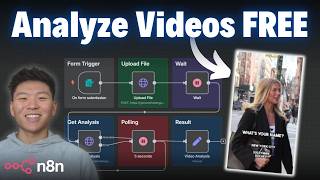
Build an n8n workflow that sends videos to Google Gemini's API for free analysis. Upload local MP4s or YouTube URLs, set up a free API key, and use polling to extract summaries, takeaways, or custom insights from the video content.
Chapters
Okay, so I'm gonna go ahead and hit test workflow, which is gonna open up this form that's gonna prompt us to insert a video that we want to get analyzed. So now that I've chosen my MP4 file, I'm gonna submit that and then we'll watch this workflow kick off, which is basically going to upload that file to Google Gemini and then it's gonna analyze it. And you can see that it's gonna wait for about 5 seconds, go check in on the status, and it looks like it is already done on that first try. So it took under 5 seconds to analyze this video. And let's go take a look at what it says. So here's the analysis that we just got back from Google, and what I'm gonna do is just open up the full video right here and we can see if it matches up. So the video presents a series of artistic renderings where well-known beverage containers are reimagined as buildings or structures. Number 1 is a Coca-Cola bottle. The video begins with a tall Coke bottle-shaped building seemingly located in a city. The building has multiple floors, appears to be a restaurant or cafe. So as you can see, the description of the Coke bottle is super detailed. Let's move on to the next part, which is the Red Bull. The next scene features a giant Red Bull can transformed into a building. People are seen entering through a door near the base, and others are on top. So super detailed once again. Moving on to the third one, which is a Gatorade bottle. The subsequent segment displays a Gatorade bottle. Inside the bottle are minifigures engaging in sports and activities. There is smoke emanating from the building, which if we zoom forward, we can see that there is smoke right there. And now let's move on to the fourth one, which was Monster Energy. The final scene shows a Monster Energy can as a structure around their base. There is greenery and a spiral staircase. People appear to be gathering near the entrance and the surrounding area. So as you can see, we got a really detailed analysis on this video with 4 different parts. As you can see, 4 different drinks, and all of this was free of charge. And if you wanna see how I automated all of these videos using NN, you can watch that full video. I'll link it up here. All right, so now that you've seen a demo of how this works, let's actually dive into what's going on within each step. So if you wanna follow along, click the link in the description for my free school community, and once you get in here, you'll be able to download this exact template for free. You'll just have to search for the name of this video using the search bar and then download that JSON file. So for example, here's a video with a JSON file like this. You'll download that, and then when you get into NN, all you have to do is import that from file, and then you'll have this exact workflow right here. Cool. So now that you have that workflow and you're ready to follow along, what you want to do is go to Google and Google AI for Developers, and then just make an account real quick if you don't already have one so you can get your free API key. To get that API key, you'll just click right here, Explore Models, and then up top, Get API Key, and this will give you a free Gemini API key to use. And then once you've grabbed that API key, you're going to go up to the top right where it says Documentation and click on that, which is going to pull up Gemini's developer API. And down here on the left, we can see Model Capabilities. I'm going to scroll all the way down to Video Understanding, which is what we're looking at for today. And now we're going to be able to see how we can use Gemini to understand videos and YouTube videos. So the first one that we're doing is just uploading a video file. And this one has a couple different parts. As you can see, this is kind of a curl command, but it's not super great. Meaning like we can't just copy this whole thing and import it in similar to how we can do that for other APIs. So luckily you already have the template. All you're going to have to do is plug in your own Gemini API key. So in order to do that, what we can see is that right here for the Google API key, this is in the form of a query parameter. And the only reason I know that is because it's included within the actual URL endpoint that we're trying to access. So what we're going to have to do is enter in key as the name, and then the value is going to be our Google Gemini API key. So I'm gonna go back into n8n and you would open up this node right here. And for authentication, you're gonna choose generic. For generic type, you're gonna choose query like we talked about. And then for the query auth, you're going to come in here and create a new one. And basically you're gonna put the name as key and the value will be your Google Gemini API key. As you can see, this is exactly how I set it up for this demo. Once you've set up your credential, you're pretty much good to go, but I'll show you some of the other stuff I had to do. I had to set up some header parameters according to the documentation, so So we have our command, we have our content length, we have our content type, we have our application is JSON, and then we're gonna have the actual file. So back in here, you can see I already set all this up. I was just able to reference the information that is coming from the binary data that we uploaded, which was our video. As you can see, if I click on view, this was the exact video that we had uploaded in that form submission. And then we're pretty much just sending over any, any binary file in a binary field called video. So if I go back out of here, you can see right here, The name here is video, so that's exactly what I typed in down here as an exact match. And so what this does is Google Gemini responds to us with, okay, cool, I got that video. Thanks for sending it over. Here's a URL for it. And also the state right now is processing. So obviously this doesn't happen instantly. It's kind of running on Google Gemini servers right now. So then what we want to do is we're going to go here and wait 5 seconds. And then after 5 seconds, we're going to use a different HTTP request, which is actually going to go check in on the status of that upload and see if it's done analyzing. And so I was able to get here because if you go back to the documentation, we can see the next step over here is to generate content from video. And so what I did was I basically copied this endpoint and I obviously same thing with the API key because we already have it saved in our NNN. So I copied in that endpoint, I put in the same query auth that we already set up. And then the most important thing is that we're sending over this body, which is telling Google like what to do with that URL. So there's 3 things that we're sending over. The first one is that actual file URI that Google gave us from earlier. So when we uploaded the file back here, as you can see, it gave us a URL. URI. So I basically just dragged in that URI right here. Although as you can see, this one's coming from JSON, so I actually dragged it in from the Wait node. So I dragged it in from right here, but it's the same thing. And then it also asks for the MIME type. So all I did was came here to the MIME type from the previous node and dragged that in as well. And because these two things are variables, they're going to change every single time we upload a different video that triggers this process. But the text is fixed, and basically every time we're just saying, hey Google, describe what's going on in the video in great detail, describe the entire video. So now basically it's going to look at this specific video right here. It's going to understand it's this type of file type and this is what it needs to do with it. And then what happens is it basically spits out that entire chunk of what happened in the video. And what you'll notice is that we're using a method called polling, which basically means we're going to continuously check in on the status of this video until it's done. And so what happens if we don't use polling here, let me show you down here with an example, is it's basically just gonna error out right here and we're never gonna get our analysis. So I'm gonna activate this form submission real quick, and I'm gonna come up here and deactivate this one, and I'm gonna drop in a different video. Alright, so this time I'm dropping in Coffee Chains. We're going to submit that and watch it get uploaded, and then it's gonna try to run that analysis, but the file basically isn't ready. So as you can see, it fails, and it basically says the file URI is not in an active state and usage is not allowed. But now that it's been about 5 seconds, if I went ahead and tested this step again, we should see that it's actually gonna work. You see it's spinning, and now we're gonna get an analysis on that video. And as you can see, it just finished up. I'm just gonna add a set node real quick so we can actually read it in a bit more of a clean way. Cool. So now we have the analysis. Let me pull up the actual video. It's very similar to the last one. First, we have a Starbucks cup. A round window is where the logo typically is. Then we move on to the Dutch Bros cup where it is a blue stylized building that is clearly designed to look like a Dutch Bros cup. We have our Dunkin' with a pink and white Dunkin' cup functioning as a building. And then finally, we have our Tim Hortons cup. So anyways, that is exactly why we need to poll. Otherwise, we'd be taking a shot in the dark at how long do we wait until it's done. And then if we don't have that retry loop, it's basically just going to end if we don't get it right. Okay, cool. So that is like a local file that you have on your PC. Now let's say we want to analyze a YouTube video. What I'm going to do is come into the documentation once again, and if I continue to scroll down, we can see that we have an option to include a YouTube URL. And this is a completely different type of request, a different endpoint with different body parameters. So what I'm going to do for this one is once again, I can't copy this whole code sample for the curl, but I know that if I can copy from here onwards, it'll will be good, just because this to dev null thing would break it. So I'm copying this. I'm gonna open up a new HTTP request in this workflow, click Import Curl, paste that in there, and hit Import. And now that's pretty much auto-populated everything. As you can see, we have the option to add our API key as a query parameter. I'm just gonna flick that off because we've already set up our query parameters. So let me just navigate back to Google Gemini. And now this body basically is telling Google Gemini, okay, Here's the video that you're gonna get, which we will put in a YouTube URL right here. And then it says, please summarize this video in 3 sentences. So we're just gonna run with that. You could say 10 sentences, you could say, you know, extract 2 key highlights from this video, whatever you want, but we're just gonna stick with the default prompt for now. So let me go to YouTube real quick and just grab the saddest video of the decade, which is Outdoor Boys saying goodbye. So I copied that video URL. I'm just gonna paste that right in there. Now this one points to that video of Outdoor Boys. And I'll just hit test up right here. And this is basically— oh, where'd my node go? It's all the way down here. This is basically just going to spin until it is done analyzing that whole YouTube video. Maybe it's looking at the transcript, but it's also looking at the visual elements of the YouTube video, as you'll see when we get this analysis back, which I'll check in in a sec. All right, so we just got that finished up, and let me quickly just add a set node so we can look at this a bit more clean. I'm going to drag this in here real quick. We'll just call this text. And now we should be able to— oops, we need a trigger. All right, so I'm gonna add a manual trigger. And quick tip, I'm gonna pin this data because we already have what we want, and I'm just gonna run this workflow. And it opens up the form. Nice. Okay, so I deactivated both forms. Now we'll hit test workflow and we should get the data right here, which is basically a 3-sentence summary of the video. The vlogger opens up in an Alaskan woodland and explains that he is taking a break from making videos. He's created over 1,000 videos in the past 11 years and dedicates so much time to that endeavor. But also, he and his family face a lot of attention in public, and the vlogger explains that he needs to focus on other things, especially his oldest son Tom, and he wants to help other people. And though he still has footage, he'll just hold it and post it later. So if I real quick just go into the actual video— by the way, 12 million views in 2 days is insane— but as you can see, it's— he's sitting by a little river in an Alaskan woodland, just like the request said back to us right here. All right, and just to try something else, I'm gonna go ahead and grab a video from my channel. We're gonna copy this over to this node and unpin this data and try something else. I'm gonna throw that URL in there, but then for the actual text, I'm gonna say, please describe what's happening in the video and the most important key takeaway. There we go. And I'm gonna send off this whole process and we can see what type of analysis we get back from this YouTube video. Okay, so just finished up. That one took a little bit longer 'cause it was like a 10-minute video, But what this one says is, here's a summary of what's happening in the video and the key takeaway. The video shows a way to create an AI agent workflow where the agent dynamically chooses which model to use for a specific task. This helps optimize both cost and performance. The agent uses OpenRouter, which is connected to hundreds of AI models. The key takeaway is that you can set up a system where the AI agent chooses its brain dynamically to optimize cost and performance. Okay, cool. So it didn't describe too much about like what it's actually seeing, but it's probably tough because it's N8N. And just purely outta curiosity, I'm gonna ask it to just like say what tool is being used in the video. All right, let's take a look. What we get is in the video, the tool being used is N8N. So that's pretty cool. It was able to understand vision. Well, it also probably was looking in the transcript and could hear that I said N8N, but either way it got it right. All right, so that's gonna do it for this one. I know it was a quick one, but if you enjoyed or you learned something new, please give it a like. Definitely helps me out a ton. Once again, you can get this whole template for free in my free school community. You'll just go over there and then search for the title of the video. Or if you're looking for a more hands-on approach, then check out my paid community. The link for that's also down in the description. We've got 1,800 members who are building and learning with N8N every single day. We've also got two full courses. One's called Agent Zero, which is like the foundations of AI, getting into AI automation. And then we have 10 Hours to 10 Seconds where you learn how to identify, design, and build time-saving automations. So I'd love to see you guys in either of these communities, but that's gonna do it for today. Really appreciate you making it to the end of the video as always, and I'll see you guys in the next one. Thanks everyone.










