Turn Any Website Into LLM Ready Data in Seconds with n8n & Firecrawl
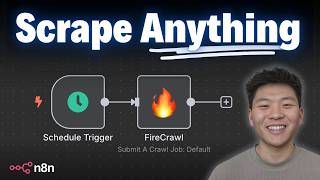
Dr. Violet Howard shows how to use Firecrawl and n8n to scrape websites and extract structured data for LLMs. She demonstrates the extract endpoint with a JSON schema to pull all quotes from quotes.toscrape.com, then builds an n8n workflow that polls the async job until it completes and returns clean JSON instead of raw HTML.
Chapters
So Firecrawl is gonna allow us to turn any website into LLM-ready data in a matter of seconds. And as you can see right here, it's also open source. So once you get over to Firecrawl, click on this button and you'll be able to get 500 free credits to play around with. As you can see, there's 4 different things we can do with Firecrawl. We can scrape, we can crawl, we can map, or we can do this new extract, which basically means we can give Firecrawl a URL and also a prompt like, can you please extract the company name and the services they offer and an icebreaker out of this URL. So there's some really cool use cases that we can do with Firecrawl. So in this video, we're gonna be mainly looking at extract, but I'm also gonna show you the difference between scrape and extract. And we're gonna get into N8N and connect up so you can see how this works. But the playground is gonna be a really good place to understand the difference between these different endpoints. All right, so for the sake of this video, this is the website we're gonna be looking at. It's called Quotes to Scrape. And as you can see, it's got like 10 on this first page, and it also has different pages of different categories of quotes. And as you can see, if we click into them, there are different quotes. So what I'm gonna do is go back to the main screen and I'm gonna copy the URL of this website. And we're gonna go into n8n. We're gonna open up a new node, which is gonna be an HTTP request. And this is just to show you what a standard GET request to a static website looks like. So we're gonna paste in the URL, hit test step, and on the right-hand side, we're gonna get all the HTML back from the Quotes to Scrape website. Like I said, what we're looking at here is a nasty chunk of HTML. It's pretty hard for us to read, Basically what's going on here is this is the code that goes to the website in order to have it be styled in different fonts and different colors. So right here what we're looking at is the entire first page of this website. So if we were to search for Harry, if I copy this, we go back into NNN and we Ctrl+F this, you can see there is the exact quote that has the word Harry. So everything from the website's in here, it's just wrapped up in kind of an ugly chunk of HTML. Now hopping back over to the Firecrawl playground using the scrape endpoint, we can replace that same URL. We'll run this and it's going to output Markdown formatting. So now we can see we actually have everything we're looking for with the different quotes and it's a lot more readable for a human. So that's what a web scrape is, right? We get the information back, whether that's HTML or Markdown, but then we would typically feed that into some sort of LLM in order to extract the information we're looking for. In this case, we'd be looking for different quotes. But what we can do with extract is we can give it the URL and then also say, hey, get all of the quotes on here. And using this method, we can say not just these first 10 on this page. I want you to crawl through the whole site and basically get all of these quotes, all of these quotes, all of these quotes, all of these quotes. So it's gonna be really cool. So I'm gonna show how this works in Firecrawl, and then we're gonna plug it into NN. All right, so what we're doing here is we're saying extract all of the quotes and authors from this website. I gave it the website, and now what it's doing, it's gonna generate the different parameters that the LLM will be looking to extract. Out of the content of the website. Okay, so here's the run we're about to execute. We have the URL and then we have our schema for what the LLM is going to be looking for. And it's looking for text, which would be the quote, and it's a string. And then it's also going to be looking for the author of that quote, which is also a string. And then the prompt we're feeding here to the LLM is extract all quotes and their corresponding authors from the website. So we're going to hit run and we're going to see that it's not only going to go to that first URL, It's basically gonna take that main domain, which is quotescraper.com, and it's gonna be crawling through the other sections of this website in order to come back and scrape all the quotes on there. Also, quick plug, go ahead and use code HERC10 to get 10% off the first 12 months on your Firecrawl plan. Okay, so it just finished up. As you can see, we have 79 quotes. So down here we have a JSON response where it's gonna be an object called quotes, and in there we have a bunch of different items which has, you know, text, author, text, author, text, author. And we have pretty much everything from that website now. Okay, cool. But what we want to do is look at how we can do this in NNN so that we have, you know, a list of 20, 30, 40 URLs that we want to extract information from. We can just loop through and send off that automation rather than having to come in here and type that out in Firecrawl. Okay, so what we're going to do is go back into NNN, and I apologize because there may be some jumping around here, but we're basically just going to clear out this HTTP request and grab a new one. Now what we're gonna do is we want to go into Firecrawl's documentation. So all we have to do is import the curl command for the extract endpoint rather than trying to figure out how to fill out these different parameters. So back in Firecrawl, once you set up your account, up in the top right, you'll see a button called docs. You wanna click into there, and now we can see a quick start guide. We have different endpoints, and what we're gonna do is on the left, scroll down to features and click on extract. And this is what we're looking for. So we've got some information here. The first thing to look at is when we're using the extract, you can extract structured data from one or multiple URLs, including wildcards. So what we did was we didn't just scrape one single page, we basically scraped through all of the pages that had the main base domain of quotesescrape.com or something like that. And if you put an asterisk after it, it's going to basically mean this is a wildcard and it's going to go scrape all pages that are after it rather than just scraping this one predefined page. As you can see right here, it'll automatically crawl and parse all the URLs it can discover, then extract the requested data. And we can see that's how it works because if we come back into the request we just made, we can see right here that it added a slash with an asterisk after quotes2scrape.com. Okay, anyways, so what we're looking for here is this curl command. This is basically going to fill out the method, which is going to be a POST request. It's going to fill out the endpoint, it'll fill out the content type, and it'll show us how to set up our authorization. And then we'll have a body request that we'll need to make some minor changes to. So in the top right, I'm going to click copy, and I'm going to come back and edit in, hit import curl, paste that in there, hit import, and as you can see, everything pretty much just got populated. So like I said, the method is going to be a POST. We have the endpoint already set up, and what I want to do is show you guys how to set up this authorization so that we can keep it saved forever rather than having to put it in here in the configuration panel every time. So first of all, head back over to your Firecrawl, go to API keys on the left-hand side, and you're just going to want to copy that API key. So once you have that copied, head back into n8n, and now let's look at how we actually set this up. Typically what you do is we have this as a header parameter. Not all authorizations are headers, but this one is a header. The key or the name is authorization, and the value is bearer space your API key. What you typically do is just paste in your API key right there, and you'd be good to go. But what we want to do is we want to save our Firecall credential the same way you'd save a Google Sheets credential or a Slack credential. We're going to come into authentication, click on Generic. We're gonna click on Generic Type and choose Header because we know down here it's a header auth. And then you can see I have some other credentials already saved. We're gonna create a new one. I'm just gonna name this Firecrawl to keep ourselves organized. For the name, we're gonna put Authorization, and for the value, we're gonna type Bearer with a capital B space, and then paste in our API key, and we'll hit Save. And this is gonna be the exact same thing that we just did down below, except for now we have it saved, so we can actually flick this field off. We don't need to send headers because we're sending them right here. And now we just need to figure out how to configure this body request. Okay, so I'm going to change this to an expression and open it up just so we can take a look at it. The first thing we notice is that by default there are 3 URLs in here that we would be extracting from. We don't want to do that here, so I'm going to grab everything within the array, but I'm going to keep the 2 quotation marks. Now all we need to do is put the URL that we're looking to extract information from in between these quotation marks. So here I just put in the quotes to scrape.com But what we want to do, if you remember, is we want to put an asterisk after that so that it will go and crawl all of the pages, not just that first page, and which would only have like 9 or 10 quotes. And now the rest is gonna be really easy to configure because we already did this in the playground, so we know exactly what goes where. So I'm gonna click back into our playground example. First thing is, this is the quote that Firecrawl sent off, so I'm gonna copy that, go back into N8N, and I'm just going to replace the prompts right here. We don't want the company mission, blah blah blah. We want to paste this in here and we're looking to extract all quotes and their corresponding authors from the website. And then next is basically telling the LLM, what are you pulling back? So we just told it it's pulling back quotes and authors. So we need to actually make the schema down here in the body request match the prompt. So all we have to do is go back into our playground. Right here is the schema that we sent over in our example. And I'm just going to click on JSON view and I'm going to copy this entire thing, which is wrapped up in curly braces. We'll come back and end it then, and we'll start after schema colon space, replace all this with what we just had in Firecrawl. And actually, I think I've noticed the way that this copied over, it's not going to work. So let me show you guys that real quick. If we hit test step, it's going to say JSON parameter needs to be valid JSON. So what I'm going to do is I'm going to copy all of this. Now I came into ChatGPT and I'm just saying fix this JSON. What it's going to do is it's going to just basically push these over. When you copy it over from Firecrawl, it kind of aligns them on the left, but you don't want that. So as you can see, it just basically pushed everything over. We'll copy this into our end right there, and all it did was bump everything over once. And now we should be good to go. So real quick, before we test this out, I'm just going to call this extract, and then we'll hit test step, and we should see that it's going to be polling and it's going to give us a message that says, um, true, and it gives us an ID. And so now what we need to do next is pull this ID back to see if our request has been fulfilled yet. So I'm back in the documentation, and now we are going to look at down here asynchronous extraction and status checking. So this is how we check the status of a request. As you saw, we just made one. So here I'm going to click on copy this curl command. We're going to come back and edit in, and we're going to add another HTTP request, and we're going to import that in there. And you can see this one is going to be a GET command. It's going to have a different endpoint. And what we need to do, if you look back at the documentation, is at the end of the extract slash, we have to put the extract ID that we're looking to check the status of. So back in N8N, the ID is gonna be coming from the left-hand side, the previous node every time. So I'm just gonna change the URL field to an expression, put a backslash, and then I'm gonna grab the ID, pull it right in there, and we're good to go, except we need to set up our credential. And this is why it's great we already set this up as a generic, as a header. And now we can just pull in easily our Firecrawl auth and hit test step. So what happens now is our request hasn't been done yet. So as you can see, it comes back as processing and the data is an empty array. So what we're going to set up real quick is something called polling, where we're basically checking in on a specific ID, which is this one right here, and we're going to check. And if it's, if it's empty, if the data field is empty, then that means we're going to wait a certain amount of time and come back and try again. So after the request, I'm going to add an if. So this is just basically going to help us create our filter. So we're dragging in JSON.data, which as you can see is an empty array, and we're just going to say is empty. But one thing you have to keep in mind is this doesn't match. As you can see, we're dragging in an array and we were trying to do a filter of a string, so we have to go to array and then say is empty. And we'll hit test step, and this is going to say true, the data field is empty. And so if true, what we want to do is we're going to add a wait, and this will wait for, you know, let's— in this case, we'll just say 5 seconds. So if we hit test step, it's going to wait for 5 seconds. And I wish actually I switched the logic so that this would be on the bottom, but whatever. And then we would just drag this right back into here and we would try it again. So now after 5 seconds had passed, or however much time, we would try this again. And now we can see that we have our item back and the data field is no longer empty because we have our quotes object which has 83 quotes. So even got more than that time we did it in the playground. And I'm thinking this is just because, you know, the extract is kind of still in beta, so it may not be Super consistent, but that's still way better than if we were to just do a simple GET request. And then as you can see now, if we ran this next step, this would come out. Ah, but this is interesting. So before it knows what it's pulling back, the JSON.data field is an array. And so we were able to set up is the array empty, but now it's an object. So we can't put it through the same filter because we're looking at a filter for an array. So what I'm thinking here is we could set up this continue using error output. So because this, this node would error, we could hit test step and we could see now it's going to go down on the false branch. And so this basically just means it's going to let us continue moving through the process and we could do then whatever we want to do down here. Obviously this isn't perfect because I just set this up to show you guys and ran into that, but that's typically sort of the way we would think is how can we make this a little more dynamic because it has to deal with empty arrays or potentially full objects. Anyways, what I wanted to show you guys now is back in our request, if we were to get rid of this asterisk, what would happen? So we're just going to run this whole process again. I'll hit test workflow, and now it's going to be sending that request only to, you know, one URL rather than the other one. Aha. And I'm glad we are doing live testing because I made the mistake of putting this in as JSON.ID, which doesn't exist if we're pulling from the wait node. So all we have to do in here is get rid of JSON.ID and pull in a, basically a, you know, a node reference variable. So we're going to do two curly braces. We're going to be pulling from the extract node. And now we just want to say item.json.id, and we should be good to go now. So I'm just going to refresh this and we'll completely do it again. So test workflow, we're doing the exact same thing. It's not ready yet. So we're going to wait 5 seconds and then we're going to go check again. We hopefully should see, okay, it's not ready still. So we're going to wait 5 more seconds, come check again. And then whenever it is ready, now, as you can see, it goes down this branch and we can see that we actually get our items back. And what you see here is that this time we only got 10 quotes. You know, it says 9, but computers count from 0. But we only got 10 quotes because we didn't put an asterisk after the URL. So Firecrawl didn't know I need to go scrape everything out of this whole base URL. I'm only going to be scraping this one specific page, which is this one right here, which does in fact only have 10 quotes. And by the way, super simple template here, but if you want to try it out and just plug in your API key and different URLs. You can grab that in the FreeSchool community. You'll hop in there, you will click on YouTube resources, and click on the post associated with this video, and you'll have the JSON right there to download. Once you download that, all you have to do is import it from file right up here, and you'll have the workflow. So there's a lot of cool use cases for Firecrawl. It'd be cool to be able to pull from a sheet, for example, of 30 or 40 or 50 URLs that we want to run through and then update based on the results. You could do some really cool stuff here like researching a ton of companies and then having it also create some initial outreach for you. So let me know if you guys wanna see that type of stuff. Also, if you're looking for a more hands-on approach with N8N and learning to build AI automations, then definitely check out my paid community. The link for that is also down in the description. We've got a great community of members who are dedicated towards learning N8N, sharing the problems that they're running into, and we have a great classroom section with deep dive topics like building agents, vector databases, APIs and HTTP requests, and step-by-step builds. We've also got 5 live calls per week. As you can see, we've been bringing in some pretty cool guest speakers. And the calls are always recorded if you cannot make it. So I'd love to see you in those live calls and in the community. But that's going to be it for this video. I know it was a quicker one and it was a little bit different style. I showed you guys some live sort of troubleshooting different issues that we saw, but I hope you enjoyed. If you did, please leave a like, always helps me out, and I really appreciate you guys making it to the end of the video. I'll see you guys in the next one. Thanks everyone.










