Unlock the Full Power of Your n8n Agents (new instance MCP)
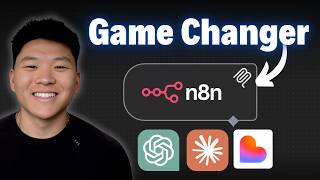
In this tutorial, the presenter explains n8n's new instance-level Model Context Protocol (MCP) and demonstrates how to connect AI clients such as Claude, ChatGPT, and Lovable to an n8n instance. The video walks through enabling MCP access (required n8n version, toggling MCP access, OAuth or token authentication), marking workflows as "Available in MCP," and adding descriptive metadata so AI agents can understand workflow inputs and outputs. Live demos show Claude using MCP to send an email via a Gmail workflow, manage ClickUp tasks, and query daily tasks. The presenter also covers connecting ChatGPT (via developer mode and manual OAuth setup) and Lovable, which can auto‑generate a front‑end form for an "AI Opportunity Map" workflow, delivering a personalized report via email. Throughout, security considerations (controlling which workflows are exposed, using developer mode cautiously) and best‑practice advice (keep workflows simple, expose only needed tools) are highlighted. The video concludes with a plug for the creator's Plus community, courses, and resources for building AI‑augmented automations with n8n.
Chapters
NNN's new instance-level MCP is truly a game changer, and in today's video I'm going to talk about why that is, how easy it is to use, and how to connect it to things like ChatGPT, Claude, or Lovable. And honestly, since MCP, or Model Context Protocol, started popping up everywhere, it's been a little bit confusing but also a buzzword. So I wanted to start off by just making sure we're all on the same page about what it is, and then I'll show you how to use it. So this is where MCP really started with NNN, where we had an update where you could make these native MCP server triggers. Meaning we could create our own MCP servers in n8n that hooked up to different tools or different workflows that we built. And then we could have an MCP client like Claude or Cursor actually talk to these servers and trigger these workflows or tools. But with n8n instance-level MCP, it's not just limited to these workflows or tools that we assign. It's actually letting our MCP clients search through our entire n8n instance and look at the workflows, understand the schemas, what they do, and actually execute any of them. Which means right now in your N8N instance, you probably have tons of workflows that you're like, huh, I would love to just throw this into Lovable or Claude and just have them be able to use them for me whenever they want. And now you can. But what does that really mean? And the easiest way that I like to think about it is it's just an AI agent. That's not like the technical definition, but it's the way I like to think about it. So right here we have an N8N AI agent, and I'm assuming we all know what we're looking at here, where the agent has all of these different tools and it basically understands based on the request coming in, which tool do I need to use? And when I call that tool, what do I have to send it? So picture it as if ChatGPT is the agent and it can see all of the different workflows in your instance. It knows what they do, it knows what to send it, and it knows when to call each one. So let's just start plugging in our N8n to different clients. And before we do that, I'm going to be doing this on cloud. You're not limited to doing this on cloud. You can go ahead to the N8n MCP docs if you want to be able to read through a little bit more information, but you do need to be on version 1.21.2 or higher. You can see I've got some workflows right here that have this icon, which basically shows that they're available for MCP. And if you're on cloud and you need to update your instance, you would just do so by going to your admin panel. So anyways, you're going to go to your settings in your n8n, and right here you should see MCP access. And right here, what we have is the ability to connect via OAuth or access token. Just make sure you actually enable this and you toggle that on. So right here you can see that we are given a server URL and we have 0 connected OAuth clients. So let's go hook it up. All right, I'm gonna start off with Claude, and I'm not on my Claude desktop. I'm actually in the cloud version of Claude right here, which is super cool that we can just plug it in right away, super easily. So what I'm gonna do is I'm gonna click on this little icon right here, and I'm gonna go to add connectors. Now in here you can see that n8n is already a native connector right now. So all I have to do is click connect and it's going to basically open up this OAuth for us. I'm going to give it access, and now we have connected to n8n. Now if it's your first time doing this, you will have to basically just copy in your server URL and give it to Claude, but then it's as easy as And so now if I go to the tools right here, you can see we're connected to NNN and we have 3 different options, which are execute workflow, get workflow details, or search workflows. So how many times have you had an AI help you write an email? Well, now instead of just writing it and then copy and pasting it, you can go ahead and just say, we'll send that off now. Assuming that you have an NNN workflow that's available in MCP that actually sends emails. And you can see this one is super simple. So now that that email is written and I like it, I can basically say use NNN to send that email to michael@dundermifflin.com. So what it does is it says, let me search through your available workflows. It asks you to allow, but I'm just gonna go ahead and do always allow. So after it searched workflows, it found one, and now it's asking to get workflow details. So I'm gonna always allow this tool as well. So it grabbed the details. It knows the 3 body fields that it needs, and it knows the webhook address and everything like that. So I'm gonna go ahead and always allow, and we didn't have to actually go in here and configure everything with this POST request. Claude was able to just find it and do it. You can see that we got confirmation that the email has been sent. And if I head over to my email, you can see that it is right here. Okay, so let's say I just finished that up and I have a really busy day. So I have my to-do list right here in ClickUp where I have email Michael about PTO, and that was due today and it's urgent. And so I could context switch all the way back into ClickUp, or I could just use my ClickUp Task Manager AI agent through MCP, and I can talk to this thing in Claude, and I can just ask Claude to do it 'cause I'm right here. And I can say, use N8N to move my task called email Michael about PTO to complete. So now it's going to go ahead and search through the workflows. It found my ClickUp task manager. It got the details, and now it's gonna shoot that off. There you go. So it says that it finished everything up. And now if I open back up my ClickUp, we can see that this task was moved to complete. And now that that's done, we probably wanna see what else we have to do today. So I'm gonna ask it to use N8N to figure out what other tasks I have to do today. So it comes back and says, based on what N8N found, you have one task due today, record N8N MCP video, which is high priority, which I'm doing right now. and as you can see in ClickUp, that is the only thing that is due today. Now, if we go into N8N to see what actually happened here, and I'm gonna go to my executions, you can see that on the most recent execution, the webhook was sent a body that says, what tasks do I have due today? The agent then goes ahead and processes that, and it calls its get tasks tool, and then it returns an answer to us in Claude. Now, I won't dive into this actual workflow, but it's pretty simple. We've got 3 tools, update, create, and get, and then also the system prompt looks like this in case you guys are interested in reading through it a little bit. I'm basically just telling it what its job is and what tools it has and when to use each tool. Now there is something interesting here because in order to actually update a task, it first has to get them so it knows its ID. So if you remember the first ClickUp example from Claude, we basically said move my task to complete, and then you can see what it did is it got the task ID and then it went ahead and updated it. But anyways, there are two important things that you need to know about making workflows actually accessible from MCP clients. The first one is it has to be an active workflow or a published workflow. And then second is you have to go to the settings. And then when you get in there, you can see a little toggle down here that says Available in MCP. Now, this is actually a really good thing that you have to manually enable these, because otherwise, if you had everything actually give access to your entire Enidyn instance, there could be like, you know, some sensitive API keys or access to certain data in there that you probably don't want random clients to have. So you are in full control still. And once again, when they're available in MCP, you can see that right here, as well as if you go into your settings and you go to MCP Access, you can see down here what workflows you actually have available. Now you will notice that there's a description, and for MCP, that's super important that it can actually look at the description so it understands the fields to send over and it can understand what the workflow does. And the way that you can actually add the description is, of course, in the workflow itself. So for this AI Opportunity Map Generator, I would go ahead and edit workflow description, and that's where I put in a few sentences about what this workflow does. And I know that I'm using webhooks here, but what you can do is have any workflow that has a webhook trigger, a scheduled trigger, a chat trigger, or a form trigger. These can all work as MCP workflows. Okay, so before we plug in this one to Lovable and we basically have it build a full app for us with just looking at this workflow, I'm gonna show you guys how we can connect to ChatGPT. So ChatGPT works very similar to Claude, except for there's no native integration. So what you're gonna do is come down here to your settings. You're gonna go to apps and connectors, and you're going to look through, and you can see that there are some native integrations. So I imagine that Enidyn will be coming soon. And so the reason why I wanted to do that Gmail example was because I think that's a really common use case. And also the native connectors for Chat and Claude, they don't actually let you send emails. They just let you find and reference emails from your inbox. As you can see in Claude, we only have a Gmail search. But anyways, what you're gonna do is in order to actually create your own connection, you just have to come down to the bottom and turn on developer mode. Now this says allows you to add unverified connectors that could modify or erase data permanently. Memory is disabled, and it basically highlights your chat in orange to let you know that you are in developer mode. Of course, there are security concerns. It's just a very new technology. But once again, just be careful about which workflows you're giving access to these different clients. But now you have the create button up here in the top right, and you'll go ahead and click on create. And this is where you would go back into N8N. You would grab the server URL right here, and you would just paste that right there. So if you remember in Claude, when I connected to this MCP server, it basically did the OAuth single sign-on. And so that's exactly what's gonna happen here. And that's why you'll use OAuth authentication. You'll click on the check mark and then you'll go ahead and click create. But I want to point out something which is a little bit unfortunate. This is not working for me right now, and I don't think it's working for anyone right now. I had it going using this exact method, and I've seen some other tutorials on YouTube where they are doing it like this, but I think that ChatGPT is doing something right now on their backend. And I deleted all the connections just for this video so I could do them live in front of you guys. So that was kind of unfortunate. But anyways, I imagine it will be up and running soon and I imagine it will be coming natively soon. But of course, a little workaround is you could take the old-fashioned way of using an MCP server trigger in N8N and then just hooking up the workflows that you actually want to use in ChatGPT and just pasting that in there, doing no authentication, and then connecting that way. As you can see, that gave us a connector through N8N and I now have these different actions for different custom workflows in N8N. But anyways, now that we got that out of the way, let's talk about how we can do this in Lovable. So right here I have an AI opportunity map generator workflow. And what I want to do is easily create a custom front end that I could send people to. They could put in a little blurb about their business and their process problems, and then it would send them an automated AI roadmap. So all I would do is come into N8N. I would grab the server URL right here, go into Lovable, and I'll click on this plus right here, go to integrations, click on manage, scroll down a little bit, and you can see that we have N8N. So I would just have to set that up. And when I hit connect and paste in my server URL, it'll do another single sign-on for us real quick. Just basically saying that Lovable has access to our N8N instance. And once we click allow, it will basically say that we have enabled the N8N instance MCP in Lovable. So now I can say, build me a minimalistic form submission with a gamified interface for my N8N workflow that does AI opportunity mapping. Make sure to let the user know that their report is loading after they've sent it, and then give them confirmation when it's done. So if you guys have seen a different Lovable video I've done or a Base44 video I've done, one of the challenges is actually giving this interface the webhook configuration, the URL, the method, the body to send over, the body to send back, all of this kind of stuff. And so right now you can see it's basically just gonna search through my workflows. It's going to understand what the workflow does and it's just gonna one-shot a landing page for us. All right, so that just finished up. It says, discover your AI automation opportunities, describe any manual process and receive a personalized AI automation roadmap with ROI estimates delivered to your inbox. So what's interesting about this is if you actually came into the workflow and you looked at like what this is and you understood like what's going on in the consultant agent and everything, this is exactly like pretty spot on. You describe, you submit, and you receive. So let's go ahead and submit a process and see what we get. All right, so I put in a process, I put in my email, I'm gonna click generate my AI opportunity map. And right now it is analyzing all of this. And if I go over to the workflow and we click on executions, we should see that it is currently running and then we will be notified over here when that's finished up. But keep in mind, for a one-shot prompt that was this long, this is pretty solid. Okay, looks like that just finished up. It says the report has been sent to this email. So let's go ahead and take a look. All right, so here it is, the landscaping business automation and efficiency report. We've got an executive summary. We're diagnosing the problems in sales, operations, and field reporting. We have a root cause analysis right here. Here's our automation roadmap with some quick wins, MVP, 2 to 4 weeks. Scalable solution, 1 to 3 months, long-term, and then we've got some estimated ROI analysis, which right here you can see total monthly benefit $20K, $250K almost annual, and just kind of all of this type of breakdown. So the point of this video is not the actual quality of this roadmap. It's more so the fact that we could just tell Lovable, hey, make me a landing page for this random workflow in my N8N instance, and it comes up with something that I think is pretty solid. Anyways, just wanted to quickly wrap up here with how to think about maybe like when you should use the MCP server. I think a lot of people might just kind of want to use some of this technology for certain things where it doesn't actually really save time. So think about interfaces that you are in a lot. If you're in Claude a lot, then probably does make sense to integrate some of your end-to-end workflows in there that could do things like, you know, moving files around in Google Drive or creating tasks or messaging your team, whatever it is. Now, something that I think is gonna be really cool is when we're able to connect our instance-level MCP to something like VAPI or voice providers. And maybe we already can, but when I was playing around with it, I actually ended up doing a different solution where I just did the regular server trigger, which is kind workflow you guys saw earlier. And something that I would challenge you to think about is just to keep it really, really simple. Like the example where Claude sent over an email for us to send in N8N, it was literally just the webhook to receive the data and then the Gmail node to send it off. And in this specific example, a lot of the workflows are just simple 2 or 3 or even 1 node steps. So the point I'm trying to make here is you probably already have lots of workflows you could go ahead and plug into something like Claude or ChatGPT right away and add value. But you could also build some really simple, like, one-node tools and just connect them to anything that you're typically spending more time in. And even if they look like this, it's just simple conditional logic and it gets the job done really fast. So anyways, if you want to explore different use cases and talk more about some of the stuff, then you should definitely check out my Plus community. The link for that is down in the description. We've got over 2,500 members who are building with n8n and building businesses with n8n every single day. We've got a classroom section full of courses. We've got Agent Zero, which is the foundations for beginners, 10 hours to 10 seconds, where you learn how to identify, design, and build time-saving automations. And then for our premium members, we have one-person AI agency and subs to sales. And then we've got tons of step-by-step live build projects in here. We also run a live Q&A every single week. So I'd love to see you guys in those calls in the community, but that's gonna do it for the video. So if you enjoyed, please give it a like. It definitely helps me out a ton. And as always, I appreciate you guys making it to the end of the video. I'll see you on the next one. Thanks everyone.










