In this tutorial, Dr. Violet Howard demonstrates how to activate n8n's new instance-level MCP (Model Control Panel) and connect it to Claude AI as a native connector. She walks through enabling MCP access in n8n settings, linking Claude by providing the server URL, and then shows two practical use‑cases: (1) prompting Claude to send an email via an existing n8n email‑sending workflow, where Claude searches for the workflow, retrieves its webhook details, and executes it, confirming the email was sent; (2) prompting Claude to mark a ClickUp task as complete using a ClickUp Task Manager workflow, again with Claude locating the workflow, sending the appropriate request, and confirming the task status change. The video ends with a call‑to‑action to view a full breakdown. The presentation is step‑by‑step, instructional, and showcases how AI agents can directly invoke n8n workflows without manual API calls.
Chapters
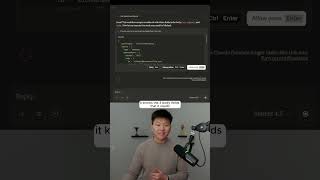
Here's how to use N8N's new instance-level MCP. You're going to go to your settings in your N8N, and right here you should see MCP access. Just make sure you actually enable this and you toggle that on. All right, I'm going to start off with Claude. What I'm going to do is I'm going to click on this little icon right here and I'm going to go to add connectors. Now in here you can see that N8N is already a native connector right now. So all I have to do is click connect. I'm going to give it access. And now we have connected to N8N. Now, if it's your first time doing this, you will have to basically just copy in your server URL and give it to Claude. But then it's as easy as that. So how many times have you had an AI help you write an email? Well, now instead of just writing it and then copy and pasting it, you can go ahead and just say, well, send that off now, assuming that you have an N8N workflow that's available in MCP that actually sends emails. So now that that email is written and I like it, I can basically say use N8N to send that email to michael@dundermifflin.com. So what it does is it says, let me search through your available workflows. So after it searched workflows, it found one and now it's asking to get workflow details. So I'm going to always allow this tool as well. So it grabbed the details. It knows the 3 body fields that it needs and it knows the webhook address and everything like that. So I'm gonna go ahead and always allow. And we didn't have to actually go in here and configure everything with this POST request. Claude was able to just find it and do it. You can see that we got confirmation that the email has been sent. And if I head over to my email, you can see that it is right here. Okay, so let's say I just finished that up and I have a really busy day. So I have my to-do list right here in ClickUp where I have email Michael about PTO, and that was due today and it's urgent. And so I could context switch all the way back into ClickUp, or I could just use my ClickUp Task Manager AI agent. Through MCP and I can talk to this thing in Claude and I can just ask Claude to do it because I'm right here and I can say use N8N to move my task called Email Michael About PTO to complete. It found my ClickUp task manager, it got the details, and now it's going to shoot that off. There you go. So it says that it finished everything up. And now if I open back up my ClickUp, we can see that this task was moved to complete. If you want to watch the full breakdown, then click on that play button right here and I'll see you guys over there.