Delphi Studio Walkthrough: Master Your Digital Mind
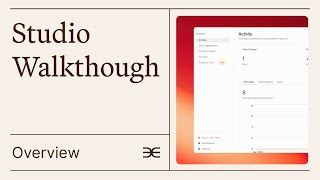
A walkthrough of Delphi's platform showing how to build and customize a digital mind. Create up to five persona instances, ingest content from web, social, podcasts, and files, then control identity, behavior, access, and where it appears: email, SMS, Slack, Discord, or embedded on your site.
Chapters
Hello everyone and welcome to Delphi. This is going to be a short and broad overview of our front end and backend. If you have deeper questions, feel free to look at our documentation. Our CEO Dara's Delphi or Message supportelphi AI let's jump in.
This is a page your end user will see. They can click here to share your Delphi by copying the link or using one of these socials. That's also where they'll click to access a link tree with access to your socials. These are the ones I have, but you might have more. This is also where they'll click to give feedback on the platform for any problems they're experiencing. Where we can help them. You can have your name, associated organizations, a headline and description that can be changed later. They can text, voice call or video call, which I don't have set up but that would appear there. There are suggested questions that you can customize which people can click and get an answer. Additionally, they can start a new conversation where they'll still have access to those suggested questions. If they want to voice call, they can also do it from that page by clicking this button and changing the language in the top right corner. Now we go into Studio or the backend. This is your Insights page that can be adjusted based on time frame. Here you can see how many messages have been sent on that time frame, conversations had, or how many users have been active. On the User Engagement tab you can see popular topics and these are the things people often mention with more, below or less and popular questions again with more or less. On the Content Insights tab you can see what's been cited the most in decreasing order and it'll show you what file it is. I'm going to skip over the Earnings tab and save that for a different video about monetizing your Delphi account. Our analytics chat is your own data analyst on demand that you can ask custom questions to or use suggested questions. You can start new chats and access your old chats.
Now to the Mine tab. We allow you to create instances of yourself so you'll have your main self an instance for a tailored purpose like content creation, and you can create up to five on the Prodigy plan, though you can buy others through other plans. Maybe I want a 24. 7 support one. I can select certain documents or I can train it on everything. The purpose will be the most important part for defining your instance. It tells your instance how to behave and gives it an idea of what it's trying to achieve. With every conversation. You can either Keep the original purpose and edit it, or generate a new one from our preselected set of options. Even here though, you can select one and add some custom explanation to clearly define to your instance what what it should be doing. We'll then generate this for you. And now I have a 24.7support instance of myself, which everything within the Mind tab can be customized and geared specifically towards to distinguish it from the other versions of myself. Now let's go back to my main Delphi and let's see what it actually looks like to build it. This is the content area where you can upload more content. Try uploading your website or scraping a website. If the content is by or about you, leave that box checked, but if it's not, uncheck the box and give the proper author credit and it'll be a form of encyclopedic knowledge so the AI knows that you didn't write it and doesn't miscredit you. We can scrape the entire domain or not and it can stay synced or not. You can also upload by CSV. You can upload your Twitter through your handle and keep it synced. You can upload it through a file. You can upload your TikTok, we'll do it for you. Or you can upload your Instagram, Facebook and LinkedIn, but you have to import them. We'll show you where to get the data and you can drop it in there. You can upload regular files as PDFs or integrate them through G drive box, OneDrive or Dropbox. You can upload single episodes from podcasts by searching the episode's title, and you can choose to include other speakers inside of your data or not. This will be based on your voice recording, where we will be able to distinguish between your voice and other people's voices. The AI will still know, even if you include their voice, that it's not you, but you can choose not to include any data from them whatsoever. If you prefer, you can do so by toggling off that feature. You can also upload a series by searching here and again. We have the same features, but you can sync. You can add snippets with questions and specific answers. You can include images with that answer, or you can upload questions by CSV. You add it and you can see the content down there. You can add text notes with whatever you want to say and images. Everything will go into that content tab. You can add Notion and pages from it. Or Evernote, you can add Slack and channels from Slack and it'll all go within this content page where you can re access anything that you might want to edit before you add it. Here the content can be written by or about you. You can add context for what this item is. You can add a URL that will appear within the citation that people can click on. In addition to changing the publish D.
You can also just delete something if you don't want it anymore. Lastly, you can choose what instance or instances you want to assign it to. Now we'll finish uploading and you can see your content queued up as opposed to complete. The other statuses are going to be processing when it's actually being processed and it'll either go into complete or failed if it doesn't upload. You can also delete items you can sort by content going up or down in alphabetical order. Upload date and status for any content you forgot to change the settings for earlier. Don't worry, you can do it from here as well by clicking on the gear button next to the file here. You can update the context, change the publish date, or provide a citation URL that will appear within your Delphi's responses. You can choose to hide or show citations for this specific piece in the response given by the AI. You can change what instances have access to it. You can change the content importance, but use this sparingly since the AI is incredibly sensitive to this.
Lastly, you can view the content or if it's a doc, download it in this case, but PDFs are viewable within the browser. Finally, you can delete content you no longer want and it'll show you as it's deleting and then then tell you when it's done. You can see how many words your model is trained on and you can see all the content. The Synced Content in addition to adding specific synced content that you want, here are the different types that you can add in. You can have folders for organizing things, maybe for speeches that you've given, or you can add another folder for whatever you feel like. This isn't for any training purposes, just your own organization. You can also see specifically what content your instances have been trained on. So this is what my main Delphi has been trained on, but this is what my content creation instance has been trained on. A restricted set within the identity section you can change what appears on your public facing profile and do it for each instance. You can change the image, change the name which we have to approve for you so you don't mimic someone else's identity.
You can also change the slug at the end of your handle. You can change your headline up to 120 characters, you can change your description and that's up to 1500. This gets used in training your AI. You can add topics for when our eventual Explore page comes around and you can add organizations, delete them, edit them, or just put in a new image and name for your organization. You can add social links that appear on the link tree, you can add custom ones, or you can fill out the ones that we've already pre populated. The behavior section is our most important one. It changes how your Delphi responds to questions. You give it a purpose, telling it exactly how it should answer questions and what it's meant to do. In this case it's a Delphi customer service agent, but as you saw earlier, other instances can have other purposes and that'll drastically change how they act. You can also add custom instructions, but keep them short and concise and don't add too many otherwise it could dilute the purpose. These are some examples and you can add ones that are your own. Make them as short as possible so it doesn't confuse the Delphi. You can also regenerate your purpose with one of our pre populated answers. Then you can go into the speaking style and it's supposed to reflect how you speak. You can give it a couple of samples to look at and also update the samples so you can change what it sounds like over time. You can add, take away, do whatever. Then response settings will dictate how it responds. You can choose the language, you can choose how long the response is. Intelligent means the AI will decide based on circumstance. Concise is really short and explanatory is long, while custom is based off of word count. You can have your Delphi respond only based off training data with some external knowledge or lots of external knowledge. Your Delphi can ask follow up questions or not, and you can give it custom instructions in the purpose and instructions section on what those follow up questions should look like. You can change if it remembers previous conversations, if it promotes recent documents more. The recency is decided by the published date that you put within settings for each of the files. And you can also decide whether your Delphi will favor new content, showing the user as many new pieces of information as possible, or if it'll just provide the best answer based off of the data it has. Lastly, the appearance section affects what's in the interface. Here you can edit suggested questions which are pre populated by our AI, but you can also add ones.
These can then appear as visible to the user within the interface, or you can drag them to be just saved within your repository. You can edit them and delete them and do whatever you feel like by searching through them.
You can go to Experience Settings to change how people see messages. This is the initial message that will start a conversation. When it's a new conversation.
You can actually edit what this all says.
You can also edit the response when it doesn't have enough data. You can decide how many messages you want a user to send before they have to provide their email and log in. You can have the interface show or not show citations. You can decide whether users are or aren't allowed to send files and also choose whether you want voice and video calling. Or if you don't want it at all. You can add a disclaimer that says whatever you'd like and it'll appear at the top of the interface. Let's go back and actually see what it looks like. I'll start a new conversation and now you can see it at the top. It can be exited out too and voice is gone because we toggled it off. In these settings you can disable Talk page if you don't want people talking to your Delphi anymore. Lastly, your quality is a measure of how prepared your Delphi is to answer questions about you. There's a basic checklist at the top and then the bottom has a bunch of items specific to you generated by our AI. There are a bunch of different metrics that it pre populates each of these categories with and then tells you how much information you've added within each of those categories. You can delete categories, you can add new ones and then it'll generate a list of questions as it did in this category that I asked it to create.
Now let's go to the Access page. This is where you control who has access to your Delphi. It can be publicly available or you can unpublish it so it's only available to people you invite. You can do this for different instances and you can invite specific people by email or by CSV.
You can also do that from here. You can then see how many users you have and also take a look at specific users. When I click on this user's name, it brings up their email and other information about them. You can even add them to tagged groups that you create and you can also choose to add specific information about them. Some of it is pre populated by our AI, but you can also type in your own notes about them.
You can see what kind of conversations they have. And you can also revoke their access if you don't want them there anymore. You can sync it with your CRM. These are the ones we currently offer, but are building out more. And you can export all of the email addresses. You can filter your audience by all of these different types. You can go into conversations and see what conversations people are actually having. This is a question I asked myself, but you can even revise the answer that was given. Editing out or changing whatever you don't like and training the model that way. Maybe I don't like this sentence. I can notify or not notify the user by email, but I can update the answer to train my model. I can also answer unanswered questions or see them in my notifications. Here I can respond to users that have asked my model something it doesn't know. I can choose to either just reply to them directly or I can train the model and actually answer their question. Here's the original question reply and what I'm going to change and respond with. Where again I can notify or not notify the user.
Now let's look at broadcasts. You can send out SMS if you pay an extra cost, but everyone can send out emails. Let's just do an example 1. You can choose what audience you want to send it to, including tags, the entire audience or specific people. But you can also override the to line by using the exclude function for people. You can specify what email gets replied to in case somebody sends a response.
And you can also specify the subject line and the body of the email. You can send it immediately or you can schedule send it. Then you can just confirm and send away. Let's go back now and take a look at this final tab under usage where you can anonymize users and then within your conversations you won't actually know who sent what.
Finally, we have integrations such as into your website where we give you all the instructions you need in order to embed it. If you're paying for Prodigy, you get a custom domain.
And you can also use all these different other ones that we have integrations for. If you pay extra, you get access to SMS broadcasting, but you also get a phone number on some of our plans and they can call and text, but you have to apply for the phone number through telecom companies and the government regulated just like your phone. There are external integrations. Here's a list with some you've seen and then some new ones such as Telegram, Slack, Discord and Zapier.
Finally, this is in beta testing, but you can paste a Zoom link and your Delphi can join the Zoom by chat and respond or even with its video if you have a video avatar. And you can even sync your calendar so it can join for you. And finally we can go to the Settings tab and this is where you can change notifications for when your Delphi can't answer. Do you want to be notified? How often do you get updates? Do you get an email if there's a new user? If you want to apply for sso, you can, but we're very strict about it. You can add collaborators. That depends on what plan you are, how many collaborators you can get. You can adjust your settings and subscription here. That'll say manage for you. Your billing history will appear there. You can see how much usage you have on your credits as part of your plan. You can also see how many training words you've used. You can enable overages and pay extra if there are overages, or you can disable them and prevent that from happening. Lastly is monetization, but I'll skip that over and save it for another video. Thank you. And we can't wait to see what you're going to create.
More from Joe




OpenClaw is making AI agents accessible to EVERYONE and this is a total game-changer. 🤯 #ai #ainews






OpenClaw Delete Panic -- The Email Inbox Nightmare! #openclaw #email #nightmare