Joe Fier walks through creating separate instances of a Delphi clone in Clone Studio. You'll name it, set privacy, choose which documents it uses, adjust tone and language, customize what users see, and control how creative or strict the responses are.
Chapters
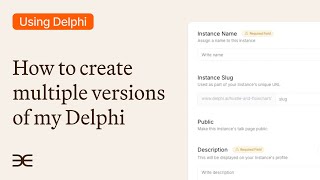
Here's how you make multiple versions of your clone. Let's say you want to have a specific version of your clone that acts as customer support, or one that contains only a specific subset of your knowledge. You can actually do all of that on Delphi by creating what we call an instance. Let me show you how that's done from Clone Studio. I'm in the Overview tab. You want to go over to the Monetize tab and on the left hand side find instances. And you can see I already have a couple built out here, but on the far top right you'll find Create Instance. Click that and we're going to build this out right now. So let's start with the instance name. I'm going to call it Customer Support.
And you can see it's already creating a new slug or a URL for me right down here. You can customize that if you wish. Scroll. Scrolling on down, we now have this feature here. We can choose to keep it private, where only you can view this instance, or you can click this and it becomes public. Scrolling on down, over here, we now have our description of this instance. You can either write something custom or you can import this from your main clone right there. Now, for the purpose, you can import this from your main clone, but you can also specify a specific purpose. I'm going to plug in a specific purpose for this instance and I'm saying your purpose is to act as customer service and to promote my podcast and offerings. Now scrolling on down past that is where we could specify the documents that we want this instance to reference. Now if it's unselected like it is right now, it's going to take from your main clone all the documents referenced in there that are loaded and and use that here for this instance. Or you can choose specific documents. If you select that, click here and select which documents would you like this instance to reference? I'm going to select those three. So now as we scroll down, we have language and tone. The first selection here is the base language that your clone already has set. We have English here. You could select other languages in the drop down. The next piece right here is where you enable multiple languages. When it's selected, this allows the instance to speak any language to users. You can also unselect it if you wish. Scrolling down, you have tone instructions. So if you wanted to customize the tone slightly different for this instance, in this case, I could say be extremely helpful. All right, and then it's set and that's going to change the instance tone slightly that way. Scrolling on down. Now we have user interaction. We can customize with a different initial message. How can I help? And you can put anything that you want in there. You can do the same thing with the no answer response right here. When your instance in this case cannot answer that specific request going down over here, you can add custom instructions. We do have a separate video that specifies how to build those out, so you can check that video out there. And then lastly, we have the advanced instructions. You can select this to then customize the creativity. So this is again how strictly it adheres to the content that it's trained on. You can either go lower creativity and strict or higher be more creative. And then you can adjust the response length in the same way below.