John Rodrigues shows how to duplicate frames, set up tap interactions between screens, and use Smart Animate with 900ms for opening and 800ms for closing. He uses Gentle easing and previews upcoming modules on auto layout, variables, and components.
Chapters
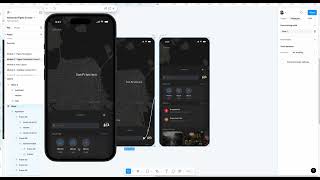
So let's move it down this way. And we want, we're gonna create a quick prototype app. Let's duplicate it. So when you click on command and D, it will duplicate it and then you can make it as home too. So let's on this, when the prototype, when the user clicks on this, we want it to be open. So let's hold this and then move it on the top and holding shift and arrow and then it's moving on the top. You can use your mouse as well to do so. And now let's go to the prototyping mode. So this one previous mode here, let's delete it. So if you want to delete any of the past prototype links, you can select that wire and click on delete. So if you click on the search and then it will show up that wire and just connect to the next screen it you want the user to go to. And yeah, the tap. And then instead of instant, let's do smart animate. And then we can set the timer to 900 milliseconds. We have a dedicated module for prototyping, so we'll dive deeper into that as well. So click on the flow when you click on it. You'll be able to see the device here when you click on it here. And you can also view that as a dedicated page as well. But for now let's just stick with this one. And then click on the flow and then tap on it and you have your appsheet coming up. So you can change different effects maybe ease out is not good. Let's do gentle. And when I click on it, your appsheet opens here. And if you want to close, select this icon and then connect to this one. And then have the curve has gentle and duration as 800 millisecond. And you can change it and then close it from here. And there you go. Your first prototype and the mobile app design is here. And as we go more into the lessons, we're gonna dive deeper into each of these aspects from auto layout, variables and components and everything. So. And how you can improve your workflow as well. So. So I'll see you in another module.