Late Review of the Apple Vision Pro by Founder of Augmented Reality Company
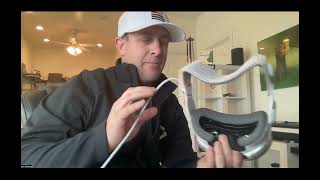
In this video Jon Cheney, co‑founder of an AR startup, provides a candid, hands‑on review of the Apple Vision Pro after an extended session of use. He walks through the unboxing, physical fit, weight, and ergonomics, noting the need to use both hands to manipulate virtual objects and the discomfort after an hour of wear. He demonstrates the device’s passthrough view, battery consumption (about 48% after an hour), and basic interactions such as mirroring the iPhone screen, moving virtual objects, and using the built‑in environment. Cheney evaluates the content experience, describing the vivid visual quality but also the limited 3‑D media options. He reflects on practical use cases: kids watching immersive content, occasional media consumption, and occasional developer experimentation, while criticizing the high price (~$4,000), lack of multi‑window support, and cumbersome input methods (voice control unreliability and manual typing difficulty). He discusses battery life, weight, and strap comfort, noting that the device feels fragile and unsuitable for children’s play. Finally, he offers a market assessment, arguing that the Vision Pro is impressive technologically but not ready for mass adoption until price drops significantly, weight is reduced, and productivity features improve.
Chapters
Okay, how's it going? I am about to do something pretty cool here. We're going to unbox a new product I got from Apple yesterday. I don't know if I'm going to keep it yet. Pretty dang expensive, but we're going to try it out. So about 8 years ago, my buddy and I, Mike Snow, we founded a company called Seek. And that company did and still does— it's now called Okabu— does augmented reality. And we weren't always good at it. That was some early renderings of 3D objects and animations that didn't quite go like we expected them to. But anyway, we loved it so much we made some keyboards for everybody for Christmas that year. But anyway, so I'm going to do this unboxing. I might just post this whole video raw. I might cut it up. I don't know. We'll find out later. But I'm just going to start opening and turn it on and see what I think and, and play around with it. This video might be 10 minutes long or it might be an hour and a half. So hopefully Apple's stuff is, uh, well, nicely put together. All right, well, it always is nicely put together, right? They're boxes. This thing is beautiful. I kind of don't want to open it, but I am going to be very careful opening it because I literally might return this. Um, so we'll see what happens here. First off, their little sticky thing here. I think I'm supposed to tear this off, but it just kind of unstuck, so that's weird. But okay. And this one I think I'm supposed to pull. That one worked as intended. And here we go. Here, you know what, we're going to try to— I'm just recording this on my computer, just using Zoom to record this. I could set up a tripod and all that, but I was too lazy this morning. So I apologize for the low quality. Just make sure my notifications are all turned off on the computer here and there's no beeping. All right, so we want to be able to have maybe me a little bit as well as this device. All right, well, here it is. I've seen a bunch of videos of this, and, um, I have, I have the, the Meta Quest Pro, actually. I have the really nice one. And I love this thing. I love it so much that I haven't, I haven't felt like I need to get the 3. I hear that the 3 has better passthrough, but I just don't use the passthrough a lot, even though, you know, I founded an augmented reality company which would be using that. But we never really developed anything for the Quest. That just really wasn't our thing. We really focused on online, on web-based. AR. So I really have this just to kind of understand the industry, and that's why I'm playing around with this today. So I'm going to put this back on its charger and we'll get back to business here. All right, here we go. Let's just see what this has. I'm really excited. I mean, there's a few things that I think I'm gonna like. One is the, the multimedia experience, right? So, you know, watching movies, watching TV shows. I love, I love watching movies and TV shows. And I hear the experience on this is pretty awesome. Okay, so looks like there's a little cover on here. I'm just going to leave that on for the moment because I just want to see what else maybe I'm supposed to pull out in the box first. This is a cool thing. I don't know why. I like that design. We got a polishing cloth, pretty standard for Apple. They want us to take care of their stuff. We've got a light seal cushion. I'm sure this is going to become or be handy in watching a movie. By the way, feel free to fast forward this a lot, jump to the good parts. Where I actually get it open, but I figured I would just film going through the whole thing and you can watch what you want to watch. Oh, this is cool. It's magnetic, it looks like. So it's just going to like pop on really easily right there. That's, that's pretty cool. Um, I feel like the, the blinders that you can put on the, on the Quest kind of cheap and just the rubber and just kind of a little bit weird. This feels really nice, really premium. So take off the hat in a minute here when we get going. All right. We've got a huge— is this an instruction manual? Hello? Yeah, it is a full-on— like, normally Apple devices aren't this complicated, but I think they're trying to— although this is the wrong device to do it with, I think they're trying to introduce augmented reality to a new group of people that might not be— you know, the Quest is really quite good for games and It's got a lot of games. I like playing Beat Saber and I think it's good. It's good therapy for my shoulders and things like that. So that's about all I use it for. My kids like to do a few other things, riding roller coasters and other stuff. Okay, this is the dual loop band. I'm going to leave this in here for now, but I think what this does is it actually will reduce some of the forward weight because I think there's a band that goes on top and in the back.. And I hear that weight is an issue here, but I'm gonna try the, the, I wanna try this cool pretty one first before we go, before we go down that route. Okay, dual loop band. We'll just set this right here. And it looks like we got a bunch of chargers and things in here. So this, I'm sure this is the battery pack. Look at that. This is why I probably won't keep this device, like maybe this thing alone. Is the reason why I might not keep it. Yeah. So we'll just— I guess, I guess we can, we can undo this. I probably should be reading from my cool booklet and listening to the instructions, but I don't think it hurts to take off some packaging. I hope not. I hope I don't break this. Okay. Kind of weird. It's kind of a crazy charger. Of course, they had to come up with a new type of charger so that we couldn't use a USB-C. Or some other random thing that we already have. Well, I guess it's not a charger. I guess it's a connection to the device itself. It looks like there's a USB-C plug-in right here, so I'm sure that's for charging the battery itself. And if my understanding is correct, you can plug it in and, you know, use it, you know, for 10 hours in a row if you want. I don't know if your head can handle that, but assuming it could, you can just plug in and have unlimited battery life and not be— I think it's— I think this only gives about an hour is my understanding. So we'll drop that right there. And then here's the standard USB-C cord and wall adapter. Okay, we're going to keep all this really nice so I can hand it back to the Apple Store when I'm done and say this thing is not ready. Or I can be so pleasantly surprised when I put this thing on that it changes my mind. But I can tell you, going into this right now, I expect to return this. But I have to try it. I have to try it. I've been developing augmented reality things since 2016, and by I have been developing, I mean the teams and amazing people that are smarter than me have been developing them. I've simply had ideas that I wanted to bring to life. In, in 2016, Mike and I, and then again, Chris White joined us not too long after, that really kicked off the, the, you know, technology part of our business. We founded an app that was called Seek, and you would go out and it was like Pokémon Go. You would search for treasure, and instead of searching for Pokémon, you search for treasure. You could see through the phone, you could see the treasure chest there. You would tap on it, it would do an animation and open, and then you would win stuff. You could win $100, you could win tickets to Disneyland, you could win all kinds of cool stuff. And that became pretty big. I don't remember exactly how many downloads we got. Several hundred thousand, maybe half a million, maybe a million. I honestly honestly don't remember how many downloads we got. I don't think we ever quite made it to a million, but we got a lot. It was, it was substantial. We had a huge following here in the US and then almost the same size following in the UK. People all over the UK were running around and collecting treasure and having fun doing that. So, so then in 2018, we pivoted the business model to a B2B services model where we would help businesses, you know, display their products using web-based AR. So maybe you wanted to see what this chair, that bookshelf, or a computer, or whatever it was, would look like in your space, or maybe try on some shoes or whatever it is. And so we developed that, and that still is going all the way to today. Now under the name— it's not Seek anymore, it's now under the name Okava. We did a brand change back in 2022, I think. And so that's been, that's been a couple of years there. If you want to learn more, don't worry more about it. I'm not here to sell you that, but I'm simply saying that I, you know, I've been in this business for a long time and, and I, I know I've tried everything. I've been to CES and, you know, many, many years and I've, I've purchased most of the devices. I've kept a couple of them like the Quest and things like that. And I've always looked forward to Apple, you know, coming out with this. I really look forward to what will probably be called Apple Glasses in the future. Where, where, you know, you can have the types of experiences I'm about to have, I believe, but, but in just a really small light form factor that doesn't have a huge battery hanging off and that, that has unbelievable computational power. But that's going to take time, right? Technology, Moore's Law, right, allows, allows, you know, what is it, it doubles every 2 years or something like that in terms of computational capacity and the ability to cut that in half and half and half and half, right? So another, you know, 6 years or so, cut this in half, cut it in half again and again. You know, I mean, this thing could be, you know, a pair of Ray-Bans. That could be cool. All right, I'm going to just start here, see what happens. We'll just do a nice little reading. I read to my kids all the time and I show them the pictures, so we'll do that today. So we've got a nice black lady with better hair than me with a really cool device on our head. All right, we got the COVID the Pro Solo knit band, the battery, the polishing cloth, USB-C charging cable, power adapter, light seal cushion, and dual loop band. Apple Vision Pro tour. All right, we got Digital Crown. Okay, what I'm going to do right now is I'm going to take off this cover so I can see it. We're going to take off the COVID now. Here we go. Apple makes nice stuff. I just want to touch all their stuff. It's really, really cool. Look at that thing. Look at how pretty that is. It's so shiny and beautiful. I'm getting like a Data from Star Trek vibe right now. I don't know why. That's cool. All right, so the top, we got a digital crown. I think I'm going to be using that a lot. And then it looks like there's a button over here. Looks like that's where the charger will go. Sensors everywhere. 1, 2, 3, 4, 5, 6, 7, 8. At least 8 video sensors, video-based sensors. And then 1, 2, 3, 4, 5, 6. Probably 6 microphones. I could be wrong on that. Those might be little speakers, but I'm pretty dang sure those are microphones. And then speakers are going to come here. And then I would guess these vents are for, um, Oh no, these might be, these are going to be the speakers here. But these vents are really just to release heat. I bet it's going to get hot and they want to push it out. So I would say 1, 2, 3, 4, 5, 6 microphones. I think the speakers are here, but I'm super excited that I can, one of the reasons I love this is I'll be able to attach very easily my, my iPod Pros to them and, and then be able to do all kinds of cool stuff without bothering people around me. Or maybe I can lay in bed at night. We took the— we took the TV out of our bedroom. My wife and I took the TV out of our bedroom just so that we wouldn't watch as much TV. And I still, you know, she falls asleep way earlier than I do. And I'm just like, okay, I want to watch something. And so I'll just watch it on my phone now and I'll put it on like my little dock on my nightstand and kind of lay there awkwardly with my AirPod Pros and just kind of like watching like this. It's kind of weird. This thing, maybe I can just lay back in just 100, 100-foot screen in front of me. I don't know, we'll see. All right, back to the story. Digital crown, top button, audio strap, Fit Dial. Okay, so I could tighten it right there. Solo knit band, frame, light seal, light seal cushion with— it looks like an extra one, or something. I'm trying to figure out if there's two of those because it looks like there's one already, because I showed you this one earlier, this nice soft thing that again I just want to touch. It's so soft. It looks like there's one already on there, so maybe there's two. I don't know, we'll see. Getting started. Position battery. Put the battery in a secure place close to you. Okay, it is securely on my desk. Oh, attach power cable. I can do that. All right, come here, little power cable. Oh, my metal chopstick's making noise. I don't know why I have a chopstick in here. Um, okay, place this battery right here, put this down for a second. We're going to attach this thing. Yeah. Oh hey, duh, there's a little— all right, this is not obvious. It looks like it should be obvious. Oh, maybe I have to align it with that hole first and then turn it. Yeah, we're in business. We're in business. All right, cool. So I guess I could have read it. Attach that way. Turn. Insert optical inserts. Don't have glasses. Thank you, laser surgery back in 2004, 20 years ago. I haven't had glasses. I used to wear contacts. I had really bad vision, couldn't swim without any of that stuff. Anyway, glad that I don't have to deal with that anymore. All right, position Apple Vision Pro, remove the COVID turn the fit dial to loosen it. Sorry, I'm supposed to be showing you guys too, and then customize the fit. So it's just a fit dial, should be, should fit securely but not feel tight. Adjust the displays, and then I'm going to quick start, set it up with my phone. I'm actually just going to kind of read through this really quickly, and then I can probably remember the rest of it. Um, then I can adjust the Solonet band up and down, back of my head. I can also set up a dual loop band if I want to do that style, which I might— I might try that in a minute. Um, so I would remove it by pulling on the orange tabs to do that, loosen the straps, replace it, position pushing it, tighten it. This is all about just fit, refining the fit. Handling: pick it up by the frame, do not pick it up by the light seal. Yeah, I did that a second ago, the light seal, and it just like pops off because it is magnetic and it's pretty loosely on there. It's not super strong. We'll see if that becomes a problem. Cover, display and sensors, cleaning, battery, charge the battery with the USB-C, and that's it. All right, so I'm going to put it on. And I wish I could show you what I'm seeing. Maybe I'll be able to in a minute. Maybe I'll be able to like stream to the computer and then share my screen or something. But for now, I'm just gonna put it on. I'll try to talk and try to narrate. Take off my hat. I haven't showered and done my hair yet today, but that's okay. This is my early morning fun video of the day. Kids are off to school and we're going to move this battery onto the left side because This is on the left and we're going to try this out. Okay. It looks like it's already loosened all the way. So now we're going to tighten quite a bit here. See if you can see here. I'm going to back up a little bit just to make sure you guys can watch me a little bit. Do, do, do. There we go. Make sure this looks good. Okay. I literally can see nothing through this, but hold on.
We're going to— Digital crown for voiceover.
Okay, triple-click the digital crown. Okay, press and hold to align. Oh, this thing is heavy. I immediately feel that. Oh, hold on, we gotta align this. Whoa, that's kind of insane. Okay, okay, now I can see again. Amazing. Pass-through is pretty good. It's really good. It has just a tiny lag. Has a tiny light, but wow, that is beautiful. This says hello, like big cursive thing right in front of me. Why did it move my center to right there instead of right here where I started? That's interesting, and I'm just curious as to why I did that. Was I looking over here? All right, press digital crown. That's fine, not a big deal. Bring iPhone or iPad nearby to get started. Uh, okay. All righty, I got to put in my passcode. Yeah, there's just the slightest lag between what I know is real life and then what I'm seeing here. It's, it's close. It's, oh, it's pretty close. It's pretty close, but it's making me feel just a tiny bit sick. All right, look here with the Apple Vision Pro. That was cool. I just scanned a QR code by looking at it without touching anything. Oh, it's kind of magical, actually. I wish I could show this better. All right, now it's going to teach me something here.
And it responds to your eyes. Simply look at an element and tap your fingers together to select it.
Tap to select.
It's like a click on your mouse.
To scroll, I browse with my eyes.
You can keep your hands where they're comfortable.
I can't do anything yet.
Next, you'll set up Apple Vision Pro for your eyes and hands.
Okay, let's see what's up here. Press Digital Crown to set up your eyes and hands. Look at your hands. I'm looking at them. Put your hands over. They're reading my palms. Is Apple stealing my identity here? I don't know if my palms are part of my identity, but whatever. Adjusting lighting. I can tell you that the display is unbelievably crisp, way better than any other device I've ever seen. Look at the dot, tap your fingers together to select it. Okay, I'm looking at the dot. Whoa, that responded immediately. I just went boop and it just, and it just knew. Now select all the dots around the circle. Okay, so I'm gonna practice. Wow. Holy cow. I just did 6. So it had 6 dots and it asked me to select them all by looking at them. So I just look at it and then tap. I guess it's refining the setup. It's trying to figure out exactly what my, uh, what my eyes do. Whoa. Wow. The screen is so bright. All right. Boom, boom. Okay. Just going through a setup process right now with dots. This is probably super boring for you to watch. But hey, if you're still sitting here, good for you. High five. All right, Persona Beta. Capture how you'll appear in FaceTime and other calls and personalize eyesight. Get started.
To set up your Persona, you'll remove Apple Vision Pro to capture your appearance. Okay, take your time getting ready and make sure nothing's covering your face. To start capturing, hold Apple Vision Pro at eye level.
Dang it, it's going to capture my appearance and I haven't done my hair or anything. I look terrible, but whatever.
To the left and tilt up and down. Then you'll capture your facial expressions. Smile with your mouth closed. Smile showing your teeth. Raise your eyebrows and close your eyes. When you're done, put Apple Vision Pro back on to see your persona.
All right, so I'm just watching a little thing. All right, so I'm going to have to begin capture. So it says remove Apple Vision Pro to begin capture. This is crazy. I'm going to try— I'm going to try to show this. Feels good to take that off, by the way. I'm going to try to show this. I don't know if you'll be able to see it. Shoulders relaxed. There we go.
Align your entire face within the frame.
Okay.
Remove your glasses to continue.
I think my face is in.
Adjust your head by tilting it slightly down. Adjust your head by tilting it slightly down. Adjust your head by turning it slightly left. Adjust your head by turning it slightly right.
There we go. It wanted me to just like align it.
Turn your head to the right.
Now I'm going to slowly—
Now slowly turn your head to the left. Now tilt your head up. Then tilt your head down. Next, let's capture your facial expressions. Smile with your mouth closed. Adjust your head by tilting it slightly down.
It doesn't recognize my smile. Slightly down. Okay, my head is good.
Then make a big smile with your teeth showing. Now raise your eyebrows. Close your eyes for a moment. Capture complete. Put Vision Pro back on to continue.
Okay, hopefully you saw some of that. Maybe not. Here we go. Okay, let me get this back. Man, man, it's crazy going back into here. Just the way that they, that they blend the world and kind of fade out everything and then kind of bring the world back in. Pretty cool. Pretty cool. I can feel the weight. It's definitely there. I don't know how they're going to fix that. Well, they're just going to make it smaller. They're going to make— they're going to make— man, it feels like I have a, like a 5-pound weight sitting on the front of my head. That's going to give me a headache if I don't fix that. All right. Choose lighting. Okay. All right. I don't like my persona, but whatever. Maybe I just don't like how I look in the mirror. I think it's all right. I'm smiling now. Kind of looks like me. Looks like me. Looks like my eyes a little bit. My hair is not done how I would want it to be. All right, we're going to switch to studio lighting. Contour lighting. I look good in contour lighting. Okay, so next. Good. Man, I feel like I need to like put my hand up there. I definitely don't. I need to just look and then, and then just tap. Oh, select eyewear. None. I said, okay, next. Save. All right, that's good. Optic ID. So now we're doing eye scans. So now Apple's going to have my face scan from my phone, my eye scan from this thing, my palms that it just did a second ago. Feels, feels weird, maybe. So whatever, we'll do a little setup. Look here for Optic ID. Optic ID setup complete. Create a passcode. All right, um, let's see here. Let's see if this works pretty good. Not bad. Okay, setting your passcode. Continue. It may take a few minutes to activate your Apple Vision Pro. All right, so it's now activating it to my Apple ID. Safety. Continue. Setting up Apple ID. Agree. Terms and conditions. I'm getting faster at just like looking at the, at the button and then tapping, like just doing this little pinch thing. Um, okay, apps and data. Choose how you want to transfer apps and data to this Apple Vision Pro. Well, don't transfer apps and data because I don't have any data here. Um, this is my first one, so continue. Keep it up to date. Yeah, that's great. Continue, continue. Why, why? Oh, okay, it is continuing. It just is thinking for a second. Okay, so now it wants me to add cards, like a credit card. Um, I just want to use my Apple Pay. And okay, so now I have something I have to scroll down. And so it didn't teach me how to scroll, but I just guessed that I would grab this and throw it up. So I grab this, throw it up, grab this, throw it up. Okay, maybe I don't need to actually— okay, I want Apple Pay. Okay, I don't understand what it's asking me to do here. Add cards, learn more. This is data and privacy. I don't care about data and privacy. Oh, this is just a privacy thing. I don't care about privacy. Oh, you know what? I think I accidentally clicked on see how your data is managed. Yeah, it, it just got two things just slightly wrong, but I mean, it was pretty good. It was pretty good. So whatever. Um, all right, so we've got a few different Apple Pay things. I don't know all my security codes. Add this card later. I know this one. Nope. I have— you have to really like let yourself, um, like finish the tap. Like, I want to go faster. I'm interested in how typing— like, will I be able to type in a way that is comfortable? I don't know. All right, so now it's just setting up card for Apple Pay. It's great. Spinning. Just waiting, waiting, waiting. Okay, I'm not gonna add any more cards right now. Gonna add this card later, add this card later, and then share audio recordings. Sure, I don't care. Whatever. I don't care about the privacy. I wanna just move forward. Um, I do care about sharing analytics. Okay, how would you like to view Apple Vision Pro content? You can change this later in settings. Large, extra large, large, medium, small, large, extra large. I like the extra large, actually. Um, like, I need to adjust this. I don't know why, it's just like I want it to be— want it to be slanted. There we go. It's, it's kind of hitting my nose, like right on the crown there, or right on the— sure, whatever that is. I don't know. I'm not a nose expert, but that part. All right, we're gonna, we're gonna try extra large. Let's just see what that does. Continue. Pinch the window bar to move apps. Pinch the window bar. That's why I look down there. And that— oh wow, that's— okay, cool. So I'm gonna, I'm gonna face you guys just a little bit more here. I'm gonna sit back and be comfortable here. Pinch the wall. I can move it closer to me. I can push it away from me and move it up here. Oh my gosh. Okay. I need to start sharing the screen here so you guys can see this. Look at the window corner. Pinch to resize. Oh my goodness. That is so cool. All right, that is really, really easy to do. Okay, pretty neat. Next, hold the digital crown to recenter your view. Okay, so I want to go over here and then recenter. I just hold it. Boom. That must be what I did earlier. I must have just held this down. There's my center. Now my center is back in front of you guys. Tips to try: look up at the top of your view and tap down for Control Center. Tap, tap. Oh, tap the top, tap the little thing. Okay, I don't, I don't see how to do this. Okay, next. Sure. Look at the dot and tap it to close the window. Okay, so now press digital crown to open home. Okay, so now got a bunch of apps in front of me. Now what I want to do, what I'd like to do, let's see. Okay, I will discover VisionOS apps in a second. Right now what I want to do is I want to scroll down. I don't know how to do this. I really want to see if I can share this with you guys. Settings, General, Wi-Fi is connected, Screen Time, FaceTime. Airdrop, Handoff. Okay, we're gonna, we're gonna pinch out of this for a second. Apps, People, Environments. I know the Environments is cool. I want to try that in a second, but for real, I want to show this. How do I show this? How do I AirPlay? All right, we're gonna look at my computer real quick. You know what? I should probably look this up on Safari. Let's try this. Let's try this on the Apple Vision Pro. Safari. And we'll just go to— I don't even see how to make a new tab. Oh, there we go. Here we go. We're going to search, and then we're going to try a voice search if I can. I would love to do that. There we go. How do— let's see here. How do I screen share in the Apple Vision Pro? Yes, it's looking. Let others see your view. Okay, so I think— whoa. Okay, all right, I want to, I want to look at this now. I want to look past this. All right, how do I close this? We're going to grab this, going to move it over here so that I can see. Okay, so I'm supposed to go on your Mac, turn on AirPlay receiver. Okay, so we're going to go to this and then AirPlay. Oh, it is so hard to like see through, to see through this. Oh, it's so difficult. It's so— I have to go like this. For a second. Okay, it is on. Good. So now let's just click on this again. Um, open Control Center, then tap that. Open Control Center where? On my Mac. I legit can't see this. Okay, here we go. Screen mirroring. Mirror or extend to Apple Vision Pro. I'm guessing this is going to allow me to show my screen. Oh, that's super cool. Now I have a huge Mac monitor in front of me. This is amazing. Super cool. But I wanna go the other direction, right? So I need to figure out how to do that. So for now, well, I, I can't believe how amazing this is. I am gonna try that some more later. Okay, so for now we're gonna turn that off. So Okay, okay. So I need to figure out how to— oh, there we go, there we go, there we go. Connect, connect, connecting. Oh, interesting. So, okay, I saw a little connect thing and now, now I'm back up. Now I'm looking at my, at my desktop here again. Again, it's super cool, it's super cool, but I want to play with that later. Right now I want you guys to see What I see. Okay, so show or hide notifications. Whoops. Okay, you can mirror your view on another screen such as your iPhone, blah blah blah blah blah. Open Control Center. I don't know how to open Control Center. How to open Control Center? Okay, we're gonna not do that right now. Okay, so that's good. I just literally don't know how to open Control Center here. Hey Siri, open— oh wait, hold on. Allow while using it. Allow. Well, I can open my mail here. I just don't know how I'm gonna type. I mean, that's something I have not figured out yet. Okay, let's close the mail. All right. Hey Siri, open Control Center. There we go. There's the Control Center. I don't know why that wasn't showing up before. Okay, so now I'm going to mirror my view and I'm going to put it on my MacBook. This is so cool. Okay, now it's on my MacBook. This is what I'm looking for. This is what I'm looking for. So now what we gotta do is hold on. Let's just like close all these crazy windows. It's a little bit difficult to see right now, but that's okay. Good, good, good. We're so close. Close all of this stuff. All of this stuff. Done. Done. Okay, I do need to do a courtesy quick check of email and make sure there's nothing crazy here. All right, we're good. Make sure nobody's sitting here waiting for me. It's kind of early, but, um, I like to get back to people. All right, share screen, desktop. Okay, so you should be able to see my desktop now. Now I'm going to go back to here. Hey Siri, show me the Control Center.
You'll need to unlock your iPhone first.
Nope, that's not what I want. I don't want this Siri. I don't want my phone. Whoa, the little Siri bubbles in front of me. I want to show this. Okay, Control Center. There we go. Here it is. Boom. And audio routing through. Yeah, I want the audio routing. I'm gonna have the audio come through here. Yeah, this is super good. Now you can see it though. Look at my cool little thing. Sorry, my desk is like super messy here, but look at that. That's just fun. That's just fun. Okay, so now we're going to get out of this and out of this. Hey Siri, go home. I don't know. Look, now I'm just stuck with this thing. All right, here, what we're gonna do, we're gonna push this. Maybe I have to— oh, there we go. I just reached out and tapped something. Okay, so now let's explore a little bit. Let's see what I can find here. Let's go. Let's try music. Do something, do something fun and simple. Obviously, if I have my AirPods on, like, I'm not expecting crazy sound, but I do want to hear what the sound is like here. Um, heavy rotation mix. I guess that's what I play a lot. You guys can see what I listen to a lot. I listen to lots of movie music. We're gonna do— we're gonna do Meant to Live. Wait for it. It's playing. You guys can't hear this at the moment, or maybe you can a little bit. It's quite good sound, actually. I'm impressed. Hatful of Dreams, Wonka. So now let's pull up my controls here. Can I just get it? Skip ahead. That's pretty easy. It's like, I just— it's really cool how it almost It just knows what I want. So I'm going to X out of this now. That's cool. I just want to look at that for a second. I don't know what I just did. It thinks I clicked something. It wants me to be mindful. Okay, so we're going to be mindful for a second, but we're definitely not going to do it for 5 minutes. I want to do it for 1 minute. All right, you know what? We're going to do Jessica's guy. She looks nice. We'll do this. I'm going to do it for like 30 seconds, but we'll just click Start. See what happens here. Hi.
This is Jessica, and I'll be guiding you through this meditation on creativity.
Let's just go to this nice ball. We're going to think about fresh perspectives and new possibilities. Wants me to breathe. Pretty cool. Alright. Thank you, Jessica. I'm gonna, I'm gonna get out of this now. I'll try that later. I think actually a full 5 minutes on that could be, could be quite useful and maybe even, maybe even pretty dang fun. So freeform is interesting. We're gonna open it up for a second. I guess you can kind of draw. Let's, let's see what drawing's like in here. Untitled. Here we go. So we're gonna give me a pen, give me a blue pen, and we're just gonna draw. I don't know. Oh, yes, that's cool. That's actually nice that there's like a, you know, a little cursor thing, whatever, right? So I am terrible at drawing. Let's try Chinese. Let's try Chinese. Here we go. So we'll go like this. You know what? I feel like, okay, I feel like it's not right where I want it to be, but maybe It's kind of whatever. I forgot a line up here. I know I did, but, um, it's not great. It's honestly not great. Um, what I want to try, I guess— there, is there another way I can Let's go. Let's make it thicker. Let's do this. I want to make it thicker. Oh wait, maybe it's not thicker. This is probably darker. Let's go really big here now. I'm actually drawing this character correctly now. And nope, come on. See, it didn't catch my pinch there. It tried. There we go. That's better. This technically should be longer. Now I've just made it look bad. But anyway, it's, it's, it's all right. Now I'm not an artist, so I can't really judge this terribly well, but it doesn't— it just doesn't feel very easy to— like, I have to do quite substantial motions with my hand. I don't think I would choose if I were an artist, like, really to make like a smiley face, like even, I don't know, it's just kind of, it's kind of difficult trying to make a perfect circle. That's me trying to make a perfect circle on a, on a normal piece of paper. I promise you I'm better than this. So that's interesting. Anyway, kind of fun. We'll X out of there. I'm not sure how I'm going to use that if I'm going to use that. Safari is kind of cool, I guess. It's pretty, it's pretty straightforward here. We'll just go like this. We'll go Safari. And then here it just brought up where my last thing was. We'll go here, and then I'm going to go joncheney.com. Here, maybe I have to do this again. joncheney.com. Hello? Okay, I, I, for real, joncheney.com. Maybe he doesn't know what I'm saying. N-N-C-H-E-N-E. Why? I'm totally— I'm totally— you see, what's interesting is I wanted— what I do when I type is I actually look. I look up. I look. I look at where I'm typing. Now, I don't look at the keyboard, and here it's making me break that habit because I have to look at the keyboard to type, and I don't like that. I want to— I want to watch what I'm typing. And not my hands so that I can make sure I'm doing it correctly. I got it done, so it's all right. I don't know why I couldn't get it to, to do this. Let's see if my website works on the Apple Vision Pro. Looks like it works all right. Listen or play, you choose. We got Christmas stuff, some of my latest songs, concert. I need to remove that from the site. That's kind of old. Um, let's just, let's try listening to something. Listen, LDS arrangements. I just post— I published a new song not too long ago. Let's see how Spotify on this browser works. Okay, so it's doing a preview. Sounds nice, sounds good. We'll pause that. We're going to go down to the Apple one here and play. So one thing that's— I don't know, this is probably not related to that, but the preview did not work correctly on, on the Spotify one, and it did work correctly on the Apple Music one. And then of course I can click View on Apple Music. Let's try that. Let's just go directly from my website to Apple Music. I'm trying to click on this View in Apple Music. Okay, pause. I don't want to sign in. I want to view in Apple Music. View in Apple Music. View in Apple Music. Okay, let's try signing in. See what happens if I do this. Activate.apple.com. Authorize. So it wants me to continue with Optic ID. Pretty cool, I guess. Continue. So now I'll be able to play music in its full— so now it's playing the actual song, which is really nice. But again, this View in Apple Music button just is not activating music. So I need to try that obviously on my desktop and other things, see if it actually works elsewhere. But Here it does not work. That's interesting. That's cool either way. Let's X out here. Let's jump into here, into these environments. Now, my understanding is that you won't really be able to see much in the environments. I could be wrong, but let's try it. Okay, so adjust— turn the digital crown to control how immersed you are in an environment. Um, okay, okay, maybe I have to push okay first before I can do this. Here we go. Now I am quite immersed in this environment. I'm going to unimmerse myself substantially to make sure you guys can see what I'm seeing. Okay, you can see what I'm seeing. Okay, this is crazy. So now, right now, I can look over here, I can look around, I can see outside of this. But if I immerse myself even more. No, no, no, I don't want to do that. I don't want to do that. Oh, you know what? I pushed this. I didn't want to push that. Okay, we're gonna just immerse. Immerse now. Okay, so for a lot of people, I bet this is pretty surreal. Like, I'm, I'm sitting at the top of a volcano, a caldera, I think. Haleakala. Where is this? Hawaii? Is this the Big Island? I could be wrong. Okay, this is, this is amazing. The clouds are moving down there. I can see that. I can't tell if this is a video, a 360 video, or if this is, you know, just kind of an animated picture. I'm gonna guess this is a 360 video. The quality is unbelievable. I can look all the way behind me. I'm looking straight back now. You probably can see me on the computer. Oh my goodness. I, I've been in, I've been in a lot of, a lot of AR, a lot of, a lot of fully immersive VR as well. And we've built what we call portals in AR, and this is as good as it gets. This is, this is impressive. Okay, now to get out of here, I'm not really sure how I do it. So I'm gonna try to tap this top thing to see if that gets me here. All right. Okay. Oh, wow. I mean, that felt kind of crazy. Alright. So obviously the moon is gonna be a picture. And that's fine. I'm pretty sure it's gonna be a picture. I don't think we've got a 360 camera sitting up there on the moon. Well, we should. Live, live view. The moon would be quite cool. Ow. Okay. So what just happened is this battery just slid off my desk. Yanked on my head. So that's fun. Now, what I am happy about is that this thing— I can't see it right now. So yeah, this thing didn't yank. It didn't pull my— it didn't pull it off. It didn't, like, unplug, right? That would be bad. And so I think they designed it in a way that it's like the thing actually kind of locks into place so that if it does fall, it's not just going to turn me off. And now all of a sudden I can't use this anymore. By the way, I wonder how much battery I have. I don't want to check that. I don't actually know. Pretty cool though. Pretty cool. So I'm fully immersed in the moon. Let's try, let's try maybe another one here. Let's go to Mount Hood. Mount Hood's beautiful. Alright, yeah, that's legit. So this is definitely a video. You can see the shimmering on the, on the, oh my gosh, it's raining gently. And you can't hear it, but I can hear it. Can't tell if that rain is digitally added or if it's fake. I, I, I, I, or sorry, if it's real, if it's real. That rock kind of looks 3D generated to me. So do a lot of those. I mean, the raindrops look fake to me. So I'm going to, I'm going to say that these 360 videos and these environments or whatever they call them here are probably some combination of real images, or maybe they're just unbelievably high-resolution 3D. But anyways, let's try one of these just kind of ambiances. Winter Light. I don't know what's happening. Oh, just kind of— oh, it just kind of makes the world feel like winter. So, okay, so fully immersive just kind of changes the ambiance a little bit. It's not actually like a full-on picture. This is coming soon. Anyway, pretty cool. Yosemite. Yosemite with the snow. Let's try this. Yeah, beautiful. Yeah, the snow looks digitally, digitally added, but I mean, I don't care. I could be wrong. Somebody correct me if I'm wrong. This is freaking cool. This is freaking cool. All right, I enjoy that. Now I assume that while I'm in this ambiance, I can now So let's go like this. Let's click here. Now let's go back to the apps. See, now I can just hang out here and I can do stuff. Pretty cool. Pretty cool. Again, Notes, I think it's going to suffer from the same thing as Freeform. Photos, we can click on for a second here. Oh, hey, there's some spatial stuff here. So I actually did take a spatial video the other day when I was at John Williams, but I, I just wanted to try it, but I didn't, I didn't have an Apple Vision Pro, but I was like, yeah, I probably will try it at some point. So I'll be able to watch it. Let's see what happens. That's fun. So let's see here. I wish I had a longer video here. Let's try this one. See what this looks like. So this is actually like looking around. Okay, so we're gonna look at the corner here. Can I make this bigger? How do I make this bigger? Oh my gosh. Okay, so I just turned it into this crazy mode. Holy crap, that's crazy. I— this— I feel like I'm actually sitting there looking around. I don't know what it looks like on the screen, but oh my goodness gracious. Let's try one more here. More little— there's my wife sitting there playing the piano for me, probably not knowing she's going to be broadcast. That's so funny. All right, well, that's kind of cool. So those are my spatial ones. Uh, let's go into albums and we'll just find— here, we'll go to all albums or my albums. So I wonder if, if it has to like sync to this somehow. I should be able to just look up. Yeah, yeah, here we go. Here we go. Here we go. Let's look at a fainting goat video. This is probably a fainting goat video. All right. So That's amazing. Alright, let's make this bigger. I wanna make this bigger. Can I make this bigger? Whoa. Okay. But what I do wanna do is I wanna move it away from me. I want move away. I don't wanna get closer. I wanna move away. This is huge. This is huge. It's cool though. I'm just here in this snowy, snowy mountains. I also just grab this thing and just kinda move it over here so I can see the mountain when I want. Sun. And then I watch my cool. Now it's, it's kind of weird. Like, it don't— I'm sorry, I don't want to look at that. I want to look at this. I want it to not be as like tilted. I feel like it's tilted at me. That's okay. Play. Play again. So the quality is pretty good. I wonder if it's not as good as I want it to be because it's streaming. Let's watch kayaking. Kayaking, fun video. I love watching kayaking, especially when it's me. Okay, it's pretty cool. Pretty cool. Get out of there. So yeah, it looks like it's trying to sync to my library. It's trying to pull up some things. Um, you know, this is— is this a picture? Is this a video? I can't tell. Um, this is probably seeing a barrel racing. Wait for it, wait for it. Here we go. There she goes. Look how beautiful she is on her horse here in the snow. It's interesting. Go, go, go, go, go! Pretty dang good. Pretty dang good. Okay, so now this will be interesting. This is I actually should take some more videos with the cinematic view, or the— sorry, the like, whatever you call it, I don't know, the immersive view that I just did a second ago, and then, and film that with that, and then play it back and see what it looks like. So you can see like what it actually feels like when I'm playing the piano. I don't know, maybe that'd be cool. Maybe that's cool to me. I don't like how I played that, but whatever. So pretty cool. Pretty dang cool. Lots of good stuff in here. Look, when we first got 100 likes on Treasure Canyon, that was the beginning of Seek. That's pretty cool. All right, so we can get out of pictures now. Pretty neat. All right, now let's do what I'm, what I'm here to do. I want to watch a movie on here. Now obviously I'm not going to sit here and just watch a whole movie, but look, Apple Immersive Adventure. Oh my gosh, this is probably cool. Hey, we're going to try this. Prehistoric Planet. Go to show, play first episode. Okay, so now stay aware of your surroundings. Got it. Okay, so now I'm fully immersed. I wonder if you guys can see this or if it doesn't do anything. I think it's going to be black. Yeah. But so is the movie. Am I supposed to see something? Yeah. Oh, maybe I can, maybe I can show this a little bit. I don't know. Okay, am I supposed to see something? Or am I supposed to just be listening? Okay, here we go. Now, it's possible this doesn't work right now because I am screen sharing. That's my guess. That's my guess here. Okay, Apple TV+ showed up. Now this is good. But I think I'm not seeing something. Hey Siri, open Control Center.
You'll need to unlock your iPhone first.
I don't want you to do it on my phone, Siri. Okay. We're gonna go back really quickly here, and I'm going to try— okay, I still haven't figured out how to easily open the thing, Control Center. Am I, I'm supposed to like look up or something or whatever? Look up, down, settings. It's gotta be an easier way for me to like quickly get to the dang Control Center. No, I don't want to look that up. I want to go here. Control Center. Control Center. Control Center. So that's not working nicely. C-O-N-T-R. Control Center. Okay, I need to get rid of this thing. Please, please move out of my way. Please move out of my way. Okay, so that's not great. Um, look up to reveal the control center indicator. Changing the position will adjust how high or low it appears. High or default. Okay. Um, All right, I really, really, really— okay, we got X out of this and X out of this. I want Control Center to show up easier. Let's click here. Let's exit out of Apple TV completely. Hello. You had turned down my— this stuff here. I don't see it. Oh, there it is. Wait, is that it? Oh, you know what? Huh. Alright, figured it out. I figured it out. I've been looking like, wait, this was hard to figure out. I don't want notifications. Okay, so now if I just look up, I can tap Control Center, and then I can go like this, and then I can say stop mirroring. Okay, so now if I'm correct, you'll just be looking at my desktop for a second, and that's fine. You just watch here. You know what we'll do? We'll stop the share for just a second. Okay, so we'll go back to this. You just watch me for a minute, and then I'll go back. What I'm going to do is I'm just going to try to open this video. And see if it, if it now plays for me. It wouldn't play for me when I was screen sharing. It's probably some digital rights management, which makes sense, right? They're going to do that. So let's see what this immersive video looks like. We're going to go fully immersive. Maybe I can't change that. Okay, that's fine. So it's like I'm sitting almost on the front row of, of the Disneyland ride Soarin' Over California, or Soarin' Around the World is what it's called now. This is pretty cool though. My son is going to go nuts for this. This is a dinosaur thing and he loves dinosaurs. Okay, so here's— I wish I could show what I'm seeing. It's pretty, pretty amazing, pretty beautiful. There's pterodactyls flying all around the sky here. Okay. Wow. Oh my gosh, this is kind of freaky. Like, I almost— I just fought an urge to like move a little bit away from a dinosaur that's right next to me. And that's a raptor. Gosh, it scared me. It scared me just a little bit. Yeah, I just like— I'm watching all these things. Also, this dinosaur jumps out over here at me. Ah, just jumped again towards me. Man, I know what I'm— I know there are not dinosaurs in this office with me, and it's coming right up to me, and I am very nervous. Oh my gosh, I'm very nervous. Ah, it's extremely real. I cannot wait to show my kids this now. Well, I can't wait to show my kids this. What I like is you're not going to do this every day. You're going to have the first experience once and then what? Now you're sitting around waiting for content. And so my guess is after a couple of years, they're going to have a lot of thousands of pieces of content that will keep you busy forever. But again, they got to get rid of this weight. My head hurts pretty bad up here on my forehead, but I'm just kind of suffering through it because I care more about what I'm seeing. Can I turn this? Can I turn this? Oh my gosh, the dinosaur is right next to me here. Oh my gosh. Ah, I don't know if anybody else has experienced this like I have just now, but oh my gosh, a huge whatever massive pterodactyl thing that just ate a little raptor thing. Oh my goodness, and a T-Rex just walked in. Okay, somehow the T-Rex isn't as scary to me as the, as the raptors were when they were like right in front of me. Although he's turning towards me now, so that's good. He didn't do anything. I'm safe. And now we're just following a bunch of pterodactyls. Okay, so there's about a minute left in this thing. So I think this is obviously just to show off, you know, what a real immersive video can be like. Now, I wouldn't say this is a 3D video. I'm interested to try a 3D video, so we're going to try that right now. I wish you guys could see this. So I'm gonna cut out of that. Prehistoric Planet, very cool, by the way. Super cool. All right, now it just kind of is showing what's up next. But what I wanna see is we're gonna go to Apple TV+ here. I'm gonna see if I can find something in 3D. I wanna see something in 3D. Let's see here. Drama series, category feature films, comedy series. For you. Future releases, sci-fi. I don't know how to find something in 3D. Let's see if there's— if I can watch a 3D video here. Let's go show movies more, and then let's go numbers, 3 letters, D. No, D. 3D, here we go. Okay, so now let's go out of that and let's watch Jurassic World Dominion in 3D. Okay, can I preview this without having to pay for it? Why is this— kind of want to watch it though. I want to see if it's— wait, hold on, can I watch it Peacock as well? Can I watch it in 3D? Okay, do I really want to buy this one? You know what, Jurassic World's pretty cool. My kids will like that. Super Mario, Spider-Man, Everest, Star Wars. Force Awakens. It's a pretty cool movie, I'm not gonna lie. Okay, we're gonna just buy one here because we're interested in Star Wars. We're gonna do Star Wars. Oh yes, I bought it. But is it 3D? Wait, it doesn't say it's 3D. What the heck? Wait, is it 3D? I'm confused. Super confused. So it says it's 3D, but then is it 3D? I don't actually know. Alright, we're gonna click play and try this out. Sorry, this might be super boring for you guys. I apologize. We're going to scoot this forward and just see if it's in 3D or not. It doesn't look very 3D to me. I do want to go into Dark Yosemite. Oh my gosh, it's super cool. And then I can go into fully immersive. Okay, so imagine I'm laying down in my bed. Okay, now I have to move this up. I have to move this up. Okay, I want, I want to move it up. I want to be laying down on my bed and I want the screen to be right there. Right now it's right here. I want to be able to lay down and use this. I think that's one of the only ways I could do this for a whole movie. Like, sitting right here for a whole movie, I'm not going to be able to do it. My head is, is pounding. I need to go take an ibuprofen to recover from this. Um, let's see here. What if I go like this and then Pause. I wanna, I wanna, I wanna move it to here. There we go. Okay, hold on. So now I've done this. Okay, so now I laid back and I was able to move it. Okay, I was actually able to put it right where I want it. Oh, here we go. Oh, it like turned it. I didn't mean to do that. Okay, here, we're just gonna forget. Okay, now can I put myself in Yosemite? Okay, it's 70 dark. Okay, so when I put it back in, you know, 70 in, you know, and add this thing, now it puts it down to like a normal thing. So unfortunately, I can't do that, and that's okay. That's okay. But if I'm here, if I go back to the normal thing, now I can move this thing around and I could say, all right, you know what? I want to lay down. I want to put it right here and play. And now I'm going to try to increase my immersiveness. Now we're talking, baby. Now I got my immersive thing here. All right, I'm gonna see if I can show you guys what's going on here. Probably not gonna be able to, but we'll, we'll try. Uh, right there. And then we're gonna go Jon's M1 Max and Do this. Okay, so here we're going to remove some of this for a second here. Okay, sorry, I got to push Escape, and then I got to share Share screen. Okay, so now the movie is not gonna be playing anymore, and that's fine. DRM, that's fine. I respect you content makers, right? But what I can show you is that I've got a screen up here. It's all black, and the movie would be playing right there. But I moved it, I moved it up. So now, you know, I'm like laying back and I'm looking up. So now I could legitimately lay in bed and just sit there and watch something. Now again, I don't know if I could do that. I don't know if my head can handle it. Maybe I can loosen it if I'm in bed. Maybe it's just easier to put a TV in my room. It's a pretty expensive device to be able to uncomfortably watch something while I try to fall asleep. So yeah, I don't know. Anyway, pretty cool. So we're gonna get out of this, out of the movies, go back to the, to here. All right, really quick. I think I'm about done here. Looks like I've got a few messages and some email popping up, creeping up on me here. We're gonna jump to the App Store and see if there's anything cool. Obviously it's going to know I'm on the Apple Vision Pro, so it's probably going to put some neat things in front of me. New apps and games we love. What's new? All right, well, that's fine. I can watch TikTok in here, but I don't like TikTok. All right, you know what? Let's do this. View collection. Okay, so everything you'd expect from the culture-defining app. What we didn't expect was how awesome viral videos look scaled up to a wall-sized screen. Okay, well, that's interesting, I guess. Lava battery. I mean, I guess that's kind of neat. Create a silly scene. And a bunch of things, 3D objects. This is actually interesting. This is kind of similar to something that Chris White created for, let's see, double-click. Maybe I was supposed to do something else. Double-click this one. Ah, yeah, there we go. That scanned my eyeball. Photoshade. Cyberstalks. Okay. Yeah, my head hurts so much. My head hurts so much after this. I'm gonna have to take this off soon. So I might, I might be getting done here. I'm gonna try this little, this little game and see if it's fun. Allow to track my space, see my space. And by the way, we're gonna turn back towards here. Alright. Nope. I want right here. There we go. Alright. That feels feels better. And I've got this kinda weird, like, overlay here, but there's, like, multiple apps. Like, I don't want that to be there. I don't want this thing. Let's click here and let's close out of that. And I, I really kinda want this more right here. There we go. Alright. Space. I'm gonna go to space, and I can grab things. Add to playground. I don't know how to do this. Browse playgrounds. I have no saved playgrounds. Home. Back, back, back, back, back, back, back. Okay. I don't know how to do this. We're gonna try this. Rooms by Kate. All right, Kate, what do you got here? Get the Rooms app. I feel like I don't know what I'm doing here. Start with the base. Whoops. Okay, I want this and I want to add the playground. How this works. Okay, I'm gonna grab it, grab it, grab it, grab it. Oh, hey, okay, so now it's in my space here. Now you turn around and say, all right, I'm gonna build something right on top of my Apple Pro Garbage. Okay, that's kind of cool. It's kind of cool. I got that there, and then I would come over here and grab, you know, let's grab this little American flag boat thing or whatever the heck it is. Maybe it's not American flag, but whatever. I don't want vegetables. That's not what I was looking at. See, the thing that's stupid is I want to be able— oftentimes my eyes want to read something else besides what I'm actually clicking on. By the way, I'm trying to click this and it's not working. Add to playground. Okay, good. So now I go to playground. Maybe got a boat that's floating towards it. I think it's floating towards it. I don't know which way it's supposed to be facing. Okay, now we've got vegetables, and we've got a little Chinaman here, I think. Sure, I had to play around. Now I can grab my little guy and put him down on here. Now I can put him through. I was curious if I could. I can move him around. Can I turn him? How do I turn him? What if I want to turn him? Turn. Come here, little guy. Come here. I can't turn him. It's okay. I can go like this. Now, can I grab my space? Can I grab? Oh, maybe I can grab that. What if I want to grab that? What if I want to grab that? I want to turn it. I have to use both hands here to turn it. Oh, and make my boat huge. Look at this. You can make my boat massive. Then I grab my little Chinaman guy, and I can just place him inside here, kind of carrying a lot of stuff for that space. But whatever, make the boat even bigger. And now, nope, now I want to grab— I don't want to grab him. See, now it's interesting. It's big. It's really big, and I can't, I can't grab my little Chinaman. It's okay. Here, we'll turn the boat. You know, this is fun. This is actually pretty fun. If, if I were one of my children, I would be— I'd be excited about this. I'd be excited about being able to create and do fun stuff like this. So anyway, that's kind of cool. You just sit them on top of here. You can move my little— whoops, hold on. Now I can move my island. Can move that around. Pretty fun. Alright. Well, I mean, that's kind of cool, I guess. That's enough of that. Let's go back into the App Store here. I think that's all. My head hurts. I think I'm going to stop now. So I don't even know how much battery I have left. I wonder if there's like a quick way for me to see. Let's see, battery. Well, maybe I have to look up at my control center and it'll tell me how much battery I have. 48%. So I used about half of it. It's pretty good. We'll stop mirroring here. Take this off. Stop sharing. All right, let's see how my head looks. All right, so my head is clearly Very red. It's warm. It's not hot. I'm not sweating. That's interesting. The Apple— I'm sorry, the, the Quest Pro and the Quest. Now maybe that's because I'm, I'm more, um, sitting up, or I'm, I'm standing up, I'm playing, I'm moving, swinging around, like Beat Saber, whatever. Maybe, maybe it's because I'm actually doing activity, but I usually take that thing off and it's sweaty. And this I'm sure they want me to be able to work out in it. I didn't, I didn't look up, I didn't look up, you know, fitness activities or anything like that. But man, welcome back to the world. It's brighter. My pupils are trying to adjust here, but man, I'm not, I'm not kidding. Like, that's, that's pretty significant. So after being done, now that I'm done, I'll talk about it for a minute. And what I think about it for, you know, actually being a real device that I would use. I'm trying to think what I would use it for. It's very cool. When my kids get home, I'm going to put this on. I'm going to let them watch the dinosaurs, let them poke around and watch a couple of those immersive things. Probably, probably take some immersive video with my phone and let them try that out. I think those are cool, but mostly gimmicky, mostly just like, oh, that's cool. Like you would see it and then you're like, okay, I'm done. And the kids might not ever go back to watch that episode again. I mean, if they had like whole seasons of things, which they will eventually, they will, they'll have, they'll have more, more content that will, the content always follows the hardware. It's gotta be in place first. It also needs, it also needs this, this device, this device costs, with tax close to $4,000, which is probably why I'm not going to keep it. I, you know, after trying it, I'm— I understand why people are like, it's cool and the quality is amazing and it's a fun experience. But I think I would use it as much as I use— I use the Quest, right? Which is a couple of times a week, maybe sometimes it'll go a month and I won't touch it. I just forget about it. And I'm, you know, I want to see something, I, I've got a screen that's super convenient for me right here on my phone or on my computer, and I can quickly view it. I don't have to go and like, it's, it's, it's like a, a task, a chore, an operation to, to, you know, put all this stuff together, right? I gotta like plug in the battery, I gotta make sure it's charged, and I gotta put this thing on and fit it and then get myself situated properly. And you know, it, it, there's some cool things. The other thing I didn't really try, which was typing, I'm sure I can connect to my computer and just type my computer, um, you know, being able to see a bigger screen could be good. You know, my 15-inch MacBook Pro here, you know, it does the, you know, it does the trick. I could see it'd be nice to have a bigger screen, but honestly, I can't, I can't deal with the headache. Now, I didn't, I didn't try the dual loop band. I probably will try this later. I'm not going to try it now because this video is already super long. How long we've been going for? I don't even know. But, um, That might help. That might help take some of the weight off, but probably not all of it. Right. It's still going to be pushing right here on the top of my head and, and then the back and the front of it is— it hurt me a little bit right here. Right. And maybe, maybe I'm just like a little pointy right there. I don't know. I don't know. It just— it was— I'm happy that it's off my head. My headache is actually going away. Pretty quick now, which I'm happy about. I'm glad I don't have to go take some drugs to get rid of that. But movie watching, I think, is pretty cool. I didn't find a 3D movie. I'm interested to see what an actual 3D movie looks like. I'll probably just do some posts on whatever social media to talk about it. And yeah, I mean, Another thing that one of my developers said that tried it out, you know, his dad got it and he tried it out and, and, and then they ended up returning it also is that it would be super helpful if I could have multiple screens because right now I can only have one screen. I can only have my MacBook Pro monitor and I just— okay, I can move it from my screen here to now it's in front of me and it's bigger and that's nice and maybe easier a little bit on the eyes. But what if I could have 5 screens open, and you can't do that yet. They just don't have that feature. Apparently it is in development, but it's just not there yet. And so, um, this device needs to come down by, I'm going to say, a minimum of $1,500. I think they need to get it under $2,000 for lots of people to, to step up. And maybe even, maybe even less than that. Maybe it needs to be $1,000. Um, but if they could get multiple monitor support, really work on the weight and making sure the straps and everything just just make it comfortable so I can wear it for more than— I mean, I, I was in it for about an hour, probably, maybe a little longer than that. But, um, yeah, that's tough. That's a tough one. Um, I, I don't, I don't see myself being able to do that. I'm going to try it some more. I'll see if I change my mind in a little bit. But, um, but as is, it's a pretty cool device. Um, the, you know, the creation and stuff I was doing there at the end, I'm not that's not really my style of like how I'm going to have fun. I don't— I'm not really a visual artist. I'm a musical artist. I love to make music and create. I love videos. I love that kind of stuff. I love editing digital content, but not like Minecraft-style building. That's— but my kids love it. So maybe they'll think that's really cool. But again, I'm going to buy a $3,500 entertainment device for them to run around with and drop and leave out and, you know, You drop this on the cement, it's toast. It is done. So it looks fragile. It appears fragile. And so there's no way. There's no way that I'm going to get my kids something like that to play with. When they use it today, they'll be sitting on a couch, and I'm going to surround them with blankets and make sure it doesn't get hurt. So anyway, I think that's all for now. I hope you enjoyed this. I hope you enjoyed seeing some of inside the Apple Vision Pro. I, you know, there's probably way better reviews than mine, but having been in this space, in the AR, the XR, the immersive space, um, you know, it's— I'm impressed. I really am impressed at what they've done, but it's not ready. It's not ready for mass consumption. It's, it's ready for, hey, this is cool and this is going to be cool in the future, but man, they need to cut the weight in half. Before I can sit there for a while. And, and they gotta, they gotta figure out some other things. The one I, I really didn't like typing. I really didn't like typing in it. It was really tough to, 'cause I, again, I like to look somewhere else, but when I, when I'm typing, first of all, the voice control didn't work every time. I, you know, it worked one time and then another time it didn't work. And so I don't know what's up with that. And, and then when I had to actually type manually, I have to look, see, Oh, you know, it's really cumbersome. Like, clearly you couldn't do— you couldn't actually be productive from a work standpoint with something like this. So anyway, let me know what you guys think. If you've tried it, let me know. Let me know if you disagree. Are you going to buy it? Are you going to leave it for now? I think it's cool. I think if you're a developer and you want to try building stuff, yeah, grab one. And see if you can build something that, that really makes it come to life. That's how these things develop and grow, is somebody comes up with like, oh my gosh, I've got the best idea, and they come up with it and build it, and it's cool. So look forward to doing that. Thank you guys for tuning in. You made it here. You deserve a medal. See you later.