Calendly Group Scheduled Event Webhook in Make.com
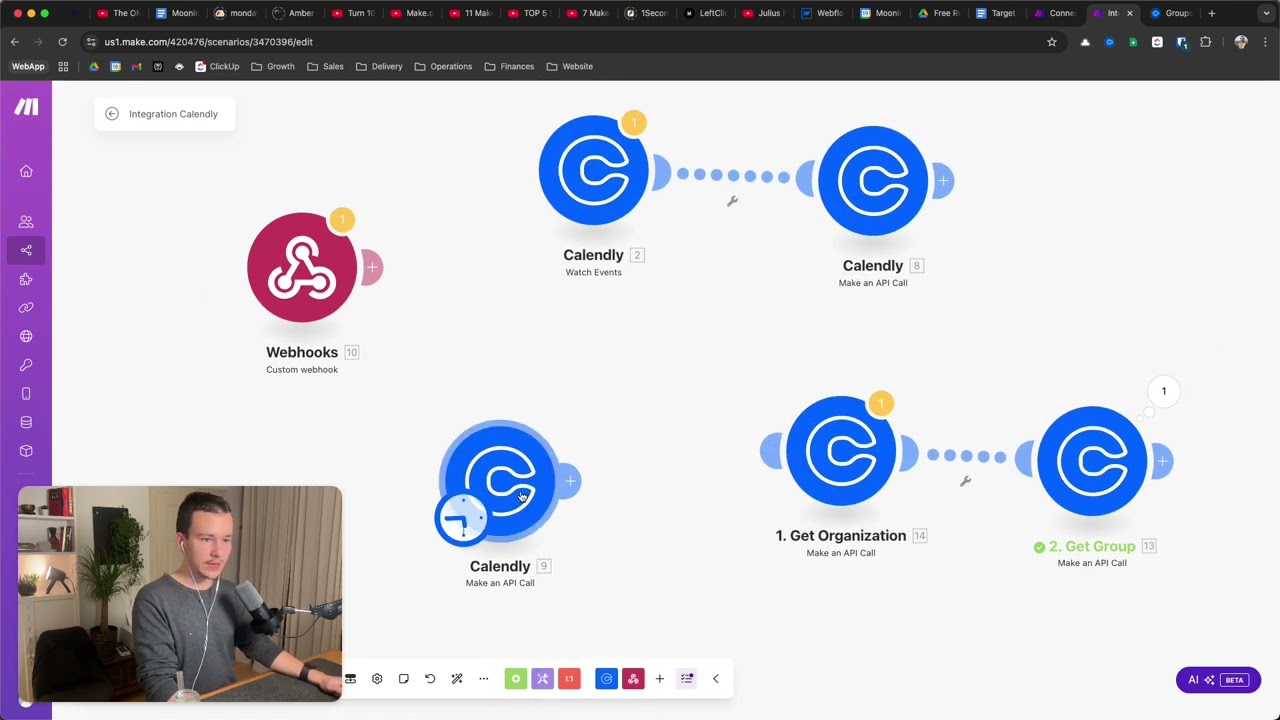
Set up a Calendly webhook in Make.com that fires only for events in a specific group by using the API call module to create a subscription with the group URI. The webhook triggers on invitee.created, invitee.canceled, and noshow events, but won't fire if the host and attendee use the same email address.
Chapters
Hi Joe, uh, so real quick, um, here's basically how you would set up a webhook for Calendly that basically triggers whenever an event is scheduled inside a certain group. So obviously in Calendly right here— I still have that open— obviously in Calendly you have these groups, right? I've made a test group right here. And what you basically want, if I'm correct, is, yeah, you want to trigger the webhook whenever an event is scheduled for a user who is inside that group, right? Should be pretty simple. So first up, it is not, it is not really doable just with Make modules, with the normal ones. So what I tried first here is I've set up a webhook like this where we select all events and then we select just the organization and not a user, right? That's what I did first, but that doesn't really work. So basically then we get all events for the whole organization, and then I try to make a, an API call basically, um, and try to get the group of the user the event was scheduled with. It didn't really work, uh, how I wanted it to. So what you would do instead is you would actually set up an API call, um, that activates the webhook for groups. So it is possible, it is, but it's only possible, uh, via an API call. So there is no module yet in Make that allows you to do that. It hasn't been set up by Make yet. So what you want to do is, um you want to set up a webhook like this. So you will add a new module, you search for Calendly, you go to make an API call, right? You use this module and then you set it up like this. Let me show you. Um, the URL is /webhook_subscriptions. This is basically the webhook to enable that your, uh, that webhook subscription. Method is POST, content type application/json is as usual, and then this is the body. So you have several parameters here. First is the URL. The URL is basically the webhook URL, right? So what, what you would do is you would set up a new webhook module, which would be the first module, right? Like this. And you create a new hook. I've added Calendly example. You copy the address to the clipboard And yeah, okay, I have to put that here again, and you just input the URL right here. Now under events, you specify which, which events you want the webhook to trigger. First, we have invitee created, so that's when a, um, when an event, event, when a call is created, basically when a call is scheduled. This is when a call is canceled. This is when there is a no-show and, uh, yeah, when a no-show is created basically, and this is when a no-show is deleted. So I'll keep all of them active for now. Next, you need your organization ID basically, as well as the group ID. Um, so to get those, what you would do is you, you create another module, again get, um, an API call module as well, and you would— let me show you, uh, to the URL you add /users/me method GET, content-type, uh, yeah, and everything as usual, just /get/me. You run this module and now you get in the body resource, you get a few things in, uh, no, I'm in the header, I'm sorry, resource right here. You get a few things and it also includes down here the URI, uh, which is for the user, for yourself basically. Now you copy that because we need it for the second one. Again, make an API call That is just so we get the necessary IDs basically, right? And now we use that right in here. So this one again, make an API call. It is /groups, GET, content-type application/json, and then organ— no, I'm sorry, yeah, um, then you add a query string, uh, key is organization, and down here you add the organization ID. So from the first from the first request, you actually not, uh, you don't get your, um, your user one, you get the one for your organization. So up here, current organization, and you copy that right now. You go in here, you paste it down here so that in organization you have that value. Now that basically shows you all of the groups with the, um, URI for each group. So under collection, you will have a collection for each of the groups you have. You can see the one I have here, which is test, right? And now you finally get the link, uh, the URI you want, which is this down here, uh, which is /groups. Uh, I haven't found a simpler method to get it, to be honest. There's probably some way you can get it from the URL or something like that, uh, and then build it together, but I, I don't know the structure, or I didn't know the structure of those, um, of those links. So I use this method, uh, and I mean, it's, it's reliable. So you just copy that, you go into the initial, uh, the actual API call with which we activated webhook subscription. You go into group, inside group you paste the one you just copied, uh, and then we can go into this one again actually. Because we still need— or let me, let me just paste it. We also in here need the organization. So you paste the organization in here. There we go. Organization link here, group link here. Yeah, that is group. And then scope is also group. And signing key, you can leave that out. But if you want to make sure that The webhook actually comes from Make. You can add anything in here that you basically use as verification key, right? A signing key to make sure that when the webhook, webhook appears triggered, you can add another filter module that only allows the, the actual automation, the actual scenario to start if that signing key is the one you set. So that's basically just the verification key, right? I'll set that just to, just to show you, to test. Okay, and let's run it. Okay, real quick, let me check. Okay, I think the problem was that I left this little thing down here. Let's see if it works without that. It should just be a tiny— yeah, there, there we go. That was, that was the whole problem. So now in Buddy you get callback. Yeah, you basically get the confirmation created at should be current date. Here the events. So now you have the webhook subscription set up, right? And here down here you have the URI to it. So if you want to cancel it, you basically can use this one, right? But no worries, you don't have to remember that or write that down somewhere because there's an API endpoint to get all of the active webhook subscriptions, right? So now all you do is— let me save that first to make sure everything is correct here. Now basically this webhook here should work. So let's, let's test that. Let's add some random tools. No, not get variable. I just want to show you Set variable, variable name test, variable value doesn't matter, because here you can now set up the filter that I meant. And that was— okay, I totally forgot, I totally forgot how we called it. So let's see when it comes in now. So we want to click on run once for now just to check if it works. I'll now go into Calendly and schedule a call real quick. So I'm in this group, so it should work, right? Let's schedule one. Test. Delete. Schedule event. And now we should receive this webhook if everything works. Okay, let's, let me check again. Okay, I just did some, did some testing. And basically one more module you can do to just check if everything is correct is another Make an API Call module. And here's the URL again, webhook webhook subscription. So you can basically just copy paste this one right here, the one where you create the subscription, but you change the method to GET. And down here you basically from the body get the following queries: organization, then your organization value ID, whatever, group with the group value ID, and scope with the scope being group, right? And when you, when you trigger that, that is just nice to have. So you can check here in the collection that everything is set up, the callback URL is correct, the state is active. So everything is set up fine. There is obviously no user, um, so everything should technically work, right? Everything is set up correct. So let me try it again. I have a slight suspe— suspicion that the issue was that I scheduled the event with my own email. So with the email, basically the event host with whom the event was scheduled was my email, but the event attendee was also my email. So that might be the reason. Um, okay, let, let, let me just try again and see if it works. So I've activated it. I will click on run once just so that I see if it comes in. And if not, I have no idea because the webhook is activated. So let me just use some random email and see. Yeah, there we go. That was the issue. Okay, it took 12 minutes now. I'm sorry about that. The long video, but you can see it came through. We have, uh, we have it right here. We have, we have all the infos we need, right? Um, and it is for the group. So if I would not have been in the group, this wouldn't have come through. And I can actually show you that real quick, just to show you that it works. Can I just remove myself from— yeah, I think I can remove this member. Yes, remove. Okay, it's possible that I'm still as admin in here. Oh, actually no, there are zero people and zero group admins. So let me, let me try the whole thing again. Let's start it again. Let's go back here. test2@test.test.com. If it, if it works again, I'm, I'm very confused. Oh yeah. Obviously I've just scheduled for that time. If it works again, I'm very confused, but it, it shouldn't. If it does, then I'm in there as some group admin most likely. So let's see if it comes through. Looks good. It doesn't. There we go. That's how it works. Yeah, so that is basically how it works. Now you have the webhook setup, the webhook works fine. You can use this exact API call right here. If you want to check it, right? And that is basically how everything works. And I will include the, um, the JSON to, uh, so basically the blueprint right here. I will export that, I will clean it up a bit more, export that, and include it in the description of this video and also in the forum, um, so you can, you can just use this and you don't have to replicate everything. But I just wanted to explain how it works, and I'm happy that it works now. Um, yeah, you have a good one, and I, I hope this helps.