How to use Google Drive Images in GPT Vision via make.com
Learn how to send Google Drive images to ChatGPT Vision using Make.com. The built-in OpenAI module fails with Drive URLs, so you'll need to download images, convert them to base64, and assemble a custom API request. For large volumes, use object storage like S3 instead.
Chapters
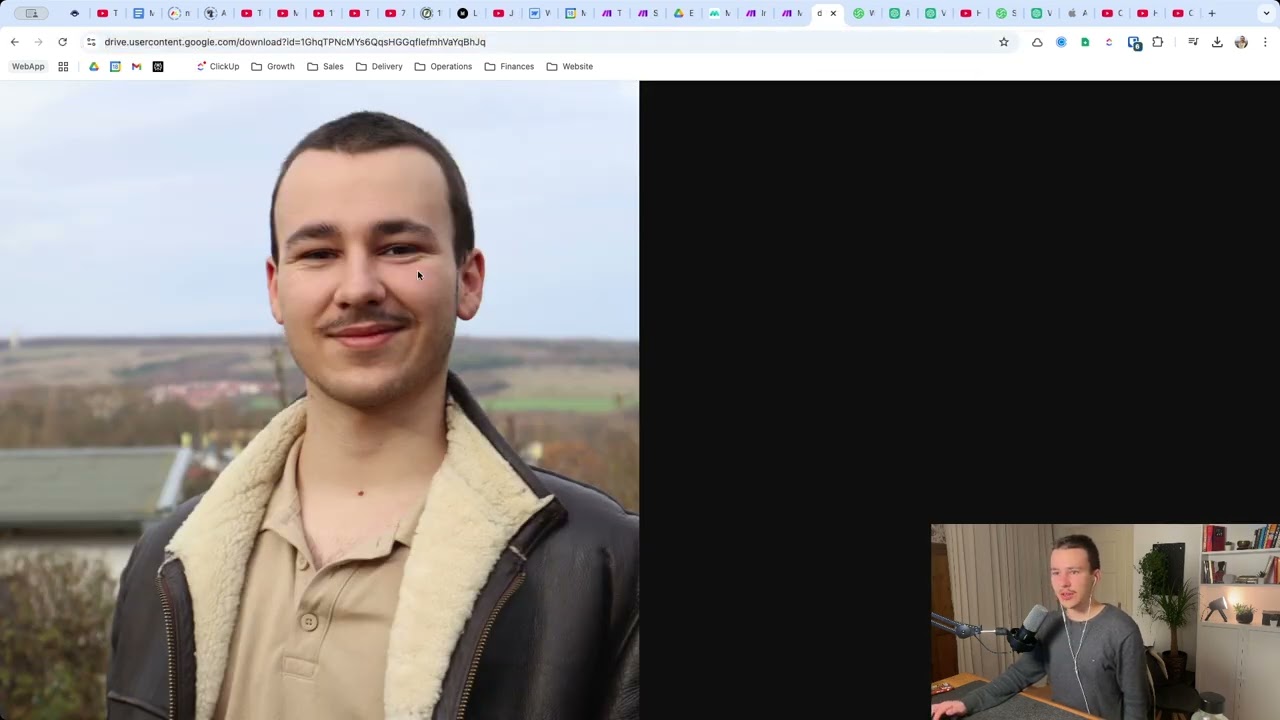
Okay, so it's actually been 2 hours now, as you can see right here. I answered 2 hours ago, and yeah, it took me a while to actually solve this, where you basically want to get images from Google Drive into ChatGPT Vision. So let me show you, let me show you what I did, right? I started by basically displaying how you— some— yeah, how you did it, kind of. So what this does is I have a— oops, that's the wrong site. That was our website, by the way. Uh, um, so I, I created an example folder with, with a profile picture and, and just the logo. Um, and then right here in Make, I basically got that folder, limit to files so it will give me 2 images. And then Analyze Vision, I used the, yeah, the ChatGPT OpenAI Analyze Vision module for images. I selected map as well, and I use this format right here that they give you below, but with 2 image URLs. Yeah, because we want to have 2 images in here. Now there are several problems with that, several reasons why doesn't work. First up, this module seems to be broken a bit, or I just can't figure it out. So what I did is instead of using that, I used the Make an API Call module. So basically, again, OpenAI, and then Make an API Call, you use this module, and then you would— or I added the following. Um, yeah, standard endpoint, v1, chat completions, POST, uh, content type application/json. And then here, as you can see, I have— I've added a relatively standard format with a prompt right here. So that is the prompt you basically give it. And then down here is just text. So what I did here, because you can have 2 or more images, 1 or more even, I would say. So in order to be able to use all of those images in the correct format, I again have the same Google Drive module in the beginning. Then I have a Create JSON module with the data structure we want. So the data structure is basically this, and I have— I will attach all of the, all of the blueprints. I will attach the blueprint to this whole thing as well in either in the description of this right here or in the forum post so that you can use use that right away without having to build all of that. But I want to explain quickly to you why it looks the way it looks. So that's basically what I did then. Um, this is the data structure. You have type, type is image URL. That's just telling, telling ChatGPT that we are working with image URLs. And then the image URL is a collection and has URL in there. And in here we basically then have the URL. And then obviously type image URL, we leave it as it is, and then we just put the URL from the web content link in here. Now the problem with that actually, that is also wrong by the way, the problem with that, and then I use a text aggregator because what it does, let me quickly show you how that would work. So we're one step closer, but it still doesn't work. So what it does is it has two operations here. So for each bundle, meaning for each image that Google Drive gives us from the search files or folders, for each bundle it creates a whole operation and it basically gives us the JSON string we want right here. So that is already, already way closer to our goal, right? Then we have a text aggregator which basically has the following settings: source module is Google Drive, row separator other, comma. So not new row, not new note, not tab, but other. And then you put comma in here. Um, and then as text— whoops, no— as text you put JSON string. So that is basically links to this output string right here, to this JSON string. And then finally for ChatGPT, you basically have what I just showed you, right? You have this, and down here you have the, um, basically array of images, so to speak. Yeah, why does this not work? For the simple reason that you uploaded an unsupported image. No, not really, to be honest. So let's look into Google Drive again. We have a PNG and a JPEG. That should be correct, right? It says PNG, JPEG, GIF, and WebP. So why does it not work? What's the problem here? Let's go in here real quick. And show you web content link right here. That is what we want. So as you can see, when we put that into the URL, um, we, we aren't really linking to an image, right? We are doing a download, obviously. Let's remove that and see if we can just open it this way. Yeah, there we go, we opened it. But, uh, yeah, first up, now it redirects us to drive.usercontent.google.com. So obviously if that's a redirect, so to speak, that is not the source image, right? So that can't work. Because I thought it would work if we use that new URL. I did basically the whole same thing, but I changed the createJSON. In here the URL I used was this drive.usercontent.google.com/download? So that's the URL parameter. Parameter ID equals and then file ID. That's the nice thing about this module. When we run it, it also gives us right up here— just have to find it— yeah, no, down here, the file ID, this one right here. So with that, we can actually get the original link, so to speak, right? So we run that Still the same error. What we have now is— oh, I lost the tab again. So what we have now— let me open that right here. Here we have it— is the following URL: drive.usercontent.google.com and yeah, this URL I told you. Here you see That is the final image, right? That is a direct link to the image file. If I click on open image in new tab, it opens the exact same, uh, path, basically the exact same URL. Um, yeah, now the whole problem is I had to dig through a lot of forums to find that out. Um, so the problem is that it is— it doesn't end with a .jpeg or .png or something like that. So it's a link to an image file but not directly to the image file for some reason, right? I don't know why, uh, that doesn't make too much sense in my opinion, but I'm not super familiar with all of that. I am, but not that deeply. So yeah, that is basically the problem. It is not possible from the research I did to actually use a file from Google Drive, a Google Drive file, and use that inside ChatGPT, right? Use that in a vision request at all. So that is the whole problem. So I went a step further and did the following. And that is basically the final one you can use. But it has a big negative point, which I'm going to show you in a bit how you could fix that and how I would recommend you fix that in case you want to run that a lot. Like in case you use that a lot, it will have a lot of runs. If not, you can totally use that. I'll explain in a second. So again, we search for the files folders in the first one here. What we do then is use the module download a file from Google Drive. So in here you again have automatic— you have connected your Google account. Enter file ID, you set enter manually, and then you go in here and you use the right here from the previous one file ID. You just put in file ID here. That is the file ID we want. Now what we have now, if I run that once, you can already see it works, right? Let me, let me show you why it works and how it works. What we get now is we download again. We have two operations right here because we have two bundles and it works with each bundle separately. It first downloads the first image in the first operation and then the second image in the second operation. And the output looks like this. We have all of this standard stuff we had in the first one as well. But then down here we have a new one called data and you can see code page binary. So that is basically the file, right? That is the file data. That is basically the image downloaded into the scenario. And what we do now with that image is we use the image convert a format. You can just search for image if I'm not mistaken. Yeah., and then you have convert a format right here. So you use that next. It will automatically detect, detect the file from the previous one. You select output format JPEG. Okay, then you again use the create JSON. So that is basically the, the exact same data structure we had earlier, exact same data structure, because obviously that data structure is for the OpenAI API call in the end. So we don't want to change that. But what we have to change— type also image URL— but what we have to change is the URL. Now the URL is not the actual URL but the base64 file type basically. So what you are going to input is data is image, uh, slash JPEG, um, this comma thing, base64, comma, curly bracket, and then you use You search for, search in here base64. So you use the base64 function, you put that in here, right? Just like, just like I did it here. I zoomed in. Oops. Just like, where were we? Yeah, just like I did it here. And then you use the data you have from the image. So what the image basically does, it gives you again two operations, output data, And that is basically now the image converted to JPEG, right? So you convert every image to JPEG and then in this one you just use that data in this format. You convert that data in here to Base64. And what you do now is you use the Text Aggregator again. Same, same, same format again. Source module is Google Drive. Row separator is other. Separator then you use the comma. And down here in text you have the JSON string, right? So this is basically from the module before that. Now finally, we basically have this beautiful piece of text, which is exactly the format we want with the images in there as base64, in base64 format, so to speak. And yeah, OpenAI ChatGPT can use that. And the exact same, the exact same way basically. So the URL again, v1/chat/completions, method POST, the endpoint I mean, I'm always saying URL, it's a URL but it's the endpoint, right? The header is content-type application/json and then you use that body and down here after the comma you use this text from the tools.text_aggregator., right? And then down here you can specify the tokens, and up here in the text you can specify the prompt. So what you want the, what you want the AI, what you want ChatGPT to do with it, right? So I've already let it run through. You can see 2 images right here, and that works with 1 image, it works with 10 images, it works with 20 technically, as long as OpenAI actually allows for 20 images to be attached. I think there is a limit, I don't know what that limit is, so you will, you'll have to look that up. But basically, from everything else, uh, it would work with endless, so to speak, kind of. I'll show you in a second what I mean. Um, yeah, but basically what we get as output now, uh, output body, you, uh, not usage choices, one message. The first image is a logo likely representing a brand or company characterized by abstract shapes. The second image shows a person smiling outdoors with a landscape in the background and so on. Right. Yeah, that was pretty good. As you can see, that was the first image it got. That was the second one it got. So that worked. You can see it works. The only problem here, obviously, is, as you might have guessed, that it needs storage. How is that storage called again? Yeah, I'll definitely want to save that. Data transfer. It needs data transfer, of which you have 5 gigabytes per 10,000 operations. Examples right here. So you have 5 gigabytes per 10,000 operations. So you'll have, you'll have to see down here, you can already see I already did some tests here. Yeah, here you can see it took a while. But yeah, it takes some data because you obviously handle those images right in the workflow, but it works, right? It works if you don't do like a ton of this, if you don't need it for like hundreds, hundreds of images per day, then it definitely works, not a problem. Usually you wouldn't handle images, that's not a best practice because yeah, it takes away data, um, so usually you would work with URLs, but it doesn't work with Google Drive. The other alternative obviously is to just replace Google Drive with something that works better for this, that is intended for something like this. And there I would recommend Wasabi. So I've already opened up the payment page here. With Wasabi, it's great because you just pay $6.99 per month per terabyte, terabyte online, online storage. So you basically are able to upload all of them also via their API or Make integration. So let me add a module and you can see if I search, I think I have it somewhere. I don't see it. If you search for Wasabi, you can see you can upload a file and what you can then do, those files are private. You create a presigned URL, which is basically a, you do that automatically also with a Make module, which is basically a URL that will be accessible for a certain time. So you can set that to up to 7 days, but in this case, you can set it, or you would set it to like not even 1 hour. You can set it to 1 hour, then that means this URL hosts the exact image and it can be accessed for 1 hour and then not anymore. And if you want, afterwards you can automatically also delete that file again. But that would be a better way where you wouldn't have to pull that file into the automation and then actually work with the file in the whole automation, but you have it up on a, on a cloud server that allows for that. Google Drive doesn't like to do that. You can also use AWS, so Amazon, the Amazon Cloud basically. Yeah, but that would be, that would be a better practice, probably. Not probably, 100%. I don't know if there are any other better ways like you could technically set up your own server or something like that. But yeah, that's all very, very complicated and takes time, obviously. So Wasabi is an easy way there that I actually recommend. I use it myself for actually things like that. And yeah, but I hope that— I hope that worked. I hope— not it worked, it definitely worked. I hope it helped, right? I will include a link to the JSON file, to the blueprint of that. Let me download that right away. Export Blueprint right here. I will include— I will upload that to Google Drive actually, the blueprint, and include the file, the link to that in the description so you can access it right away and you can use this and you can see why they didn't work. You can look through it and yeah, do whatever you want with it basically. Yeah, so have fun with it. I hope it works. I hope that works for you. If not, Yeah, you can see what other drives or what other cloud services might allow for, allow doing that. I personally like Google Drive as well, the most as well, but I think it's super unfortunate that they don't allow for using that. But obviously that's, yeah, that's not the purpose of Google Drive directly, so it's kind of obvious why they wouldn't allow that. They have their own cloud for those programmatic things, for using it in code and as backend and everything. So obviously makes sense, but I hope this helped, and yeah, you have a great day. Bye!