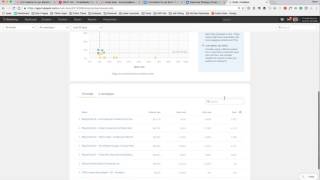
In this tutorial Kevin McCann walks viewers through locating and interpreting email performance data in HubSpot’s updated dashboard. He explains that the homepage only shows metrics for batch emails, so to see stats for nurture or automated emails you must go to Content → Email → Analyze (marked “new”). The Analyze view lists all emails and lets you filter by campaign or date range. A color‑coded grid (green, blue, yellow, red) provides a quick visual assessment of open and click rates. By selecting an individual email you can view detailed metrics—sent, delivered, opened, clicked—and then drill into the Recipients tab to see which contacts fell into buckets such as Sent, Opened, Clicked, etc., enabling further actions. The video ends with an invitation for questions about the new metrics interface.
Chapters
Hey there, it's me, Kevin McCann. Alright, in this video I'm going to show you how to find the statistics of your latest email sends inside of HubSpot. So one thing you may notice is that email performance on HubSpot's homepage here or the dashboard only shows for batch emails. It doesn't show for nurture emails or what we call automated emails. So the way to get to that is, is you come under content, click on email. And then there's this magic button here called analyze. You'll notice it says new next to it. So click on analyze. And now here you can see all emails, right? So all emails, automated batch emails, et cetera, et cetera. But then you can also scope it down by particular campaign that you may have or on a timeframe, so last 30 days, last week or so. So this, this grid here shows you a kind of a visual way to see the success of those emails. If they're green, HubSpot says you nailed it, you get a high open and a high click rate. Blue is good, it's, it's low opens, but high clicks, yellow is not as good, low clicks, high opens and then red is low opens, low clicks. So consider using, you know, different subjects and more compelling content. So when you keep scrolling down, you can see the individual emails that have been sent as part of this last 30 days, all email breakout. So for instance, if you want to look at an individual email performance, like the Stuart Rose email, the personal list here, you click on that and now this will take you into the specific performance of this email. So you can see sent, delivered, opened and clicked. And then if you actually want to drill down to the people this was sent to and perform these actions, you click on recipients and then you can see all of the buckets there, not sent, clicked, et cetera. Let me know if you have any questions on this, but hopefully that gives you some answers on HubSpot's new marketing email metrics.