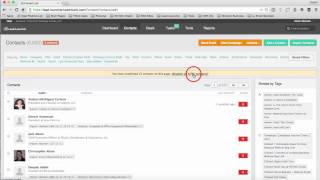
Kevin McCann shows how to manage 15,000 contacts in Lead Launcher by filtering by location and customer status, tagging actions, and running bulk campaigns. Contacts earn points automatically for website visits and email opens, helping you prioritize outreach. You can add contacts manually or import up to 10,000 at a time via CSV.
Chapters
Hi there. I'm Kevin McCann with the Executive Strategy Group. And in this video, I'm going to show you how to use the Contact tab in your lead launcher, marketing and sales system. So you can see I've selected the contact tab. And you can see in this particular list, I've got about almost 15,000, 14,898 contacts. And when you're on this tab, there's a couple things I want you to notice. On the top, there's the filter by selections. So we could filter this list down by any of this criteria. So, for instance, if we said, I just want to filter down contacts that are in the state of New Hampshire, I would add that filter and then apply the filter. And you can see that there's about 1500 of those people in New Hampshire. Now, let me clear that filter real quick. We could filter down by status, for instance, maybe the customer status. I want to look at only the people that are currently prospects in our system and then add that filter. Apply the filter, and now I'm good to go with these 6,800 people. So when you. When you filter down the list, you can then select individual people or select the whole list of, in this case, 6,800 people, and then take some sort of action. You could send an email, you could start a campaign, or you could also create tasks or assign them to a new sales rep, or you could export these contacts. So there's a lot of actions you can take once you've done the filtering. There's one other way that you can filter this list, and that's based on something we call tags. So you can see over here, it says browse by tags. Let me uncheck all of these people here. Select all of those. So what tags are is labels or identifiers that we put onto contacts based on actions they've taken. So, for instance, if someone clicked Begin email tour or clicked ESG video, or say, how about requested. I think we have requested, like right here, requested a lead launcher, Live demo, I could click on that tag, it turns green. You notice it gets dropped right up into that filter bucket. We apply the filter. And now I know these 23 people clicked requested lead launcher, Live demo in an email or on a web form. So I could then go and take action with those 23 people, just like I did on the demographic filters. So lot of power in being able to filter and quickly segment your list. One other area that's critical and an amazing feature in this, in this system is the scoring, right? So that you probably Noticed some red zeros over here on the score side of things. We can filter this Entire List of 14,000 people by lead score. So if I click on score here, it'll prioritize the list by lead score. And let me. I'm going to remove myself and my team. So if I click on these tags twice, you notice they turn red. So I'm basically going to exclude anyone that has the tag email test group or Kevin McCann. So my group and when I hit apply filter, actually I'm going to change that to an or. You can do either and, or an or. So I just want anyone out of the, out of this lookup that has those tags, it removes the internal team. So all of these other people are either prospects or customers that have lead scores ranging from 62 all the way back down to zero. So the way a lead score is established is by the actions people have taken. So for instance, if I go and look at Kathleen here, I can see her lead score is 62. And it's because she's visited the webpage, which she gets two points for. She's clicked on emails, which she gets two points for. She'S opened an email, which she gets one point for. So those scores are kept behind the scenes and then aggregated so that you can see from a high to low priority who is most engaged in your marketing. So when I go back to the Contacts tab, this is a great way to prioritize who you're going to follow up with 1st, 2nd, 3rd, etc. Based on their level of interest in your marketing. So that's the Contacts tab. Last thing on this is we can add individual contacts or import a whole list of contacts. If you want to add an individual contact, say you met someone at a networking event, you click there and then just enter their info, first name, last name, title, so on and so forth. If you want to import a list of contacts for our lead Launcher clients, we import for them. But if you clicked on the import contacts, you see that we can do a CSV File upload of 10,000 contacts or less. If you have a bigger list, we just break that into long list pieces. So that's the Contacts tab. And in future videos, we're going to show the deals, the tasks, the tools and the reports. Thanks for watching. Have a great day.