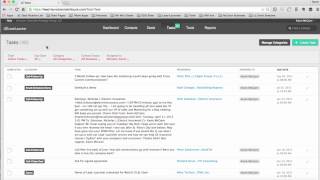
Kevin McCann shows how to use the Tasks tab in Lead Launcher, a sales system with 41 open tasks and 213 completed ones. You can filter by due date, category, and pipeline stage, assign tasks to team members, and log outcomes like call results or email follow-ups as custom dropdown tags.
Chapters
Hi there. I'm Kevin McCann with the Executive Strategy Group. And in this video I'm going to show you how to use the Tasks tab in your lead launcher, marketing and sales system. So if you notice up here, I clicked on the Tasks tab and you can see I've got about 41 open tasks here, 213 total that have been completed, but I'm a little bit behind. So anyhow, what you can see at the very top of the tasks is the ability to filter down and only look at the tasks that you're interested in. So for instance, I could look at active tasks or completed tasks. So here's the completed tasks and I could sort them based on their due date, right? So the oldest or I could flip it over by just clicking one more time and show the most recent to the furthest back in time. I could look at just my active tasks for a particular due date. So what do I have due this week? So here's the six active tasks that are due this week and then I could also look by category. So the nice thing here is that from a task standpoint, we will customize inside of your system whatever the disposition is of calls in your sales process. Or maybe it's follow up process for someone that's clicked on an email or for someone that's called into your office or what have you. So all of these are actually drop downs that are built right into the tasks of the contact tab. So when I have interaction with somebody in the database, I can either log a tag as completed or Schedule 1 as a future date like you see here. And then always by category we could say, all right, well I only want to look at the tasks for anyone that is in my prospect bucket. So click on prospects. And that really kind of narrows it down so that you can see, you know, what activities are relevant to just the people that are maybe not leads, but ones that are definitely, you know, further along in the sales process. So I can go back and then just clear and open all those up, you know, due date, all categories, all contact status, all, and then assign to and I could look at the whole team's actions and activities. So that is the task tab and in future videos we'll show you tools and reports. Thanks for watching. Have a great day.