Introducing Synthesis for Revit
In this product demo, Christopher Parsons, a global administrator for Knowledge Architecture, walks viewers through the end‑to‑end setup of the Synthesis for Revit add‑in. He begins by navigating the Synthesis Settings to download the installer, noting that the add‑in supports Autodesk Revit 2024 and later, and demonstrates how to set a custom default landing page for the add‑in. He then explains the installation process, emphasizing that Revit should be closed and that the add‑in can be installed for all users on a shared workstation. After installation, he launches Revit, shows the new Synthesis tab in the Add‑ins ribbon, and highlights that the add‑in automatically logs the user in via single sign‑on and opens to the configured Revit landing page. Inside Revit, he showcases core Synthesis capabilities: browsing company standards, searching container files with AI‑driven suggestions and full AI search, and mentions upcoming integrations with Synthesis LMS and Knowledge Agents. The demo concludes with a call for feedback and a friendly sign‑off.
Chapters
More from Christopher
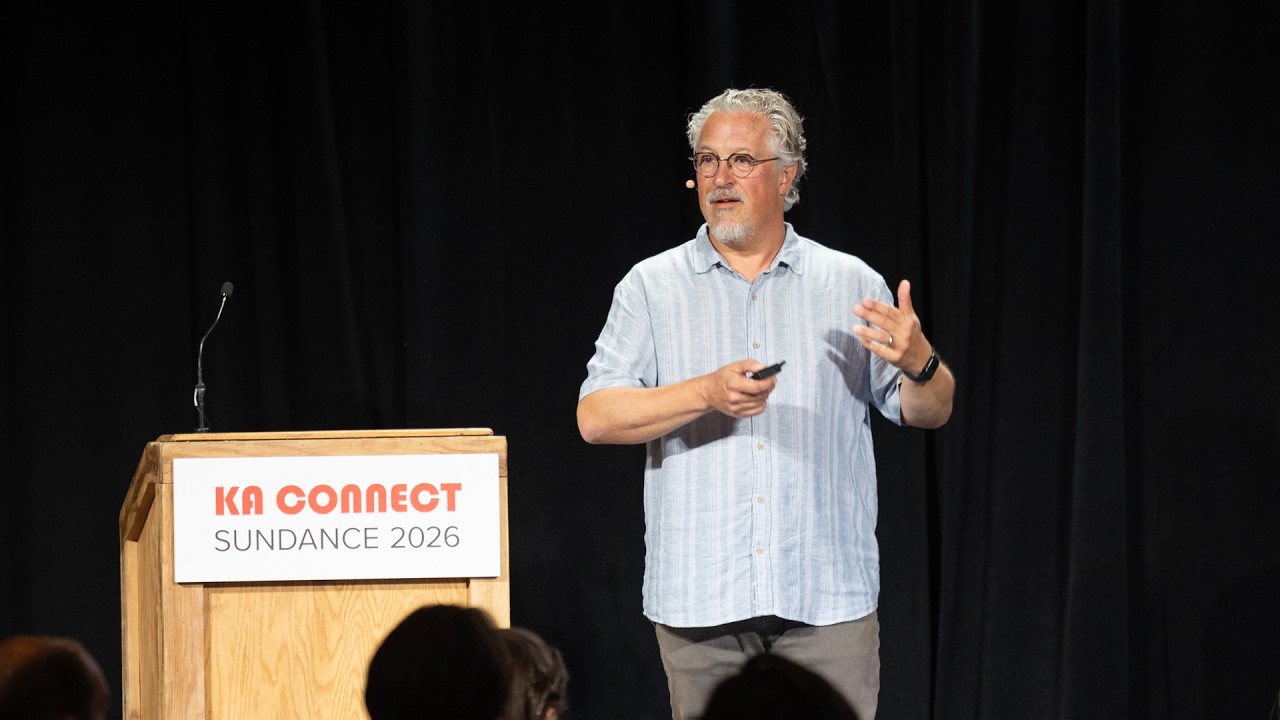
Human in the Loop? Testing Our Assumptions About Where People Add Value in Learning | Todd Henderson

Redesigning Work for the AI Era: How Greenprint Turns Implicit Knowledge into Shared Intelligence

Designing Learning Like a Product: Branding, Culture, and the Unseen Work of Building an LMS
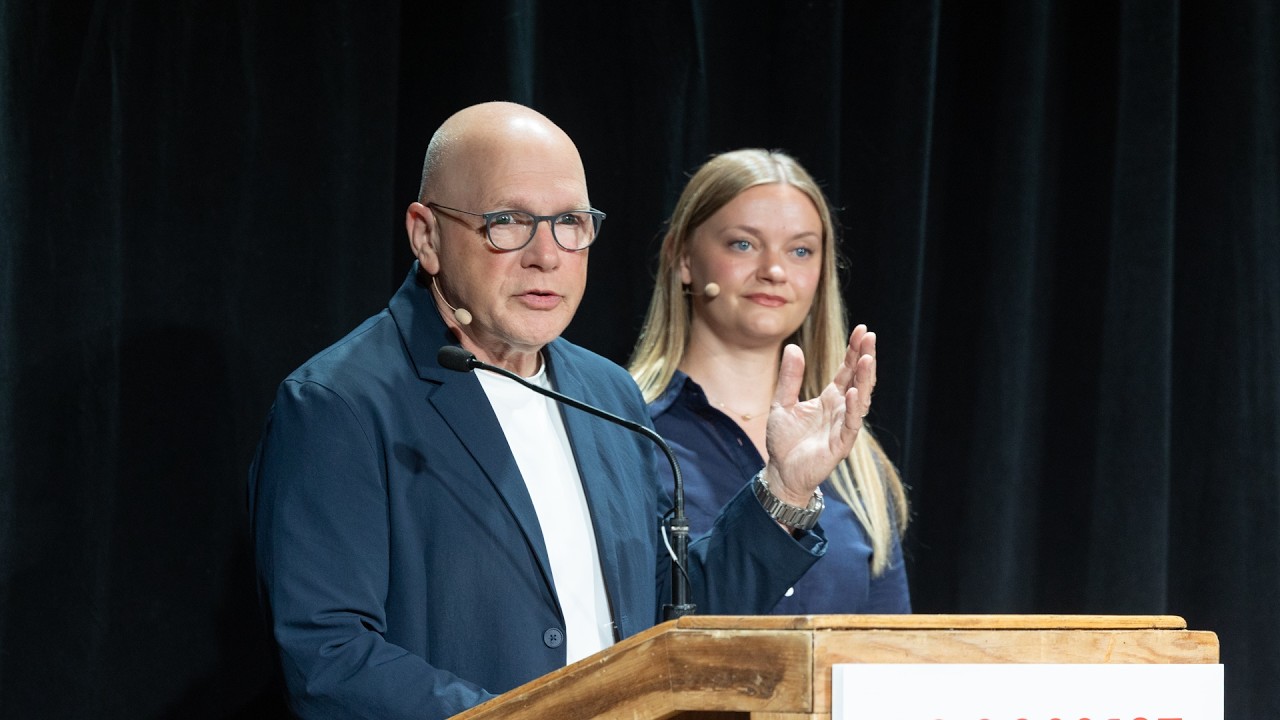
Scaling Design Excellence: How Diamond Schmitt Amplifies Knowledge Through Learning and AI
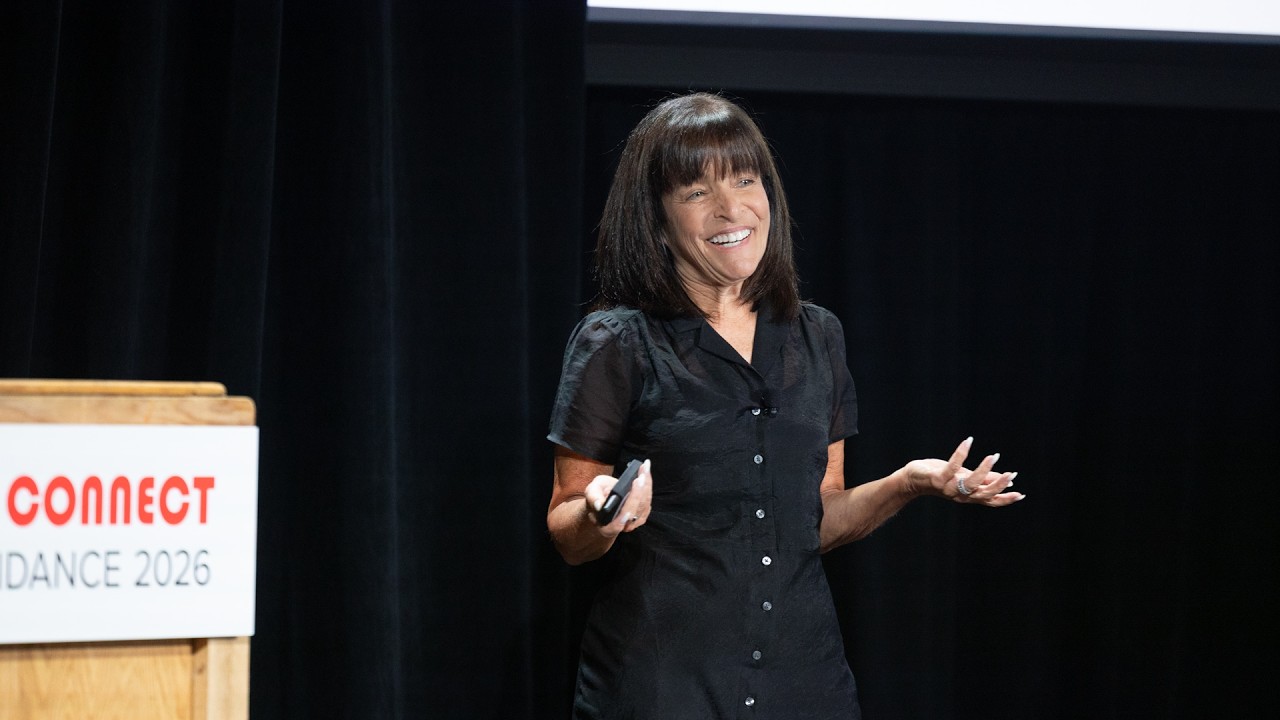
From Tame to Wicked Problems: Rethinking Learning and Development in a VUCA World | Ellen Bensky

Learning at the Speed of Change: Adapting L&D to Your New AEC Workforce | Kristina Williams
Designing Modern Learning Organizations: Rethinking AEC Learning Development in the Age of AI

The Link Between Learning, Motivation, and Career Fulfillment for AEC Professionals

Why Communication Skills Are Foundational to Teaching, Leading, and Adapting in AEC F

A Framework for Collaboration and Quality: SMMA’s ISO 9001 Journey | Ryan Farias & Jessica Smith