S6 101: Structure and Organize Your Synthesis 6 Intranet
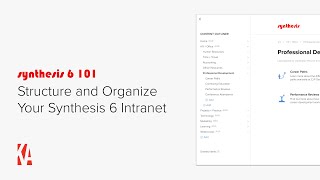
Christopher Parsons (Knowledge Architecture) demonstrates core Synthesis 6 intranet tools and workflows for structuring content: Mega Menus and Community Navigation are driven directly by the Content Outliner (site-level hierarchy) which produces breadcrumbs and powers Smart Navigation Blocks. He shows creating, renaming, moving (drag or Move tool), and deleting pages and sections; how draft pages behave; using templates and blocks (image, employee/smart employee, table-of-contents); layout switching and version history; link creation (internal vs external) that remain resilient to renames/moves; creating Guides (special content type with outline and nesting) and adding pages into Guides; brief note on Libraries (image/video/document types) and Communities (private-by-default). The demo emphasizes safe, flexible restructuring and automatic navigation updates.
Chapters
Hi, this is Chris from Knowledge Architecture. I'm going to introduce you to the core tools used to structure and organize your synthesis 6 intranet. The first tool I want to introduce you to is Mega Menus. As I hover on each community in the top Navigation, you'll see the tier 2 and tier 3 resources below. And if I click on one of those communities, HR and Office, you'll see the same Tier 2 and Tier 3 resources in the Community Navigation bar. So you're seeing these Mega menus and you're seeing these Community navigation bars and you're wondering how did we create this structure? Where did all these pages magically come from? And the answer is the Content Outliner, which is really the engine of synthesis 6. I'm going to click on the Content Outliner icon in the utility bar in the upper right you can see that the Content Outliner opens to the community. I am in HR and Office. And underneath HR and Office you can see the tier 2 resources we saw earlier in the Mega menu and Community Navigation, Human Resources, Time and Travel Accounting, Office Resources and Professional Development. If I expand one of the sections say Human Resources, you can see Tier three Resources below that. These are the same Tier three resources we're seeing in the Mega Menu and Community Navigation bar. So there's a one to one match and this is exactly where they come from. If I click on one of the resources in the Content Outliner, say Donation Matching, you'll see that I'll get a preview of that page on the right. On that Donation matching page, you'll notice breadcrumbs appear which which show me where the page lives in your intranet's content hierarchy. The breadcrumbs match the same structure that exists in the Content Outliner. So HR and Office Human Resources Donation Matching, which is really helpful. If you land on the page from search or link directly to it and don't understand the context of where you've arrived or how to get back there. If I click the ellipsis next to the page, I I get a series of Edit title, edit page duplicate, unpublish, move and delete. And if I close the Content Outliner, I can see the full page. On this page I've added introductory text, an automatically generated table of contents using our table of Contents block, and then four sections of text broken up with text headings. This page is using a two column layout and and in the right column I have placed an employee block connecting the user to geo, our Director of Human Resources. I can even hover on GEO and get his contact information. We'll talk about page editing a little later in this video. So let's head back to the Content Outliner. When I open the Content Outliner again, you can see that I'm brought right to my exact location. I'm going to Click on the Tier 2 page above donation Matching, which is Human Resources. You can see that there is a list of all three of the Tier three pages under the Human Resources page with an image placeholder next to each one. This is because we placed a Smart Navigation Block on each of your Tier two pages when we built out your environment. Smart Navigation Blocks are great tools to use for landing pages like this one, which don't have much content on them themselves, but are used as wayfinding devices to help people navigate your intranet. Smart Navigation Blocks are automatically populated from the Content Hierarchy. So if I move a page, I'm going to switch Benefits and Employee Handbook and then click back on Human Resources. You can see that the Benefits page is now in front of the Employee Handbook page. Or if I were to rename a page, I'm going to change this from non discrimination to Non Discrimination policy. And when I do that, it will also be updated in the Smart Navigation block in the Mega menu or add a page, which I'm not going to do right now, but we'll come back to in a couple minutes. The Smart Navigation Block will stay up to date as I make changes in the Content Outliner. Let's take a closer look at the Smart Navigation Block. If I close the Content Outliner and edit the page, you'll notice that I can add an image or description for any of the resources if I click on the Settings cog. I have the option to customize the layout of my block, including column size, image size, text position, and more, meaning that I can dial in the configuration of my block to get it just the way I want it. I can also switch the layout. What we're looking at currently is the grid layout, but we have three other options for Smart Navigation Blocks, Compact Grid, List, and Index. For now, we're going to stick with the default settings and I'm going to cancel out of my changes to this page. I'm going to open the Content Outliner again and take a minute to recap. We've learned that you can use the Content Outliner to create a content hierarchy that drives Mega Menus, Community Navigation Breadcrumbs, and Smart Navigation Blocks. We've also learned that you can use the Content Outliner to reorder resources by dragging them around and and that you can rename resources in the Content Outliner. So what else can you do? I'd like to dive a little bit deeper into moving resources around using the Content Outliner. Let's start by taking a look at the structure of the synthesis 6 URLs. If I click on this donation matching page and you direct your attention to the top of my browser, you can see that the structure of the URL is the name of the Internet. In this example ia2.synthesis6.com page so I know it's a page 401, which is the page ID, and then donation matching, which is the name of the page. One of our core goals in Synthesis six was to make it really easy and safe to restructure your intranet. Whether you were moving resources between communities, creating renaming or merging communities, or renaming pages without worrying about breaking links. Our URL structure we created supports just that. The page name is just a convenience for users not used in actually locating the page. For example, if I change the name of the page in the URL to something like Tacos and hit Enter, you'll see that I still find my page. You'll notice nothing in the URL about the community it's in or the section the page is in, which means that you are free to restructure your intranet as needed without worrying about breaking links. Speaking of moving around, I showed dragging a page in the Content Outliner, which is one way to move content around. You can also drag whole sections around. So I'll start by dragging the Professional Development section to a different location within the Human Resources community. And when I do that, the Mega Menu updates immediately. So I can move a group of resources within a community, but I can also drag a group of resources between communities. I'm going to move Professional Development to the Learning Community. And again the Mega Menu updates immediately, as do the breadcrumbs on the Professional Development page. Sometimes when you have a large collection of resources, you want a little bit more precision and don't want to rely on dragging and dropping. So we added a move tool. If I click on Professional Development, click on Move, you'll get a warning that you are moving a page with sub resources. I'll click next and then using the Move tool, I can select the exact location I want to move the resources to. I'll click Move. So in addition to renaming and moving resources around in the Content Outliner, you can also add new resources. I'm going to start by closing Human Resources and clicking on the Office Resources page. You can see that I have three different add buttons visible right now. I have an add button visible at the Tier 3 level. I could use this if I wanted to add another office page. I have an Add button at the tier 2 level. I could use this to add another resource at the level of Human Resources, Time and Travel, accounting and Office resources. And I also have an add button at the Tier one level which I could use to add another community. Note that communities are the only type of resource allowed at the Tier one level. Okay, but what I actually want to do is add a new page. So I click Add and you can see that I have the option to add a page, add a link, add a guide, add a library, and add a community. We're going to talk through each one of these options. I'm going to start with by adding a page. Our firm is opening up a new Chicago office which is very exciting. So I'm going to add new page. The first thing I'm asked to do is choose a page Template Synthesis six ships with several out of the box templates which you can edit, as well as tools to help you create your own templates using the Page Templates feature. When I click on each template, you'll see that I get a preview on the left. For now, I'm going to select the blank two column page template and click Next and then I'm going to give the page a title and click Finish. So I want to direct your attention to the draft status of this page. When you add a new page in synthesis 6, it is added in Draft status and you can tell a page is a draft by the draft bubble next to the page title, as well as in the Content Outliner where the page title is italicized and has a gray dot next to it. A page being in draft status means that it won't show up in search and then it won't show up in navigation. So if I were to navigate to HR and Office in the Mega menu, I don't see Chicago and if I were to navigate back up to the Office Resources page, I don't see Chicago in the Smart navigation block. So Chicago is just available via the Content Outliner for Global administrators and the Community managers and Content editors of the HR and Office community until it is published. This means that you can work on the page iteratively over multiple sessions and then publish it whenever you are ready. I'm going to edit the page. You can see that I'm in a two column layout across the top of the page editor. I have A pretty standard editing toolbar including different text styles, text formatting tools, a tool for linking text. I've got bullets, numbered lists, and different alignment tools. And if I click Insert, I have some different blocks which I can add to the page. I'm going to go ahead and insert an image block. I'll choose a single image and I just happen to have a nice picture of Chicago on my desktop. And while that's uploading, I'm going to add an employee block as well. For the main office contacts, I have a choice between a basic employee block, which lets me add employees by name to manually build a list of employees, or to use the smart employee block, which lets me add employees using fields like Department, Discipline, Office, or Certification to create a list of employees. I'm going to choose Basic this time. So I'll add Lisa, our coo, and Rachel, a senior designer. As in most of our blocks, I have different layouts to choose from. Grid, Compact Grid, and List. I'll choose the default, which is Compact Grid. I'm going to accept the defaults in terms of what data to display for each employee in the block, and I'll accept the default headshot size and I'll name this block Contacts and say finish. This is a pretty basic page. I'm sure we'll add more content about the Office later, but for now I'm going to go ahead and publish it. So now if I hover on HR and Office in the Mega menu, we'll see Chicago under Office Resources. And I can see that I forgot to move Chicago to the top of the Office list. So I'll do that. Now if I head back to the Office Resources page, I can see that Chicago has been added to the Smart navigation block on that page. And from there I can click on Chicago. And I mentioned before that I can change my page layout. So maybe I want to make this a full page layout instead. So I edit the page. I click on the page Options Ellipsis and click Switch Layout. Choose full width and say apply. And when I apply that, any text or blocks that were in the right column. In this example, the employee block I had added get moved under the content in the left column. And now, you know, a couple hours go by and I've decided that I liked it better as a two column page. So I could switch it back manually. But instead I want to show you that you have version history available. So I'll edit the page. If I click on the page Options Ellipsis, I see that I have a version history option unpublished Changes is the editing session I'm in right now. I see that I have a current version and previous versions. So now I can restore that version. Perfect. Now I've restored that two column version. These are some very basic things to know about pages and page editing in terms of drafts, publishing blocks, layouts and version history. We'll cover page editing in much more detail in future videos in the Getting Started series. So these are the basics of adding pages. So now we've talked about moving pages, editing the title of pages and adding pages, and we have to touch on deleting pages. I'm going to click on the ellipsis next to Chicago and click Delete. I'm asked to confirm that I want to delete Chicago and I say yes. When that page gets deleted, it goes into deleted items. If I click on the Options menu for any deleted resource, you'll see that I have the option to either restore it or permanently delete it. Later in Beta one, we'll be releasing an administrative tool which allows you to configure your deleted item retention policy. You'll be able to choose to automatically permanently delete items after 30, 60 or 90 days of being deleted, or to leave them in the deleted items indefinitely and have to permanently delete them manually. Okay, we've covered quite a bit of ground so far, but there are a couple more key things to cover and I want to start with links. I'm going to click back into HR and Office and expand the Accounting section. I'm also going to open up the technology community and expand business applications. In this demo example, after consulting with stakeholders and testing with users, the Intranet team decided that the Deltek Vantage Point page belongs in business applications but should be linked to from accounting. So underneath Accounting, I'll click Add. I'll select Add Link. You'll see that I have the choice between linking to a Synthesis resource, a resource that lives on the intranet, or an external resource. I'm going to link to that Deltec Vantage Point page and you can see that I have the option to open that page in a new tab. By default, links to Synthesis resources are not opened in a new tab, and links to external resources are linked in a new tab. And you can see that Synthesis takes the title of that page and makes it the title of your link automatically. You can override that, obviously. Now we'll click Apply. You can see that Deltec Vantage Point got added to the Smart navigation block. And if I open the Mega menu for HR and Office, the link to Deltec Vantage Point is there as well. If I click on that link, I'm taken to that Deltec Vantage Point page in the technology community. Nifty, right? Just to reiterate a point from earlier in the video, if we later move the Deltec Vantage Point page from its location and technology or rename it, the link we just created won't break because of the way the content hierarchy was designed and links are constructed. Okay, so that's links. Now I want to talk about another tool in Synthesis six, and that's guides. I'm going to head over to the marketing community and click on Brand. You can see I have set this up as a smart navigation block with resources underneath it, which would work just fine. However, based on client feedback, content creation patterns in synthesis 5, and design research, we identified an additional new content type for Synthesis six, which we call guides. Let's make one. I'll click on Add and then Add Guide. You can see from the about text that pops up that guides are a good choice for a large collection of pages focused on a single topic. Examples of guides might be an employee handbook, a manual of practice, standard operating procedures, a brand guide or BIM manual. I'm building a brand guide so it sounds like I'm on the right track. I'll click next. I'm going to call this brand guide and click Finish. You can see we now have a guide in draft mode with an introduction page already created underneath. I can tell it's a guide because of the icon to the right. I'm going to go ahead and edit that introduction page. I'll paste in some text that I've already written, and then I'll add in an employee block with the key context for the brand guide. Jessica and edward. On the right, you'll see the guide outline, which will start populating as we add published pages into the guide. I'll publish and get a helpful warning that my introduction page won't be visible to end users until the brand guide is published and say, ok, once my page is published, you'll see the introduction show up in the guide outline on the right. I'm going to publish the brand guide as well. Great. Let's add some more pages. I'm going to drag all of the pages from the brand section into the brand guide, starting with information, graphics and icons. Now I'll use the magic of cinema to speed this process up a little bit. Okay, now that that's done, I can delete the old brand page and drag the brand guide up into the first Tier 2 slot in the marketing community. I'll hover on the Mega menu where I can see the brand guide. If I click on Information Graphics and Icons, you'll see I'm taken directly to that page in the guide, and the page is highlighted in the guide outline on the right. And I can either use the guide outline to navigate between pages, or I can use the footer to move backwards to Introduction or forwards to the next page, which which is fonts and typography. I've been showing all the guide pages at a single level, but if I drag a few pages under Information graphics and icons like logo, usage and images, you'll see that they are nested under Information, Graphics and icons in the guide outline. The last thing I'll say about guides is that you can add existing pages to guides by dragging them in, or you can add new pages directly to guides. You'll notice that if I click on Add, I can only add pages to guides. That's the only resource type that's allowed in a guide. Much like content pages, guide pages also have templates, and you can edit those templates or create new guide page templates using our Page Templates feature. So that's what I wanted to cover on guides. For now, two more things I want to touch on before we wrap up Libraries and Communities I'll click on Add Library Now. I'm not going to do a detailed overview on libraries right now. That topic will be covered in depth in a video dedicated to libraries. What I would like you to know right now is that a library is a central repository for large collections of files such as design standards, office templates, training videos, and event photography, and that there are three types of document libraries, video libraries, and image libraries. Image libraries are optimized to contain images, video libraries are optimized to contain videos, and document libraries are more generic and can hold any type of supported file. Okay, I'll cancel out of this. The last topic is adding Communities. If I click on Add Community, you'll read that communities start off as private by default, so that you can build your content out with your fellow community managers and content editors behind the scenes before you make them public. Or you might truly want to build out a private community with limited access for a community like the Board of Directors or the Executive Committee. Either way, while communities are private, their content is only available via navigation and search for members of that private community. Well, that's it for our Getting started video on structuring and organizing your synthesis 6 intranet. Please feel free to reach out with any questions or comments and happy building.
More from Christopher
Human in the Loop? Testing Our Assumptions About Where People Add Value in Learning | Todd Henderson

Redesigning Work for the AI Era: How Greenprint Turns Implicit Knowledge into Shared Intelligence

Designing Learning Like a Product: Branding, Culture, and the Unseen Work of Building an LMS
Scaling Design Excellence: How Diamond Schmitt Amplifies Knowledge Through Learning and AI
From Tame to Wicked Problems: Rethinking Learning and Development in a VUCA World | Ellen Bensky

Learning at the Speed of Change: Adapting L&D to Your New AEC Workforce | Kristina Williams

Designing Modern Learning Organizations: Rethinking AEC Learning Development in the Age of AI

The Link Between Learning, Motivation, and Career Fulfillment for AEC Professionals

Why Communication Skills Are Foundational to Teaching, Leading, and Adapting in AEC F

A Framework for Collaboration and Quality: SMMA’s ISO 9001 Journey | Ryan Farias & Jessica Smith