A short tutorial by Christopher Parsons (Knowledge Architecture) demonstrating how to create and use Synthesis 6 page templates to build intranet pages. The video shows: adding a new page from a template (example: Request Paid Time Off), editing placeholder blocks, configuring preconfigured blocks (images, employee/contact block), publishing pages, and creating and managing page templates (layouts, preconfiguring block types and data, ordering and editing default templates).
Chapters
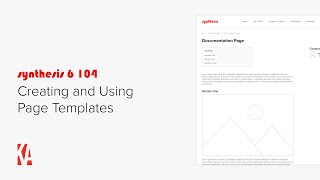
Hi, this is Chris from Knowledge Architecture. I'm going to introduce you to Synthesis six page templates. I'm going to start by adding a page on requesting paid time off to our intranet using a page template, and then I'll dive into managing page templates in synthesis 6. To add a new page, I'll open the Content Outliner and click Add Add Page and you'll see that I am presented with several page templates to choose from. Synthesis six ships with several out of the box templates which you can edit, as well as tools to help you create your own templates. When I click on each template, you'll see that I get a preview. On the left, I'm going to choose the Documentation page template, which is a custom page template I created for this video, and click Next. I'm going to name my page Request Paid Time off and click Finish. I'll close the Content Outliner so we can take a better look at this draft page we just created using a page template. You can see that this page has been designed with a table of contents block, placeholder, introductory text, and three sections defined by a section heading, image placeholder, and a text placeholder, as well as an employee block on the right for designating a contact person or people. Okay, let's jump in and start editing this page. When I edit the page, you'll see that all of the blocks have changed to make it easy for the content creator to populate this page. I'll start by replacing the introductory text. Next, I'll rename the heading for section one, and once I've done that, you'll see that the table of contents has automatically updated. Now I'll upload an image by clicking Add Image. You'll notice that I'm taken directly to the Add Image modal, and that I wasn't asked to choose between a single image block, Basic image block, or smart image block. That's because I preconfigured this image block to be a single image block. When I configured the page template, which streamlines the work for our content creators, I'll upload an image from my computer. And then add a little more detail about checking your PTO balance. Now I'll add in step two, And finally I'll add in step three. One thing to note is that pages created from page templates are like any other page in that you can add text and blocks to them as you see fit if the template doesn't match your content 100%. You can also delete placeholder blocks if you don't need them, and for step three, I don't. So so I'll remove it. The last thing I want to do on this page is configure the employee block in the right column. I'll click Add Employees Add Geo and click Save. That's it. As a content creator, I don't have to think about basic and smart blocks, configuring my layout, or even naming my block, because that was all preconfigured in the page template. That said, once placeholder blocks have been added to the page, they work like regular blocks, so I can adjust their configuration as I see fit. Okay, I'm happy with my page, so I'll publish it. Now that you've seen how easy it is to create pages using page templates, let's take a look behind the scenes to see how I built the documentation page template. I'll click on the Settings cog in the Utility bar and then choose Page Templates. Under configuration, we're looking at the out of the box page templates for synthesis 6. You can see that each page template has a name, description, and page layout. I'm going to create a new page template for documentation pages. I'll click Create in the upper right of my toolbar and name my new template documentation page. I'll also give it a description to help my content creators know when to use this template. And you'll see that there are three layouts for page templates in synthesis 62 column, full width, and guide. I'll go with the default 2 column and click finish. You can see that my new documentation page template has been added at the bottom. If I click on the Template options ellipsis next to my template, you'll see that I have the ability to edit my new page template. Edit its name and description, duplicate it, disable it, or delete it. I'll choose Edit Page Template. I get some helpful text confirming that I'm going to edit the page template for new pages created using this page template. Editing a page template will not alter pages previously created using the template. I'll click Continue. You can see that the template editor looks just like the page editor. There are, however, a few key differences which I'll point out along the way. I'll start by building my page template by adding a table of contents block at the top of the page. I'll click Insert and select Table of Contents. Now I'll paste in some introductory placeholder text. I want my documentation page template to have three placeholder sections. I'll start by adding the first section header in and formatting it as heading 1. You'll notice that the Table of Contents block updates after I do this. Next, I'll insert an image placeholder block. I'll get some helpful text explaining that preconfigured template blocks simplify page creation and promote page style consistency. I'll explain the rest as we go, so I'll click Next. You can see that I'm asked to pre configure the image block type, which means I need to choose between a single image block, Basic image block, or Smart image block. I'll choose a single image block and click Finish. I'll finish off section one by pasting in some placeholder text. Ok, now I'm going to add two more identical sections and be right back. Okay, great. You can see that I've added in two more sections. The last element I want to add to my page template is an employee block. To encourage our content creators to add a page contact or Contacts, I'll click Insert Employee Block and you'll see that I'm asked to choose between a Basic and Smart employee block. I'll click Basic and click Next. Now I'm asked to pre configure the layout for my employee block, and I'll select Compact Grid and click Next. On this next screen, I can pre configure which data points I want to appear for employees in this block. By default, I'm happy with name and title, so I'll click Next. On the next screen, I can further pre configure my layout, including headshot size. Medium works for me, so I'll click Next. Finally, I'm asked to pre configure the block title. I'll call this block Contact and click Finish. So that's it. Now that I've preconfigured this block, all content creators have to do is click Add Employees like we saw earlier in this video, and select the right employees for the page. If I want to change any of my preconfiguration settings, say make the headshot larger, I I can do that by clicking on the block settings. Before I publish my page template, I want to call out that in the Page options ellipsis. You have the ability to switch the page layout and review version history for the page. Well, I'm happy with my new page template, so I'll publish it. I'll click on page Templates and the breadcrumbs to get back to my page templates and drag my new documentation page template to the third slot so that it's near the top of the list when Content Creators Add New pages Now, I mentioned earlier in this video that you can also edit the default page templates. I've decided that I want to add a table of contents block to the default guide page template. So I'll click on the page Template options ellipsis for the guide page template and click Edit Page Template. I'll insert my table of contents block and click Publish. And that's it. I've edited one of the default page templates. Let's see it in action. I'll navigate to our brand guide in the marketing community and then open the Content Outliner. I'll click Add Add Page and you'll see on the preview on the left that the guide page template now has a table of contents in it. Okay, so whether you're looking to build documentation page templates or event recap templates or topic pages or any other type of template you can dream of, page templates are a great tool for streamlining the content creation process and promoting a consistent user experience on your intranet. So that's it for our Getting Started video on creating and using page Templates. Please feel free to reach out with any questions or comments and happy building.