S6 105: Configuring Employee Directories + Profiles
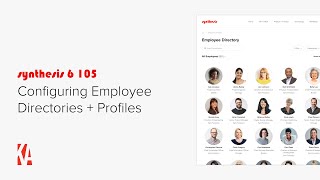
Christopher Parsons (Knowledge Architecture) presents a step-by-step tutorial on configuring employee directories and employee profile templates in a Synthesis intranet environment. The video shows how to edit filter bars, sorting, grid and list layouts, headshot sizes, save default and global views, add global views to navigation, customize global profile web layouts (header blocks, multi-field blocks, grids), configure profile associations (Beta mockup), manage mapped fields (Deltec, Azure AD) and create/populate custom fields (e.g., Committees), and how to bulk-edit profile data and surface employees via Smart Blocks.
Chapters
Hi, this is Chris from Knowledge Architecture. In this video, I'll walk you through the basics of configuring employee directories, employee profiles, and managing the mapped and custom fields which drive directories and profiles. Let's start with employee directories. I'm in the default view of our employee directory. You can see that I have a search bar filters for Title and Organization, that the default view is called All Employees. The directory is sorted by first name ascending. We're in the grid layout by default, and that the list layout has columns for Name, Title, Work Phone, Mobile phone, teams, and email. The first thing I want to change about our default view is filters. We've decided that the most important filters for our employee directory are Office Department and Discipline. While I can always get to those filters using the More Filters option, we'd like to have them available via the Filter bar by default. To edit the filter bar, I'll click on the Directory Options Ellipsis and then select Edit Filter Bar. I'll start by switching out Office for Title. And then Department for Organization, and then I'll click on Add More Filters to add in Discipline. Perfect. I'll click Apply. Now my default filters are Office Department and Discipline. The next change I want to make is to sort our directory by last name. So I'll click on Sorted by Select Last Name and click Apply. I'd like to show the Office for each employee in the grid layout. So I'll click on the Directory options Ellipsis and select Edit Data displayed. I'll choose Office for the tertiary data option and click Apply. Great. Next I'll want to configure the default columns for the list layout. So I'll switch my layout to List. I'd like to add in the Office column to the default list layout. So I'll click on the Directory Options Ellipsis and select Edit Columns. I'll scroll down to Office and enable it and then click Apply. You can see that Office won't currently fit on the screen with the width of the other columns, but it is available off screen using horizontal scroll. Now I can certainly leave my directory like this, but if I want to fit all of my columns on the screen, I have a few options. First, I'll switch the email column to use an icon instead of the full email address. To do so, I'll click on the Directory Options Ellipsis and select Edit Columns. I'll disable Email address and and then enable email icon and then drag it between mobile phone number and teams and then click Apply. Next I'll resize the Work phone, Mobile Phone, email and teams columns by clicking and dragging from the right edge of their column headers. It looks like I have a little extra space left over, so I'll give Name and Title a little more breathing room. Finally, I think Office would be better off after Name and Title, so I could move it using Edit Columns, but I can also just drag it into place using the Column header. Much better. We've decided we want a larger headshot in list layout, so I'll click on the Directory Options Ellipsis and select Edit Headshot Settings. You can see that I can edit the settings for the List and Grid layouts here, but I'm just interested in making the list layout headshots larger. So I'll change them to Medium and click Apply. Now I'll adjust my columns to account for the larger headshots. Great. So now that I've configured our filters, sorting grid layout, and List layout, I want to save my changes to the default view for all of our users. I'll switch back to the grid layout since I want that to be the default layout. I'll click on the Directory Options Ellipsis and select Save. Changes to Default view. I understand that I'm updating the default view called All Employees for all of our users, so I'll click Save. Now that we've configured the default view, let's talk about configuring additional global views. I'd like to add another saved view called Licensed Professionals to our employee directory. I'll switch to List Layout since that will be more useful for finding employees based on licenses. I'll start by editing the columns from my new saved view. I'll click on the Directory Options Ellipsis and select Edit Columns. I'll remove Office, Work Phone, Mobile Phone, Email, and Teams and then add in licenses and click Apply. I'll resize my columns to make more space for the Licenses column. Now that I've edited my columns, I'd like to configure the Filter bar. I'll click on the Directory Options Ellipsis and select Edit Filter bar. I'll keep Office, but replace Discipline with Licenses by Type and replace Department with Licenses by State and click Apply. You can see that I can now filter the directory by License Type or by state. In looking at this directory view, we've decided that it makes sense to only show employees with licenses, so I'll want to filter out the employees without licenses. To do so, I'll click on more filters in the Filter bar and choose Licenses. I'll switch the Filter Operator from contains to is populated and click Apply. Okay, I'm happy with my columns, Filter bar and default filter. So now I'm ready to create my saved view called Licensed Professionals. I'll click on the Directory options ellipsis and select Create New View. I'll name my new view Licensed Professionals. You'll see that I have the choice between creating a global view and a personal view. Global views are available to all end users, while a personal view is available only to the user who created it. I want this new view to be available to all users, so I'll stick with Global View. I'm also given the option to set this new view as the default view, but I'm happy with the default view we just configured, so I'll click Save. You can see that the name of my active view has changed to Licensed Professionals. And if I click the caret next to the view name that Licensed Professionals has been created as a global view alongside all employees, which is the default view. Okay, so that's configuring additional Global views. Our next topic is adding Global views to navigation. The way your end users navigate to your employee directory will vary based on the information architecture determined by your intranet team. Generally, though, it will be something like this Home Directories Employee Directory. If we navigate to the home community and then open the Content Outliner, You'll see that the Employee Directory is a link. In order to add the new Licensed Professionals Global View to our navigation, I'll add that as a link as well. I'll click Add and select Add Link. I'll search on License and then select the Licensed Professionals Global View. Result. I'm happy with the title of my link, so I'll click Apply. If I close the Content Outliner, I can then navigate to the Licensed Professionals Global View I created earlier. Okay, so here's a helpful fun fact. The employee directory isn't added to synthesis via the Content Outliner. Like pages, guides and libraries and employee directories can't be deleted from synthesis. So if you direct your attention to the top of my browser, you'll see that the URL structure for the Employee Directory is the name of the intranet. In this case demo.synthesis6.com employees517 which is the unique ID of the licensed Professionals view, and then Licensed Professionals, which is the name of the view. The Employee Directory lives at intranetnamemployees, and if I strip off the View ID and View name and just type in Employees, You'll see that I'm redirected to the Default view so if someone accidentally deletes your link to the employee directory, don't worry, the employee directory isn't gone. You just need to restore or recreate the link. Okay, so that's adding global views to navigation. Let's move along to configuring employee profile layouts. I'll scroll down the page to M. Davison's profile and hover on it. You'll notice that I get a hover card with Em's name and title, as well as her email, work phone, and mobile phone. I can click on either the directory or her hover card. To navigate to her profile. I'll click on the directory in the left column of Em's profile. You'll find a header with a large headshot and her name and title, her professional bio and I'm a resource. Four fields, a Basics block with Department and years with Firm fields and Education and Skills fields. In the right column I have a contact info block and as well as a list of EMS projects. I want to make some changes to our profile page layout, so I'll click the Edit pencil in the utility bar in the upper right. You'll see that I have two options. The first is to edit M. Davison's data. We'll come back to that in a bit. What I want to do is update the layout for all of the profiles on synthesis, so I'll select Edit Global web Layout. I understand that I'm editing the profile template that will change the web layout for all employee profiles, so I'll click Continue. You'll notice that I've entered a wireframe template with placeholder text and that we're not looking at EMS data anymore. Now I can proceed with making my changes. The first thing I want to do is add a couple of fields to the header block. I'll click on the header blocks Settings, cog and select Edit Data Displayed. I'll click Add another field and search for Office. I'll then do it again to add preferred pronouns and click Save. You can see that the header block has been updated. The next thing I want to do is add in a field called Personal Bio in between Professional Bio and I'm a Resource four, so I'll click in between them. To add a new line, head up to the Page Editor toolbar, click Insert and select Field. I'm asked to choose between a single field block, Multi Field block, and grid block. I want to add a single field block, so I'll click. Next I'll select Personal Bio and click Finish. Cool. Now I want to Add our Discipline field into the Basics Multi Field block. I'll click the Basic Blocks Settings cog and select Change Fields displayed. I'll click on Add another field and select Discipline and then I'll drag that field into the second slot and click Save. Okay, the last thing I want to do in the left column is add in our Licenses grid, so I'll click between the Basics and Education to insert a new line and then head up to the Page Editor toolbar. Click Insert and select Field. I'll pick Grid Block and click Next. I'll select Licenses and click Next. I'll choose the Table Layout and click Finish. Now that I'm looking at the page, I think I'd like to move the Basics up a bit, so I'll just drag it into place. Perfect. The Contact Info block is showing Email, Work phone and Mobile phone and I'd like to add in teams, so I'll click on the Contact info blocks, Settings cog and select Edit Links displayed. I'll click Add another link, select Teams and click Save. The Projects block and the Opportunities block are virtually identical, so I'll just talk about projects. By default, the Projects block displays each project's name, client name, and project number, sorts the newest projects to the top, and shows up to 10 projects on an employee profile. If an employee has more than 10 projects, then show all appears and users can click through to see the full list. I can change what data is displayed by clicking on the Project Block Settings cog and selecting Edit Data displayed. Switch out Project type for Project number and click Save. If I want to change the sort order or the number of projects displayed in the employee profile, I'll click on the Project Blocks Settings cog and select Edit Project List Settings. You can see that I can switch the sort order to number of hours billed or project name. I think I'll stick to Project Creation Date. I can also change the number of projects initially displayed, but again, I think I'll stick with the defaults, so I'll click Cancel. So that's editing the data displayed, the sort order, and the number of projects initially displayed. If I want to configure the logic to determine which projects show up for each employee, I'll head into the Profile Associations section of Synthesis Global Settings. Here's a note for Beta folks. The Profile Associations feature will be released later in BetaOne, so for now I'm going to describe its functionality via a mockup. Okay, we're in a mockup of profile associations. You can see on the left side of the page that we have screens for configuring the logic for employee and Project associations, employee and Opportunity Associations, and more. The Employee and Projects Associations screen lets me configure how employees are associated with projects and profile blocks, including which projects show up on employee profiles, which is what we're concerned with in this Getting Started video, as well as which employees show up on project profiles. There are three filters on this screen, an Employee Directory filter, a Project Role filter, and a Billable Hours Threshold Filter. By default, Synthesis shows all past and present employees on project profiles. Shows all employees on project profiles whether or not they have been assigned a role in Deltec. Applies a billable hours threshold of at least 10 hours to employees without an assigned project role in Deltec. As I mentioned earlier, the Profile Associations feature will be released later on in BetaOne. Okay, let's head back to Publish our changes to the global web layout of the employee profile. Now that I've finished with my configuration changes, I'll click Publish. Okay, I can see on em's profile that our new fields have been added to the header that Personal Bio is showing as is Discipline. I can see that Teams has been added to her contact info and that her Projects block is showing Project type instead of Project number. Now that I've finished editing the global web layout of the employee profile, I'll head back to the Employee directory. If I scroll back down to M. Davison and hover on her record, you'll see that her hover card has been updated to include Office and Preferred pronouns, and that Teams has been added as a contact option. This is because the Hover card draws its configuration from the header and Contact Info blocks on the Employee profile. Nifty right? Over the course of this video, you may have wondered to yourself, where do these fields come from? What if I want to add new fields or remove them, or change their names or the way they are displayed? Well, the answers to all these questions can be found in our Manage Fields feature. To open Manage Fields, I'll click on the Library options ellipsis and select Manage Fields. You can see that Manage Fields is broken down into two enabled fields and disabled fields. Enabled fields can be displayed via your employee directories, employee profiles, and employee blocks, whereas disabled fields cannot be displayed in synthesis. Let's add a new field to our Employee directory by clicking Add Field. You can see that I'm asked to choose between a mapped field and a custom field. You can map employee fields from either Deltec or Azure Active Directory. Those fields are not editable in synthesis. Custom fields are created in synthesis and are editable by global administrators and users with directories and profiles permissions, with an option to make certain fields editable by employees. For now, we're going to add a new mapped field, so I'll click Next. The first thing I'll be asked to do is select a source system. The field I'm looking to map is coming from Deltec, so I'll select Deltec. Next, I'm asked to select a Deltec field or grid. I'm looking for the Advocate field, which is right near the top. Great. I'll click Next. On the next screen I can confirm that I've mapped a new field from Deltec and that field is Advocate. By default, Synthesis brings over the display name from Deltec for mapped fields, which I can override in synthesis. However, Advocate is just fine for me. The Advocate field is an employee data type in Deltec and is also an employee field type in synthesis. If I click More options, I can change the alignment if I want, but left seems right, so I'll click Finish. You can see that employee data for my new mapped field is syncing and will be done in five to 10 minutes. I'll click OK. Advocate has been added to my list of enabled mapped fields and is available to display in employee directories, employee profiles, and employee blocks. Now that we've added a new mapped field, let's look at configuring existing fields. We've decided that we want to change the source system for our Work Phone field from Deltec to Azure Active Directory, since we tend to have more accurate phone number data. In Azure Active Directory, I'll scroll down to Work Phone and click on the Edit pencil. I'll switch the source system to Azure Active Directory and select Business Phone from the list of available options. I'll keep the display name and field type the same and click Finish. Okay, those are the basics of working with mapped fields. Let's talk about custom fields for a few minutes. I'll start by adding a new custom field for our firm's committee membership. I'll click on Add Field. I'll select Custom Field and click Next. I'll start by giving my new field a display name of committees. When I click on the field type drop down, you can see that I have several field types to choose from. Since our employees can belong to more than one committee, I'll select the option called Dropdown, select multiple values, and click Next. Now I'll add our committees. If I want to change the order, I can just drag them into place. Ok, now I'll click on more options. The column alignment looks correct, and you can see that EditableByend user is enabled by default. This means that end users can populate this custom field via their profile, which makes sense for several of our custom fields like I'm a resource for Personal Bio, Preferred Pronouns, and Dietary Preferences, but not so much for committee membership, which we'd prefer to centrally manage. So I'll disable it. This looks good, so I'll click Finish. Now that I've created the committee's custom field, let's go populate it for some employees. To do so, I'll head back to M. Davison's profile. I'll click on the Edit pencil in the utility bar and select Edit M. Davison's data. The first thing you'll notice is that I'm able to edit M. Davison's headshot now. That's because we're using Synthesis native headshots in our demo environment. If you are importing headshots from Deltec or Open Asset, you won't see the option to edit them here. As I look down the screen, I'll see that I can edit the following custom fields Committees I'm a resource for Personal Bio, Preferred Pronouns and Work from home status. Now I can edit all of these fields for all employees because I'm a global administrator. The same is true for users with the Directories and profiles global permission level. As you may remember, from creating the Committees field, we disabled the ability for end users to edit that field on their own profile because we wanted to control the committee membership centrally. So EM would not be able to edit this field, but would be able to edit I'm a resource for Personal Bio and Preferred pronouns. We've also disabled the ability for end users to update their work from home status so that field would not be available for them to edit. Now that we've learned a little bit more about how custom fields work, I'm going to populate M's Committees field. I'll pick Jedi and Sustainability and click Apply. Let's add the Committees field to the global profile layout. I'll click on the Edit pencil in the utility bar, select Edit Global Web Layout, click Continue. Click in between AMA Resource for and Licenses to add a new line, click Insert Field, choose Single Field block and click Next. Select Committees and click Finish. I'll publish my changes to the profile layout and scroll down to Committees. There we have it. Let's head back to the employee directory to talk about bulk populating custom fields for multiple employees at a time to populate custom fields for multiple employees at a time. I'll switch the list layout I want to populate the Project Management Committee. To start, I'll start by searching on Project Manager and then I'll check the selected item icon to the left of each employee I want to add to the Project Management Committee. Or by clicking select all in the Bulk Selection tool. I'll click Edit Profile Data in my Directory toolbar. You'll see that if I scroll right, I can edit all of the custom fields for the 15 employees I selected. That said, I'm just concerned with adding these 15 employees to the Project Management Committee. I'll start by adding Kara Brewer to the Project Management Committee. Now, I could certainly continue going down the list and adding them one by one, or I could either select Kara's committee's custom field value and copy and paste it, or drag that field down into other employees. I'll edit M. Davison manually and then populate Sally Little with Project Management and drag that value down to populate the rest of my committee. Excellent. I'll click Apply. I'll click on the Bulk Selection tool and deselect all my employees and and then clear my search. If I click on the More Filters option and then select Committees, you'll see that I can now use that filter to narrow my directory down to show only the employees in the Project Management Committee. I'll click Cancel. In addition, if I click on the library's Options Ellipsis and select Edit columns, I can enable Committees and drag it underneath Title and then click Apply. If I scroll down, I'll see Project Management appear for members of our Project Management Committee. And finally, perhaps I want to add our Project Management Committee to our Project Management Guide. I'll navigate to projects in practice. Project Management Introduction I'll click the Edit Pencil in the Utility bar. I'll click below the introductory text and then click Insert in the Page Editing toolbar and select Employees. I want to select my employees using the committee's custom field I just created, so I'll choose Smart Block and click Next. I'll switch my filter to Committees and then select Project Management and click Next. I'll accept the defaults for sorting layout data displayed and configuration and name my block Project Management Committee and click Finish. You can see that the 15 members of our committee have been added and and that because I'm using a Smart block, this list will automatically update when we add or remove members from the committee. I'm happy with the way this looks, so I'll publish my page. So that's it for our Getting Started video on configuring employee directories and profiles. Please feel free to reach out with any questions or comments. And happy building.
More from Christopher

Human in the Loop? Testing Our Assumptions About Where People Add Value in Learning | Todd Henderson

Redesigning Work for the AI Era: How Greenprint Turns Implicit Knowledge into Shared Intelligence

Designing Learning Like a Product: Branding, Culture, and the Unseen Work of Building an LMS

Scaling Design Excellence: How Diamond Schmitt Amplifies Knowledge Through Learning and AI
From Tame to Wicked Problems: Rethinking Learning and Development in a VUCA World | Ellen Bensky

Learning at the Speed of Change: Adapting L&D to Your New AEC Workforce | Kristina Williams

Designing Modern Learning Organizations: Rethinking AEC Learning Development in the Age of AI

The Link Between Learning, Motivation, and Career Fulfillment for AEC Professionals

Why Communication Skills Are Foundational to Teaching, Leading, and Adapting in AEC F

A Framework for Collaboration and Quality: SMMA’s ISO 9001 Journey | Ryan Farias & Jessica Smith