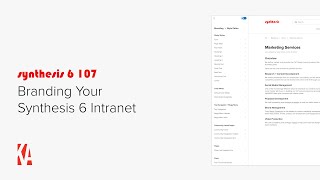
A concise, step-by-step tutorial by Christopher Parsons (Knowledge Architecture) showing how to brand a Synthesis 6 intranet. The video demonstrates accessing the Branding area via the settings cog, uploading a main logo, square logo, and favicon, then using the Style Editor to change fonts (default Proxima Nova → Open Sans), configure a centralized color palette (accent, text colors, stock icon colors), and adjust text styles (headings, links, bold). It also shows live previews, applying changes, and resetting styles to defaults.
Questions this video answers
366 pixels wide × 80 pixels high.
180 × 180 pixels.
Proxima Nova.
Open Sans.
Chapters
Hi, this is Chris from Knowledge Architecture. In this video I'll walk you through the basics of branding your Synthesis 6 intranet. To access branding, I'll click on the settings cog in the utility bar and click on Branding. You can see that I have four branding tools available to me Logos, which lets you configure the main logo, Square Logo and Favicon, the Style Editor, which allows you to configure fonts, colors, sizes and other common properties of your synthesis intranet style. And if there is a style or property you want to change that is not available in the Style Editor, you have the ability to use custom CSS and or custom JavaScript to get the outcome you are looking for. For the purposes of this getting started video, we'll we'll talk about Logos and the Style Editor. Let's start with Logos. We had a naming contest and decided to name our Intranet Connect and developed a main logo, Square Logo and Favicon. I'll start by uploading the main logo. You'll see in the helper text that we ask for a logo that is exactly 366 pixels wide and 80 pixels high. We are asking for such a large logo to support retina displays or high resolution displays which are becoming more and more common. Don't worry, your logo won't display abnormally large on your intranet. To upload my logo, I'll hover near the main logo section and click on the Edit pencil which appears. I'll select my logo Once it is done uploading, you'll see that it appears in real time. Now that I've uploaded my main logo, I'll upload my Square logo synthesis wonkle logo that is 180x180 pixels again sized for Retina or high resolution displays. I'll click on the Edit pencil, select my logo and upload it. You can see that the logo has been updated. Finally, I'll update my Favicon. The Favicon is a small logo that appears in your browser tab. I'll click on the Edit pencil, select my Favicon. And upload it. I'll pan upwards so that you can see that my Favicon was applied. Great. I'm happy with my logo changes so I'll click Apply. I'll click on Branding to navigate back to the main branding menu and then click on Style Editor. You can see that I have the ability to customize quite a few styles including global styles like font page titles, post titles and headings, top navigation and mega menu styles, community homepage styles and finally, to decide whether or not to show last updated information on pages, let's start with fonts. I'll click on Font and notice that Synthesis uses the Proxima Nova font by default. If I click on the font family, drop down and start scrolling, you'll see that you have hundreds of Google fonts to choose from. If you don't find your company font or a reasonable substitute in the Google Font collection, you can always write custom css. To use a custom font, I'm going to search for our company font, which is which is Open Sans. Great. There it is. When I pick it, you can see that it is immediately applied on the Page preview on the right. You'll also notice that a new button appears which allows me to reset the font to the default style. I'm happy with open Sans though, so I'll click Apply. Great. That's the font. The next style I want to configure is Colors, so I'll open the Colors style. You can see that I have the ability to configure the color palette for synthesis in one place. I'll start by configuring the Accent color, which is used throughout synthesis in hover states buttons and and has the default color for stock icons. For example, if I hover on Marketing in the Mega menu, you'll see that it turns the Accent color and that the underline bar is also using the Accent color. I'll click on the Accent Color style and paste in our main brand color. If I hover on Marketing again, you'll see that it is applied immediately. To talk about additional colors in the color palette, I'll apply my changes and edit the page. You'll notice that the Publish button is now using our new Accent color. I'll open Branding again and choose the Colors style on the Marketing Team page. I'll click on the Text Color option in the Page Editing toolbar and you'll see that the Text and highlight colors in the Page Editor are drawn directly from the color palette in the Style Editor. At this point, I want to update the Text colors to use colors from our brand guide. I'll update text 1, Text 2, text 3, text 4, and text 5. Looking good. Let's open the Text Color option back up again in the Page Editing toolbar. Nice. I'll click Apply in the Style Editor and cancel out of the Page Editor. In addition to the Text Editor, these colors are used by the Stock Icon feature. To see that in action, I'll navigate to the Benefits page. Cool. I can see that all of my stock Icons have been updated to our brand color since they had been configured using the accent color. And if I edit the page. And click on the stock icons, options ellipsis and select Edit Color, you'll see that the colors I configured in the style editor are now available for me to use for stock icons as well. So that's what I wanted to share with you about colors. I'll cancel out of the page editor and head back to the marketing team page I was on previously. Now that I've configured my logos, font and colors, I want to move on to text styles. I'll click on the settings cog and open Branding back up. Since I changed the font to open Sans or default brand font, I've noticed that I want to play with the headings a bit to see if I can find styles which best match that font. Let's start with heading one. I'll click on the heading one style and see that I have the option to change the size, weight, color and capitalization. I'm going to keep an eye on the overview, Contact Us and Marketing Team Text because they are all using the Heading one style. Let's start by making my font weight a little heavier. How about 700? Nice. But now I think the font might be a bit too large, so I'll nudge it down to 22 better. Maybe changing the color would be a good idea. So I'll click on the color style and again you'll see that I can choose from those brand colors we configured earlier. Let's use the accent color and perhaps we might want to try setting the capitalization to uppercase. Well that's not bad, but I think I actually liked it better before the color and capitalization change. So I'll click click on the X next to the color property to remove the change and then click on the X next to the capitalization property to remove that change as well. Ok, I like this for now. So I'll click Apply. I want to make similar changes to heading two. I'll be watching the Research and Content Development, Social Media Management, Proposal Development, Brand management, and Video production text. Since they are level 2 headings, I'll click on the heading 2 style and then try nudging the font size down to 18 and increasing the weight up to 700. Nice. I'll click Apply. You can see that I have several links on my page in both the left column and the right column. I want to play around with the link style to see if I can punch them up a bit. I'll click on the normal text style and focus in on the normal text link section. I'll try bumping the text weight up to 400, changing the text color to our accent color and changing the underline color to also use our accent color. Not bad. However, if I hover on one of these links I can see that it's not quite right. So I'll set the hover text weight to 400, set the hover text color to the accent color, change the hover underline thickness to two pixels and change the hover underline color to the accent color as well. Ok, let's try hovering on a link again. Much better. I'll apply my changes I want to try bumping up the weight of our bold text so that it is in line with our headings. I'm keeping an eye on the employee names in the employee block. I'll click on the bold text style and try changing that weight to 700. Nice. I'll click Apply. Okay, let's take a look at a few pages with the new styles I've selected. Here's the employee directory and an employee profile and a Market sector page, our Deltec Vantage Point page, and the Benefits page we saw earlier. Obviously there are more changes I could make and I can continue to tweak over time, but for now I'm happy with the changes I've made and if I ever want to reverse all my changes and reset all my styles back to the defaults, I can click on Reset all styles to defaults and click Reset. And now I'm back where I started. So that's it for our getting started video on branding your synthesis 6 intranet. Please feel free to reach out with any questions or comments and happy building.