S6 108: Getting Started with Posts, Hashtags, and Notifications
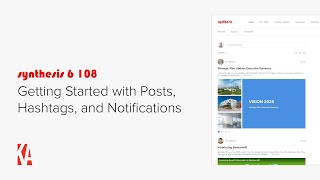
A step-by-step tutorial by Christopher Parsons (Knowledge Architecture) that demonstrates how to use Posts, Hashtags, Notifications, and related administration on the Synthesis intranet. The video walks through stream basics, composing posts (titles, media, mentions, hashtags, drafts, preview), promoting posts, configuring automated system posts (images, birthdays, anniversaries), adding stream/posts blocks to pages, managing hashtag pages and hashtag blocks (featured/trending), email notification preferences and staging vs production behavior, and administration tools for stream and hashtag management. It closes with an overview of planned Post Analytics.
Chapters
Hi, this is Chris from Knowledge Architecture. I'm going to introduce you to the basics you need to get started working with Posts, hashtags, and notifications. I've broken this video into three major posts and hashtags, notifications, and administration tools. Each of these sections has been broken down further using Vimeo's Chapters feature to allow you to split your viewing over multiple sessions or easily return to a specific chapter at any point. To access the chapters, simply click on the dots in the video timeline below, or click on the Chapters icon in the bottom right corner to pull up a list of all of the chapters in the video. Okay, let's get started with Stream Basics. I'm on the homepage of our Synthesis intranet. By default you'll find an activity stream in the left column, which allows me to both create new posts and but also find out what's happening in the firm. As I scroll down the page, I can see a variety of posts using a variety of media including video, external links, image slideshows, documents, and more. I can click on the headline or on See More to expand the post, And at the bottom of the post I can, like the post, read comments from other employees. Or comment on it. My. At the bottom of each post is a list of clickable tags which allow you to learn more about the topics, communities, or people mentioned in the post. I'll scroll back up to the top of the stream to introduce a few more concepts. First, you'll notice that your homepage stream is configured to roll up posts from all of the communities on the intranet by default. The other option I have is to just show posts from the communities I'm following. For example, the second post in my stream is called Introducing BambooHR, which was posted in the learning community, and the third post about the Sacramento Central Library was posted in the Marketing community. If I switch my view to show I'm following instead of all posts, you'll see that the introduction to bamboohr post disappeared, but the post about the Sacramento Central Library post remained visible. This is because I'm following the marketing community but not following the learning community. If I navigate to the Marketing Community homepage, you can see that I am following it by checking the following status on the right side of the community navigation bar. And if I navigate to the Learning Community homepage, you can see that I am not following it. I'll follow it now. Okay, now that you can see I'm following the learning community, I'll return back to the homepage and you'll see the bamboohr post. So the last basic concept I want to introduce are stream layouts. The default layout of the stream is what we call Classic, but your users can choose from two additional headline and grid synthesis will remember whatever layouts you choose for each stream block across browsers and devices. Ok, so those are the stream basics. Let's talk about Composing posts using the Post Editor. I want to post an update about a recent project tour, so I'll head over to the Projects and Practice community. I'll click on Share Something in the stream to launch the Post Editor. You can see that I have text formatting tools at the top of the Post editor, as well as the ability to add images, videos, and documents to posts. I'll start by adding a post title. Now I'll begin writing my post. Ok, let me freeze here. I'm about to add a hashtag to this post for Project Tour. Hashtags are primarily used to group posts together to make them easier to find, as well as to send email notifications to followers of each hashtag. I'll click on the hashtag Project Tour and notice that it has turned into a linked tag. I'll come back to that a little later on in the video. Ok, I'll keep running my post. I'll freeze here again. Typing the symbol will search synthesis for Community, Employee, Project, Company Contact, and Opportunity tags. These are called mentions and will a associate the post with the entioned resource and b create a link to the resource. I'll click on the Dropbox San Francisco Project tag and continue writing my post. I'll freeze again. I want to tag our tour guide Carla Lewis, which will not only link to Carla's profile, but also send her an email notification. I'll tag Carla and finish writing my post. I'll upload a photo from my desktop to finish off the post. Great. If I'm not ready to publish yet, I can click on the Post Options ellipsis in the upper right to save my post as a draft and come back and finish it later. However, I'm ready now, so I'll click Publish. I'll be taken to the Review Post Details screen, which is kind of like a checkout confirmation for your post. I can review the post's thumbnail, including editing the crop in zoom, replacing the image, or removing the thumbnail. I can edit the preview text and I can edit the tags. The Projects and Practice tag was added automatically because I'm posting in the Projects in Practice Community Project Tour Dropbox San Francisco Carla Lewis and Devi Patel were added in line as entions I can also add additional tags, e.g. san Francisco. Finally, I can preview my post to make sure I'm happy with how it will appear in each of the stream and post block layouts, including classic headline, grid and list. I'll close the preview and now that I'm happy with my post, I'll click Publish. You can see that my post was added to the top of the Projects and practice community as the post author. I can also click on the Post Options Ellipsis to edit my post, thumbnail preview text and tags. In addition to the Post authority, global administrators and or users with stream administration permissions can also edit the post and its thumbnail preview text and tags. Okay, now that we've covered the basics of the Post editor, let's move on to Promoted Posts. As I mentioned earlier, Synthesis rolls up posts from across the intranet onto the stream on the homepage and displays the newest posts first, which helps keep your intranet homepage fresh and dynamic. However, sometimes your firm will have important announcements or messages which you'd like to remain pinned at the top of the homepage even as new posts come in from across the intranet. This is where Promoted posts come in. For example, I'll scroll down to M's Strategic Plan Update. We'd like this post to stay at the top of our stream for the next week, so I'll click on the Post Options Ellipsis and then click on Promote. I'll Pick Friday the 21st as the end date for this promotion. You can see that I can also optionally send an email notification for this post to all users. I'll skip the email notification this time and click Promote. You can now see that M's Strategic Plan Update is the top post in the stream, and it will remain at the top of the stream until the promotion expires or we manually demote it later. The Promoted post is also distinguished by a gray background and the Promoted Post icon in the upper right of the post. Okay, so it turns out we have another major piece of news this week, and we'd like to promote that as well. I'll scroll down to Em's post on October 12th about Sarah Watts retiring as our chairwoman on December 1st. We'd like to promote this post as well, so I'll hover on the Post Options Ellipsis and click Promote. I'll pick Friday as the end date for the promotion, and again, I'll skip the email notification and click Next. By default, Synthesis will sort your Promoted posts in the order you promoted them, but I can Change that order if I like I think we'll go with Sarah Watts as the lead story. I'll click Promote as I scroll down the stream. You'll see both of my Promoted posts. If I decide I'd like to demote a post or change the promotion end date later on, I can always do so by clicking on the Post Options ellipsis and clicking on Update Promotion Status. You'll see I also have the option to reorder Promoted Posts here as well. Finally, Global administrators can promote or manage Promoted Posts as well as users with either the Stream administration or Promote Posts Global Permissions okay, so that's Promoted Posts. Let's talk about System posts next. In addition to posts written by your employees, you can also configure three types of system posts that to automatically appear in your stream projects with new images in Open Asset Birthdays and anniversaries. By default, the name of your System Post Author is the name of your intranet plus the Word bot, but that can be configured. We use the square logo as the headshot for the System Post authority, which you can configure in Branding. In addition, the titles and default tags can also be configured for each system post. Let's head over to Settings to take a look. Okay, I'm in the New Images and Open Asset Settings page In the Stream section of Settings. You can see that I have the option to enable new images and open asset posts, configure the post title and configure the default tags. If I go to the Birthday Settings page, you'll see that I have the same options to enable and disable birthday posts, configure the post titles and configure the default tags. And in the Anniversary Settings page, you'll see the same three options again, as well as an additional option to configure milestones for your anniversary posts. By default, Synthesis will create anniversary posts in year one and every five years, but you can also choose to use every five years or every year as a milestone. Finally, on the System Post Author Settings page, you can configure the name of your System Post Author, which will be used for your automated Open Asset Birthday and Anniversary posts, as well as your weekly emails. I'll come back to weekly emails later in the video. Ok, so that's it for system posts. Next up is the stream block. Each of the community homepages we visited so far during this video, Home Marketing and Learning have had a stream block in the left column, which was included in the Community homepage template used to create the Community. However, you can also add stream blocks to any page on synthesis. For example, in our technology community, we have a page under Design Technology called Revit Users Group. I'd like to add a stream block to this page. I'll start by editing the page and then I'll click Insert Posts. I'm asked to choose between a stream block and a posts block. As you can see in the stream block description, a stream block is the best choice when posts are the most important content on the page and you want to encourage end users to share new posts. That's what we're looking for on the Revit Users Group page, so I'll click Next. I'm asked to select Stream block filters, which will determine what posts will show up in the stream block I'm adding. I'll add all posts tagged with Revit. And you'll see the stream is added to the page in the background. I could add additional hashtag filters or author community tag, company tag, contact tag, employee tag, opportunity tag, or project tag filters. For now though, I'll stick with Revit and click Next. Next, I'm asked to choose a default layout for my stream block. I can choose between Classic Headline and Grid. I like Grid for this page, so I'll click Next. Finally, I'm given the choice to configure the default tags for new posts created using the stream block. Since we're in the technology community, the technology community tag was added by default. I'll also add in Revit and click Finish. If I ever want to make changes to the stream block, I can just click on the block settings cog and edit the stream block filters, switch the default layout, or configure the default tags. My stream block is looking good, so I'll publish my page. Nice. So that's the stream block. Next, we'll take a look at the posts block. So far we have only displayed posts using the stream block, whether that was on the homepage, community homepages, or pages like this. However, there is another way to add posts to your intranet, and that's by using the posts block. Posts blocks are a great choice when you'd like to add a group of posts to a page based on a tag, in this case Townhall, or if you'd like to curate a special collection of posts manually, in this case, a collection of recent benefits related updates. Let's add a posts block to the homepage to see how it works. Our CEO M. Davison writes several posts a month about our company vision for 2025. Using the hashtag vision2025 we'd like to add a post block to the right column of the homepage so that the most Recent posts about Vision 2025 are always visible, no matter what else is happening in the stream. I'll edit the page, click Insert Posts. Since the stream block cannot be placed in the right column, the Posts block option is already selected for me. I'll click Next. I'm asked to choose between a basic post block and a smart post block. A basic post block lets me manually create a collection of posts, where a smart posts block lets me automatically create a collection of posts using filters. A smart block is what I want, so I'll click next. As I mentioned before, we'd like to create a collection of posts about Vision 2025, so I'll add a hashtag filter for Vision2025. Several people in our firm have been writing posts and comments using Vision2025, which is great, but we only want to show official posts coming from our CEO to this block. So I'll add an additional author filter on M. Davison. Okay, that all looks good. So I'll click Next. I can choose between two grid and list. I like lists better in this case, so I'll click Next. I'll limit the number of posts displayed to three. And click Next. Finally, I'll name my block vision2025 updates and click finish. I'll publish my page. Nice. So to take a step back, we've covered Stream Basics, the Post editor, promoted Posts, system Posts, the stream block, and the post block so far. We'll close out this section by talking about hashtag pages and the hashtag block. We'll start with hashtag pages. If I click on a hashtag anywhere in synthesis, including the post body, tags, footer, or hashtag block, I'm taken to an automatically generated hashtag page where I see all of the posts for that hashtag. I can also write new posts using the hashtag on this page, as well as follow the hashtag, which will continue to show posts tagged with Project Tour on my homepage. Even if I switch my stream from all posts to I'm following, as well as subscribe me to email notifications for this post, which we'll talk about in the next section of the video. I'll go ahead and follow ProjectTour because I don't want to miss out on these updates. I'll head back to the homepage to introduce the hashtag block. I'm on the homepage of our intranet. I'll edit the page and then click Insert and select hashtags. You can see that I can choose between a featured hashtags block, which allows me to manually create a collection of featured hashtags, and a trending hashtags block, which displays the most frequently used hashtags over the last few months. Let's start with a featured hashtag block, which is a great choice if I want to curate a list of important hashtags for our users. I'll click Next. On the Select Hashtags screen. I'll search for my first featured hashtag designed and select it. I'll add another CEO corner now Net Zero Project Tour and Vision 2025 if I want to change the order. For example, to move CEO corner to the top of the list, I'll just drag and drop. Nice. I'll click Next. You can see that I have two layouts to choose Pill, which is the default, and list. I think I'll stick with Pill and click Next. I have options to configure the accent, color, number of hashtags displayed, and class status, but for me the defaults are fine. So so I'll click Next. I'll accept the default title and click Finish. I'll publish my page. I'll click on Vision2025. Nice. Let's take a look at the trending hashtags block. Now I'll edit my page, delete the featured hashtags block I just added, Click Insert hashtags. The trending hashtags block is already selected, so I'll click Next. You can see that I can choose between a Pill layout, cloud layout, and list layout. I think I'm going to stick with Pill and click Next. I'll accept the default layout configuration as well as the default block title and click Finish. I'll publish my page. Nice. One last thing about the trending hashtag block. If I use the trending hashtag block on a community homepage, for example Marketing, you can see that the trending hashtags block is filtered to only show hashtags trending in the marketing community. So that's it for the Posts and Hashtags section. Now we'll move on to Notifications and start with email Notifications and managing email preferences. But before we do that, we'll need to touch briefly on Staging mode. When you first start working in your synthesis6 environment, you'll be in Staging mode. So what does that mean for notifications? While in Staging mode, all of your email notifications, including mentions, promoted, posts, and the weekly email, will be limited to users with staging access to allow your intranet team to configure your intranet and test functionality without disrupting the rest of your firm. Later, when you're ready to go live on Synthesis 6, our team will switch you to Production mode, which means that all active users will have access to the intranet and email notifications. That said, even if you're currently in Staging mode, I think it will be helpful for you to understand how email notifications will fit into your internal communications toolbox. By default, you and your users will receive email notifications like this for posts you are tagged in and posts to a community or hashtag you are following. I can read the entire post in my inbox, As well as click Back to the post to like it or comment on it, subscribe to comments on the post, and manage my email preferences. Similarly, you and your users will receive email notifications like this for new comments on posts you've written as well as new comments on posts you've commented on. By default, I can add a new comment, unsubscribe from comments on this post, and manage my email preferences. I'll click on Manage Email Preferences to configure my settings. We're looking at the default email notifications preferences for Synthesis users. Each of your users can configure their email notifications preferences to get their settings just right. It's worth noting that Promoted posts in the Weekly email are not affected by these settings. Speaking of the Weekly Email, that's the last chapter in this section. The Weekly email is a great way to keep your firm in the loop with important news and announcements. The schedule, title and sections to include are all configurable, but in this case we're showing recently Promoted Posts. As well as upcoming anniversaries and upcoming birthdays. Global administrators can configure and test the Weekly email in the following and Notifications section of settings. Let's take a look. I enabled the Weekly email and you are seeing its default configuration. You can see that the Weekly email is scheduled to send on Wednesdays at 9am Central Time, that the title is Synthesis Update, which is the intranet name plus the word update, and that up to five Promoted Posts and up to five of the most active posts are enabled, and that upcoming anniversaries and upcoming birthdays are disabled. Again, the Weekly email will not be sent automatically while you are in Staging mode. Finally, I can also test my Weekly email by sending it manually to one or more email addresses. So that's it for the Notifications section of this video. We'll Wrap up by talking about administration tools, starting with Stream Administration. To navigate to Stream Administration, I'll click on the settings cog in the Utility bar and click Stream Administration. Stream Administration provides me with a complete view of all of the posts in synthesis, as well as tools to help me manage those posts, either one at a time or in bulk. To help me find the posts I want to manage, I have a search bar, filters for community tags, hashtags, authors, publish, date, and more. I have sorting tools, a list layout, a grid layout, as well as the ability to edit the columns in my view, group my view, create saved views, export a view to Excel, and review and or restore deleted posts. If I hover on a row and click on the Post Options Ellipsis, you'll see that I have the same editing, promotion, and deletion options that I have in the Stream and Post blocks. If I select multiple posts at once, either by clicking the selection bubble next to each post. Or by using a filter, for example Learning and selecting all the posts, the Bulk Actions toolbar becomes visible. Using the Bulk Actions toolbar, I can find and replace tags for my selected posts, add tags to my selected posts, or delete all of my selected posts. Let's click on Find and Replace tags. We've added a new learning community to our intranet, and I want to replace all instances of Learning with the new Learning Community tag. I'll click next. I'll review my confirmation and then click Replace Tag. I'll clear the hashtag filter and then filter Stream Administration on the Learning Community tag. Nice. There are the seven posts Stream Administration is available for global administrators as well as users with stream administration global permissions. Those are the basics for stream administration. Let's talk about hashtag administration next. To navigate to hashtag administration, I'll click on the Settings cog in the Utility bar and click Administration. Administration provides me with a list of all of the hashtags in synthesis, as well as tools to help me manage those hashtags. You'll see that I have a search box, filters that I can change the sort order, and if I click on the hashtag Administration Options ellipsis, you'll see that I can create new hashtags, export this list to Excel, and manage my list of hidden hashtags. I have a table with a column for hashtags, as well as the number of posts each hashtag is used in, and the last use date for each hashtag. If I click on either the hashtag or number of posts, I'll be taken to the hashtag page for that hashtag in a new tab. Let's get started by creating some new hashtags. I'll click on the hashtag Administration Options Ellipsis and select Create Hashtags. Using the Create New Hashtags feature is handy when you are either launching New intranet or launching a new initiative, program or campaign, and you want to ensure that your users are using the right hashtag or hashtags from the start. For example, as part of our intranet launch, we want to create a hashtag for each of our offices. Start with Chicago and press Enter. I'll add Boston, Seattle, and san francisco. I'll click create hashtags. I'll scroll down a little bit and you'll see the four Office hashtags I just created. These new hashtags can now be used in Posts and Comments, posts and Stream blocks, the hashtag block and used as links in the Content Outliner and Navigation blocks. So that's creating new hashtags. Next, I want to talk about renaming hashtags. If you look at the hashtags we've created so far on our intranet, you can see that we're using Title Case or what some folks call Camel case capitalization on our hashtags to make them uniform and legible for our end users. That said, we noticed that the Benefits and Human Resources hashtags were both created as all lowercase. Not to worry. I'll click on the options Ellipsis next to Benefits and click Rename. I'll capitalize Benefits and click Save. I'll do the same for Human Resources. Now that I've done this, I'll see the Title Case version of my hashtags everywhere that hashtag appears. Okay, since some time has passed and we've noticed that a couple of posts have used SFOffice instead of our preferred San Francisco office, so I'm going to merge SFOffice into San Francisco Office. Before we merge the tags, note that San Francisco Office has seven posts and SF Office has two posts. I'll click on the hashtag Options ellipsis next to SFOffice and select Merge into another hashtag. You can see that sfoffice is already selected as the hashtag which will be merged. So I'll search on Sam and select San Francisco Office as the tag to merge into and click Next. On the confirmation screen, you'll learn that sfoffice will be replaced by San Francisco Office in two posts and that the sfoffice hashtag will be hidden, meaning that sfoffice will no longer autocomplete when adding and editing tags appear in hashtag blocks or appear in search results. That's just what I'm after, so I'll click Merge hashtag. You can now see that we have nine posts for San Francisco Office and that the SF Office hashtag has been hidden. Perfect. If you ever want to just hide a hashtag. For example, if an initiative program or campaign is over or outdated, I can just click on the hashtag options Ellipsis and select Hide. And if I ever want to see my list of hidden hashtags, I can click on the hashtag Administration Options Ellipsis and select Hidden hashtags. In closing, I'll share that hashtag Administration is available for global administrators as well as users with Administration Global permissions. So that's administration let's finish our video by talking about Post Analytics Post analytics isn't available in the Synthesis 6 beta yet, but I'm going to walk you through a few mockups so you can understand how it will work when it's released in early 2023. POST analytics allows you to understand the overall performance of posts on your intranet, as well as the performance of posts containing certain community tags, hashtags written by certain authors, and more. If you click on the Post Analytics Options Ellipsis, you'll see that you have the option to edit the columns displayed, change the filters displayed by editing the filter bar, save changes to the default view of Post analytics, or create a new view and export your data to Excel. And if you want to change the date range, you can do so by using the Date Picker. Clicking on the Publish Posts tab will give you a view optimized to help you track performance against your internal communications goals based on the number of published posts. Finally, Post analytics is available for global administrators as well as users with Post Analytics Global permissions. So that's it for our getting started with posts, hashtags and notifications video. Please feel free to reach out with any questions or comments and happy building.
More from Christopher
Human in the Loop? Testing Our Assumptions About Where People Add Value in Learning | Todd Henderson

Redesigning Work for the AI Era: How Greenprint Turns Implicit Knowledge into Shared Intelligence

Designing Learning Like a Product: Branding, Culture, and the Unseen Work of Building an LMS
Scaling Design Excellence: How Diamond Schmitt Amplifies Knowledge Through Learning and AI
From Tame to Wicked Problems: Rethinking Learning and Development in a VUCA World | Ellen Bensky

Learning at the Speed of Change: Adapting L&D to Your New AEC Workforce | Kristina Williams
Designing Modern Learning Organizations: Rethinking AEC Learning Development in the Age of AI

The Link Between Learning, Motivation, and Career Fulfillment for AEC Professionals

Why Communication Skills Are Foundational to Teaching, Leading, and Adapting in AEC F

A Framework for Collaboration and Quality: SMMA’s ISO 9001 Journey | Ryan Farias & Jessica Smith