S6 110: Manage Users + Permissions
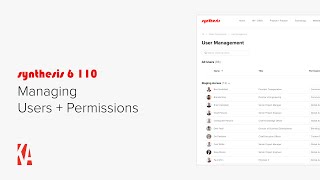
This content was created by Christopher Parsons. This content was uploaded by Christopher Parsons. This is a YouTube video titled "S6 110: Manage Users + Permissions" created on April 2, 2025. It features Christopher Parsons from Knowledge Architecture explaining how to manage users and permissions in Synthesis 6, including adding a new employee, Devi Patel, to the system and configuring her access and permissions.
Chapters
Hi, this is Chris from Knowledge Architecture. I'm going to introduce you to Managing Users and permissions in synthesis 6. Now I'd like you to meet the newest employee of our firm, Devi Patel, who will be our Director of Business Development. Our goals are to add Debbie to our employee directory, grant her access to our staging environment so that she can start creating and editing content for our Synthesis 6 launch, make her a community manager of our marketing community, a content editor in our learning community, an end user in our private management team community, and make her a branding and page template administrator. To get started, we'll need to import her user account from Azure Active Directory and connect her Synthesis user account to Deltec, an open asset. If you haven't heard of Azure Active Directory, don't worry. What you need to know is that it is a cloud based identity and access management service from Microsoft that your firm uses to Provision access to Microsoft 365 resources such as Outlook Teams, Office, and other cloud software, including Synthesis. When Debbie joined your firm, one of your Azure Active Directory administrators created a new user for her so that she could get to work to add her to the employee directory in Synthesis. All your Azure Active Directory administrator has to do is add her to the same security group they configured in our deployment meeting. For example, I'm in the Users and Groups configuration screen for the Synthesis 6 Enterprise application in the Synthesis 6 admin portal of Azure Active Directory. In this example, the security group we're using to provision users to Synthesis is called All Users. Once Debbie has been added to all users, she'll appear in the Employee directory on the next sync between Synthesis and Azure Active Directory, which can take up to 20 minutes. I'm in the employee directory now, and when I scroll down, there's Devi Patel. So to recap, you'll use Azure Active Directory to add and remove Synthesis users. You'll also use Azure Active Directory to authenticate Synthesis users, meaning your users will use the same password for synthesis that they use for other Microsoft 365 applications like Outlook Teams and Office. Once your users have been imported into Synthesis from Azure Active Directory, you'll use Synthesis to grant users access to your staging environment and manage Synthesis user permissions. As a general rule, if an employee is not showing up in the employee directory, who should be there? Your first troubleshooting step is to contact your Azure Active Directory administrator to make sure that they are added to the right Security group or groups for your Synthesis six Enterprise application. Okay, we've added Debbie into the employee directory, so that's one goal Down. Now let's head into Synthesis to grant her access to the Staging environment. When you first start working in your synthesis6 environment, you'll be in Staging mode. What does that mean? Well, in Staging mode, you have to explicitly grant Staging access to active users brought in from Azure Active Directory. This allows your intranet team to configure employee directories, profiles and employee blocks on pages using everyone in the firm without them being able to access the Internet. In addition, while in Staging mode, all of your email notifications, including mentions, promoted posts, and the weekly email, will be limited to users with staging access to allow your intranet team to configure your intranet and test functionality without disrupting the rest of the firm. Later, when you're ready to go live on Synthesis 6, our team will switch you to Production mode, which means that all active users will have access to the intranet and email notifications will be enabled. I'm on our homepage. I'll click on the settings cog in the utility bar and click on User Management. You'll see that I'm able to search users, that I have filters, and that I have the name, title permissions and the Deltec ID for each user. If I hover on a user's row and click on the User options Ellipsis, you'll see that I can manage their permissions, edit their Deltec ID and either remove or grant access, depending on their current status. You can see that Bert already has Staging access along with 11 others. If I scroll down the page to the no Access section, we'll find Devi Patel. I'll click on the User options Ellipsis and select Grant Staging Access. You'll see that Debbie has been granted access to the Staging environment. This means she'll be able to log into Synthesis as an end user. Okay, goal number two is complete, as Devi now has access to the staging environment. Our next four goals are going to be tackled using the Manage Permissions feature. But before we dive into that, I'd like to take a step back and introduce the different permission levels in synthesis 6. At a high level, there are four permission levels in synthesis 6 global administrator, community Manager, Content Editor, and end user. All four roles can view intranet content and author posts and comments. Global administrators can edit community content for all of the communities in synthesis, while community managers and content editors can edit community content, including creating and editing pages and adding files to libraries for the communities they've been assigned permissions on. End users cannot edit community content. Global administrators and community managers can also edit Community homepages manage community structure, including creating and configuring guides and libraries, and manage community permissions. Now again, global administrators can perform these tasks on any community in synthesis or while community managers permissions are granted to specific communities. Finally, global administrators can manage global configuration items such as intranet permissions, creating communities, and organizing the top navigation. In addition, we have global permissions that can be granted a la carte to any user, including design permissions for page templates and branding content management permissions for directory administrators, meaning they can configure and manage directories and profiles, stream administrators and hashtag administrators who can manage posts and hashtags and promote posts so that you can delegate the ability to promote posts to certain users. And the third category of a la carte permissions is analytics, which allows you to grant access to post analytics, content optimization and search optimization. Now I'll call out here that global administrators have all of these a la carte permissions automatically, and these a la carte permissions cannot be removed from global administrators. Okay, now that we understand the fundamentals of synthesis 6 permissions, let's head back into user management. To assign Devi's permissions, I'll scroll down to Devi Patel and click on the user options ellipsis and then click Manage Permissions. From this screen I can add or remove user permissions. I'll start by assigning Devi's global permissions of branding and page templates. Next, I'll make Devi a community manager in the marketing community and a content editor in the learning community. The last thing I want to do is assign end user permissions to Debbie for the management team. Private Community all synthesis users are automatically assigned end user permissions to all public communities in synthesis. But end users of private communities have to be added explicitly. Now that I've assigned Debbie's permissions, I'll click Apply. You'll see that Debbie's permissions have been updated and if I click on three, you'll see the full list. Mission accomplished. Now let's log into Synthesis Debbie to see her permissions in action. I've now logged into Synthesis Debbie. As you can see in the utility bar in the upper right, if I click on the settings cog, you'll see that Devi now has access to page templates and branding. If I navigate to the marketing community, you'll see that because we added Devi as a community manager for marketing, she now has access to the Content outliner for marketing, can edit the community homepage, and has been added to the community managers block automatically. If I expand the Content Outliner, you'll see that Debbie has access to marketing because she's a community manager and learning because she's a content editor. If I click Add in the Content Outliner, you'll see that as a community manager, Debbie has the ability to add pages, links, guides, and libraries. I'll close the Content outliner and then click on the settings cog in the utility bar. You'll see that as a community manager, Debbie has the ability to manage the permissions for the marketing community. Let's take a look at the community permissions for marketing Right away. You'll notice that six users have been granted editing permissions to the marketing community, two global administrators, Chris and Susan, two community managers, Debbie and Jose, and two content editors, Chad and Em. If I click on the permission level button for Chad, you'll see that as a community manager, Devi can either elevate Chad to become a community manager for marketing or remove his editing permissions. If I click on the Permission level button for Susan, you'll see that global administrator's editing permissions cannot be removed for a community. And if I click on Add Additional Users, you'll see that as a community manager, Debbie can also grant editing permissions to additional users. I'll search for Tina Spencer, one of our new interns who's going to be helping us build out a new section of the marketing community. You'll see that I can add her as either a content editor or community manager. I'll stick with Content Editor. Here's a little pro tip. You'll remember that Susan was a global administrator and as such already has full editing permissions to marketing. However, if I want her to show up in the Community Manager block on the Marketing community homepage, I can add her as a community manager here and she'll show up in that block so that our users know she's a primary contact for this community. There she is. Now I'll navigate to the learning community to see how Debbie's editing experience as a content editor is different from that as a community manager. If I click on the settings cog in the utility bar, you'll notice that Devi doesn't have the ability to manage permissions for learning like she did as a community manager. On marketing, I'll open the Content outliner and and if I click on the Add button, you'll see that as a content editor, Debi has the ability to add pages and links, but not guides and libraries. And if I click on the page options ellipsis next to training, you'll see that Devi has full abilities to edit page titles, edit pages, duplicate pages, unpublish pages, move pages, and delete pages. Okay, now that we've learned a little bit more about the Community Manager and Content Editor permission levels, let's close out by reviewing our goals for this video. You can see that we've successfully added Debbie to the employee directory, granted her staging access, and configured her permissions. So that's it for our getting started video on managing users and permissions in synthesis 6. Please feel free to reach out with any questions or comments, and happy building.
More from Christopher
Human in the Loop? Testing Our Assumptions About Where People Add Value in Learning | Todd Henderson

Redesigning Work for the AI Era: How Greenprint Turns Implicit Knowledge into Shared Intelligence

Designing Learning Like a Product: Branding, Culture, and the Unseen Work of Building an LMS
Scaling Design Excellence: How Diamond Schmitt Amplifies Knowledge Through Learning and AI
From Tame to Wicked Problems: Rethinking Learning and Development in a VUCA World | Ellen Bensky

Learning at the Speed of Change: Adapting L&D to Your New AEC Workforce | Kristina Williams
Designing Modern Learning Organizations: Rethinking AEC Learning Development in the Age of AI

The Link Between Learning, Motivation, and Career Fulfillment for AEC Professionals

Why Communication Skills Are Foundational to Teaching, Leading, and Adapting in AEC F

A Framework for Collaboration and Quality: SMMA’s ISO 9001 Journey | Ryan Farias & Jessica Smith