How to stand out on video and boost LinkedIn presence (hosted by Northwestern Alumni Association)

In this 30‑minute Northwestern Alumni Association webinar, editorial director Lorraine K. Lee (Prezi) walks attendees through practical ways to become more confident on camera, make virtual presentations more engaging, and grow a professional presence on LinkedIn. She begins with a personal story about her first video interviews at LinkedIn, then shares three confidence‑building tips (using visual templates, lighting, and a dedicated presentation space) and three ways to stand out (adding movement, applying the Think‑Do‑Feel matrix, and ending with a clear call‑to‑action). The session moves into best‑practice guidelines for video meetings—framing, eye‑contact, hand gestures, standing versus sitting, and voice projection—followed by a deep dive on LinkedIn video strategy: native video uploads, timely and relevant content, hashtags, tagging, questions, and emojis. Throughout, Lee demonstrates how Prezi Video lets presenters keep their face on screen while showing slides, offers template resources, hardware recommendations (ring light, Bluetooth clicker, external mic), and answers a live Q&A covering virtual backgrounds, color choices, analytics, and how to get up to speed with Prezi. The webinar ends with a reminder to download handouts, fill out a feedback survey, and connect with Lee on LinkedIn.
Chapters
Hello everyone, thank you so much for joining us for the webinar, How to Stand Out in Virtual Presentations and Boost LinkedIn presence. My name is Helen Kim, and I go by the pronouns she/her/hers. And welcome to the Northwestern Alumni Association's Career Webinar Series, and happy Women's History Month! Yes, so in commemoration of Women's History Month, the NAA Career Webinar Series is featuring alumni trailblazers throughout the month of March to celebrate the achievements and aspirations of Northwestern women all around the world. For those of you who have been with us before, good to see your names again. I recognize some of those folks who've been here before. So good to see you. And for those who are visiting us for the first time, glad you made it. Keep throwing in the chat where you're tuning in from. Would love to see what city and country you're tuning in from today. So keep them coming. So before we invite Lorraine to start, let's go over some housekeeping rules for today's presentation. So first off, on the right-hand side of your screen, you'll see a panel with multiple tabs. So the first tab you'll see is the chat tab. So we've been talking on there already, so you're probably very familiar with it. So that is where you can use, you know, just your messages to talk to one another respectfully, or if you need to talk with me, you can do that as well. Or if Lorraine has any questions for us to answer open-endedly, you You can use that as well. And then the next tab is the Q&A tab. So this is the important part where I would need to ask you to send in your questions using this tab, not the chat tab. If you use the chat tab, I may miss it and I don't want to miss your questions. So if you have any questions during the presentation or at the end, feel free to send in as many questions as you want. We'll try to go over every single one of them. But due to time constraints, we may have to pick and choose, but we'll do our best to answer all of them. So yeah, we're saving plenty of time at the end to answer these questions. And then lastly, if you experience any technical issues during the webinar, you can email the BigMarker team for further assistance at support@bigmarker.com. And I'll throw that in the chat too if you need to send them a quick email. And then, oh, not lastly, I have another housekeeping point, a link to access the recording of this webinar. will be sent to all registrants in about 2 business days. So it'll get sent to your inbox, whichever email address that you use to sign up for this webinar with. You'll see it right there. Now, let me share a little bit about our presenter today. So Lorraine Lee is the editorial director at Prezi, the virtual presentation software that's transforming the way people present on video. Before Prezi, she was a news editor at LinkedIn and served as the editorial lead for LinkedIn's first newsletter product. She's a proud graduate of Northwestern's Medill School of Journalism and an alumna of Poynter's Leadership Academy for Women in Media. She's also a member of Northwestern's Council of 100, an invite-only organization of NU women selected based on career trajectory, achievements, and commitment to mentoring, and a mentor at Digital Women Leaders. So, Lorraine, thank you so much, and I am now going to hand it over to you.
All right. Hi, everyone. It is great to see you. I am so excited to talk to you all today about how to stand out in your virtual presentations and with your video content on LinkedIn. As Helen mentioned, my name is Lorraine Lee, and I am the editorial director at Prezi, which basically means that each week my team is creating and curating dozens of Prezi videos to feature to our millions of users. So we've seen our fair share of videos. I want to take us back to 5 years ago. I had flown from San Francisco to New York, and I was getting ready to enter the Empire State Building. I was so nervous. My palms were sweaty. My body was cold, yet somehow hot at the same time. I was a nervous wreck, but I somehow gathered my courage together and I stepped onto the elevator to head to the 25th floor where the video studio was. I was getting ready for my first ever interview as an editor, as an editor at LinkedIn. Now, being on video, doing video interviews, those were not part of my job description, but I had seen that even back then that video was becoming really important to the business world and I wanted to make sure that I was ready for it. So here I was in New York, completely out of my element. I scheduled 4 interviews across 4 days with CEOs, co-founders, and directors. And before those interviews, I spent hours researching them and researching their companies. I ended up with only 10 questions for each person after all that research. But I practiced asking those questions so many times in the week leading up to those interviews so that I could feel more prepared. My first interview was with the CEO of the Clinton Health Matters Initiative, and when it was done, I cannot tell you how relieved I felt. And with each of the other interviews, I started noticing something. Although my palms were still really sweaty, my shoulders relaxed a teeny bit more, and my voice became more confident. Over the course of my time at LinkedIn, I did 20 video interviews, and for my last one, I had gained enough confidence to try my first live on-camera interview. And you can see me here, I'm smiling and I'm even kind of enjoying myself at this point. That interview then gave me the confidence to step onto a tennis court in Berkeley, California, just a few weeks later for my first paid speaking gig as the on-court announcer for a professional men's tennis tournament. And this opportunity came about because an organizer there had seen my videos on LinkedIn and reached out. Now I share this story with you all because I want you to see that even though being on video can be really nerve-wracking, it is definitely possible for all of us to learn how to get more comfortable with our virtual presentations and with our videos on LinkedIn. In the next 30 minutes, I'm going to share how to do just that. I'll talk about the lessons I've learned doing video interviews, and at this point, as I'm sure is the case with all of you, countless video meetings to stand out in your virtual presentations and with your video content on LinkedIn. I'll share how to get more confident and to stand out with your video content. I'll share best practices for video meetings. And then lastly, I'll talk about how you can ensure that the content that you're sharing on LinkedIn has the most impact and reach possible. By the end of this presentation, my hope is that this here will be you equipped to create very impressive virtual presentations that get these kinds of reactions from your audience. So let's get started. Again, my name is Lorraine Lee. It is so nice to meet all of you, and I am the editorial director at Prezi, a virtual presentation software that's transforming the way that we present on video. And yes, in case you were wondering, I am using Prezi Video for this presentation. Before Prezi, I was an editor at LinkedIn for 6 years where I created its Female Founders video series, and I was part of the team that launched LinkedIn's first ever video product. Thank you so much for joining me today. I know you have a lot of choices, so I'm very appreciative of your time, and I'm very excited to talk about all the things that I've learned at both of these amazing companies that you can start using today. Let me start off by reiterating again that being on camera, whether it's an actual camera or a webcam, is not easy. I mentioned that I've done quite a few video interviews in my time, and at Prezi, I work with a lot of keynote speakers and influencers, and I know that they get nervous too sometimes, and for them, this is a big part of their job. So just know that if you're feeling this way, it is totally normal, and we will talk about some techniques we can use to help quiet those nerves. Now, it also doesn't help the nerves that we have to work even harder to compete with all these priorities and distractions that might take someone away from your virtual presentation. So how do we overcome all of this? For the first part of this presentation, I'm going to share my 3 favorite tips for how to boost confidence, and then 3 more tips about how you can use that confidence to stand out on video. So the first tip I want to talk about here is how to use visuals to your advantage. Unfortunately, this is what we're all too familiar seeing, and I'm sure we've all tuned out to our fair share of these types of meetings. And it's not because of Zoom fatigue, because there are so many videos and other types of video content holding our attention. So ideally, instead of screen sharing, we move towards something like this where the content is shared in a more interesting way and my face can still be seen. So you can pick up on facial cues and gestures and other things that are so important in helping us to connect with one another and understand one another in this virtual world. So how do visuals help with confidence exactly? So for me, the main way that I found them useful is that they help to deflect some of the attention away from my face and it moves it towards the content instead. So it doesn't feel like people are always staring at me. The other thing visuals help do is they help guide viewers through your presentation. So by adding visuals, you're likely creating a stronger presentation, which leads to a more engaged audience. And so feelings on both sides are going to be more positive. Now, I'm sure some of you are thinking, how do I create great visuals? I'm not a designer. I have no idea how to use Photoshop. And my answer to that is to show you this video here. So this is career coach Diana Chan, who is using a template and simply inserting her text and photos into it, just like you would in a PowerPoint. So don't be afraid to start off with a template or something that someone else has made before, because you definitely do not need to start from scratch to create something that looks great. One other approach is to take content you already have, like graphs and charts, and make small changes to them that can have really big impact. So you can see here, this chart was edited to be at half opacity so I can interact with the content a bit more. And again, the focus is not always on my face, so it relieves a bit of pressure, but I'm still confident because I'm clearly the authority by walking my audience through the content similar like a teacher in the front of the classroom. The second tip is lighting. So lighting is very easy to fix, but it's often an afterthought for people. So lighting is going to be an important part in boosting confidence. So it may not seem obvious, but lighting does have a psychological effect on you. So I think I can safely say that most of us try to look good on camera, or maybe at this point it's more accurate to say kind of sort of decent with the upper half of our bodies. But lighting does help with confidence and in reducing anxiety because it makes our videos look better, it makes us as speakers look better, and it makes our presentations look better. And if you and your videos look great, you're going to feel good about how you're coming across, which can lead to more confidence. So try to have your light source always coming from in front of you, never from behind, as that will create a backlight effect. And the ideal situation is that you have a window in front of you so that you get natural light coming in from the front. If you still need an extra boost of light, or maybe your setup isn't set up in a way that it's next to a window, try to get a ring light. Pretty decent ones can go anywhere from $20 to $30. The third tip is to set up your presentation space. So having a proper space is going to give a more professional look and feel to your presentation. And similar to lighting, if you look more professional, you're going to feel better about how you're coming off. So before I moved into this apartment here, my bed was literally right up against my desk and I always felt kind of self-conscious about it and would wonder during presentations, are people paying attention or are they looking at what's going on behind me? And so spacing issues like these, they can't always be helped. But if I— if any of you are in a similar situation, I would recommend getting some sort of room divider to at least give the illusion that you have a proper workspace. I think when you're starting off, a clean background like Peter or like Jessica are using here Usually works best so that your visuals and yourself don't get lost or distracted with what's going on behind you. But once you get more comfortable with this, you can definitely get creative. So some of you may recognize the NPR podcaster Guy Raz here. He chose an outdoor setting for his video, and it looks really great, and he's getting all that natural lighting that I mentioned earlier is ideal. Now that you're equipped with the important technical aspects of your presentation to boost confidence, let's talk about 3 ways that you can stand out. So as I mentioned before, we've all seen those presentations where someone is sitting on a slide for 10 minutes and it is so easy to tune out. I hope this isn't any of you right now, but in those instances, it's, it's just so hard to pay attention. So one of the ways that we can counteract this is by adding movement to our presentations. So adding movement is going to spike your viewers' attention, boost dopamine in the brain, and keep them focused on your virtual presentation. So add a video, use animations, and don't sit on one frame or slide for too long. Now I can't promise that your next virtual presentation is going to be as exciting as a car chase, but you can definitely get closer to it as you add more movement. So as I'm talking right now, my guess is most of you are watching this video Maybe some of you are glancing over at me, and probably none of you are staring at the picture of the car chase here. So you're seeing firsthand just how impactful movement is in your presentations. As you plan your virtual presentation, it's also important to have a grasp on what you want your audience to think, do, or feel after seeing it. So this is a matrix that was created by author and professor Andrew Abella and modified by Prezi's head of remote, Spencer Waldron. And what this matrix does is it helps you plan out how your audience currently thinks and what they currently do, and then how you want these things to change after they see your presentation. And where Spencer modified this is with the feel column, because emotion is going to be so important in connecting with your audience. And oftentimes emotion is what convinces people, not facts or logic. So So take a stab at filling this out before your next presentation. This is what mine looked like for it. And this matrix, it will help you create a better presentation because you'll understand your audience, which will help you build the right message and better know how you want them to think, what you want them to do, and how you want them to feel after they see your presentation. The last tip I want to give in this section to keep your audience engaged is to add a call to action. So we forget so many presentations because there's no follow-up or takeaway. And once they leave your presentation, it's going to be just that much harder to get them back and get them focused on you. So including a CTA before they leave can help with that. Maybe you want them to try your product or connect with you on LinkedIn, or even share their feedback after a team meeting. So all of these are great examples of CTAs that would work well. And keep your audience engaged even after the presentation is over. So before we move on to talking about best practices for video meetings, let's quickly recap. To gain more confidence, use visuals, adjust your lighting, and create a proper setup. And then to keep your audience engaged and to stand out from the crowd with your videos, you'll want to add movement, use the think-do-feel matrix, And then also include a CTA. So now that we're all going to be exuding confidence and creating amazing virtual presentations and videos, let's talk about best practices for your video meetings, your webinars, and your conferences. The first tip I have for you all is to focus on your framing and your body language. So ideally, your video is going to show the top half of your body. So this is what I often see in meetings. It's great to see your face, but this is a bit close and it can be hard to stay engaged when all you're looking at is a floating head with not a lot of movement. So this is the ideal. Your video should show your shoulders and a bit of your torso because this will allow others to see more than just a floating head, and it feels more like you're having an in-person conversation with someone because you can see their body language and their hand gestures, which I will touch on later. So I like to try to have an arm's length of distance between myself and my camera to get that proper framing. Eye contact is also going to be really important to make your virtual presentation feel more personable, but it can be one of the harder things to do, speaking from experience. So usually you should be looking at the camera or right below it, but I get it, we're all human and naturally we want to look at ourselves to make sure we look okay. But as best as you can, fight the urge. And I would recommend turning off self-view to help with that. I see a lot of presentations and even video meetings where people are looking kind of sideways at their content or even an entirely different monitor. And it looks like the person is distracted or disengaged, which of course is going to make the audience feel that way too. Because if the speaker isn't focused or paying attention, why should the audience? So as best as you can, look at the camera or again, right below it so that the other side feels like you're talking to them and looking at them. The last tip within the framing and body language section is going to be hand gestures. So hand gestures are a great way to build trust with your audience. Research has shown that movements like open palms and mirroring the other person's body language makes you come across as more likable, more warm, and more energetic. Now this is a video here by Vanessa Van Edwards, and Vanessa is an amazing public speaker. Speaker, and she does a great job with hand gestures, and she's actually talking about them in her video here. Her team did a really interesting analysis of popular TED Talks by views, and they found that the most viral videos had speakers who used an average of 465 hand gestures, while the least popular TED Talks, the speakers for those TED Talks used only 272. So that's nearly 50% less. Now, Vanessa goes into a lot more depth in her video, not just about hand gestures, but also the factors that go into charisma and some ways that you can better prime people before video meetings. So we definitely encourage you to check out her video at this link here. Now, hand gestures aren't always the most natural thing to do when your hands are resting on your keyboard or your mouse. So I recommend starting small. So you can use basic gestures like counting things off. If you're talking about something small, use the pinch gesture. Widen your hand positioning if it's something big. And if all that still feels kind of strange to you, I like to recommend just waving at the start and at the end of the meeting. I think anything to get your hands in the frame and moving, moving is going to be beneficial to you. The next thing to do when you're presenting in video meetings is to make sure you're standing and projecting. So this video here is of keynote speaker Brian Fanzo, and you can see when he's standing, he has so much energy. And I mean, this video is silent and we can all still tell, right? And he's interacting with his visuals like I mentioned before, and it just feels a lot more dynamic than if he were sitting down constrained by his chair. One thing to watch out for, which is something I've been guilty of before, and that's why I know to warn all you about it, is that when you're standing, watch out and avoid rocking back and forth. This is something I've done when I've been nervous. So if you need to record yourself practicing, practice in front of others to make sure that this isn't happening to you. And if you decide to stay sitting, the equivalent of this would be swiveling in your chair side to side. And the last thing I recommend that you do in video meetings is to project your voice. So this is a nice trick I learned from Spencer, my colleague I mentioned earlier. Raising your voice 20 to 25% louder than you might normally speak helps you eliminate filler words that might otherwise creep in and make you seem unsure of yourself. So by raising your voice, you become more intentional about what you want to say, and it helps you eliminate those filler words because Usually they sneak in when we're speaking in a more relaxed manner. So to recap, best practices for video meetings, webinars, and virtual conferences: focus on framing and body language, which includes body positioning, eye contact, and hand gestures. And then make sure to stand up and project your voice and avoid rocking back and forth. Now, the last portion of this presentation is going to talk about how you can shine on LinkedIn with your video content. LinkedIn is a great place to build up thought leadership and to get noticed by industry experts, recruiters, you name it. Years ago, access to posting on LinkedIn was only open to a group of influencers, and these were often executives or CEOs at Fortune 500 companies. But that has since changed and now anyone can post on LinkedIn. So when I was an editor there, people would often ask how they could become, become an influencer or be part of the influencer program. And what many of them didn't realize, and contrary to popular belief, was that it's not the influencers who get the most engagement. It's the people like me or like you who are sharing our thoughts regularly and engaging with our commenters and followers. So I want to share 2 examples of people who I think are using LinkedIn really well. So this is Joel Hansen. Joel is a marketing advisor, a TEDx speaker, and a personal brand consultant. And he has nearly 32,000 followers, although I'm sure he's actually surpassed this number since I made this presentation. So how did Joel get all those followers? So the first thing that Joel does well is he posts frequently. Followers know they can expect content regularly from him, and they know that he's going to add something of value to their feeds. So LinkedIn recommends posting at least 4 times a week to start building your audience. Joel also replies to comments. So Joel gets tons of engagement on his posts, and he responds to each and every one of them. And no one wants to feel like they're talking into a black hole when they comment on someone's post. So When Joel responds, he makes sure they feel, feel heard. And this is a really great way also to build relationships with your followers. And then lastly, Joel asks questions at the end of his post. So the LinkedIn algorithm does favor conversations over other metrics such as likes. So this is a great way to grab people's attention and to get them commenting and engaging with your content. And I think a lot of people on LinkedIn, they probably have things to say, but they don't always know if it's the right moment or they don't know exactly what they want to say. So asking questions gives them that nice launching pad to go from. So the next example I wanted to share is Jessica Chen. Jessica is a communications expert and an Emmy Award winner with over 16,000 followers. And Jessica and I actually got connected because she had seen my videos on LinkedIn and reached out. And we've been able to work together in a number of ways since then. So here's just a great example of video connecting people and opening the door to more opportunities. So Jessica does a number of things well too. She uses a genuine voice and she shares her experiences and challenges, which I think people really appreciate because most of us prefer to hear authentic experiences over something that sounds very manufactured. And I think this is especially true in today's virtual world. It really allows us to connect with her And feel like we understand what she's going through. Jessica also uses hashtags. So people can follow hashtags on LinkedIn. So next time you use one that someone follows, your post may end up in their feed. And then lastly, Jessica shares tactical advice. Inspirational content is great, but I think tactical advice goes a lot further because people can use it in their daily lives. They can act on it. And if they find it useful, they're going to keep coming back to you for more. Now that we have these great examples to learn from, let's dive into the tips specifically. So the first tip I want to share with all of you for sharing content on LinkedIn is to share videos specifically. So if you all go to your LinkedIn right now, chances are it's probably going to be a lot of written posts, but there are fewer videos. So now's your— now's the time for you to take advantage of that and to really stand out with your video. So if you do share videos, I would recommend you share it as a native upload. So what that means is this is what it looks like on desktop. You would click this video button here and you would upload your MP4 file specifically to the post itself. And what this does is that your video will start playing automatically in people's feeds, which again, because of that movement, it's more likely to get views and engagement that way. And just a note that if you are doing this on LinkedIn, your video needs to be under 10 minutes. The second tip is that your content is ideally relevant and timely. So if you create content around a topic that's trending in the LinkedIn News module— this is what it looks like on desktop here— your post may get picked up by one of the editors. And if you get featured, you are very likely to notice a spike in your followers because this module here gets a ton of traffic. And the great thing is, is that even after the story expires, those followers stay your followers. So next time you post that really great video, you have this whole new network of people who might see it. And if they engage with it, maybe their network then sees, sees it, and so on and so on. And you're creating a really nice viral network effect. And the last tip here is one I touched on earlier with Joel and Jessica. You're going to want to use hashtags so your video can be found by more people. You'll want to tag others so that they get notified and hopefully can comment on or reshare your content. And then you're going to want to ask questions because the LinkedIn algorithm is very focused around conversations. And then I recommend that you all use emojis like this one here. So I think emojis are a really nice way to break up a lot of post copy. And because so many of us use them these days, it's just another way to connect with each other. So to recap, how to build your presence on LinkedIn and share content people will want to watch: upload your videos natively, stay relevant and timely, and use hashtags, tag others, ask questions, and embrace emojis. I have some additional resources here for all of you which will have even more information about sharing on LinkedIn, but these are all in the handouts, so don't worry about writing these down. But this is Great resources for sharing, and then also how to update your profile. So I think it's very clear, especially from the past year, that video is here to stay. And I want to just pause for a moment to have you all type in the chat and let me know which one or two or more tips really resonated with you, which ones you want to try to help you as you embrace the world of video. So I'll just take a look here at the chat. Oh, to scroll down, a lot of intros. All right, so one person is going to practice standing. That's great, gives a lot more energy. Asking questions, using visuals, eye contact, hands. Okay, a lot of great— this is great to see. So I'm glad people are finding the tips useful and Feel free to send me a message on LinkedIn afterwards to let me know about your progress and how things turned out. I would love to hear about it. So we've covered a lot in the last 30 minutes. Let's recap once more. We talked about how to boost confidence and the need to focus on your visuals, lighting, and setup, as well as how to stand out using movement, the Think-Do-Feel matrix, and a CTA. We talked about best practices for video meetings and the importance of framing and body language, as well as standing up and projecting your voice. And then we talked about 3 tips for sharing your content on LinkedIn, including uploading your videos natively, making sure that your content is relevant and timely, and using tags, hashtags, questions, and emojis. So I want to really emphasize that this is not an overnight skill. So please be patient with yourself and Just know that with practice and by following these tips, you will get better at your virtual presentations and you will start creating great content that gets you visibility on LinkedIn, which will hopefully open the door to new opportunities. You've all already done the hard part, which is taking that first step to get better, especially for something like presentations, which is so scary to most people. So you should all be really proud of yourselves for taking that step. And I can't wait to see the videos that you create. So for everyone in the audience today, I have a little gift. You can get a free Prezi video upgrade and do what I'm doing today. Or if you prefer, if you have a PowerPoint, you can import your PowerPoint. With the premium upgrade, you can download your videos in MP4 and then hopefully upload it to LinkedIn. You can use presenter notes, you can record in HD, and a bunch of other really great features. So if you're interested, this is where you would go to get it. And then I also recommend that you check out our on-demand resources here. So we share how to use Prezi video over video conferencing software like Zoom, Microsoft Teams, and all your favorite platforms. And then you can also see examples of really great Prezi videos that I mentioned at the start that my team curates each week. And then we also have some designer resources for all of you. And all of these resources, the Prezi resources, the LinkedIn resources, they're all at this link here as well as in the PDF, but I recommend checking out this link from time to, from time to time because I am updating it. So before we dive into the Q&A, I would love to ask all of you to please fill out this survey after the chat. I'm still learning like all of you, so I would love to hear what part you found most useful and what I could do differently next time. So thank you so, so much again everyone for spending your time with me. It really means a lot and I hope you found this helpful and that you feel more confident and more excited for your next virtual presentation and with your video content on LinkedIn. And with that, I will hand it back over to Helen for Q&A.
Thank you so much, Lorraine. We have so many questions, I'm sure you're aware. And let's just dive right in. We're going to— yeah, we're just going to start off. And folks, feel free to send in more questions and Lorraine, I am going to have to break one of your tips about making good eye contact because I'm going to have to read questions out loud and then look at my camera. So I will do my best to keep my eye contact. I learned a lot too, and I'll be continuing to improve my presentation skills as well as I manage more webinar programs. So thank you all for sending in the questions. Let's just dive right in. So the first question is from Cecilia, and I will say all of these questions could really, you know, be different compared to, you know, specific programs like Zoom. This could, you know, make sense for Prezi, or this could not make sense for Prezi in certain ways. So let's do our best to answer as many questions as possible that make sense to you. If you don't know any answers to the question, feel free to let me know and we can—
Okay.
Do our best. So first one is from Cecilia. How do you get your slides to be next to you while many presentations tend to take up the entire screen and the presenter being pushed to the upper corner in a 1-inch box? Do you have any suggestions for that?
Yes. So what I'm using right now, this is Prezi Video. So it's simply a virtual camera. And so in Zoom or Microsoft Teams or whatever program you're using, as long as you can select your camera, you can do what I'm doing. And so I designed this presentation in, in Prezi itself. But if you, like I mentioned before, if you have a PowerPoint, you could import your PowerPoint into Prezi Video and then your slides would essentially appear right here next to you. So like you said, it's a really nice way to keep the presenter front and center and then also have your content front and center and really just maintain that human connection with your audience.
Awesome. Thank you. Next question is from Melanie. So what is your thought on using virtual backgrounds?
I don't use them personally. I think it's a little— they're a little bit unnatural because when you use them, you can kind of see that fuzzy outline around people. And to me, that, that's a little bit distracting. So I try to avoid using them when possible. But I've seen some really nice ones too. So I think it just really depends on who your audience is. Like, are you trying to cover up something in the background? Like, I know there are some parents at Prezi, maybe their, their son or daughter is running around and maybe they don't want the people on the other side to see that. So it really depends on your situation, I think.
Great. Thank you. Next one is from Meryl. So you mentioned using a template. I'm assuming these are templates on Prezi. How does one marry the information on a template with the video meeting?
Yes. So we have templates that are optimized for video so that, that video example I showed you of Diana, that was specifically made for video. So the content was essentially living on the screen like this already so that you had the space here for your face to appear. So if you want, you can message me. I can give you the direct link to those video templates, but you'll also find it on the Prezi website. So you can just get started using any one of those and you can also adjust colors and fonts and things like that to make it more customized to your need.
Great. Thank you. Next one is from Alfonso. So they're asking if you have any suggestions on where to get the clicker that you're using right now to change the slides in the presentation.
Yeah, so I'm using the Logitech clicker here. So this is the one that works best with Prezi. But, you know, there are other ones out there as well. But this one I just like because it works best with Prezi. So the Logitech clicker.
Is that a USB-connected one or is it a Bluetooth?
This is Bluetooth. Yeah, but you charge it with the USB on the side here. Yeah.
Awesome. Next one is, as someone who's slightly, slightly petrified of LinkedIn and social media in general, what do you recommend? And are there any situations where you would not recommend LinkedIn?
Yeah. So the way you're feeling, I think a lot of people feel like that, especially with LinkedIn, because it is your professional brand. And so, yeah, I agree. It can, it can be scary. And even sometimes before I post things, I get nervous and I worked at LinkedIn for 6 years. So natural feeling. But what I like to recommend to people when they're just getting started is to start off really simple. So share an article link of something that you found interesting or that is relevant to your industry, and you don't need to say anything about it, just share the article link. And then as you start getting more comfortable with that, you can add 1 or 2 lines of what you thought about the article, or maybe you take out like a paragraph that you found interesting, and then maybe you ask a question afterwards like I mentioned before to get people engaging with and commenting on the post. And then I think that those are really nice steps to kind of ease into it. And over time, yeah, you'll start building up your audience, building up more thought leadership. And so, yeah, I would recommend just starting small and then over time you'll get more comfortable and you'll, you hopefully will end up posting videos and other types of content on the platform.
Yeah, it definitely takes practice and yeah, it gotta take Couple of days to get it more like habitual. And so totally understandable. Next question is from Alan. A lot of us use PowerPoint as takeaways or as something to provide to the customer/client later on. Does Prezi function in a similar manner?
So you'll see the handout that I made today. So I actually made it in Prezi Design. So that's another product that we have. And I took everything from this video presentation presentation and put it there. I don't think for Prezi Video you can save it as a PDF, otherwise I would have done it. I think maybe for the presentation tool you might be able to, but I would need to double check on that. So if you want to send me a message on LinkedIn after and I can check in on that for you.
Great, thank you. And then at the end, I'll make sure you all have Lorraine's LinkedIn profile link so that you all can engage with her. Awesome. Next one is, if your organization uses Zoom, which I feel like is the norm for a lot of organizations, would you still recommend using Prezi?
Yes, we use Zoom at Prezi, and of course we use Prezi Video. So I would definitely recommend it. It's very easy. You just change your camera on Zoom and then your Prezi Video will appear. And I think you'll be really— your colleagues will be very impressed when they see you pull up your Prezi Video for the first time, just because Because it is something different and yeah, just much more interesting than a screen share.
Yeah, it definitely is. Just having— even having that video while you were talking, I think that was just such a good way for us to keep engaged and like be like wanting to hear more about what you were trying to talk about using that video. So that was awesome. Second, our next question is from Michelle C. Would you recommend placing a second monitor that has audience view on it behind your camera?
I think— I don't think you need a second monitor for that necessarily, but if that's something that's important to you, I would, yeah, try it out and see how it feels. I know some people maybe prefer not seeing the audience because it makes them less nervous, but some people like seeing the audience because they can feel like they're talking to someone and it just feels a little bit more personable. So I would just experiment with it and see what works best
Awesome. Thank you. And folks, we're doing our best to monitor all the Q&As that are coming, questions that are coming in. So thank you for your patience. Moving on to the next one. So when you mentioned uploading videos, are these videos of us talking, someone else? Should they be relevant to our work?
Again, it depends. So if you are trying to become a thought leader in your industry, Ideally, it's a video of you talking or maybe you interviewing someone. I think that would be a really nice thing to have on there. If you are a video filmmaker and you're just trying to show off your portfolio, then you might show videos of things that you've created where you're not necessarily in the video. So I think it depends. But in general, I think on LinkedIn, both, both ways kind of help with your thought leadership. It just matters whether, you know, you kind of are trying to build your face and your personal brand versus you as like the professional and the content you're creating.
Great. Thank you so much. Next one is, do you have any— do you have a couple of ideas for how to incorporate good video skills into our meeting life where we are speaking in real time, presenting content, responding to other participants, and etc.?
Mm-hmm. So this is actually very good timing that you asked this question. So we actually had a big marketing meeting earlier today where we were talking about we can improve the meetings to just make it more inclusive for everyone. So, um, I would really— I'm personally a big advocate of using the raise hand feature or the chat functionality because I think when you're speaking out in front of a meeting, um, that's really just— that plays to an extroverted personality. And so there are going to be a lot of introverts who maybe want to say something or need more time to process what they want to say or what they want to ask. And so I think whoever— assign a meeting moderator and whoever that person is, just make sure they're giving equal space to all the different options out there to make sure that everyone feels heard and is able to contribute. And, you know, you can also think about things that go beyond the live meeting. So maybe afterwards you have people email in ideas or you collect things in a Google Doc or you have like a smaller follow-up or breakout rooms or something like that. It doesn't all need to be done in that one meeting.
Yes, thank you for also mentioning about introverts in these meetings. I think a lot of us do tend to get less time to actually speak up because you're also trying to navigate, navigate not talking over people. So thank you for that. Next question is from Pohao. Thanks for the presentation. Could you please provide some tips to set up the camera to enhance the eye contact?
Yes, so my camera is just in the middle of my monitor and I just look literally right below it. So I think as— and that's pretty— it's pretty basic positioning, but just, I don't know if sometimes people maybe need like a sticky or something to focus their eyes because it is hard because I can— I'm looking for it, but I kind of see like Helen moving over here, so my eyes naturally want to go there. But yeah, just adding some sort of indicator underneath the camera that that's where you should be looking And you'll be good to go.
This might be an obvious question and it's a question coming from me in case anybody else is also wondering. So this would also imply— apply to interviews, right? Virtual interviews.
Yeah, I think especially for interviews that's important.
Yeah. Gotcha.
They're really trying to get to know you as a person, right? And so if you can make it feel like they're actually talking to you and you're not just like this or like this, like it'll go much farther. Yeah.
Great, thank you. This is from Aaron S. What are some tools you use to measure engagement? Does Prezi have built-in tools to monitor attention/participation from attendees?
So there isn't— there aren't those features right now to monitor like video minutes watched or anything like that, but there are analytics in terms of number of views, engagement on the videos, and this is for pre-recorded video. Live, that would be something different, and you would probably look to the video conferencing software like Zoom or again Microsoft Teams, Google Meet to see if they have those kinds of analytics. Because I think, you know, they'll be able to provide it even if you're using Prezi Video in them. Yeah, was there another— sorry, I think I missed the other half of that question.
Oh no, I think you answered most of it. Yes, yes.
I think with premium you'll get like a few more analytics. So if you sign up using that link I shared, you'll be able to have a few more analytics that you can use.
Gotcha. Thank you. And then the next one is from David D. How does one get up to speed on software like Prezi? As we get older in our careers, I find that there's not enough time to get into all the details to make it look great like yours as an expert. I then wind up asking some junior computer expert to help put things together.
Yeah, so I can speak to Prezi specifically. So we do have live trainings that you can sign up for, and we have a wonderful trainer named Vince. And so I think just starting off there and getting that live training where you can ask questions is going to be really helpful. And yeah, this is, you know, a more advanced presentation, but as I mentioned before, you can start off simpler. And if you have a PowerPoint presentation, which I'm sure many of you do, it takes just a few clicks and you can import it. And that's just a really nice way to kind of ease into it, get familiar with using another product, And then as you feel more comfortable, you can start experimenting a little bit more.
Great. Thank you. And then for sitting, where is the best position of the computer to look one's best?
I think sitting is the same as standing. So you're going to want your shoulders to show and then a little bit of your torso. So just adjust your computer as you need. To be sure you're getting that framing. And then just a little tip for all of you. So I have a standing desk. And so initially the framing was off when I would stand and sit. It was just different. And so getting a keyboard tray was super helpful to make sure that the ergonomics were correct and that the positioning would be correct in both positions.
Awesome. Thank you. I'm trying to stand up a little bit more so that my— oh, good. Next question is, uh, most cameras are at the top of the monitor. For those presenting, the PowerPoint is below the camera. Thus, many presenters tend to be looking away or below the camera. How can you manage both?
This is— I think this is just a lot of practice. So my presentation is below as well, but I'm just, just staring straight right below the camera. And so I think also practice Practice helps you focus your eye, but then practice also helps you know your presentation really well. So as you practice, you won't need to look at the presentation as much to guide yourself, and you'll kind of know intuitively, okay, this is when I click next and this is the next part. And with Prezi Video, so I also have presenter notes at the top, which is helpful. So those are kind of indicators to me of, you know, if I want me to say something at a certain time or when to use the clicker. So That's another option there if you don't want to look right at the presentation itself.
Great, thank you. And then this is from Allison. Can you embed surveys into the side where you're putting the content? Is that a possibility?
I think it would depend on what format. So I don't think you can embed a survey per se, but if you were able to download it as an image, then you can certainly upload it and have it there. And then you could also do things too, like, you know, zoom into a certain area as well, because I imagine you have a lot of results, so might need to zoom in. Or if you wanted to take up the full screen— oops— you would do like this. That's me as a placeholder. And then since I'm on this already, I'll just show you, like, if you ever want to take your content off the screen easily, it's It's very simple to do. So this is just a 1, 2, 3 on the keyboard.
Awesome. Thank you. And then another comment from Dave H, or a question from Dave H. Any guidance on colors not to wear in a virtual presentation setting? Is it better to wear more neutral or dark clothing?
I think, I think neutral or dark clothing works. I think adding a bit of color is nice too to help you pop a little bit more on camera. The one thing I would avoid is just anything with stripes or shapes. I don't know if any of you have been on calls with people who wear that type of clothing, but it just starts looking, especially with line, with stripes, it looks like they're moving on camera, which is very distracting. So just solid colors essentially I think is a safe bet.
I would agree too. Just having been on a lot of virtual presentations like this. I've noticed that people who do wear darker clothing or neutral colors tend to not distract the audience members and whatnot. So let's talk about lighting a little bit. We had a lot of questions from multiple people talking about lighting, asking about lighting. So with lighting, would you recommend ring lights or are LED light boxes better? Do you have any preferences or suggestions?
Yeah, so I'm using a ring light right now and I think it works very well. I also have a photo box on the side over here. I don't think it's super necessary. This is just me trying to, you know, look the best I can for these kinds of presentations. But I think a ring light to start off works perfectly fine. And again, like, if you can get the window in front of you or just some natural light, I think even better.
Yes, it's all about that natural light. Yeah, I love it. Maria Isabel asked, could you help us understand Prezi Video a little bit more? So if we already have Prezi presentations, can they be translated into Prezi Video?
Yes, they can. So the only thing with your Prezi presentation is you're going to want to move the content off to one side if you want to show your face. If you don't want to show your face, you can very easily transfer that Prezi presentation to Prezi Video and just have like a narrated video if that's something that you're interested in. But yes, I think there's also a button in there that you can click like convert to a Prezi Video format so it'll kind of shift your content around. And everyone who has a Prezi account, you have access to Prezi Video already.
So. And then another question is, could you talk about the use or not Of microphones?
Yes, so I, I'm using an external microphone. Um, I think they're, they're a good idea. Initially I was using, um, headphones, but the, uh, the mic was like rustling against my, my shirt, so that's why I decided to go with it with an external mic. I think with an external mic you just have to be aware of your space. So if you have a really large space and it might be prone to more echoes. So you might need kind of like a sound blocker around the microphone. I put a towel underneath my microphone to absorb any potential echo. I hope the sound is okay right now. I don't actually have the sound protector right now. But I think, yeah, an external mic is a good idea if you're really trying to uplevel your presentation game.
Yeah, and I would also say, so I'm using a mic called Samson Q2U. Um, it's not as expensive compared to like a Yeti or whatnot. But one— sadly, one thing I would not recommend is AirPods. And that's only from my personal experience because I do record a lot of podcasts for the Northwestern Alumni Association. And I've noticed that AirPods don't, um, collect really high audio quality. Great headphones, I would say great headphones. But that's also— yeah.
Yeah, I would say that on video calls too. I mean, a lot of people's AirPods like come in and out, so I think anything wired or just no headphones at all, I think. Yeah.
Yeah, but like external microphones also work and like even cheap microphones like this one also works pretty well. So no need to spend hundreds of dollars on microphones.
Yeah, mine is like a random brand, so.
Yeah. But I think with that, we've got through most of the questions and questions that we didn't get to answer. You know, folks, if you would like to reach out to Lorraine directly to ask her questions or connect with her on LinkedIn, please do so. I'm sure she'll be happy to connect with you all. But like she said, she has a handout for you. So click on the handout tab, and you'll be able to download it. But Lorraine, before we end, do you have anything else that you'd like to share with us or leave us with your last words of wisdom?
I think I just want to say thank you again, everyone, for spending your time with me. I know there's just so much going on in the world today, so I really appreciate it. And I hope you found this valuable and please fill out the feedback form if you can. And just, I hope you all feel more confident and excited now. I am I'm very confident that all of you will be able to keep improving, and I really want to hear about it. So just definitely send me a message on LinkedIn or connect, and I would love to just keep in touch with all of you.
Thank you so much. So I will make sure that folks who are— who joined us today or who didn't get to join us, you will receive the link to the recording, the handout as well, and Lauren's contact information in the post-webinar email. So you will have all of that in one go. So no need to worry, no need to quickly write things down right now.
But
thank you so much, Lorraine, for just literally enlightening us with so much information that is so needed during this time of, you know, the virtual world. So thank you so much. And thank you, all of you. Thank you to all of you who joined us today. I hope that we'll see you in future webinars, especially during this month of Women's History Month. But yeah, wherever you are, have a great rest of your morning, afternoon, evening. Thank you so much, and we'll see you next time.
Bye-bye. Thank you.
More from Lorraine

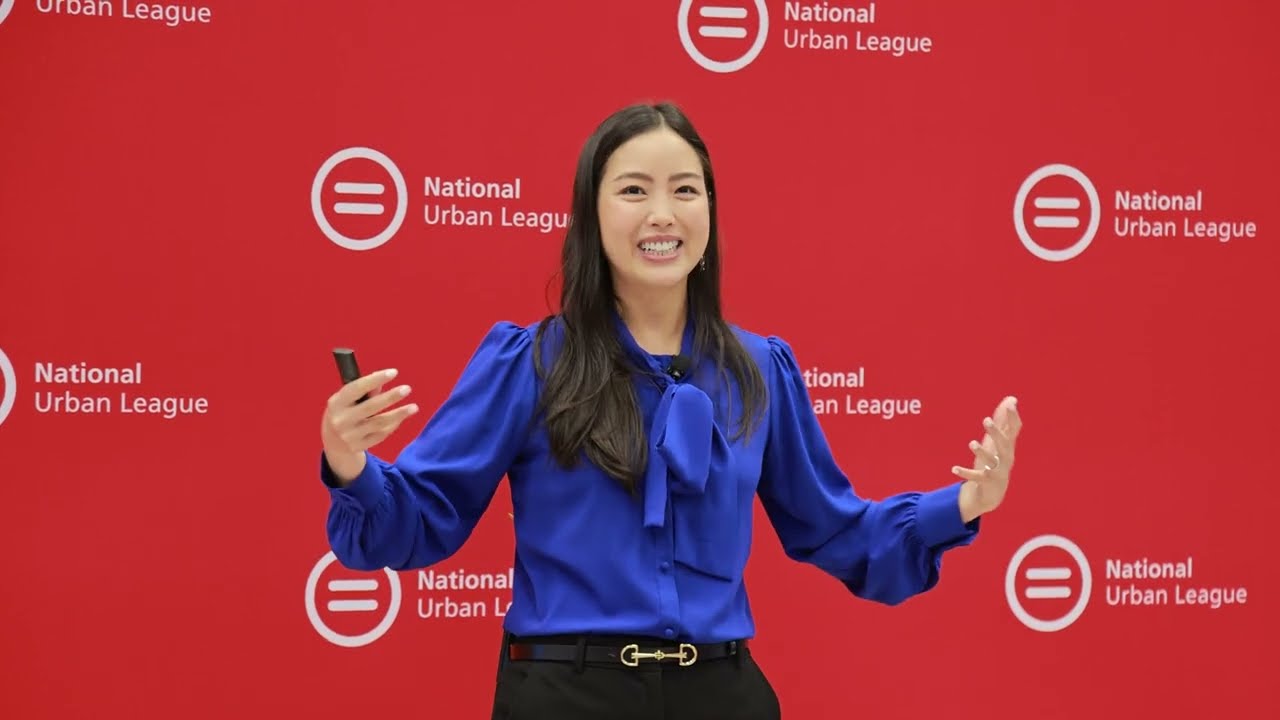
How to Build Your LinkedIn Presence - National Urban League | Keynote Speaker | Lorraine K. Lee