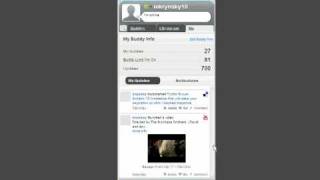
AIM Express 7.0 Beta now pulls tweets, Flickr photos, Delicious bookmarks, and YouTube videos from your friends into one timeline. You can comment on tweets directly from AIM, which posts as @-replies to Twitter, and manage which services and friends appear in your stream.
Chapters
Okay, today marked the release of AIM Express 7.0 Beta, which is basically a web client that is very similar to what the AIM desktop app is. And the big deal with today's beta release is that it now supports live streaming. So I'm going to log right in here through the client, and first thing that it does is it pops up my buddies list, but you see now there's new tabs for live streaming and me, so I'll go ahead and click on the live streaming tab, and right away you, you start seeing all the different status updates from all of my friends across all services that I've added to my AIM live stream. So, and they're all interspersed in the timeline from the various services. So the first thing you see is I've got, Chris Messina's got this Flickr update, which is basically at the top of my stream, and as I scroll down You can see all these different Twitter updates, and yes, Twitter will dominate this live stream, or actual social stream of basically all my friends' live streaming data across all services. So there you go. Now we got another Flickr from Chris, and keep scrolling down. I think I saw some more stuff down here. So yeah, it's definitely all Twitter. But if, you know, there's Here we go, there's a couple more Flickr, but basically if people were bookmarking stuff on Delicious that I was following or favoriting videos on YouTube, it would all go here and I can just show you that by going to my live stream. So this will basically just show my live stream, it'll give you a couple stats on it, and here you start seeing my timeline across all services. So there you go, now you start seeing some Delicious interspersed with my tweets. And if I scroll down a little bit further, there we go. So now you got some YouTube, um, favorite videos that I've got. I think I saw some more down here, but there you go, another YouTube. So you get the picture. So it's showing me all this in here. One other thing is if I go to the live stream really quick, let's say I wanted to comment on this tweet from Sean. So I can click on comment and it actually will send the comment, I believe it's an @reply, to Twitter directly here from the AIM Express client. I haven't tried that yet, but I believe that's what it does. And I think, you know what, let me just double-check. You know, I can also delete, and I think even, I guess I can comment on myself. I don't know, I haven't tried this, but I'll show you this in the main screen as well. So that pretty much covers it in here. And then if I go over here and click on Livestream Settings and click on that, now what we're actually going to see— let me just fix the screen really quick— is this takes me to the, the AIM Livestreaming website. So here it takes me right to my settings screen, which shows all the services that I've added to my AIM Livestream. You can see them all here, and the Then I can go up here to the, the two tabs I have. One is for my friends, which is now we're just basically seeing a full view of that time-ordered live stream. So you can scroll through here, you can basically see all the different information on the main web page as well. Also, I can filter here from top buddies that I've defined. Status updates if I just want to see that, photos, videos, or services—AIM, Facebook, or Twitter. So I can filter if I just want to display that data. I can also update my status directly from here, and I can update it— I can update Twitter, Facebook, or both at the same time. You can also click on any of these icons to get to my profile from my AIM Livestream here, and you can also see my buddies that I'm following on AIM over here as well. And if I go to my updates, it really just pretty much same thing, just filters now just my data. Once again, if I wanted— oh, it actually has like support, which I think is pretty much just stored here on this Livestream, although I'm not positive. I haven't played with that. And once again, I can comment. I think if I go back to my friends and click on any one of these comments, so you can see it's posting the comments directly to Twitter. So I'm pretty sure it's going to do this as an @reply. So that's pretty much it. Just wanted to give you guys a quick look at this beta release today and actually showing you some of the AIM live streaming functionality on their direct website as well. I hope you enjoyed it.