In this short demo, the presenter walks through the Carrd.co dashboard, showing how to create a new site from a template, customize the background with images, gradients or video, apply color overlays, edit text appearance (fonts, weight, size) and use Markdown for formatting, manage components such as icons, containers, and columns, adjust layouts, add built‑in widgets (payment, PayPal, like button) and embeds, and utilize the undo feature. The walkthrough highlights the simplicity and real‑time feedback of the builder, mentioning Pro‑only widgets and the ease of building forms.
Chapters
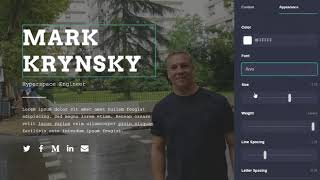
Hi, just wanted to give you a quick little demo of Card.co. So here we're in the dashboard. You see I have two sites that I've already created. I'm gonna go ahead and create a new one and just show you just quickly just a couple of the features here. So click on new site. Here they have a bunch of templates that you can use to get started with. So I'll go ahead and just pick one, select this one. So it's got a bunch of the styling and these widgets with different text and stuff. Didn't have the background. I'm gonna go ahead and add it. So we just click on the background there. You can either pick from a library of images they have, or you can just upload your own. I've got one handy ready to go. And then you can change kind of how this thing outputs. I'm gonna hit on Expand and hit Accept. I could go actually back in here, um, Oh, also you can also just use a color gradient or video as well, but got the image here. If I change my mind, I can go default or a couple different things, but I'll just go back to the fill, which works out well. Um, you also have some other settings that change in here. Um, you have overlay, uh, which is kind of cool, and we can put a color overlay, which will be helpful sometimes for making the text easier to read. It's a little dark, but you got a nice simple way of here of adjusting. There you go. So I can adjust that. You can hit Done. Also, if you change your mind, you just say None. But we'll go back in. That looks good. So click Done on that. So here are different little components that are already set up in this template. I can click on here and just change that, uh, put my name in there, uh, and you can see it's kind of too big. So you can go in here into Appearance and I can make some changes really quick and simple. I can change the font if I want, tons of fonts available. Uh, all right, I'll just go to that, uh Then you can change the weight and change the size. Then you see everything in real time, so it's pretty helpful. You get the idea. Real simple to use. Finish that. That's more text. It's also got Markdown in there, so it's really easy to make some quick edits. Wanted to bold that. I can just put in the Markdown there. Super easy. So that bolded that. You can also do— if I wanted to, I can just delete any one of these little components. Um, so here are icons. Icons are kind of cool. You can add new icons, you can pick what type of icon, and then you can have it set it to what URL you want to send the user when they click on the icon. So pretty easy. Uh, so if I wanted to add a component here Just click here on the plus, and these are all the different components I can add. So if I want, quickly, let's say I wanted to add— let's split these up. I can add a container here. Say I click on the container, maybe change it to columns, and okay, they're at 50 and 50%. It's easy if I want to change that. I'm going to make that 60%. Let's switch the other one to 40. I can drag the icons into the container. OK, so I'd still have to make adjustments, but you can see how easy it is to change the layout. It's also got this handy dandy undo, so I'll undo those actions. Container's gone. You can add embeds, all kinds of stuff, tables, um, different widgets. Yeah, so they have some built-in widgets, so payment widget, PayPal, like button, a couple different widgets. Some of these you might only see in the Pro account, which is what I have right now, but, but you kind of get the idea. You can build a form really easily. Anyways, just wanted to give a, just a really quick overview of how the system works and how simple it is. Uh, hopefully that shows you a little bit of it. Great.