Learn how to read Google+ posts in Flipboard by extracting a user's ID, converting it to an RSS feed through PlusFeed, adding it to Google Reader, then importing that folder into Flipboard's Social section.
Chapters
Hi, in this video I'm going to show you step by step how to create a circle of Google+ users that you can view and read on Flipboard. So we're going to start out here. The first thing you need to do to add each of the users one by one is first visit their profile page or their, their main Google+ page here, and you'll see that every Google+ user has this unique ID, unique identifier. So first thing you're going to do is you're going to copy that into your buffer. Step 2, you're going to go into this great program on AppSpot called PlusFeed. You can read a little bit about the information here. But essentially what you do is you just hit this plusfeed.appspot.com. You then paste that Google+ user ID, hit Enter, and then boom. Now you've got— that's an RSS feed for that Google+ user's posts. So what we're gonna do now is we're gonna copy that into our buffer and we're gonna go over to Google Reader. So once you're in Google Reader, you manually add this RSS feed and boom, there it is. There's the RSS feed for the Google+ posts for that user in Google Reader. And the next step is I've already created a folder and I've already added quite a few users in there. Um, so what you want to do is you want to make sure you go into here and assign this feed to your Google+ users folder, which I just did. You'll notice over here, here's a couple of people I've started adding. So that's the end of the first part of this. In the next part of the video, I'm gonna show you how to actually add this to Flipboard.
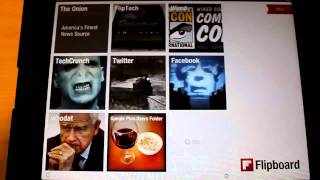
Hi, so for the second part of the video, I'm gonna show you guys how to actually add that Google Reader folder that we just created in Google Reader here in Flipboard. So you wanna get to the main Flipboard page and you wanna find one of these empty blocks where you can add more. So go ahead and click on that. It'll bring up what type of content you wanna add. Make sure that you have the social area selected here. And then also you gotta make sure that you've already set up your Google Reader account, which I have. So I'm gonna go ahead and click on that. So it'll basically pull up, uh, your Google Reader info, and then you wanna tell it that you wanna go to your Feeds and Folders, um, area of your Google Reader feed. So now it's gonna go grab all my folders. So now we're gonna go look for that folder we created. Called Google+ Users. There it is. And there it is. It pulls in all— so you can add either individual feeds, or the nice thing is we can just add the whole folder. And we're gonna do that. And boom. In came that whole folder of Google+ users that I created. And now basically created our own custom circle here in Flipboard of users. And we can now view all their posts here in Flipboard. Pretty cool, huh? Actually go into a post, brings in the images. You can actually go to the original post as well. So I haven't played with this a whole lot yet, so we gotta figure out like interacting with posts and stuff, and— but it's pretty cool. You can just, just like you normally View Flipboard content, we're actually viewing all these Google+ posts. So anyways, uh, just wanted to show you that. I thought it was really cool and wanted to share this, and, uh, hope you enjoy it. Hope you guys start doing it too. It's pretty cool.