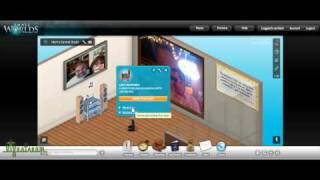
In this video, the presenter walks through Small Worlds, a browser‑based virtual world that mimics Second Life but requires no client download. The focus is on the platform’s “lifestreaming” objects that let users embed live content from external services into their in‑world apartments. After briefly showing the store, the presenter purchases four items using virtual gold coins: a plasma TV (YouTube videos), a stereo (Last.fm playlists), a wall mural (Flickr photo slideshows), and a wall portrait (Twitter feed). He then demonstrates each object’s configuration panel, showing how to link accounts, set search terms, enable autoplay, and adjust display settings. Interaction features such as voting on tracks or videos, a “pass‑the‑remote” function that lets other users control playback, and the ability to update Twitter directly from the wall are highlighted. The demo emphasizes the speed of loading, the real‑time nature of the content, and the novelty of embedding live streams within a virtual environment. The presenter notes that Small Worlds offers many more features beyond lifestreaming, is free, and provides links for further exploration.
Chapters
I'm going to show you guys Small Worlds, which is a new virtual world site. It's all done in a browser. You don't need to download a client. Think of it as kind of like a Second Life. And the reason I'm showing you this is because they've incorporated a lot of live streaming components within the game that make it pretty interesting and relevant to live streaming. So right now you're looking at just the home page. I'm going to click on my character and enter the world. And you'll see it just loads it all straight here into the browser. And the first place we end up is in my home apartment. You got a lot of virtual money is used to buy the different items. I'm gonna— first thing I wanted to show you guys though actually is I wanted to go to the store. So once again, there's a whole lot to this site, but I really am just focused narrowly on showing you guys the live streaming components. So it's a virtual world, and you can actually use virtual currency to buy items that act as objects to display your livestream across different services. So this is basically a store, and as I'm in here, you see these are all live characters, other, other players in the game. So this is a store where you use your virtual currency to buy the actual items for your apartment. So here you'll see that there's a big Wall Mural, and you'll notice here there's a little icon that shows Flickr. So basically what this allows you to do is it lets you bring in your Flickr images from your personal account or a bunch of other info, and I'll show you this stuff more later. I just wanted to show you guys that this is actually where you buy the items. So here it shows the price of what it costs in gold coins. And then I'll show you another item down here is, uh, you can buy a TV, and basically what the TV lets you do is pull in YouTube videos. And I'll show you one more item over here is a stereo, and the stereo lets you bring in your Last.fm playlist. So now that I've shown you all the different items you can buy, I'm actually gonna show the functionality of each of these once you actually get them into your apartment. So I'm going to go back to my apartment and show you how these items work after you've purchased them and placed them inside your apartment. It's pretty quick. You can see it's loading everything relatively quickly. I'm doing this in real time. And loaded. Okay, so Yeah, yeah, my apartment's really bare because all I've done so far is just buy these livestreaming-specific items for testing. But there's a whole lot more to this game. I'll put some links into the post that, that can give you more information on this. But I really just wanted to focus on this livestreaming stuff for you guys. So, okay, so here you'll see I've got 4 objects. In this part of my apartment. I've got a plasma TV up on the wall which pulls in YouTube videos. I've got my last— or my stereo here which just started playing, which will pull in my playlist from Last.fm. I've got the wall mural here which pulls in Flickr images, and then I've got another little thing up here on the wall which pulls in tweets. From Twitter. So there may be other services here that are supported, but these are the, the 4 objects that I found that I'm going to demo. So start here with the stereo. You can probably hear it. You can set it to automatically start playing music the minute you walk in a room, or you can have it being done manually. So click on the item, and here you see it's Last.fm. And then I can— there's a couple things I can do here. Initially, when I set it up, you click on this little toolbar and you go to settings and it just says, okay, I can start the stereo automatically and it tells me which account or asks which account I want to set up to pull in a playlist from. And then once you've set it up, you can actually view the playlist. So here it's showing the current track that's playing. Got my Chill Out playlist right now, so I've got a little Cocteau Twins. This will show you all of the songs in the playlist that I've loaded in. So, see, we got 07, Band of Horses, Reichshaupt, and I can go to any one of these tracks, I believe, and start playing it. Here's the controls down here. So now it went to 07. You can change the volume. It looks like there's some type of voting mechanism here where I guess different users that come to my apartment can vote on the tracks. Then there's a pass the remote feature, which I'm guessing will allow another user who's in the room with me, if I pass the remote to them, let them choose what tracks to play here in my apartment. Like I said, there's a whole lot to this system. It's pretty amazing, but I'm just trying to cover, scratch the surface for you guys in this video. So now we're going to get out of that. We're going to go into YouTube. Should probably stop the music. From playing so it doesn't interrupt with other components. So, okay, so now I'm going to go to this YouTube video, and once again, here's where you configure it. Here's the settings. You can basically— I— you can do a search keyword, or you can pull in an account Pretty sure— let me see. I thought I set it up to pull in my playlist. Oh, I didn't save it. So whatever, we'll just pull in— look for me as a user. So here's all my videos as a user, and click on— we'll add a few to the playlist. There's one. Couple of my bungee jumping, skydiving adventures, whatever, to this playlist. And then I think that's it. So then we can hit— nope, not go. Okay, now we click on playlist. Okay, so here we go. So now all these different videos are now part of my playlist. I'm pretty sure I could save this too. I guess I did it before and I forgot to save it. But anyways, you can see these, and if I actually wanted to play one, I actually just click on it and it'll play within here. So anyways, that's an idea. That's a very young me when I bungee jumped. Anyways, so once again, same mechanisms. You can vote on stuff. You can also do a pass the remote, so you can let other people within the room actually control which videos are being played. OK, so now I move over here. There's a picture of me and Chris Pirillo at South by Southwest. So here you've got Flickr. You can actually just enlarge whatever the image is that's up there. Whoa, not too sure what happened there. Oh, that's taking me to Flickr. OK, well, we don't want to do that. We want to go back. OK, so here we are. That's interesting to note though that you can click on an image and it opens a new browser window with that image on the source service. Anyways, we can scroll through different images here in Flickr. Once again, I can pass the remote to another user so they can control it. But basically you can default— oh, actually, you know what, I know what I'll show you is in the tools, in the settings, here's where you define define whether you're doing a search term or username. So I'm pulling in a couple of my photos from me as a user and those can be done as a slideshow which will automatically play in the room and you can define the amount of time. So that kind of shows that. And then the last thing I'll show you is the— this will pull in your last tweet. And you can actually click on this guy. Once again, the settings, you just give it the account, how often you want the wall portrait to update from your Twitter settings. And then as well, you can click on view and it'll basically show tweets. You can even— so these are all my latest tweets. And you can even update Twitter from right within here if you wanted. So all of this, all of these items are just additional items that are part of this virtual world, but I just thought it was really interesting that here you have a livestream in an apartment done with virtual world objects. I just found this pretty interesting and, and definitely a very new angle on live streaming that I haven't seen anybody do before, so I wanted to show it to you guys. Like I said, there's a whole lot more to Small Worlds besides just this live streaming object functionality. It's worth checking out, it's free, and I'll post more information in the post for you guys. I hope this video was enjoyable and informative. Uh, talk to you guys soon.