General Store
Mary Kostka walks through how to add items to a general store inventory system, process orders, and handle payments and receipts. A practical guide to store management basics.
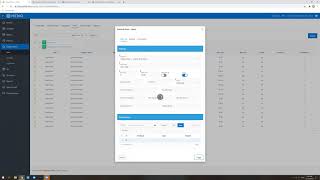
Going to briefly go over some of the general store items, I guess you could say and how to enter new items into the general store. So these are any items that are available for purchase, whether it's an elective package, a cash pay visit package, an Ohana Store item, anything like that will fall under the general store category. So if at any point you need to add a new item, we go to the general store tab here. You can click inventory or let's see sales and then you're just going to click the items tab here. This shows all the items that are available to purchase in the general store. Let's see, I'm going to show you. So category name. So here's all of our Ohana store items. So these are like the things we sell basically at the front desk. We have hammocks, we have party lights, our T shirt picture schedule, pop tubes, anything like that. So that's showing up here. So say we have a new item that Mary wants to offer. We just ordered a couple new Z vibes for kids, so a chewy toy. So that's going to be added. So why don't I just ahead and add that now? I'm just thinking of this right now. But we just ordered them. They should be here in the next week or so. So to add an item you'll click the items button. I'm going to click create here. Category. This is going to be a store item. So I'm going to click Ohana Store. Ohana Store items item name. Okay, this is just the brand. Let's see sale price 30, 34.99 and our net cost. I'm just going to enter that as zero for now. I think we can add, we can add sales tax. I'm just going to leave it here for now. We don't need to basically ordering items and selling them from our store. So we're all of this stuff isn't crucial for the type of items that we sell. So item name, net cost. We've filled out all the stuff that's required. So that's the important part. And then you don't have the commission or anything. So it's pretty simple. Something to note though would be I'll just show you through the QRI for elective services. The punches come into play. This is just a store item so I'm going to go ahead and create and then you see that showing up right here. So when a patient comes in to purchase an item, I think there's a couple ways to do this. But I'm just going to show you through the general store. So we have. Let's see if we're creating an order. So somebody's buying something. I'll click create order and I'm going to do me as an example. So I'm going to buy a Z Vibe and a QR package. So we'll do create order. That'll bring us to this screen right here. And I'm going to go into our Ohana store because I want to purchase an item from the store. Ohana store items. So this will, this will show me all the items that we have for sale in our Ohana store. And I would like the ARC C Vibe here. So it shows quantity one. I'm going to add that to my order. That shows up over here. I'm going to go back and get a laser package. So. So I want to do a 12 visit package right here. 6:30 add to order. So that's going to show up with my order total. The 630 + the 34.996. 64.99. And in order to complete this order, we'll collect payment. I'm not actually going to do this right now because I'm not going to buy a that. But I will walk you through the steps at least. I'm not sure how far I'll be able to go because. Because I don't have all the. The card machine and everything with me here. So if the patient is paying with cash, we would do a manual payment entry here that allows us to say the method type and cash and you can put the notes for what it is. So I would write z vibe and 12 visit dry package. Always put the notes for what was purchased on an order if you're able. That just helps it be clear when you're in the patient's demographic and looking at the different payments or receipts that they've. They have. So I'm going to cancel this because I want to show you. Oh, that canceled the whole order. Okay, great. Well actually I want to see. It's still showing up as an open order. So it's still on there. So I'm going to go pay as if we're charging a card. So this will. We would just use our card machine. So we insert the card and so it automatically calculates the amount based on what we ordered, which is great. So I would click charge card and insert the card into the machine, process the payment and I think that's about it. It's mostly done on the machine from that end and then that will show up as a receipt in the patient's file, which is great. And I will show you what that looks like. So let's go into who has purchased something. I think. Not sure if I actually ordered this as a. Oh yes, it is on here. So Anthony purchased a T shirt. Apparently I did not write it in the notes here, but I can still do that, I believe. Oh, oh, on a T shirt. So it is showing up. It is helpful to have it in the notes here, though, just so at a quick glance, this was also two more T shirts anyway, so when you're in a patient's demographic, you can click the receipt button and see what was purchased and when. So that's helpful. You can also, if the patient is asking for past receipts from the general store, you can print that here.