Slot Types and Slot Builder
Tutorial video (YouTube) explaining how to use slot types and the slot builder within a scheduling system. The speaker demonstrates viewing and color-coding appointment types, creating and editing slot types (colors, telehealth flag, Enable Express), and using the slot builder to create or edit recurring weekly slots for individual clinicians (examples: Mary, Jen, Orlando) and adjusting series end dates.
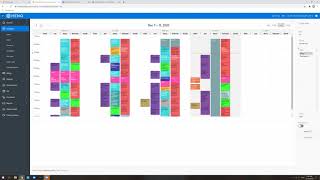
So in this video I'm going to go over the slot types in the slot builder. So if you go into the schedule tab, you'll see both of those options here. The slot builder and the slot types. We'll look at slot types first. So this shows just the all the different appointment types that we have in the schedule. We don't use all of them all the time, but I'll show you. This is kind of. This is what our schedule looks like. So we've color coordinated things so it's easy to know which appointments are which. And it just is kind of a guide to help us see the structure of the schedule better. So at a quick glance, I can see Jen's appointments are purples, purple. Orlando's are red. Mary's are kind of this teal color. The darker ones are telehealth visits. I think Mary's telehealth are gray. That's originally when we switched back in March, that's what we chose. So. And also the evals are a darker teal, so that's kind of reserved for the evals already. The green spots are available one time. Yellow are consistent spots that are available anyway. So all of those are listed in here. So we mostly use these Main three are Jen's in clinic, ot, Mary's and Orlando's. So if you need to create a new slot type like this, you'll go to create right here over on this side and we're going to name it. Trying to think of something creative, but maybe we're doing. I'll just do a test. Not being creative right now. So default color. This part is a little interesting because they don't give you samples of what it looks like, so it's fine. Background color. There's like a ton of different colors. So when I'm picking a color, I just kind of look to see what it looks like once I select it. So we'll do mint cream. I have no idea what that's going to look like. I'm going to make this all cap so it's easier to find. Maybe. So there's a couple different tabs in here or checkboxes in here that you may or may not need to use. If it's a telehealth visit, we want to select this tab because that will tie the specific location code to that visit. So that is important for telehealth. We're not going to do that this time. Another one that we sometimes use is Enable Express, so that means it won't require us to enter codes when we are checking out a patient. So we use this for our elective services. So for QRI or SSP that we offer, that allows us to say yes, the patient showed up. But we don't have any codes that we're billing for that visit. So that's the Enable Express. It is very useful. So those are pretty pretty much the main two that we would use. I'm guessing this one is if we need to override an off. This changes the color of the visit. I wonder if it gives us another. Don't mess with that one. So we'll hit create. So we chose mint cream and black for the slot type. Try and find it in here. So here it is. It's so sometimes I'm like, I don't like that color. So you go in and you just edit it and can do medium sea green, see what that looks like. Okay, so that's better anyways. You can just kind of play around with the colors. Hopefully someday they'll make a guide that we can just look at to see what each of them look like. But until then, this is what we got. So there's that. So that's the slot types tab for slot builder. This. There's a lot in here you can see. Looking at the schedule, I'm going to show you how to do it. So this is our current schedule. This is actually next week, but Mary has her Rotary meetings on Wednesday. Well, I noticed when we're back in January, so a couple weeks out that is not blocked off for her in the schedule. So I'm going to fix that so that it does still show up because I think she's still going to be doing those meetings on Wednesday. So slot builder. So to make it easier to find, I'm going to change the resource to just show me Mary's appointments. Some of them are active and some of them aren't active because of telehealth. We changed the schedule a few times, but I'm looking for. Let's see now, what time does it start? I think it's. It's 12 to 1:15. Is that what it is? Yes. Okay, so at one time this was a consistent thought. So I'm just kind of glancing through 12 to 1245, 12 to 115 block on Wednesdays. Okay, so this is the one that I want to edit. So you can see here we started this on July 1, but the end date is 12:17, 2020. So it's not continuing after this year. So we can go in and edit this by clicking the series number and we're just going to change this date. I don't know how long she's going to be doing the rotaries, but we can always edit it later. I'm going to go to 2021 and we'll just click December 31, 2021. Actually, we probably won't be open then, so how about we do. We'll do the 24th, 2021. Okay. And it says rotary. So we'll go ahead and apply changes. Cool. So now we're going to check the schedule and see what happened. So it is going to put it on for the spots in between. I'm just going to delete those because we're not going to be here. So it doesn't matter. It doesn't matter if we left them either. But so now that's showing up here as it should, which is great. Try and give Mary a little bit of a break, like her own lunch before she possibly sees patients here. And that's going to continue through. So basically the slot builder is a way for us to. To make weekly spots for people for the different therapists or like reoccurring appointment types, I guess is the best way to say it. So like when you're viewing the schedule in January, this has all been built through the slot builder. So I say we have Jen has an appointment from 8 to 9am on every Monday, Tuesday and Thursday. We have them blocked for admin time on Wednesdays, but every Monday, Tuesday, Thursday she has a spot at 8am Same goes for. Basically had to go through each appointment type for each therapist and build that in. But it's already been done. It's in there. So let me see. So I'm going to look. I'm going to look at Jen spots. So this is kind of an easier way to see it. So we have 8am to 9am you can see. Oh, maybe this is the old schedule. Oh no, that's her admin time. So this is just the Wednesday admin time spot. But here, down here is the 8am to 9am and it's on Monday, Tuesday, not Wednesday because you have admin time. And Thursday we're not open Friday, Saturday, Sunday. So those are on those. And you can see that here you can select which days it occurs on. So 9am to 10am she has those every day of the week or open seen here. And this is set to end November 21, 2021. So we will see that. We would see that as we're building the schedule out. So there we go all the way to November we can see some of those things just end gen spots end. So we can just make adjustments as needed with those end dates. Because these are all set for 2021. The schedule can change at any time. Just like this year thanks to Covid. Like we had to dramatically change our schedule to when we switched over to telehealth and I created a new a whole new schedule and we had to revert back. So there was just a lot of transition. But it is all adaptable. We can change any of these dates and it's always good to go back and look at what changes, how your changes that you've made. Look on the schedule because you'll notice like, like you saw the Rotary meeting that showed up here. Like things like that. You just want to double check and make sure things are in the right place or they'll make sense with where they are put. So just as you're building the schedule through the spot builder, just continually check to make sure everything's looking correct on the actual schedule. And that is all for now.