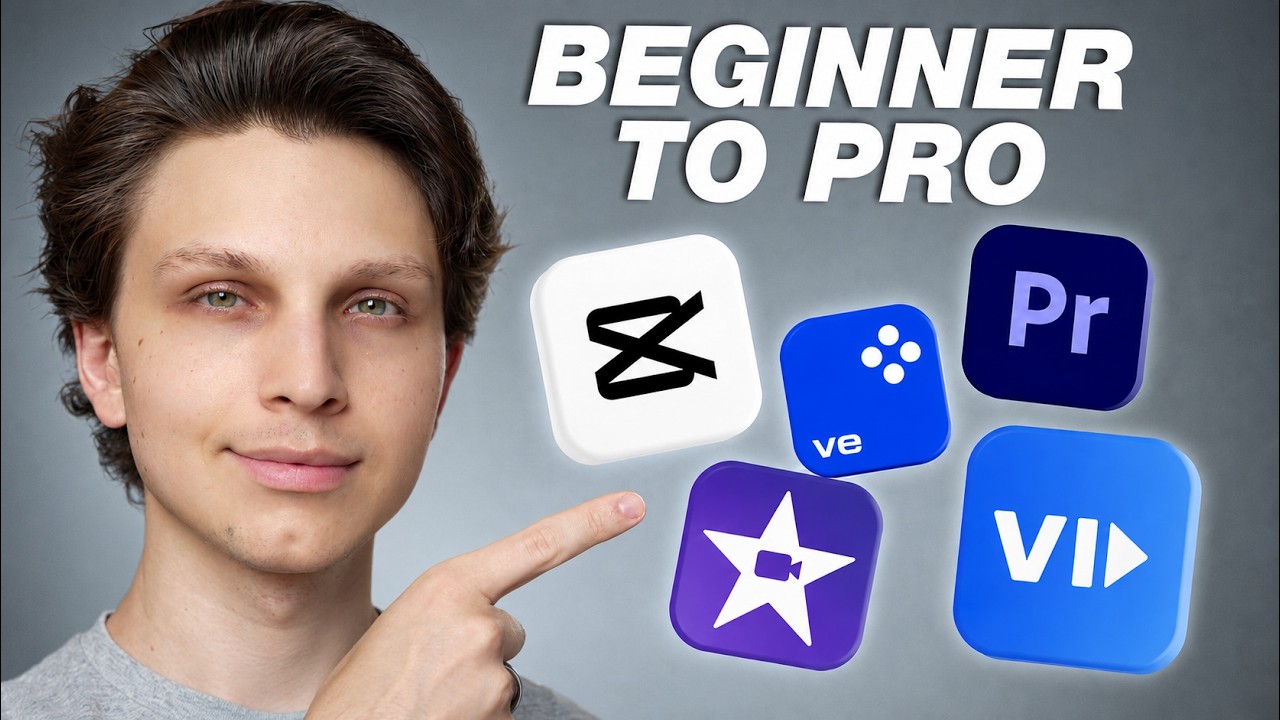
Best Video Editing Software For YouTube in 2026 (Beginner to Pro)
Matt Par ranks video editing software for YouTubers in 2026, from CapCut and Movavi for beginners to DaVinci Resolve and Adobe Premiere Pro for pros. He stresses that software choice matters less than content strategy, and warns that picking the wrong tool wastes time and money.
Chapters
So a lot of creators spend weeks trying to find the perfect video editing software, and they don't actually upload a video in that time. And in growing multiple YouTube channels to millions of subscribers and making over $10 million from the platform, I can tell you that the software you use matters less than you think. But on the other hand, if you pick the wrong software, it's gonna genuinely slow you down or even cost you money that you don't need to be wasting. And so in this video, I'm going to be ranking the best video editing software for YouTube in 2026, from complete beginners all the way to advanced professional level tools. So by the end, you'll know exactly which one to use for you based on where you're at right now, no matter what your budget is as well. And I'm also going to be revealing to you the one thing that matters 10 times more than your editing software that almost nobody focuses on. So stay tuned for that. If you've never edited a video in your entire life, my recommendation would be to start with CapCut. It's available for your phone, your computer, whether it's Mac or Windows. And even though CapCut was originally built for TikTok creators, it has evolved into a much more robust editing platform over the past couple years. You can import clips, auto-generate captions with one click, remove backgrounds, add trending effects, and there's a bunch of AI features as well, such as automatic captions, which are pretty dang accurate in my opinion. And I also love the keyboard shortcuts as well if you are editing on a computer. For example, you can click Q on your keyboard to start a clip at a certain point and then W to end it at that point. It saves so much time from like splitting clips and doing all this kind of stuff. Now the bad thing about it is that it's not completely free, and most effects, like if you're going to use an effect or a certain caption or something, most of them are gated behind the paid version of it, which is like $20 a month right now. And it used to be $10 a month, they upped the price on it. It's kind of a lot to be paying for what you're getting with this. Like it's not going to edit your videos for you or anything like that, like some of the other editors I'm going to be showing you later in this video. But it is a very good simple editor, and it's the place that I would recommend most beginners to look at starting with for very simple edits. Now, if you're editing on a mobile phone, CapCut's incredibly good for that. They have a great mobile app. But if you're editing on your computer and you want something a lot more reliable and a lot more consistent, this next one is much better in my opinion. Now, the second editor we're talking about is actually the sponsor of this video, which is Movavi. Now, I do think they genuinely deserve this next spot because of the exact problem that I just described with CapCut. If you want something that's like built for actual desktop editing on a computer from the ground up, without the steep learning curve of a more advanced editor like DaVinci Resolve or Premiere Pro, Movavi fits that sweet spot really good. You can download Movavi for completely free using the link in the description to try it out for yourself. And if you decide to go all in, use my promo code MATT25 for 25% off an annual subscription. And make sure you also tick the checkbox when you are checking out to get access to the free 7-day effects store trial. And I want to actually show you why I put Movavi right after CapCut, because when you compare them side by side, the differences on desktop are bigger than most people realize. Let me pull up one of my actual videos and show you what I mean. First of all, let's talk about auto captions. So both CapCut and Movavi have auto caption tools, but the experience is completely different in them. For example, in Movavi, the auto subtitles come with ready-made styles that are easy to browse and customize exactly how you want them. In CapCut, on the other hand, the subtitle interface is super cluttered so many different options and so many different menus that you can genuinely get lost when you're trying to find what you need. With Movavi, you literally just pick a style, tweak it if you want, and you're done. And next up is silence removal. So if you record talking head videos like I do right here, you know that there are tons of pauses, dead air, hesitation throughout your raw footage. Like me even just recording this video right now, I've made several mistakes in recording this. But what's awesome about Movavi is that they have a one-click silence removal tool that automatically detects and cuts all of those out. That feature alone is going to save you hours on every single video, and it is so powerful. And now for video cropping, another thing I really like about Movavi is that they have a much more flexible cropping tool. So for example, what I mean by that is that their auto crop with object tracking actually follows your subject and keeps them properly framed. And based on side-by-side tests, it works a lot better than CapCut. And now even though CapCut has tons of effects, as soon as you apply an effect from CapCut, the adjustments of it are very limited. Sometimes you'll get a slider, sometimes not even that. But in Movavi, every filter and effect is fully customizable. You can adjust it for your specific footage and exactly what you're trying to do instead of slapping on a one-size-fits-all type of look. And then once you have something that you like, you can then copy that effect and all those styles and everything and then paste them on every single other clip on your timeline with one click. And when you have 15, 20 clips in a project, that's a massive time saver. It's also worth mentioning the chroma key comparison as well. So if you use a green screen, Movavi produces a cleaner chroma key result in a lot of scenarios compared to CapCut. And Movavi has a highlight and conceal tracking feature, which is especially great if you need to blur sensitive information or highlight something that's moving in your footage. So this is really good, for example, if I'm showing my YouTube analytics or something on a channel that I don't want to leak the channel because I don't want the data to get polluted. I can easily blur that out. It also loads a lot quicker than CapCut as well. There's no delay when you're editing, unlike CapCut. And those delays when you're editing over hours and hours, they honestly add up. So just saving yourself time with that is so worth it. And you can also click anywhere on the timeline to move the slider, which CapCut will not let you do. And just little details like this make the editing experience a lot smoother. So that's why I accepted Movavi for being a sponsor of this video, because they're genuinely a really good editor, and it works on both Mac and Windows, and it gives you an amazing editing experience. It's a really solid choice, so feel free to download it for completely free using the link in my description. And use code Matt25 for 25% off an annual subscription. Now editor number 3 that we're going to be talking about is iMovie. So if you're in the Apple ecosystem and you literally just want to trim some clips, add some B-roll, throw some text on music, iMovie is an amazing option. So if you were thinking about using CapCut but you have a Mac, it honestly makes sense to probably use iMovie unless you need some of those effects that CapCut or Movavi might have. But within iMovie, what's really cool is that they have this magnetic timeline feature so you can't mess things up. So everything snaps into place on the timeline. And if you edited before, you know that that simplicity removes a lot of friction. But the downside is that you will probably outgrow it. There's very limited color grading, limited effects, no auto captions. And once you want to do anything beyond just literally basic cuts and text and like putting different layers on a timeline and stuff, you're going to feel really boxed in. And also it's Mac only. I don't use a Mac. The only time I've used iMovie was when I was in school. We had to edit some videos for a video class on Mac. So I used iMovie in that case. And it's a really great intuitive editor for just super simple stuff.. But if you're on Windows like I am, it's honestly not even an option for you. Now, editor number 4 is my own software, which is vid.ai. Now, this is a software that I built due to the fact that when I was editing faceless YouTube videos, I saw that I was doing the same repetitive thing on several channels over and over again. So I just thought, you know, AI's gone to a point where you can honestly just automate this. So I built vid.ai where you can literally just type in a prompt and it'll generate a full YouTube video for you. And it's amazing for stock footage-based videos or AI visual videos where the focus is on what's being talked about in end of the video. It's got AI voices built in and everything else. And you literally just either put in a prompt or you put in a script, which I would recommend so you can make sure that your videos are original and they give value and YouTube's not going to have an issue with your content. And then VidAI will find all the visuals, everything else, and put it all into your video. But I wouldn't really refer to it as a video editor because when it comes to actually editing your video, even though this is a tool that I own and I think it's an amazing tool and everything else and it helps me, with running several channels. Where it falls short is if you want to do something very custom. So if you want to make your own custom videos from scratch, trying to make something incredibly valuable, that's where VidAI might fall a bit short. But if you're running YouTube channels like these, that's where it could be a perfect solution. Now another thing to note with VidAI is that it's not cheap. In fact, it is the most expensive option on this entire list, and that's simply due to the fact that when you have so much AI built into an editor, you have to pay the token costs on all of those AIs, and then you also to pay for hosting costs to actually host the videos and bandwidth costs and all these other things. So it's one of the most expensive software that you can run and therefore we do have to charge a fair amount for it. But ask anybody who's used VidAI. It's an amazing product. We actually just did a whole overhaul on it as well. So you can see the new UI and everything and it's great if you just want completely hands off and potentially you have more money than time. Now, editor number 5 is DaVinci Resolve. So this is the best free professional editor in my opinion. And this is where things start to get a little bit more serious. This is literally an editing software that Hollywood uses. Films like Dune and Avatar were color graded in Resolve, and somehow the free version gives you almost everything that the professionals use. You get free 4K exports, no watermarks, no time limits, no restrictions on project length. Every other editor on this list either caps you on quality or it locks some features behind a subscription. Resolve literally just hands you the full toolkit, and the software split into a couple dedicated sections. You have one for fast editing one for detailed timeline work, and one for audio production. And then you also have color grading, visual effects. And the color grading section is where Resolve separates itself from almost everything else. Once you learn it, your videos instantly can have a very cinematic feel on it, and they can have a really professional finish. It's super stable, especially on newer computers. It rarely ever crashes, and even if it does crash, you can bring it right back to where your project was. And now it even has AI features built into it, such as voice isolation for cleaning up rough audio, Magic Mask for isolating subjects and swapping backgrounds, and a music remixer where you can strip out vocals or instruments out of any audio track. But the main limitation with it is that automatic captioning does require the paid Studio version, which is a $300 one-time fee. But you can work around this by generating captions in another tool and then importing them into Resolve. You might be saying, Matt, this editor sounds great, but the problem with it is that there's a huge learning curve. So with some of these other editors that we went over before, even though they're a lot more expensive, you're going to be able to edit from the first day. If you're just starting with Resolve, you're going to spend days, if not weeks, learning it until everything clicks. And obviously, if you're making a movie or you're making something really cinematic where you have to put a ton of time into it, getting a really good editor can make a lot of sense, especially if you're treating this more as an art. But if you want to treat this more as a business, one of the biggest things you can do is to get started and get moving fast., and Resolve doesn't necessarily allow you to do that. Now, editor number 6 is Final Cut Pro. So this one is a $300 one-time purchase, or $200 if you have a student or an educator discount, and it's especially fast on Mac because Apple optimizes it specifically for their hardware. And tons of professional YouTube videos are edited on Final Cut Pro. In fact, a lot of the editors that I hire from places like Upwork use Final Cut to edit the videos that we produce. So it's super smooth, like playing back videos, even if you're working with 4K footage. And last year they also added AI-powered auto captions, a magnetic masking tool that does AI rotoscoping, and a bunch of other improvements that made it a lot more competitive. Now, if you don't know what any of that means, don't worry. You do not need to know that if you're a complete beginner. There is also a 90-day free trial so you can fully test it before you commit. But the downside is that it's also Mac only. So if you're a PC user like myself,, you can't even use it at all. It's kind of honestly a more professional version of iMovie. So if you're in the Mac ecosystem and you want to upgrade from that, a lot of people go to Final Cut. But our 7th editing software is available for all platforms, and that is Adobe Premiere Pro. Now this is the industry standard. I would say more editors that I hire use Premiere Pro than anything else, and it's what a lot of production companies and very professional editors use. And if you're working with the team, you can also collaborate with people on projects super easily with it. And there is a bunch of AI tools in it now as well. Such as turning horizontal videos into vertical for Shorts and Reels, speech-to-text for instant captions, and integrations with tools like AutoPod, which will auto-cut podcast footage completely for you. And that brings me to their plugin ecosystem, which is the largest of any editor out there. If there's a cool new editing tool or effect, it's almost always available for Premiere Pro first. Now, it did used to have a reputation for crashing constantly a few years ago, but But if you're running this on any modern computer in 2026, it is a lot more reliable. But the biggest con is the cost. It's a subscription, which is around $23 per month for just Premiere or $60 per month for the full cloud suite. So that adds up to hundreds of dollars per year and you never actually own the software, even though this is a more traditional editor. If you're paying a subscription for something with a lot more AI features like Movavi or Vid.ai, that makes a lot more sense because you're using the AI tools and everything. But if you're using a more traditional editor like Premiere Pro, in my my opinion, it doesn't make as much sense unless, again, this is an art for you and you really want to learn how to do this and become one of the best editors in the world. Now you might be saying, Matt, that's great, thank you so much for the list of different editors, but which one should I actually pick? If you've never edited a video before, start with CapCut or iMovie. And a few other honorable mentions that I want to throw out there is if you're on Windows, you can also use Shotcut or OpenShot, which are completely free. They do tend to crash a little bit more than some of the more professional editors, so for most people I would say If you're a complete beginner, start with CapCut. But if you've outgrown the basics and you want more control without a super steep learning curve, Movavi is the best middle ground. Again, you can find the link in the description and use the code Matt25 for 25% off. And if you want the most powerful free option and you want to learn this as an art, DaVinci Resolve is the answer. But remember that this is for professionals, so there is a huge learning curve with it. And if you're on Mac and you want speed and simplicity with super professional features, then go to Final Cut Pro. If you want to generate a specific type of YouTube video up to 20 minutes long, then my software vid.ai is amazing for it. Or if you already have an Adobe subscription or you just want to use the absolute best editor, then there is Premiere Pro. But it is quite complicated as well. At least it is for me. I personally started editing YouTube videos using Windows Movie Maker way back in the day when I was just uploading random backyard stunts to YouTube. And then I upgraded to CyberLink PowerDirector at one point, and I used that for years and years. It was a great editor. And then I started hiring video editors. And again, most professional editors that you hire, they're going to use something like Premiere Pro or Final Cut Pro. And I stopped editing videos for a while, but now if I just need to edit something really quick, I'll just hop into Movavi or CapCut and edit it myself real quick. I really like in Movavi that you can edit from a transcript. So for example, if I film a talking head video and I just need to do a really quick ad and I don't want to have to send it to an editor and get it back and everything, I can just hop into there, edit it from the transcript, and do it super quickly. But with all this being said, here's what nobody who makes videos about the best video editing software will tell you: your video editing software does does not determine whether your video gets views. I have seen creators who have Hollywood-level edits get zero traction, and I've seen people editing on their phone blow up to millions and millions of views and grow huge businesses. The difference is always the strategy behind the content and not the timeline that you're using or the software that you're using. The biggest trap with editing software is spending so much time making your videos look perfect that you forget nobody's clicking on them in the first place. The algorithm does not care how smooth your color grading is or any of these other artistic things. They care if your content gets people to watch and keeps people watching. And I built my entire YouTube business around a specific framework that decides whether a video gets pushed or buried before the editing ever even matters. And if you want to discover that framework, the same one that I've used to get over a billion views across my channels then feel free to click this video next to me right here. It'll show you exactly what I'm talking about, and it'll walk you through how I actually make this a business and make tons of money from YouTube. So check it out right here. My name is Matt Par. Thanks for watching, and I'll see you there.
More from Matt

I Let GPT-6 Astra Run My Faceless YouTube Channel For 60 Minutes and THIS Happened

Stop Waiting for 1,000 Subscribers to Make Money on YouTube (Do THIS Tonight)



I Tested Letting Claude Fable 5 Create a YouTube Channel for 1 Hour and THIS Happened