
$100M Client Acquisition System For High-Ticket Coaches
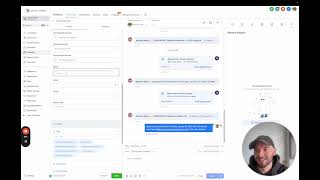
In this 45‑minute walkthrough Maxime Warnault demonstrates how to build a $100 million client‑acquisition engine for high‑ticket coaching businesses using the GoHighLevel platform. He starts at the dashboard, explains the two main pipelines (sales‑lead pipeline and client‑delivery pipeline), and shows how leads move through stages such as New Lead, Breakthrough Session booked, Qualified, No‑Show, Split‑Pay, etc. He details manual actions for rapid follow‑up, how to embed sales scripts, create tasks, add notes, and tag contacts based on call outcomes. The video then covers the point‑of‑sale flow: payment links, split‑pay handling, contract signing, and automatic onboarding call scheduling. Maxime walks through the full automation suite – email and SMS sequences for registration, call confirmations, no‑show recovery, and long‑term nurture – highlighting trigger links, AI booking bots, and manual call workflows. He reviews the Authority Funnel (registration → video → calendar) and the Call Management Funnel, showing how to configure forms, custom values, custom fields, and integrations (Stripe, PayPal, Facebook, Slack, etc.). The walkthrough continues with the client portal, community, courses, media storage, reputation tools, reporting dashboards, calendar management, and brand settings. Throughout, he emphasizes systematic, repeatable processes that let coaches acquire, qualify, close, and retain high‑ticket clients at scale.
Chapters
Alrighty, in this video I'm going to give you an overview of the entire $100 million client acquisition system that I have built inside of GoHighLevel. We're going to talk about the pipelines, the funnels, the automations, and how everything works together so that you can get clients on demand. So let's get into it. The very first thing you're gonna see when you log in is a dashboard, and this is where you're going to have an overview of your business, how much value you have generated, the conversion rate on each stage of the funnel, the tasks that you have to do, the people you have to call, and the ads data as well. Okay, so I want to start with the pipelines because that gives you an overview of the lead generation process and the client management process. So let's start with, uh, the pipelines here, and then I'll go into the website, the funnels, and everything. Okay, so we have a sales pipeline here. All the new leads are going to go into the new leads column, and, um, that's when someone registers to watch your, uh, sales video. Then we're going to have people booking a breakthrough session or discovery call. And then we're going to have people, if needed, book a follow-up call if you have a 2-call close. Okay? If— so all of this is done automatically. When people book a call, they are going to become— come on this column. And if the call is qualified, they are going to move automatically in the qualified column. If they are not qualified, they are going to move here. If they confirm the call or not, they are going to move into these columns. We have no-show, canceled, rescheduled, and showed. So whenever someone show up for a sales call, we are also going to ask you what was the outcome of this sales call. Was it someone that joined using funding, that got a deposit, paid in 2 pay, paid in full, we made an offer but we did not close the sale, we did not make an offer because the lead was not qualified, or we need to work the lead lead and book a follow-up call here and the outcome of the follow-up call. Okay, and that's going to come here as well. So that's the sales pipeline to manage all of your leads, your calls. And now when you close people, they are going to move into the clients pipeline so that you can have a client success system to deliver the same results to everyone every single time. So when someone pay, the second thing that they're gonna need to do is to actually sign the contract that you have. And then they are gonna need to book an onboarding call. From the onboarding call, the date of the onboarding call, this is where we're going to start everything. And we're going to move people from week 1 to week 2 to week, like, however long your program is, week 8 or 12. And in between, we can add communications with your team to reach out to your clients so you deliver the same experience and the same results to every client, as I said, every time. So that's how the, the client pipeline works. Okay, so, uh, every time someone registers, there's gonna be something here called manual action to call the leads as fast as possible. So every day you or someone on your team should be coming here and call the leads that have registered to your sales video. So you call them and you say, "Hey, this is Max. I just saw that you registered for my free presentation on X, Y, and Z. I just wanted to make sure that you got access to it properly and if you're still looking to achieve the outcome that you promised." Okay. And then if they have time now, you can take on the call, but what you would do generally is ask them when is the best time for them to speak and book them into the calendar, okay? So that gets me to contacts here. Whenever you're on the phone with a contact, I would actually have this pulled up and you can have your sales script in here if you want to. To go through the, uh, the buying process. Okay, so you could have a folder called sales script, and you could say, um, do you have like 45 minutes to talk today? Yes? No? Okay, cool. Um, like, why did you book the call today? Because 'I want to X, Y, and Z.' Okay, next question. And you can have your, your sales script in here and follow. And so this way you have systemized as well your sales process. Okay, now let's say at the end of the call this person did not, um, close. You might want to add a task for yourself to follow up with, uh, the lead. So follow up And assignee, we're gonna put myself here. And the date, we're gonna do this next week, for example. And you can type it here, okay? So that's a task. Then if you need to book a follow-up call, or like if you wanna take notes during the call, this is where you do it. Insert note, note here. Okay. And if you need to book a follow-up call, then you would need to add a new calendar appointment. So you can see everything is done in one place. So follow-up call, follow-up, and then you would need to select the date. So once again, we're gonna choose, um, next week at the same time. Book appointment. And this is going to book the appointment on the call with the person, so you know, that they are going to show up, okay? And it's going to send the email, the SMS, to, um, make sure that they show up for their call, okay? If you need to send documents, this is where you're going to do it. If you need to receive payments, this is where you're gonna do it. And association is, uh, let's say you're a, a parent and you have a coaching program for their children. Now what you need to do is to go to object setting to set up a, uh, children for the, the client that you have. And this way you can create an object with the, the, the, the children of, of, of your client. Okay, I hope that, that makes sense. So now when you're on the call, what we are going— we're going to send you an email for all of this, but basically we're going to ask you what was the outcome of the call. Let's say this person did a split pay for the coaching program that we have, so the close date is going to be today, so the 16th. Of January, the revenue is— let's say we have a $10,000 offer and we add a split pay, so $5,000 cash collected. Okay, so the first payment, the next payment that is going to happen since it's a second— it's a two-pay— is going to happen on February, we're gonna say 19 here, and the payment is going to be $5,000. Okay. And here you can add notes to, um, to the call. If you have like a 3-pay, 4-pay, whatever, this is where you're going to insert this information. And if you're using Stripe, this is automatically going to charge the client's credit card, um, so you don't have to chase after your clients, um, to, to pay you, basically. So now we have the note. So this is to make the transfer from the sales team to the delivery team, to the fulfillment team. So what did you promise on the call to this person? What exactly is the most important to them? What are their problems, the pain points, the risk, the concerns that they have? And like, what, what do you need to say to the delivery team to make sure that this client has a good experience? And then we can send this to a Slack channel when— whenever we have a new client to, make this transition from the sales team to the delivery team. So it, it creates like a smooth onboarding process, and everybody knows what exactly are the goals of these clients, the what's most important to them, so they can repeat it. And the problems, the pain points, the risk, the concern, everything should be written here. If there was a seller, if there was a closer, uh, you can put it here. And the client email, um I mean, it's already here, so I should just remove this field. But, um, and then you hit save, and I'll show you what this does in the automation. I went like all the way to the end to whenever you have a client, but I'll circle back step by step to, um, when you have a new lead, new call, etc. Okay. Uh, so point of sale, as you can see, this has been, um triggered, so this is when you change the sales call outcome to either paid in full, split pay, whatever, then it is going to add a tag to the person. So this, the one that we've done was a split pay. So if I show you the execution log here, and if we do this, see contact execution path. So the sales call outcome has changed and it was a split pay. So we added a tag to the lead and we moved this contact to a split pay stage. And then we send a notification on Facebook to tell Facebook, you had a new sale, here's the cash collected that we generated from this lead. Now put it, put it back in your campaign so Facebook knows exactly how to optimize for more people like, like this one, okay, that just made a sale. If we go back to the opportunities now, we should have a Split Pay here. So it doesn't show up because, um, uh, the advanced filters are on open, but now we should have— okay, I don't know why it doesn't show up here. Follow-up call booked. Okay, because it was already advanced in the pipeline, but split paid, that should be, that should be here. Um, okay, so I might need to change this order. Um, so you should have all of your, all of your leads here, and it was there because we booked a follow-up call with this person. But if that was booked, it would not have happened. Okay, um, so that's how the, the pipelines work. And when you have a client as well, um, you're going to have to sign them to sign contracts. So here is where you can have your— all of your documents and contracts. So you can create it the way you want, new, or you can upload a PDF, you can create a new contract, and you can sign it you can have them to sign it, and whenever they sign the contract, you can select automation to send the onboarding call for them to book their onboarding call, okay? You can— while I'm here, I'm going to go through this a little bit. So you can send invoices as well when, uh, if you want to send invoices. I recommend that you take the payment on the call, and basically what you have to do is to create a product and on the call you drop a payment link with the split pay. So let's say I'm on the phone with you right now and I would say, okay, go to— I'm gonna send you a link and you're gonna have to pay using the link that I just sent you. Okay, so you send the link and you ask them to fill out their information and they are going to pay. And when they pay, this is when you send them the contract to pay, and then the onboarding call to, uh, get started with, with your program. Okay, so you can literally manage everything in one place here. In terms of integration, you can integrate Stripe, PayPal, Authorize.net, NMI Deposit, um, and Square, and more if you want to. Okay, so that would allow you to manage literally everything in one place, take payments take calls, take, um, uh, send your contracts, get them signed, send invoices, subscriptions. You can manage literally everything in, in here, and you don't have to log into Stripe or whatever payment processor that you have. Okay, so now when someone books an onboarding call, so for example, we are still on the phone Um, we send the payment link. They just signed. We can send them the contract to sign. And what we're going to do is to actually book an onboarding call. So now that they became a client, we are going to book an onboarding call with this client. And this is, uh, we can leave it there. And what this is going to do is going to add them to the client pipeline. Okay, so as you can see here, onboarding call booked. And if we go to the client pipeline here, we can see Maximiano has booked their onboarding call. Okay, when the onboarding call is going to be complete, it's going to move here. And then on the first— on the next Monday, it's going to be week 1, week 2, and we are going to move people from, um, from one week to the other so you have an overview of where your clients are at and what they need help with exactly, okay? And if this client needs help, you can add some notes as well in here to track. For example, every time you have a call with this client, you can add a note with, so, we set up GHL for this client. Next steps: record VSL and launch ads. Okay, so you would come to this client and you would see we set up JHL for this client. Next step: record VSL and launch ads. Okay, cool. Now everybody on the team knows what's happening with this client and can move on to the next step. Okay. Now let me show you the automation. So client management system here. So whenever someone books a call— actually, let me show you on the call management system. So you can see it's, uh, lead management system is the Authority Funnel, call management system is for all the calls, and the clients is when someone becomes a client. So because we booked a call, we add this to the onboarding call system. Onboarding call is booked, we are going to wait for the exact time of the call. So I can see I'm here, you can see I'm here, and at the exact time of the call we're going to add people to the client management system. Okay, so when we get to the client management system here, this is what is going to make the client pipeline to work. So wait until next Monday to start week 1, okay? And if you want, what you can do is to add a Slack notification to your team and say, "It's been a week since Max joined the program. Let's reach out to see if and how we can help them to get clear on the offer," whatever you are doing in week 1. Then you wait 7 days and you go to week 2, and you can add whatever actions you want or what, what you're doing on, on week 2. Maybe it's like recording the VSL, so you need to follow up with the person, and you can add a task here. Task, um, follow up, follow up for VSL, and assign to— you can assign to the contact now, in 1 day, in 7 days, 5 days., and you can follow up with this, uh, with these people, uh, from, from the automation. Okay, so you can have the Slack messages, you can have no internal notification for your team to do that. I like to use Slack, so it's all in the, in, in Slack, and clients can, uh, reach out to, to, to their clients. Um, but yeah, you can customize this as much as you want. If you have a 12-week program, then you can add more weeks. And add like whatever communications you want to have with your clients in here. Okay, so now let's talk about the— I'm gonna go to the funnel because that's going to make more sense for me to do it the other way around now. So we have the Authority Funnel. So what we can do is like send people to the registration page in here. So This is a simple landing page. Or what we can do is run lead form ads directly to the training page. So people sign up on Facebook and they are being redirected to the page where we have the, the sales video. So they sign up on Facebook, the cost per lead is cheaper, quality of lead generally is cheaper, is lower as well. So if you have more budget, I would send people to the registration page. If you have lower budget, I would send the— use lead forms because the software also integrates with Facebook. So Facebook form, okay, so the page is not connected, but here you can connect the lead forms to your account and it's going to add leads and make sure that they get the follow-up and everything. Okay, so on the training page, what we do here is we have the, the, the headline, we have the sales video, and people can book a call right here and there. So if they book a call, they can select a date and time, and they are going to have an application to, uh, submit to make sure that they are the target audience and that they have the financial resources to actually work with you. Okay, so that's how it works. And then we have a thank you page here where people go to, and they have a thank you video. We ask them to add the call to their calendar if they are using Google Calendar or Apple or Outlook. We ask them to reply yes to their appointment, so otherwise the, the call is going to be canceled. And we ask them to, when they add this to their calendar, to make sure that they click I know the sender to be able to add the call to their calendar. Okay, so that's how the funnel works. It's very simple, 3-step process: register, book your call, and add to your calendar. Now when people come from emails, or if you want to direct people— to book a call directly, we have this call management funnel. So this is where we have the Breakthrough Session or Discovery Call step. So we're going to send people directly to this page to book a call. So this is just a calendar embedded on the page, and they can book a call right here and there. We have the exact same thank you page in here. With the thank you video, with the, uh, the call to action to add to their calendar, to reply yes and once again add to their calendar. And then we have the follow-up call if we need to send people to book a call using a link. But generally you're going to do this on the phone as I showed you in the contact. You're going to book the call for them. And here we have the call outcomes. Okay, so one thing we're going to do in the automation is every time you have a call booked, we are going to ask you if the call showed or no-showed. If the call didn't show, we're going to send follow-up emails to get them back on the calendar. If the call showed, however, we're going to send you an email to ask you what was the outcome of the call, like I showed you here in the opportunity. stage? Was this funding? Was this a deposit? Split pay? Paid in full? Offer no sale? Or no offer made? Okay, and you're going to have to tell you, for reporting purposes, what was the outcome of the call. And when you click on one of the links, this is going to take you to this page here, um, and it's going to be customized based on the call outcome. Okay. So let me go into the automation to show you how that works. So I'll go from the beginning to the end. So when someone registers, what's happening? When someone books a call, what's happening? When someone no-shows, cancels, reschedules, whatever, I'm going to show you exactly how that works and what is— Sorry. And what is happening on each stage. So now we are in the automations, okay? So when someone registers, they are going to go here, Authority Funnel. Number 1, registration to call booking. Someone registers, we try to get them to book a call. Okay, the way we do this is by sending a few emails. So first of all, the first thing we do is we send an event to Facebook to tell them we have a new lead and it came from this, this campaign. So this The software is going to talk to Facebook, so now you're going to have accurate tracking on your Facebook and your ads can optimize for the right people. Okay? We move people to the lead stage. So this one is the new lead. We assign these to a user. So whoever you are, we want to assign every lead to Sellers, for example. And then we send email number 1. You're in. Very simple email. 'You're in, you can watch the free presentation here,' and this is the name of the presentation, and then we sign with the username. Okay, just to show you before I go any further how to edit this, these emails. So you go to Marketing, Email Templates, and here you're going to have different folders with the different stages and the different emails that are happening at each stage. So internal notification is for you if you want to, for example, know every time— have a notification every time you have a lead. I have created this new lead email to tell you, you just add a new, a new lead. You can click here to check who it is. Um, so that's a new lead notification. Now next you have a new call notification. Every time you have a call, if you want to get notified, you can do that here, and I'll show you how to add this in the automations. Um, and then we have the call notifications. Is— did the call show up or no-showed? This is the— like this email here. So it's very simple. I color-coded this. So they showed up, it's green. They didn't show up, it's, it's red. And it's going to automatically update the, um the call status. So the call is going to go from confirmed to showed, confirmed to no-show if the call didn't show. Just to show you here, let's go back to me, for example, and we can see all the appointments that I've booked. You can see the status for the follow-up call is, um, confirmed. Okay, so if I edit this To confirm, I'm going to say the lead showed. I'm going to save the appointment. Now in the pipeline, we're going to move appointment completed, uh, and we're going to move to the call showed. Split pay, follow-up call. Oh, there is not the no-show. Yeah, because it's on the— if the call showed, now you're going to receive another email. Let me go back to the marketing templates, and you're going to receive the second email notification about the outcome of the call. So because it showed, now you're going to receive this email asking you, was this a funding, deposit, split pay, paid in full? So for all the sales that you've made, if you're working the leads to have a follow-up call with them, that's going to get them in the follow-up working leads section. And if you didn't make a sale, then it's going to get them to the offer, no sale, no offer made in, in here. Okay, so based on the link that you click, people are going to move from one stage to the, to the other here, as I showed you. And, uh, Yeah, that's how, that's how it works. So let's go back to, uh, marketing, email templates. So I went over the internal notification. All of this is working. One thing as well that is going to be important for you to know is all of these links are not regular links. They are what's called trigger links, and this is a link that can trigger an action. Okay, so when I click on this, we're going to have a trigger link here. And for example, this was a split pay. We're going to go to the domain name slash outcome, and the outcome is split pay. Okay, and this is going to trigger an automation that, um, let me show you. Code management, Breakthrough Session. Showed, we're gonna wait for the trigger link to happen, and then if the trigger link is split pay, once again we're gonna send a, um, a notification to Facebook that this was a, a purchase, and we're going to move people to, uh, the uh, split pay column, okay, based on the email that you just, you just click. So there are two ways of doing it. You can either, um, do it from the email that we send you, or every time you have a call and you take the calls from the contact section, that you update the point of sale to a split pay, and then you can have the, all the, the payment information in, in here. Okay, I would recommend this over the email, but you can do both. Now, um, marketing templates. Okay, so let me go into the— this email. So we have created 5 emails follow-up for people to go back and watch the, the training when they, when they register. So you can watch your free presentation here, click the link, they go back to the presentation, they can watch, they can book a call. Um, and these emails are very straight to the point. Did you, did you get access? So we send this 20 minutes after, and you can update this, this image to be whatever you want. Um, just a friendly reminder to check this out. And then we have, uh, are you still looking to get the outcome? And this is going to be in your custom values. So I think you get the gist of this. So every time there is an appointment booked These are going to be the reminders to confirm the call. 24 hours before and 1 hour before, we send emails. When someone no-shows, we can get them to reschedule using 3 emails. When someone cancels, we can, depending on the, the reason, if they didn't reply, we can cancel and give their spot to someone else. If they cancel, it's generic. If they are not qualified, this is the, this one that is going to be sent. Uh, appointment abandoned is when someone that registers goes to your, um, calendar booking page. So this page here in the call management funnel, but they don't book a call. So you know they clicked on the link to book a call, but they did not book a call. So the emails that we are going to send are going to be the abandoned appointment. And we're going to tell them, looks like you tried to book a call but didn't complete the process. I wanted to personally reach out to see if there was an issue to find a suitable date and time for the call. On this call, we will— and then you send them the link again, uh, for them to get them over the edge and book their call. Okay, so as you can see, like, every step of the way we have something happening to get people on the, on the calendar. Now let me show you what's happening in this automation when someone registers to get them to book a call. So what we do is we send the first email and we send an SMS asking them, did you get access to the free presentation, yes or no? If they don't reply, we add them to the manual call workflow. To call them manually. Okay, I showed you how to do that in the conversations, manual actions. The entire list is going to be here, and you can just click on Start Now, and it's going to start dialing people. And you can see what— like, if people pick up, you can book a call with them to get them on a, on a sales call. Okay, so let's go back to the automation and the call booking here. So we send them an email. If they reply and they say, "I did not get access," we send them the link to the presentation, okay? And then we move to call them right here to get— try to get them on the phone. If they reply, "Yes, I got access," we are going to tell them, "Awesome, I have 5 minutes right now." 'Would you like to schedule a quick call to see if I know we can help you?' And I would add the, the outcome in, in here, okay, uh, to make it more personalized. If they reply and they say— if it was negative, 'No, I don't want to,' uh, we add them to the manual, uh, call to call them manually and see if we, if we can help them. But if they reply positively, 'Yeah, I would like to book a call to see if you can help me get more clients, for example, then we have an AI booking bot that is going to check the availability that you have in your Breakthrough Session calendar and talk with the lead to book them into your calendar. So let's say you have spots available on Tuesday and Thursday, it's going to be, okay, do you want to book for Thursday— uh, Tuesday or Thursday? Let's say Thursday works better for me. Okay. And it's going to look in the calendar what are the dates and like times that you have available on Thursday and send this to the client and— or to, to the lead. And the lead is going to go through the process and you can book calls automatically like this. Okay, uh, if it times out, we wait 20 minutes and then we send the second follow-up email to get them back to watch the, the presentation. If the appointment was, was booked, we wait for a week. Generally, we don't have the, the call for the, for the week., and then we add them to the long-term nurture sequence. Okay, so then if, um, they did not book the call, then we're gonna keep following up with them. 1, 2, 3, 4, 5. And the last email, we're going to tell them, when you register, uh, you get a free breakthrough session. Are you available for a quick chat today or tomorrow? And the same process happens again to try to get them on the calendar. Okay, so that should give you a lot more calls booked without having to lift a finger. So that's pretty exciting as well. Then we have the manual call workflow. This is what is going to add people to the manual actions here for, for you to call them, um, directly, okay, without having to wait for them to book a call, okay. So that's it for the lead, um, workflows. Now we're going to go into the call management system. So every time we have a call booked, regardless if it's a breakthrough session, a follow-up call, or an onboarding call, people are going to come here to the call booked, okay? And this is where we are doing the follow-up, so to, to have the reminders. If the call is a breakthrough session though, we skip the confirmation because we want them to reply to confirm the call, okay? Otherwise, if it's any— if it's a follow-up call, if it's an onboarding call, if it's a call with you directly, We send a confirmation, you're booked, and 24 hours before they're gonna get an email, 12 hours before they're going to get an SMS, 1 hour before email and SMS, and then 10 minutes before SMS to give them the link and get them to show up. And at the exact time of the call, we're going to send you an email asking you what was the outcome of the call. Did the call show? Did the call no-show? Okay. And you need to click this, the link in the email to tell the system, if the call showed or no-showed, and it's going to move them to the respective place. Okay, so if the call was canceled, the— we remove them from the other two, and then we send an email, uh, looks like you didn't— uh, the call was canceled, blah blah blah. And if the call showed or no-showed, we move them, and we send, uh, we send emails as well in the, in the backend to get them to schedule again. Okay, so Breakthrough Session is the one that I want to talk about the, the most, uh, so because there are like different things that are happening here, uh, because that's mainly the main sales call that you're gonna get. Okay, so here, if someone rescheduled, this is just a simple test to see if this is a second call. If the call is rescheduled, then we're going to move this person to the rescheduled. And the way we see this is because we should have a tag called Breakthrough Booked already, because that's what we do here. If the tag exists, that means this is a rescheduled, and we're going to add the tag rescheduled and move them to the right pipeline stage. Okay. Now, here is very important. What is happening here is the qualification process when someone fills out the application question and they, uh, are either qualified or unqualified. So if they are unqualified, that means they are not the avatar and they are not— and they don't have the, the financial resources to enroll into your program. And in that case, we want to not waste our time and we want to cancel their call. Okay, so if this is Unqualified, we're going to tag them as unqualified. We're going to move them to the, uh, not qualified, um, stage, and we're going to send them an email telling them at this date and this time, looks like we might not be a good fit to work together. Um, maybe in the future if you think that's a mistake, like, you can book again. And we send the same thing via SMS. We cancel the appointment and we remove them from the call booked reminders because we just canceled their call. Okay, and then that exits this, uh, this automation. However, if they are qualified, what we do is we tag them as qualified. This is what we are going to use for the reporting as well. We move them to the right pipeline stage. We, um— This is where you can use the new call internal notification. If you want to get notified every time you have a call. Confirmation email, this is where we send them a confirmation email to reply yes to this email. So I put it in red because this is important. What we found is the people who reply yes are pretty much always showing up for their call. The people who don't reply are pretty much never showing up for their call. So we tell them reply or the call will be canceled. We don't cancel the call for the majority of our clients, but if you're someone spending $1,000 a day on ads and you want to keep the spots on your calendar filled with the most qualified people, then I would recommend that you cancel all the people who don't reply yes to confirm their appointment. Then we ask them to add this to their calendar, and that's pretty much it for this email. Then we do the confirmation SMS as well. Thanks for booking your call, please reply yes so we know, uh, so it's— we know it's really you, and otherwise we'll cancel the call automatically. If they don't reply after 4 hours, we try to call them and we send them another SMS. Can you please reply yes to confirm your call, otherwise I'll be forced to give your spot to someone else? And if they don't reply, we don't do anything here.. But if you're, as I, again, as I said, if you're spending $1,000 a day on ads, you might want to cancel these calls to free spots on your, on your calendar. If they reply, then we get them to the confirmed stage, and otherwise we get to no reply. Okay, when they reply and confirm, then we move them to the confirmed stage. We send an event to Facebook to optimize for these people, to have more of these people. We confirm the appointment and we ask the closer to send a personalized video to this client to tell them that they are excited to talk to them and introduce themselves and, um, and things like that. Okay, so put a face to their name and then notification, send the video to the client, and we have a task as well to, to do that. Okay. So that's for the call booked. Now, um, if people cancel, you can see we move them to the pipeline. If people no-show, we move them to the pipeline. If people show, we send you an email asking you what was the outcome of the breakthrough session and move people accordingly to, uh, to their respective, um, outcome. Okay, so I'm actually going to remove this here because we have it when the, the stage change, we have it already in another place, so I don't want to be redundant. Yeah, perfect. Cool. All right, so now abandon is when someone goes to the, the page They did— they went to the page but they did not book the call. We know because otherwise they would have the call breaks booked. Um, then we email them, get, get back to the calendar, get back to the calendar, and then we chat with them to see if we can book them here and, um, follow up with them with two other emails. Uh, I think that is pretty much it. Um, so we covered the dashboard to show, to see all the data of your business all in one place. The conversations where you can see all the conversations we have, you have with your, um, leads. Manual actions to call the leads. The calendar, uh, the calendar. I didn't talk too much about the calendars, so if we go to the calendar settings We're going to have 4 different calendars. So the main one is going to be the breakthrough session or the discovery call when you, um, book a sales call. Then we're going to have the follow-up call if you have a 2-call close. Then we are going to have the onboarding call for all of your clients. And then we have the call with your name if you want to. It's more like a personal calendar. You can create as many calendars as you want for yourself, for your team members to, for one-on-ones, for example, if you have that in your, in your program. Okay. Um, so that's the, the calendar. You can see all of your appointments by people on your team as well. You can see all the appointments that have been booked— onboarding call, follow-up call, the sales call here. Um, and you can see what was the, the outcome of the call, etc. Um, Then we have the contacts. This is where you're going to manage all of your contacts in one place. You can create smart lists to have all of your leads, all of your calls booked, all of your clients, if that's something you want to do. So you would do this in here. And let's say, uh, we are going to have sales call outcome. Uh, actually, we're going to do tag. Tag. And we're gonna do, uh, sales, deposit, funding, funding, paid in full, split. So these are all the clients, okay? And we would have this, we would save this as a smart list to be our clients, okay? I'm not gonna do this, but I just showed you how to, how to do that, okay? Um, so that's pretty, that's pretty much it for this. Opportunities, I went through this. Payments, I went through this as well. Uh, marketing, I went through this, but I didn't show you the SMS side of things. So we have snippets here, so that are organized in, in folders. So registration, when people register, we send them 2 SMS. When an appointment is booked, we have 5. No-show, 2. Cancel, 2. Abandoned one. So let's say, for example, cancelled. Uh, edit snippet: didn't confirm your call, so we've been forced to give your slot to someone else. You want to reschedule? Click here. Okay, so that's how it works when someone no-shows. For example, we can edit this. Actually, I need to change this. To be a custom value. Oops, custom value. So that's a good way to actually show you how the custom values work. Looks like you missed your appointment the other day to potentially— and then we're going to use a custom value here with the marketing outcome that you have. So when we set up the, the software during the onboarding call You're going to have a question to answer. I teach people how to— and this is going to be the, the answer to this. Looks like you missed your appointment. How to potentially get more clients, something like this. Okay, so now it's going to automatically update to all of the SMS. Okay, uh, call booked. Cancelled. Okay, so that's the, the way snippets work. You can have countdown timers, trigger link— I mentioned this— when, um, oh, it works when you have a call showed, no-showed, when someone unsubscribes, when people click on the link to book a call but they don't book a call, and the, the call outcome. Here as well. Okay, so you can have an affiliate system if you want to have affiliates for your program. You can create campaigns, um, for and get affiliates to promote your business. Um, what else? Automations. I went through pretty much all the automations. Long-term nurture sequence is where you're going to add your, uh, emails, so follow-up emails to, um, it's done. So this is where you're going to have your follow-up emails to, um, follow up with your leads in the long term. Okay, so let's go back. Uh, call management, I showed you everything in, in here. We have the break position, the follow-up call We have the onboarding call and we have the notifications for all the calls in here. Sites, I showed you as well the Authority Funnel, the Call Management Funnel. I didn't show you the website, so you have a mock-up website here that you can use. We are mainly using it for the privacy policy, terms of service. You can have a newsletter, uh, so this is a template website that you can use, um, to— attention, target audience, we're gonna put the, the Authority video that you have here, and then you can change all of with yourself, with your team, with the client results that you have, and sign people on, on the newsletter or to watch your, your free presentation. Okay, then you have Stores. If you want to have an e-commerce store, this is where, where you can add this. We have Webinars to have a webinar funnel. We have the Analytics. You can filter based on specific funnels, for example. Page view, opt-in sales, opt-in conversion rate. So you can see the overview of how your funnel is working. You can have blogs, you can connect your WordPress website if you have one. Client portal is where clients are going to have access to their invoices, to pretty much everything they do with you. Communities and subscriptions and all of this is going to be on the client portal. Forms is where we set up the registration form, the application form. It's like a one-time submit for people to give us their information. You can have forms for your clients as well to move them, uh, let's say at the end of each week you want to have them fill a form to tell, tell you exactly where they're at and what they've been working on that week, or NPS score to get data back on your, on your business, these kind of things. That's where you can ask people's information. Okay, so registration form, just to show you quickly how these work. So we have name, email, phone number, very simple. And you can have the, the options here. On submit, you redirect to the training page, and we can have the Facebook ID and everything. Application form, this is going to be embedded on a calendar, and you can add more fields here. So I have another video that goes on how to do that. Then we have survey, if you want to survey your, your customers. So the difference between forms and surveys is that form is like just one big form, and survey is more like a step-by-step question. Step 1, question 1. Step 2, question 2. So that's how surveys work. And if you want to have a quiz funnel, I would do everything in the surveys. I think like the quiz functionality is new, but it's not there yet. Then you have a chat widget for your website to generate leads. You can create QR codes Based on the link, let's say you have a presentation and you want to make a QR code for people to sign up for your free presentation, then you would come to Sites, Funnels, Authority Funnel, and you would use this domain, and you would go to QR codes, create a QR code, uh, Authority Funnel. We're going to send people to a website. I'm going to click on next, and the website is going to be this /registration. You can select the color that you want and save the QR code. Okay, and it's going to appear here. Next up, we have the membership. So once again, client portal— this is where clients are going to have access let me see if I can show you here, to their billing information on their subscriptions, their affiliate earnings, their invoices, their contracts, uh, subscription, as I said, billing. So they are going to send you a code. You can manage your subscriptions in here. Certificates, social media— this is their account on your community. All the courses that they have access to is going to be in the client portal as well. If you don't have a community but just courses, This is where people can see their courses in here. Uh, so basically the client portal is where you send everyone to manage their subscription, their contracts, their invoices. Everything is here in one place. Okay. Um, then you can create a community. So you should have a basic community that I have created for you. So let me show you what that looks like. So we have the community here on the left. You have the home, which is all the channels that you have access to, and you can also have access to specific channels. So you can see Announcement is going to be the main community where everything is happening, and then we have this one, Coaching Clients, which is private. So you can create a community in, uh, public or private channel. Okay. This one is private for your clients, so only the people in this channel are going to have access to these, um, the conversations that are happening here. So, uh, if you are in both in your home, you're gonna see both here. Okay, so learning I created here. If I go to courses, uh, products, I have created a mock-up coaching program for you. So we have 8 weeks, and you can see, so this week 1 is published only and the rest is not published. So this is just a mock-up for you to have your, your course. In here. Um, let me show you how to edit this. So you have the main— so you can add a program structure, you can add a category. So this is a week, or you can have— add a lesson. Okay, so the category, you can, uh, add an image, you can put a description, and then the category has lessons as well. And on the lesson, you can add a video, audio, you can add text, you can add a video thumbnail, you can attach files if you want your clients to download files. So you literally can do it all in one place. So let me show you how that looks like on the, on the community side, or even on the course side. This is— you would have access to the course like this. So week— the coaching program, week 1, let's go to lesson 1. And if you have a video in, in here, this is where the, the video would would pop up. Okay, I don't know why it's not loading. Okay, coaching program lesson 1. Okay, so I didn't add anything in here, so that's why it looks, uh, it looks blank. But if you had a video, you would have the video here. Boom, mark it as complete and go to the next one, go to the next one, go to the next one. Um, and people would come here go back and discuss whatever they, they found in the, in the course, ask you for feedback, whatever. If they are the coaching clients, this is where they can talk specifically about the coaching program, meet other members. Events— you can create events only for people in a specific channel. So let's say, uh, all members, member in a private channel at a specific level of a specific course. So we're gonna say coaching clients only have access to the Q&A. Okay. So you have everything in one place in here. You can have certificates, this kind of thing, so I'm not going to talk too much about this. It's pretty advanced. Media storage, this is where you're going to store all of your images, your videos, your audios, all of the files like lead magnets that you want to add here. This is where you're going to put it. And if you want the link, you right-click, get links, it's going to copy the link and you can access this, um, and share access to anyone. If you have, let's say this is your lead magnet, you would copy the link, put this in your email sequence to deliver the lead magnet, and people can have access to it automatically. So next we have reputation. This is where you ask for testimonials. You can do this on Facebook, Google, I think that's pretty much, pretty much it. And you can send SMS, email, WhatsApp to get people to leave you a review. You can embed the review listing and everything if that's something you want to do. Then we have the reporting, custom reports. You can create your own reports. Facebook Ads report, this is where you're going to have the Facebook Ads reporting. You can see all of your campaigns. You can go into the campaigns to see the impressions, the click, the conversion rate on each, uh, each stage, uh, attribution, where people came from for the majority, the call reporting. This is going to be, uh, the manual actions happening, how many people, uh, pick up the phone when you, when you call them. And then we have appointment reporting to see how many calls are booked, confirmed, cancelled, new, showed, no-showed, etc. So This is what you're going to use to, to see, um, if the calls show, like your show up rate, these kind of things, uh, top 5 appointments, owners. So this is the reporting for, for the calls. You can specify to one calendar and the date, blah blah blah. Okay, so you get the gist of this. App Marketplace, if you want to install Other apps, the mobile apps. If you want to have a mobile app for your community and for managing your, your business on the go, I would highly recommend that you do this. If you have an iPhone, click this link. If you have an Android, click this link, and it's going to allow you to download the Lead Connector app to stay on the go and improve your response rate for your leads, your calls, your clients. Literally manage your entire business in one place from, um, the— from your finger. Okay, and you won't have access to this generally, so that's pretty much it. And then all of this here, the business profile— so in, in the settings, let me just go through it quickly and then we, we can end this video. Um, so this is where you're going to basically have your entire, um, settings. So here, this is very important that you fill this out to— for when we get to the phone number verification, you need to have your business profile filled with all of the information. So the general information, this should be filled out. Business physical address, this should be filled out. The authorized representative should be filled out. Your business information, the LLC that you have Um, that should be filled out as well. You should have a voicemail added here as well. And these are the settings that are by default. You should generally keep them as the default. Billing is to manage your, your billing. So you will see your subscription, your credit card. You can change your payment method and everything in here. My staff, this is where you add new team members. Opportunities and pipeline, don't care too much. Now if you have a pipeline that is not working, you can email people to go ahead and fix the, this workflows. Uh, calendars, this is where you manage all of your calendar, your availability for the entire team, the connections that you have for your calendars, video conferencing, um, these kind of things. Preferences for the calendar to start on Sunday, blah blah blah blah blah. The availability and the proper calendars as well. Conversation AI is like bots that talk, for example, customer support, uh, booking bots, this kind of thing. This is where you're going to have it. AI agents is, um, to get AI to talk to your leads that are calling you. Email services, I go through this on the, on the onboarding section. So this is going to make sure that you have a dedicated sending domain for sending emails and making sure that they land in the inbox. Phone numbers, this is where you're going to have professional numbers to reach out to your clients. WhatsApp, if you want to use WhatsApp for the business, you can sign up here. Objects, this is the— what, what I was referring to. Um, so if you're a parent and you are teaching their children to be more confident or something like this, you can add an object to be a contact and make an association from the contact to their children, for example. This is how you do this. Uh, custom fields, I didn't talk about this. This is pretty important on, for example, the application form. You can have your sales script in here as well. So application form, this is where you're going to see all the answers for all the leads in one place. Uh, point of sale, once again here. And, um, Yeah, if you want to edit your application form, this is where you're going to do it. I have another video going over this, so I'm not going to go into too much details. Custom values are snippets of codes that are going to be used everywhere on the website. So for example, your Facebook pixel ID— instead of always having to go to Facebook, now you can just copy and paste this thing. And if you change— if your Facebook account is banned and you change your pixel ID, then all you have to do is change it here and it spreads to all of the different places. So domain name, you should only have one domain name for everything, uh, and we can connect the Authority Funnel, the Call Management Funnel, the website, everything into this one domain. Uh, so that's basically how it works. All the, the information that stay the same should be a custom value. Okay, so the pre-headline, the headline, the sub-headline, the authority video, the thank you video, all of these are things that stays the same. And if you add them in multiple places, now you have one place to go to to change all of these different places. Okay, so that's the purpose of the custom value. Scoring is actions people take on your email. If email opens, we add a point. Blah blah blah. Domain, this is where you can purchase a new domain, which I highly recommend that you do, uh, when you sign up for the software, because everything is going to be managed in one click instead of having to— if you've ever set up DNS settings, you know how much of a nightmare that is. And by purchasing a new domain in here, you won't have to do anything. Literally just one click and it's done. URL redirects is where you can redirect people to, um, so for example, like this example, what I've done is I redirected the calendar. So call with first name, what I've done is I came here, share the link, copy. So this is very hard link to, to remember. Now if I go to URL redirects, I use Clients on Demand //app/firstname, this is going to redirect to this entire, uh, URL. And it's very much easier to remember when you have just a domain slash something to get people somewhere. And generally what I use this for is like affiliate links. So let's say you have an affiliate links— an affiliate link for, um, Clients on Demand. You would have yourdomainname.com/cod, and now every time you want to refer someone to Clients On Demand, you, uh, you send them the email slash cod. Okay, integrations. This is where you can integrate your Google accounts, your Facebook accounts, Stripe account, Slack account, TikTok, LinkedIn. So this is more for like lead forms, as you can see here, uh, as just like Facebook. Private integrations, I never use this. Conversation provider, I never use this. Tags, that's all the tags that people are going to have based on the actions that they take on the— with your business. Labs, this is where you can turn on different things to— for new features that the, the software is working on. So new color picker, blah blah blah, you can turn all of this on if you if you want to. Confirm. And now you have like all the latest features available to, uh, your account. Okay, so audit log— everything that's ever happened to the account is going to come here. Uh, brand boards— this is where you can select your logos, your colors, all of this, all of these things. So here you can see we have the logo, the colors, the fonts, everything. So everything match from, um, all the different places using the brand. And then we have companies, so you can allow people to create, uh, companies for a contact. So if you are working with big companies and you have the leads, um, to be like link to a company, this is what, what you're going to, to use here. So if we go to contact, this you can see here, company, and you can add a company to this lead. That, and multiple leads can have one company. So I think I showed you pretty much everything I could show you. Um, let me know if you guys have any questions, and, uh, Don't forget to like, subscribe if you like this video, and I will see you guys in the next one. Peace! Peace!
More from Maxime



I was talking to one of my clients' husband today and she's very not tech savvy and her hu
Most of the time we undercharge in the marketplace because we feel we do is not valuable e
