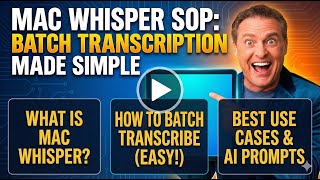
Mike Koenigs walks through MacWhisper, a local transcription app he uses to batch-process videos. Drag files in, choose local or cloud models, export transcripts with summaries and action-item templates. Single-user license costs £65 and runs faster than real-time on capable machines.
Questions this video answers
January 12, 2026
macOS (Mac app)
£65 (sixty-five pounds)
Chapters
All right, Mike Koenigs here. This is a quick tutorial of one of my favorite apps. I'm making this for my team, but I'm making it public as well. And anytime, let's say you've got a file, an audio file, a video file, it's on your computer and you want to turn it into full text. Well, basically, here's how it works. I'm going to demonstrate it and then tell you where you can go. So these are a couple videos that I made over the weekend. And all I did is I just took them, they're each couple minutes long, and I dragged and dropped them over to MacWhisperer. What it ends up doing is it's going to process these files. You can see it's already doing it and it's using a local model. So it's not taking your stuff and going out to the web. They've got configuration options to use all different sorts of models for transcribing video. So it's got local models. Here's one. And I can say, hey, I want to activate this, I can activate this, but it's whichever one. This is the, this is the one I normally would want to use is whatever the best is. And then there are some more models and you can download them. So the whole point is it's transcribing using built in models that are downloaded. And of course you can use cloud models or cloud models as well, which you can add different ones. So that would mean it would basically process, send the audio up. Now it turns out I'm in a different country right now, so having something that's super fast and local is actually in my best interest. And then you can set up exporting capabilities. There's lots and lots of features this has. Now, in the time that we're having this conversation, this is done. This is the, you know, the first video and it also lets you copy. It will export the text after it's done. And there you can go and see and let's see, segments. It's also got a bunch of other capabilities. See here, if I want to save this, I can say save the transcript as a text file. Boom, I'm going to just put it in the folder it came from. Normally when you do a batch process, it'll save the batch as a text file directly to that home directory. The other thing that I really like about this is it does have a capability here. Here's the history of transcriptions. Okay, let's take a look at this one. They have a variety of tools and for some reason I can't find it right now. But you can apply some different. You can say create a summary, which is pretty cool. It also has some other capabilities that There we go, summarizes it. You can also apply templates to the transcripted text much like you would with any other Here we go prompts. So we can say summarize action items, details list, extract action items. So if there were action items in here, you can build your own and create FAQs. So here's the way to think about this tool. Not only can it do batch transcription on your computer, so let's say you've got a huge training course. You could have like 20 or 50 or 100 little videos. You could drag and drop them right on MacWhisper. Boom. You're going to get all the transcripts, they're going to be saved to your computer or if you downloaded a bunch of stuff. The other thing that it has is you can see these prompts which is super helpful sometimes. So if you're managing lots of files and you had a whole bunch of videos, you normally can't upload them to, let's say Otter or some of the other transcription services because it just can't take giant files. So they can be multiple gigabytes and I'll take like a 50 gigabyte file sometimes drag and drop it. This is how I get my transcript. And it's a little bit faster than real time. Just know that it is running locally on your computer. It's going to be computer dependent but super powerful, super, super useful, super affordable. So that's the name of it. The, the link which is in the description video. The description of this video. It's at gumroad. I don't have an affiliate link or anything like that. You can see a single license is 65 pounds, so that's less than 100 bucks. I put it on all of my computers and it just. The, the guy who has written this is always updating and upgrading it. It's got lots of great capabilities and features. Whenever I download anything, this is what I use. You can also run it in the background as a transcription tool that can be running in real time. So with that. This is Mac Whisper. It is my little secret weapon that I use locally. It is a Mac app, obviously, but when you just need something down and dirty that does a really good job of transcribing. Batch transcribing. That's, that's the mistake I made here. If I would have said batch export, then this is where it would automatically output the file format in text or Microsoft Word. You can tell it to group, but you export to the folder of the audio file. So basically that's again where I would have dragged and dropped. If I would have done it properly, it would have just, you know, started and gone automatically. So that's the tool. Super helpful. And there's the button to start batch transcription gives you the total time. But this is in general the fastest way. If I have a bunch of files like a course, I want to transcribe them all. This is the tool I use. And I will take this thing that I just made and create a summary and put it in the description so you can see what this thing does with the thing I just made, which is a step by step SOP on how to batch transcribe from your computer. Thanks for watching.