Noomap Tutorial for Friends Version 1 - Part 1 (after Intro)
Bret Warshawsky walks through Noomap's alpha version, showing how to create and manage three holon types: Me, Storage, and Co-creators. The tutorial covers core features like zoom, panel resizing, permissions, copy-paste, the Synergize button for finding related items, and Nula, an AI assistant.
Chapters
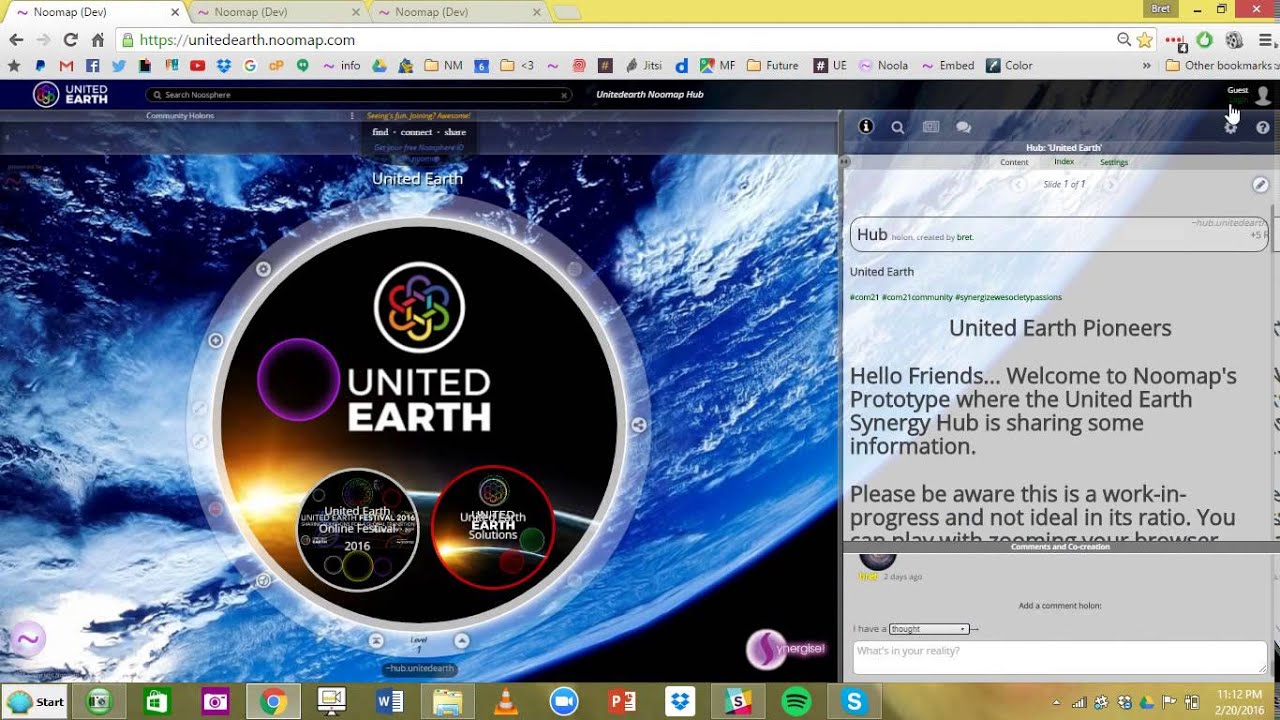
Hello everybody, it's Bret from NewMap. I'm going to make some unofficial tutorials while we work on making some more professional videos as the software gets a little bit further along. Right now we're in what I would call prototype or alpha. So this video is for those of you who are brave enough to join our pioneering activation community, to start playing and giving us feedback and co-creating with us and making New Map your own as well as ours. It's for everybody. So I'm just gonna jump right in. In order to get onto New Map right now, you can come through different portals. So this is like communities— we call them Synergy Hubs— will have their own portals into New Map. Right now, this is the official New Map itself portal. The co-founders and visionaries have their own take on New Map and how we're going to use it, so we're building the software for everyone to use it differently, but we have our own vision too, so that is what's called MetaHub. Here's another example. Some friends of ours out here in Rotterdam called the Maesteren Foundation. This is their Synergy Hub, and we are co-creating with a beautiful community called United Earth. And this is the hub that we are working on with them. So I'm gonna start here at meta.newmap.com. That's meta with 2 Ts. You can come here, up in the top right corner there's a login. Put in your username and password, and you are logged in. So the first thing I want to talk about are some of the simple things like creating holons and mapping them, editing them, giving access privileges, copying and pasting, and your basic layout here. So the first thing I want to share is that on a PC, I use Control plus or minus. I think it's Command on a Mac. To work with the resolution here, and you can also slide this panel over to get the look that you like. So this will change when we get the software further along and be different in all the browsers. Right now, Chrome is absolutely the best browser to use. I believe we're working on Safari. Firefox usually comes up with issues, and then sometimes it doesn't. So stick with Chrome if you have an option. All right, so now that I've got the resolution that I like and I have this where I like it, you can also adjust this comments and co-creation area like this. Left-click, dragging it up and down, letting go. You'll see there's a bug here, so I've got to click it. It didn't want to be dragged. Sometimes you have to actually click it. Like that, and it goes up and down, and now it can be dragged. So you'll play with that, and you'll learn the ins and outs of the prototype, and give us feedback and let us know how we can make things better, of course. So the first thing you need to know is your Me Holon. This is where we encourage people to share the gift of themselves. What you do is you hit this plus button on the outer ring here, and this opens up a palette of holon types that you have a choice of right now to map into this holon, to your Mi holon. So for example, it says Skill here. If I left-click, hold down and drag, and then release, it maps it into my holon. You'll see on the right here, it says Skill. Is all the information related to the holon that I'm looking at. In this case, this blank skull holon I created. So here you can choose a file which is the background image. You see I have the Milky Way here. So you get to put an image in. The best size is 450 by 450 and always square. So 400 by 400 and other sizes will work. You'll have to experiment. You've got a title, you've got a simple WYSIWYG here to add some content. You can add website URLs and YouTube videos. URLs or embeds, both of them usually work. And then hit Save Changes, and there it is here. You can move it around by left-clicking and dragging. I'm using a mousepad, by the way, so when I say left-clicking, I'm using that button and Holding it down and dragging with the mousepad. So I'm just going to drop it here for a second. You'll see here it's highlighted. I can use this to make it bigger and smaller. And you'll see here in the right info pane is the information related to that— a test skill holon type and a test. If I left-click this one, you'll see it's a Golden Innovation holon type and it's got a different description. And some of them have videos embedded inside of them. These are all the way down here. And then what you always need to remember is to use this I button. This means information pane. If you're seeing information in this pane that doesn't seem to relate to what you're clicking over here on the left, it means you're probably not on I, and you also need to be on Content in this space here. So in order to see the information that relates to this holon that's highlighted, you must be in Content, which is in Information. So that's really all you need to know about creating holons in NuMap right now. You click the plus to open up the palette, and then you have this choice. See, if you hover over it, it tells you what kind it is, and then you drop and drag it right like that, and it opens up automatically to be edited. Now, if you want to edit a whole line you've already created, you simply highlight it. See, like I did here. I can click into it. That's a double-click. And I hit the small pencil up here in the right corner, and again I'm brought back to this where I can edit the information there. Now I'm gonna zoom out by either clicking on that— can also zoom out by left-clicking out here on the outside— can also right-click. So now you know how to map a specific holon type into the middle of a holon. Now, by default, when you map a holon in your Me Holon and you go over here in settings, it will show you anyone can see that holon. By default, anyone can see it. It's public, and you are the only editor. You can change these privileges, and there'll be way more options in the future about how you can dictate what goes public and to whom and how you share it and who can edit it and whatnot. So you'll see I'm going back to the Content button so I can get back to the information related. Now the second thing I'm gonna show you is the Storage holon. This is like your Me holon, except when you drop and drag and create a holon, this time if you check Settings, you'll see that only you can access it And only you can edit it. So this is your private spot where you can bookmark things, where you can create hold-ons and wholearchies and start playing with creative ways of expressing yourself. So you'll see this is my storage hold-on. I've got hold-ons that I like to look at and things I'm going to be using. And if I have a new idea, I'll map it in here like my easel. And right now, third, you have the co-creator's hold-on. This is, uh, The way my brain organizes my friends on New Map and my co-creators. So these are your 3 main holons right now: co-creators, storage, and me. And when you're in a synergy hub, you still see your me holon. And your storage holon. Alright, the next thing to share is how to copy and paste your holons, and this is really simple. I'm going to highlight a holon by left-clicking it. I'm going to hit C on my keyboard— no Ctrl, no Alt, just C on my keyboard— and then I'm simply going to go into another holon anywhere in New Map And I'm going to hit V on my keyboard. Again, no Ctrl, no Alt or anything. Just hitting V on my keyboard. Now that same exact hold-on is in 2 different places. It's out here and it's in here. It could be anywhere in New Map. It's the same content, the same exact hold-on. It's just in 2 different places at once. Copy and paste, very important. So what you're going to do in New Map when you first start creating a couple hold-ons you want to come back to, or if you need to refresh because it gets frozen a lot, you need to refresh. You need to be able to copy and paste any hold-on that's important to you into your storage hold-on. So you know if you refresh or you sign in another day, you can come back here and you'll find the hold-ons that you were working on. And then you can organize them in different ways. So for example, I might just create this general anything hold-on and write Monday, and then put all the things I was working on on Monday in there. There's obviously a million different ways to See how your brain works. You can move holons like this, one into the other. You can move them out. It will take it a level up to where it came from. It's very simple and straightforward when you're working here at this level. Just drop and drag holons into each other. Now they're all here. Now, as a beta user, you should be aware you're going to quite often lose holons by putting them— by moving them around like this, and it'll disappear into here. So if you see a holon missing, you know it should be there, check the surrounding holons and check the level above it because it may have gotten moved out of the holon. A tip. You can also delete holons on New Map. They are not gone forever right now, so if you accidentally delete something, you'll be able to find it. You'll probably need a little bit of help from us, maybe. But if you create something beautiful and you delete it by accident, don't fret. Just be careful for now. So you see, if I hit this red button, it deletes the holon that's highlighted. So sometimes by accident you may try to erase something like this and have highlighted something like this by accident and then deleted it, and then you kind of freak out. But we'll help you find it. And if you remember the title, like test here, it's also much easier. So sometimes you want to pay attention. You want to be really conscious with the delete button on UMAP right now. We still have to add a rubbish bin where you can find the deleted whole lines, so be aware of that. Alright, this here is what's called the Resonate function. We'll tell you a little bit more about it another time. This will be the share for sharing holons. You can watch holons so you get updates when they get changed or when people comment. This is not working right now, and this is not working right now. Another really cool thing to pay attention to is the comments and co-creation area of New Map. So any holon can be commented on, and any holon within any holon. So every holon in the whole system of New Map is like a post or a share somewhere else, because they're all interactive, viral, they can be shared. So you can comment in a thread and you can also label it an intention, a resource, or an action, or a passion. So this way we create a gift economy more easily and more organically as we share And network with each other. We can just organize our replies a little bit. It will help the synergize engine of New Map facilitate co-creation and reveal co-creation. So, uh, I'll show more about this another time, but one great thing is when people comment and thread, you can link that hold-on to whatever hold-on you're looking at here. So technically, if I see someone here that shared a resource of 100 acres for permaculture, I would maybe go over here and find the holon where I know somebody needs that resource, and then— oops, I messed up there, that's my fault. Yep. And I'd be able to link this comment specifically, or this intention, or this vision into any other holon in all of New Map. It's working nicely now on a very basic level. You can test that out and see how that works. We also have a chat in UMAP, so you can start a new conversation if you know the person's username. Simply type @pan and then send a note and hit Enter on the keyboard, and it sends this. And every conversation— chat conversation in UMAP is also a hold on itself, so you can copy and paste the conversation or share it with other people at some point if that's something you'd like to do. Every holon also has its own URL within New Map, so it can be embedded and shared as a holon, as one holon, or as part of the holarchy. Any holon can be given a URL. So you just go into the settings and you name it and you set the address, and that's it. Down here it says if a holon has an address already, it'll say down here. We use tilde as a sort of hashtag or HTTP sign. We use tilde for new map. So ~me.bret will bring you to my Mii Home lot. Just having a little bit of a bug. Um, you can do a search right now. I'll type in energy, see what comes up. So you can link these to different Holons. So you see something interesting, you can link it to your storage, or you're building a Holon for co-creating something, you can just start searching New Map and seeing what people are putting out there, and then start linking it and painting a picture of a co-creation, almost like flash synergy overnight, crowdsourcing. You'll have a lot of ideas when you start thinking about what this means and playing with it. If some— you can also tag people now. So @Bret, if someone tags you, you will get an alert here, and this will say someone has commented or whatnot, and you'll be able to click on it. I don't have any alerts right now. And finally, I think I'll show you the last 2 things. We have something called the Synergize button. Which right now is only connecting similar holon types. So if I am on a hub and I click synergize— oh, this one doesn't want to work. Let's see. Intention. Yeah, so it's here. So I put synergize on an intention. What it brought up is potential synergies, 100 other 87 intentions. Obviously in the future this is gonna kick ass because it's going to synergize, like, with a passion for filmmaking. It's gonna bring you skills, resources, intentions, and visions, and ideas and questions all relating to what you want to co-create, what you want to be and bring in the world. So the synergize button will be different than the actual search. And over here is Nula. That's Chris's passion is AI with a heart, so she will be available at some point to start helping us map and ask us questions and check the news feed and all that good stuff. Good now. Well, I know I've been talking for quite a while now, so I guess the best thing you can do is watch this video and Hopefully you've been pausing it and you have New Map open in another window and you can sort of go back and forth and follow along. I'll put a note about that inside the description of the video so everyone's aware of that. That may be the best way to go about it. And if you're on New Map and you want to contact me, you send me a conversation, a chat, just to Bret, and then send me a thought or a question or whatever you'd like. Um, I'll make some more videos about where you can find some of these other holons so you can start seeing how people are applying some things and some of the comments they're leaving and whatnot. So if you get this far and you want to see more and you've learned how to map— see, once you learn how to map, you can start sharing yourself, sharing your skills and your passions and Uh, your visions and intentions, we'd love you to start sharing that with the rest of the community, with us. That's the number one thing you can do so we can start building this database up so we can all synergize across the planet. Um, so you're off and running to do that with what I've showed you so far, and you just send me a message and I'll send you some links if you want to see some other things like all these holons that I'm looking at here into my storage and whatnot. All right. I hope you have a great night. Take care.