Jen from The Autism Helper shows how to connect Boom Learning card decks with Seesaw for remote learning. She walks through redeeming decks, creating student passwords, assigning them to individual students, and sharing links in Seesaw as activities or posts. Morning meeting and math decks work well for discrete-trial practice.
Chapters
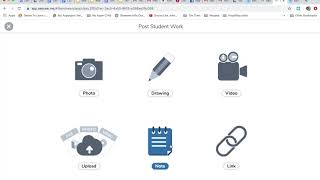
Hey guys, it's Jen from The Autism Helper. I wanted to hop on real quick because I know TPT is having a sale and you guys are all about these Boom Cards. I want to show you how I'm using them in my classroom, specifically with Seesaw. So if you're a Seesaw user, you've jumped on that bandwagon, I want you to know that you can use the two hand in hand and it's a really powerful tool. Here's how I use it. I'm gonna assume two things. I'm gonna assume that you already have a Boom Learning account set up. Set up and ready to go, and you've got your classroom set up, and I'm also going to assume that you've already got your classroom set up on Seesaw. So if you haven't yet, go do those two things, then come back to this tutorial. So when you purchase one of the Boom Card Decks from The Autism Helper, you're gonna get this document right here. It tells you exactly what to do and how to redeem your card deck. So once you've done that, I want you to go to your Seesaw account. You can see this is my Autism Helper demo class, and I've got my own kids Tim, Ben, and Lexi down here. So I'm gonna go to my Boom Learning account and you're gonna see I've got all 4 of us here as students and I'm gonna start assigning things to each student. Um, and so one thing that I have found really helpful is to give each student a really simple password. Um, I think that is something that is very helpful for parents and students, um, especially if you're doing this in this this era of e-learning and remote learning, um, you probably won't have students attempting to log into other students' accounts, those kind of things. So negate that as you need, but I find it's really easy and simple and helpful for parents if we give simple passwords. So for Lexi, I'm going to make the password Lexi K, and I'm going to say okay. Then I'm going to go ahead and click again, and I'm going to assign the decks that I want her to complete. So I'm gonna say that I want her to do animals for word to picture, feature function, and item to feature. And then I just hit the X, and then I'm ready to go. What I wanna do is I wanna copy this URL right here, and then I wanna go up to my Seesaw account. So I can do this in two different ways. Either I can add and post student work and provide a link if I do not have eLearn or the Home Learning Code set up, or I can do it as an assignment. So I'm going to show you both ways. This is sharing a link. So the first thing I'm going to do is I'm going to copy and paste that link, and then I'm going to hit the OK button, and then I'm going to caption it, and I'm going to give the student the instructions here, and I'm going to say, "Lexi, please log in with password." And I'm gonna tell her right here, Lexi K, because I don't want any excuse not to get this done, right? And complete the DEX assigned to you. And I'm gonna say okay. And then I'm good to go. I'm gonna choose the student that I'm sending that to. And I've really targeted a lot of reading skills in that, so I'm gonna hit okay. And there we go. That is ready to go. So now when the student clicks on that, this is what it's going to take them to right here. They're going to find their name, they're going to type in their password, Lexi K, and then we're going to go OK, and then poof, here are the decks assigned to them. Okay, so what if you've got e-learning codes, right? Well, if you've got home learning codes, you can do this as an activity. So you're going to add an activity and you're going to assign it and you're going to create your own. So we're going to go to Create New Activity and we're going to say Boom Learning Cards. We're going to say follow this link and use the password "Lexi K to complete the DEX assigned to you." And then I'm going to say there's the link. And I can give voice instructions if I would like. And then I'm going to save. And then I'm going to choose who to assign it to. And then I'm going to choose here. And I'm going to hit Edit Students. I'm going to just assign it. To Lexi because that's who I did this one for, and we are good to go. Now if you went through and you assigned things to everyone, you can just share this out with one activity and the students will log in, but you don't want to put the password in each of those. So, um, you obviously don't want to put each student's password in that, so just be cognizant of that. And so then we're good to go. And then when I go back to my class, that's gonna be an assignment that's there. And then the kids can just follow this link and look at that, there's Lexi. She can type in her password. I'm gonna show you Ben's. I did Ben's earlier. And poof, there are his decks. So you can see, you can actually really hone in on the skills that you want each student to work on and assign it in one quick, in one fell swoop. If I was spending money during this TPT, this is where I'd be spending money. I'd be doing it on these Boom Decks. I'd be doing it on the morning meeting curriculum or math meeting. That's pretty awesome. Daily morning work and daily level curriculum. Those are the things that drive my classroom. And in this era of e-learning, these Boom Decks are really a great way to get in some discrete trial even while you're away from your students and to do it on a way that's very simple for them to use. I hope this has been helpful. If you've got any questions, drop them in the comments. I'm always happy to help. Have a great day, guys.