Katie from The Autism Helper shows how to build a spinner on wheelofnames.com using images instead of text. Upload pre-writing shapes like lines and circles, and each image becomes a wheel slice. Teachers can have students draw the selected shape, then remove it for the next turn.
Chapters
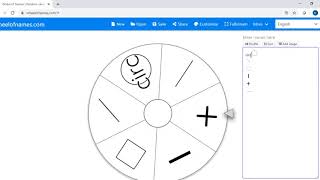
Hi guys, it's Katie from The Autism Helper. In this video, I'm going to show you how to create a spinner using just images. So when we come to wheelofnames.com, remember this is our default spinner. Let's go ahead and delete the name so that we can start fresh. In order to add images, go over to this add image button and it's going to take you to the files on your computer. I have already loaded up some pre-writing strokes. This is a super foundational and important skill that we work on with our early childhood students to set the foundation for eventually being able to write letters. So we are often working on students being able to imitate and copy vertical, horizontal lines, circles, crosses, all of the different shapes that you see here. These are just a few of them. So this would make a really great spinner for our early childhood crew. I'll go ahead and select these photos. And when I click Open, they will magically load up into our spinner. Remember, each line indicates a different slice of the spinner. So each picture then is on a separate line. Now you can add words and they will kind of float on top of the spinner. So if I want to have circle, I would just type it there and it'll float on top of the image of the circle. I don't want it, I will simply delete it. Now remember, we can go up to Customize and do our customizations. Maybe we want a different sound, or maybe applause or confetti to happen after the spin. For this one, I want my message to say, "Let's practice this shape." Colors I've had trouble with. I haven't gotten colors to show up when I've used a spinner with images. The image is taking up most of the spinner. But you can continue to add an image in the middle of the spinner. And when I am doing a writing spinner, I like to add a pencil just to be on theme. So there we go. Here is our spinner with images that we have customized. And let's go ahead and click and test it out. [MUSIC] All right, so there's our custom message. Let's practice the shape. You would have your students draw the shape of the square, and then you can either remove it from the spinner so it doesn't get chosen again, or you can close out and return to the spinner and have it— have another student take a turn. So I hope that was helpful. Thanks.