A tutorial on using a ready-made daily schedule template in PowerPoint or Google Slides. The template has six activity blocks that alternate between demanding tasks and breaks, with movable calendar pieces and embedded links to videos, Boom Cards, and other resources. You can assign copies to students via Google Classroom so they complete work directly in the template.
Chapters
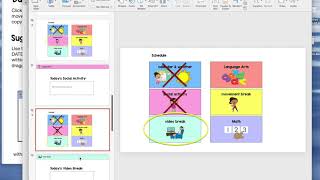
Daily Schedule Template, you are going to get a Google Slides version and a PowerPoint version, as well as a list of suggestions. So this resource is really a template for you to structure your virtual class, have a schedule of activities, but you can input the activities that work for you and your class. So I'm gonna show the template on PowerPoint, and then I'll briefly show what it looks like on Slides. It looks about the same. So here is the PowerPoint template if you're using Zoom. This would be a great thing for you to present and play and really structure your day with 6 different activities or structure your call with 6 different activities. What I would suggest is saving a teacher copy, a master, and then every day saving the copy for that day. So clicking File, Save As, Daily Schedule October 1st. File, Save As, Daily Schedule October 2nd. And then you can add your activities for each one of these. And as I'll show you in a minute, the PDF has a list of ideas. The calendar and weather already has some movable pieces here, so you can move these pieces to show the day of the week, the month, the date, um, and the year. If you don't want to use these, if you want to maybe add a text box and type in, you could also do that as well and just delete these. So the calendar and weather is the only one that has a little bit of an activity set up that you can add in, and then you can add in any other calendar weather activity here. So So this is where you could add your link. This is where you could add directions of, you know, describe what you do on a rainy day. So maybe you're just doing a discussion topic or a journal topic, like depending on the level of your students, you might wanna do something like that. Maybe you wanna link to a calendar video or a weather video on YouTube. You could just add that link right in here. So then you don't have to be bouncing between a million tabs. You could just link and it'll pop you right over there. So once calendar and weather is done, what I love about this template is this X is gonna now show, and now we're on to the next. So it'll really show the passage of time and mimic the visual schedules that you've used in your classroom. So the rest of these activities have blank templates. As I said, you can add in a link or a text. Let's say you want to link to a Google activity, you want to link to Boom Cards, you could insert the link right here. Insert, you know, your text box and link to YouTube question of the day, and then just insert that link right here. So you would insert the link right there and have it ready to go. So we have social activity, social activity is finished, we're on to video break. I kind of purposely set up this schedule with to kind of, you know, a harder activity followed by something fun. So first social, then video, first language arts, then movement. So language arts activity, now movement break, and then math. Now you could add in, like I've showed you, the link or a text. Like the text here could say, um, today's movement break is we're going to do 10 jumping jacks, we're going to do 15 push-ups, and we're going to do 30 seconds running in place, or you could also insert slides here. So let's say you have some yoga positions that are on PowerPoint slides, you could add those in here, or you could add in a new slide and add pictures of different yoga poses and just insert that. So it's all ready to go in one spot instead of pulling from all these different tools. So if you have a PowerPoint activity for math, you could just pull those slides in. So let me show you what this looks like on Google Slides because this is the same idea. So we have the template without the movable pieces and with the movable pieces. It will force you to make a copy, so you make that copy and open up the slides, and it looks exactly like this. So you can present— you— what I would do is the same thing. I would save the master, and then each day, say Daily Schedule, October, you know, let's say 10/1, and then you would input all of your activities in here. So today's social activity, you can add text to say, you know, question of the day, what is your favorite ice cream? You could add a link to Boomcards. So let's say I wanted to do, or for video break, I'm gonna do a YouTube clip. And we're gonna watch a little clip of Despicable Me 'cause we're just gonna do something fun here. So then I would insert my link right here, have it right there. Then you could also drag in other slides. You can do that by importing slides through this area or just drag in slides through right here. So if you have a language arts activity that you wanna do, just drag the slides right into this PowerPoint and create, you can quickly create your whole PowerPoint for this date all in one spot. So that's what it'll look like in slides, and you also have the option of the movable pieces here. Is you could assign this to students, so you can use these slides and assign one to each student. So when doing that within Google Classroom, you would make a copy for each student, and then you can have the student complete this on their own. So maybe that would mean you want to add text boxes so they can type, you know, the day, the month, the date, and then for each activity you could link to a video, you could link to a set of Boom Cards, you could link to whatever activity you want them to do. So maybe for language arts, you know, you're gonna say journal, write 3 sentences about cats, and then maybe you would even add a slide for them to do that on. So you can structure kind of that whole activity they would complete this on their own and then submit it to you, and you could check their work. So this could be a way that you assign work to a student. You could also do that with the PowerPoint and email that to a parent, put it on Seesaw, put it on any other platform, um, and have them edit the PowerPoint. They cannot move any of this stuff, so this will all stay there. They will only be able to edit the text boxes that you add. So you could set that up on PowerPoint as well for them to add their answers, save it, and return it to you. Piece that you got is this list of activity suggestions. So I just put together some ideas of things you could do for these different activities. Obviously, the levels of your kids are going to be all different, but this will just give some ideas as well.