Gina from theautismhelper.com walks through creating a parent survey in Google Forms to gather information about device access, internet reliability, and family needs during e-learning. The video covers building the form, customizing questions, sharing it via email or ClassDojo, and viewing responses in charts or spreadsheets.
Chapters
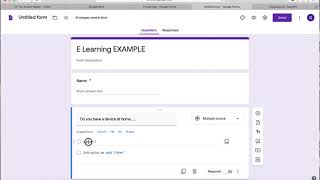
¡Hola, everyone! It's Gina from theautismhelper.com. I wanted to hop on here and show you how to create a parent survey for your families using Google Drive and Google Forms. Right now, it's most likely that most of us are switching to some type of e-learning or online distance learning, and it's really important to figure out what your families need. There are so many amazing resources out there and webinars on different platforms. However, if your families are not able to access that right now or, you know, ever, it wouldn't be worth spending so much time on a certain platform. So this is just a simple survey that I created for my families. So I titled it just simple e-learning. I have their— put their name or their child's name, and then I ask them simple questions like, do you have a device with a camera? And I gave them some examples over here. Do you have internet access? And maybe they do, but it's not reliable. Have they ever used Zoom? Or you can type in what platform you think your families might be using in your district. Do you have any school supplies at home? You know, when I left school, I didn't grab anything with me, so they might be limited on crayons and glue and scissors and things like that. So just be mindful of what parents might actually have. And then I also put a little checkbox link here just to see what they're interested in seeing during eLearning. And just maybe, you know, I can include things— put things on there that you can actually, you know, do, but it doesn't mean that you have to include them every day. And then a little box down here for questions and concerns. So in order to create something like this, you want to go to your Google Drive and go to New, down to More, Google Forms, and then up pops this box. You can title whatever you want. I'll just do eLearning Example. And then your first question, you might want to put their name, that way you know who's responded. And it automatically puts in short answer for you. And then I like to push this required button down here so that they have to fill it out. When you're ready for a new question, just go ahead and hit the plus sign and then go ahead and type, "Do you have a device at home?" And then you can go on to detail. And this is really nice, it automatically populates multiple choice for me. There are different options for you if you hit that arrow, but multiple choice is appropriate for right here. No, and then yes, not reliable. Okay, and then once you're ready for your next question, again hit "Require before you move on," hit that plus sign. And then say you want to do the checkbox ones. "What would you like to see during eLearning?" And then this is where it populated a paragraph, but I'm going to do checkboxes. So maybe I can offer a virtual field trip in my backyard. Maybe I can offer some visual recipes. Definitely going to do some circle time videos. And so on and so on. Required. And then if you want to end it with a questions or concerns box, it automatically populated a paragraph, which is awesome. You don't have to hit required for this in case there's something that, you know, they don't want to share, but you can hit it required. Once you're finished, you're gonna go up to this purple Send box. You can either email it to yourself, email it directly to parents, however your school communicates. I love the link box. You just hit copy. My parents are used to using ClassDojo, so this is just a sample ClassDojo. I've written a little message to them. I'm gonna copy and paste it right into my Class Stories box and then post it. And then whenever parents want to actually go and take the survey, they just click on the link and up it comes. Yes, I do. I want recipes. I have no clue what I am doing. Help! And then submit. So that's what it would look like when a parent fills it out. You can also check out your responses. So for example, it automatically populates in. So whenever you go back into your Google Drive and you click on that screen, You'll be able to pull up all of your information. You click on Responses and it'll give you a summary in different chart form, which is really awesome. It'll also give you an individualized— so Gina said yes, she has a device at home, she would like visual recipes, and she's really scared because she has no clue what she's doing. You can also look at it in a different form up here with this 3-button click. Click on that. You go to Download Responses if you want to see them all within a chart. Go to your download button, and then it'll pop up, and then obviously as you get more responses, it'll record them on this sheet for you. So this has been a tutorial of how to create a parent survey in Google Forms. I hope this is really helpful for you during this time, and just know we're all here to support each other, and I hope you have a great day.