Jen from The Autism Helper shows how to extract a few pages from a leveled curriculum PDF and assign them in Seesaw. Use Chrome's Print dialog to select your page range, save it as a new PDF with a clear name, then upload it to Seesaw as a new activity. Students see only the pages you picked.
Chapters
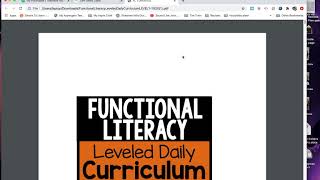
Hi guys, it's Jen from The Autism Helper. I am gonna teach you how to take one of our giant leveled daily curriculums and split the PDF into assignments so you can use it on platforms like Google Classroom or Seesaw or ClassDojo. So the first thing you're gonna do is open up your Teacher Pay Teachers and then you're gonna download the curriculum that you've purchased. So when you download, it very well might just pop open in Acrobat Reader. That's fine, but you want to close that. You're going to use Chrome to open it. So you're going to go to your Finder if you're on a Mac, and you're going to go to your downloads. And I'm going to be able to find today my curriculum that I downloaded right here, my Functional Language. And then if I click on that, I should be able to choose Open With and Google Chrome. So now that I've done this, I'm going to go up to the Print box in the top right corner. When I click on that, I'm going to choose my destination and click Save as PDF. Now for the pages, I'm going to make that custom. So I'm going to scroll through, find the pages that I want to assign, Here I'm going to assign the pretest. So the pretest happens to be page 10. See, it'll tell you right there, and it tells me the pretest right here. So page 10 and page 11. So here I'm gonna write 10-11. I'm gonna scroll and make sure I have everything that I need, and then I'm gonna click Save. So I'm going to name this as today's assignment. So today is 9/ 820, and I'm gonna put FL for functional language, and it's gonna save to my desktop. Now that I have that done, I've broken apart that PDF. So when I go to Seesaw and I go to add an assignment, I'm not assigning all 200 pages. I'm just assigning those 2 pages that I want. So this is my demo class for the Autism Helper, and this is my Seesaw, and so I'm going to add an assignment. I'm gonna make an activity. So I'm gonna assign this to my class, and so I'm gonna go here to Create New Activity, and I'm going to say "FL Pretest Unit 1." And then here I'm going to write instructions: "Please fill out worksheets." Down here, I'm gonna add the template, and I'm going to upload it. I'm gonna select it from my computer. I'm gonna go to my desktop, and I'm gonna choose what I did today, F— or 9820FL, and I'm gonna hit OK. Then that is going to upload those two pages for my students. I'm gonna OK those. I'm gonna check my template down here. It looks great. Check my worksheets. I'm gonna hit save, and then I'm going to assign it to my demo class, and I'm good to go. So now when I go back here, I can see here is the assignment. Pretty great. I hope that's helpful. Take care, guys.