Angela Kulcsar shows how to build a digital bulletin board for Autism Awareness Month using Google Slides, the Autism Awareness Unit from Teacher Pay Teachers, and Bitmoji. Download the unit, set a bulletin board background, add screenshots of fact sheets, then share the link through Seesaw or Google Classroom.
Chapters
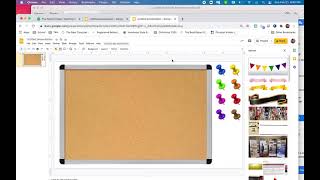
The Autism Helper, I am getting creative for Autism Awareness Month, and that's coming up in April. And with COVID I'm not able to go into classrooms like I normally would be. And so I was looking for ways that I could share our autism awareness unit at The Autism Helper with our students digitally. And I came up with sharing digital bulletin boards. Normally I would take this awareness unit and I would put up true/false boards around our school. I would create bulletin boards with all these facts and this information. And I had to really get creative about how I was gonna share that digitally this year for our students who are in-person and for our students who are learning remotely. And so I'm gonna show you how I did it. So the very first thing you need to do is grab our autism awareness unit. You can find it at on Teacher Pay Teacher under The Autism Helper, and it is under Bulletin Boards. So, here I'm just going to pretend so you can follow along with me. So, The Autism Helper. Alright, we're going to click on that, and then we're going to scroll down to Bulletin Board Ideas, and then we're going to scroll down to Autism Awareness Unit right here. I've already got mine downloaded and ready to go. Now, this is loaded with information and all kinds of ideas of how to teach units and interactive things that you can do, lesson recommendations, um, books that you can recommend. Um, but I love this because it's leveled, so there's different levels of information for your students or your school. So So I teach in a K-1-2, so I'm gonna choose level 1, but there is a level 2 and a level 3. So even all the way up through middle school and high school, there's something for you. All right, so the next thing I'm gonna do is I am going to go to Google Slides. So this is just a quick example of what it's gonna look like when we're done. All right, I'm gonna start from scratch. So I'm gonna go to Google Slides and I'm gonna choose a blank presentation. All right, sometimes that comes up with like titles and those kind of things. I'm just going to click on those boxes and delete them. So once they're highlighted, I just click the delete button and away they go. All right, now I've got two options of how to do this. I can either go to background here or I can right-click and choose change background. Now I'm going to choose, choose image, and then I'm going to do a Google image search. Because I want this to look like a bulletin board like I would normally make, I'm going to search for bulletin board. All right, bulletin board. Now I personally love the first one that comes up, but guys, there's hundreds to choose from. So I'm going to choose this one and I'm going to click Insert. Now I'm going to click Done, and there it is. I'm ready to add things to it. Well, I think it needs a little pizzazz. You You guys know me, I love like rainbow colors. So I'm going to insert an image and I'm gonna search the web. I like banners on my bulletin boards and so I think this is super cute. I'm going to click this and then I'm going to select Insert. Okay, it's a little big, no biggie, right? So I'm just going to shrink that down and then I'm going to pull that up so it looks like it's hanging from the top of my bulletin board. Remember, this does not have to be perfect. Okay, my students love a Bitmoji, and so because I'm going to make this facts about autism, I'm going to find a Bitmoji that says something about facts or those kind of things. I have the plugin on my Google Chrome, so if you do that, you can just go to the Bitmoji. If not, you can go to Bitmoji and you can make one, but if you don't have one, you do not have to do this step. And like I said, I'm gonna search facts and, ooh, I like this one right here. So I am going to right-click and I'm gonna copy and then I'm gonna come over here onto my bulletin board and I'm going to right-click and I am going to paste. Alright, so now I've got facts right here. I'm gonna make it nice and big. I'm gonna pull that. So I like the way that looks. I think that's pretty awesome. I think my students will really like that. They get such a kick out of Bitmojis, and I think that's so funny. Okay, all right, now it's time to load this with the facts. So I'm going to go to my Autism Awareness Unit. The fastest way I have found to do this is to take a screenshot of what I'm sharing. So on a Mac, that's Command Shift 4, and then that gives you this selector to where you can take a screenshot. Once you've got a screenshot, you're gonna go back to your Google Slide, and now you're going to go back to Insert, Image, but this time you are gonna choose Upload from Computer because you just saved that on your computer. And then I am going to choose my screenshot, and it's my Facts About Autism Level 1, and I'm gonna open that up. It's gonna be too big, no big deal. I'm gonna resize that. I'm gonna stick it here, and then I think that looks great. I'm gonna send it to the back, and I'm gonna move this to the front. Whoop! Goodness. Alright, here we go. I'm gonna right-click, and I'm going to Order, and I'm gonna Bring Forward. There we go! Alright, so now my Facts About Autism— that probably needs to come come down and I need to scrunch it just a little bit. There we go. Oh yeah, that is looking awesome. I'm gonna move it just a smidgen. There we go. Alright, so now I have a digital bulletin board that I can share just like I would any other Google document. I can go up here to the share button and I can provide a link. I can name it Autism Awareness "bulletin board." And then from here, I can choose who I'm gonna share that with, and I can copy the link and then share it to all of the staff at our school. And then they can even put it on their Seesaw, their Google Classroom, their ClassDojo, whatever platform it is that your district uses. This is a quick and easy way to share this. Now, if you wanted to share a video or a digital book, you could actually insert links in here as well. It's just an awesome way to be able to continue sharing about autism but in a virtual format. I hope that you have found this incredibly helpful and that it is just one more way we can share about how awesome our students are for Autism Awareness Month. Thanks, guys!