Learn to build personalized social stories in Google Slides to prepare students for new experiences like field trips. Insert web images, add learner-specific text about what will happen, then print and staple into a booklet to share with teachers, staff, and parents.
Chapters
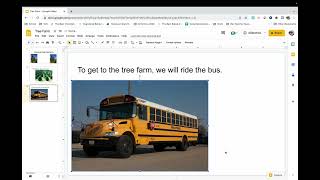
I have had so many questions on the membership recently about how to create social stories. So, we have so many students who go through specific situations. I'm gonna show you how I use Google Slides to create my very own social stories that are personalized for my students. My students are about to go on a field trip to the tree farm. So, I'm gonna make a social story that I can share with my related service providers, the gen ed teachers, and my staff and parents so everyone's on the same page and everyone can utilize the social story. The very first thing I do is open up a brand new Google Slide presentation. I go ahead and title it whatever that trip or that experience might be. Here I'm gonna write Tree Farm, and then I'm gonna go ahead and title my story Going to the tree farm. Now, to make this as realistic as possible, I'm going to go ahead and insert some photos. To do so, I'm gonna go to Insert, and then I'm gonna go to Image, and I am going to actually search the web. I don't have saved on my computer a bunch of photos of fir trees, and that's what my students are going to see. So I'm gonna search the web and I'm gonna search fir trees and we're gonna see what comes up. I wanna pick the image that is most likely to be what the students will see. This is a pretty accurate image and so I'm gonna click Insert. It's going to fill the page. I absolutely love that and I'm going to copy it and paste it and add it to the other side as well. Look at that. I've got 2 images and my first, Page is done. From here, I'm going to insert a brand new slide page, and this is gonna be page 2, and I'm going to start my text. And I'm gonna say, on Wednesday, we will go to the tree farm. Now I'm gonna add a picture of the tree farm. And so here I'm gonna go to Insert, Image. I'm going to again search from the web and I'm gonna say fir tree farm. See if I can find that. Oh, look at this. This is a perfect picture. This is exactly what my students will see. I'm gonna insert that and look at that. That's perfect. I'm gonna center that. Love it. Insert, new slide. To get To the tree farm, we will ride the bus. And now I'm going to add a picture of the school bus. So again, I'm gonna go to Insert Image. I'm gonna search the web and I'm going to say school bus. I'm gonna find a bus that looks just like ours. This is perfect. I'm gonna click Insert and here it comes. Now the best thing about this as I continue to write my social story is that this is specific to my learner's needs. So if I know that a student's going to have trouble riding the bus, I'm going to break down the bus positions. You know, hey, we're gonna go on the bus, um, we're going to ride for 20 minutes. When we arrive, we're going to get off and stretch our legs, and then we will get in line. I'm going to be really explicit. If I think that the student is going to be super excited, I'm going to, you know, be very explicit about the things that we're doing and the things that they get to do and the things that we need to be careful of. I really mold this for the student that I'm writing it for. So from here, I'm going to go ahead and finish my story, but I want to show you what happens when I go to print. So I'm just going to go to File and then down I'm going to go to Print. Print. It's gonna take a second, but when I print, each slide becomes a page. When I print this, I just staple it on the side. I automatically have a book. I can send this home with the student so the parent can read it. I can send this to related service providers. I can send this to gen ed teachers. I can send this basically to anyone who interacts with the student who is helping to prepare them for this field trip. This is a great way to customize social stories to any specific situation your student might be encountering. From here, I just click print, and I can print as many copies as I possibly need. I hope this has been incredibly helpful for you. If you've got any questions, I've got a blog post on exactly what I did that goes step by step so you don't miss a thing. I hope you guys have a great night. Thank you so much!