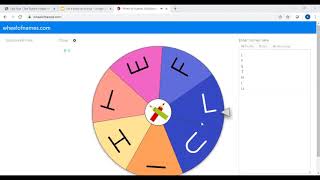
Katie from The Autism Helper shows how to embed an interactive handwriting spinner into Google Slides for distance learning. She uses a custom spinner with Handwriting Without Tears letters, embeds a Wheel of Names link into the image, and tests it live so students can click it during presentations.
Chapters
Hi guys, it's Katie from the Autism Helper. Today I'm going to show you how to take the spinners that we've created and transfer them over into your Google Slides presentation. I've been using Google Slides a lot to create my lessons for distance learning, and I have found it super easy to have my spinner embedded within my slides lesson. So that's what we will focus on today. This spinner I created with all of the uppercase letters that I typically teach students first based off the Handwriting Without Tears curriculum. So we tend to focus on the straight line letters, which are easier for students to make when they are first starting off. So this would be a great spinner for early childhood students. So what you're going to do is you're going to click the spinner, and while it's spinning, right-click on it to save the image or copy the image. Then you will go over here to your Google Slide, and this is where you're going to paste the image into the slide that you want. You can resize it and move it over. And now your spinner is in your slides presentation. In order to make it interactive so that when you click on this picture, it will go to the spinner, you need to go back to your Wheel of Names website and click Share up here at the top and read this terms of service. Click Continue. And I like to choose this option that when you get a shareable link, the person you share it with is only able to spin. And not edit your wheel. So do continue. It's going to generate a link that you want to copy. Take that link back to your Google Slides and click on your picture. So once you click on the picture, you can come up to the toolbar up here and click Insert Link. This is where you're going to paste that link from the Wheel of Names and click Apply. Now when you do your presentation, this picture should be clickable and should take you to your spinner. Let's go ahead and see. If that happens. We'll click through. Here we go. All right, I think it worked. So that is how you take your spinner and embed it within your Google Slides presentation.