Jen from The Autism Helper shows how to set up Seesaw with color-coded folders for each IEP goal area, then tag student work to the right folder. You can print a student's folder as a PDF for IEP meetings or make end-of-year memory books.
Chapters
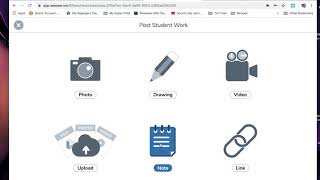
Hi guys, it's Jen from The Autism Helper, and I wanted to show you how I use Seesaw to help share progress in IEP goals with my parents. So today I've set up a fake Seesaw class. You'll see my name's up here and it says I have 2 classes. I actually have my real class and the one that I've made for us today, The Autism Helper Demo Class, and I have put the names of my own kids in here, Ben, Lexi, and Tim, under where you would put your students' students' names. So the first thing I want you to do is go up here and click on the wrench, and that's your class settings. And I want you to scroll down, you've got quite a few options, but go to Manage Folders. This is where I set up the different types of goals that I have that I'm responsible for in the IEP. You're gonna go to Create a Folder and just click right there. And if you color code like me, this is like color coding heaven. You're gonna choose the color that you want. I use red for math, so red's already chosen. So right up top, the folder name is going to be math. Like I said, I typically have a couple different IEP goals that I'm responsible for as the special ed teacher. Yours will probably vary because let's be real, no classroom is the same and no school district is the same. So, you make this work for you. That's the beauty of Seesaw is that it's very, very flexible. Every teacher can use it in a way that works for them. Them. So go ahead and create that math folder and then click the check button and create a folder for every kind of IEP goal that you have. Now, I don't create individual ones for each student. I think that is way too much and way too difficult. So for me, I just make general folders. So if I've got kids with math goals, I make a math folder. If I've got kids with reading goals, I make a reading folder, and so on. So I'm gonna make 2 more. I'm gonna make a reading one, and my reading is always blue, and I am going to make a social skill. My social skills are always yellow. Um, in real life, I would probably have an independent functioning and a written expression and all kinds of other stuff, but just for today, I'm gonna show you those 3. So now that you've got those, you can go ahead and X out of there, and it's gonna show you 2 different things. Manage your folders. So if you wanna add more, you wanna delete folders, just go there. But this is a really important one. It says "Show to add folder step" and it says "Teachers." I don't have my students add any content yet. It's just above them. We're not quite there. It's something we're working towards. However, if you've got students taking pictures and videos of their own work that they're sharing on Seesaw, you may want to adjust this. But for me, it's just not quite there yet. So I'm gonna X out of that. And then here we go. So I've got something right here that I put under Ben's, a comment. That's the beauty about Seesaw, you don't have to use pictures and videos, you can upload files, you can upload links, and you can also leave notes. And so here I left a note and I said, "Ben did a great job in gym class today. He initiated saying hi to 3 different peers." Well, that's kinda like a social skill goal, right? So it really should have a social skill tag on it. So that's what I'm gonna teach you how to do. Is add a little tag or a little folder to where that's kind of filed in their digital portfolio. So you're gonna go up to Add right here, and you're gonna post to Student Work. And let's add another note. Let's say that Ben read today, let's say Ben read 40 new sight words today. We're super excited. We are going to click this little button right here, and it looks perfect to me. I don't need to edit it, so I'm gonna okay it, and I'm gonna say that that's Ben. And then look right here, in folders. Well, obviously that's a reading goal, so I'm gonna select reading, and then I'm gonna okay that. Now I want you to see what happens. It's a little bit different than the last one. Right down here, it's got a reading tag. That is so important to me. I love that it has that. And then when I click on it, I can print all of the things that are in Ben's reading folder. I think that's so cool. So, when I go to share with parents about reading goals and math goals, and I wanna look at this during the IEP, I have a choice. I can either print the PDF, or I can bring my computer and we can kinda scroll through things, and we've got artifacts right there. We've got videos, we've got pictures, and we've got notes just indicating what the student has done up until that IEP meeting. For me, this is huge. The other thing that I love to do is I put together like an end of year just memory book, and one of the things that I do is that I print all of the Seesaw information when I close this out. So every kid has a printed copy of their portfolio. So every picture, It doesn't, obviously doesn't take the videos, but it does take a little snapshot of the videos. All the notes that I've put in celebrating the things that we've done all go in that portfolio for the end of the year. So, let me know if you have any other questions that I can help you with today. I think this is gonna be an awesome tool for you in your classroom, especially for those younger-aged kids. I know I really struggled with what was appropriate. There's tons of great apps out there, For me, Seesaw was the one that just really nailed it for me. Kudos to Mrs. Blomer, the best teacher ever, who pointed out to me and was like, "Jen, you should be using this in your class." It has been a game changer for me. I hope you love it. Let me know if you've got any questions. I would love to help you out. Thanks so much, guys.