How to Automate & Organize Your Business with Process Maps!
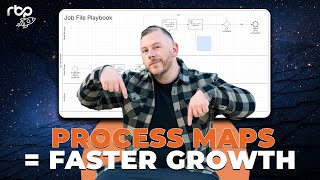
This content was created by Adam Sand. This content was uploaded by Adam Sand. This is a YouTube video titled "How to Automate & Organize Your Business with Process Maps!" created on April 28, 2025. It provides a detailed demonstration of using LucidChart for process mapping, including creating swim lanes, linking documents, and using the tool for training and onboarding. The content is instructional and focuses on business process automation and organization.
Chapters
One of the tools that we use for process mapping is this software called LucidChart. There's a few of them. LucidChart is one of the best tools. It's the one I work in. But I just want to give a quick demo of this of like how quickly this can actually happen. You know, how we do it at rvp, what it actually looks like when it's deployed. So lucidchart has several different shape languages that it operates in. Of course we have our BPMN right up here. And we'll just start by building one of those basic pools in the very beginning. So we've got a basic two lane pool here. We're going to start with that job file review. Now we're going to need another swim lane here. So we can just quickly add this up here and then we can label these at the top here we're going to have our sales manager, we'll have our salesperson, we have inside and outside sales. We can label the salesperson for simplicity here. And then of course we're going to have HubSpot and I'll show you a couple of the different shapes you can use to represent different actions within a process. So we always start any particular map with a starting event. So over here on the side you can hover your mouse over, we see we have three different types of events marked by a circle, a start, what's called an intermediate and then an end. So we just bring this over here, starting event. And we could say customer signs contract. And then what that will do in the system is that will trigger an automation for HubSpot to move the deal to contract signed. When we have our tasks we can put different icons. So that gear icon that notes an automation, we can have that noted there. And then software is very easy to use. We just drag an arrow and that solid line indicates that it's from one starting point something else and that connects the two. So what happens after it's moved the deal to contract signed? I should spell that correctly. Okay, so then salesperson is going to get a task to complete the job fil playbook. And then we can note that with manual. So that shows that that's something manual they have to do. First thing they're going to get is a task to complete the job file playbook and we can note that by a received message. So then what we end up having is this collection of various tasks with different icons. We can show automations sent and receive messages, manual actions to show, hey, is this something that's Happening to me is this something I have to do, that sort of thing. So, and you'll notice here I'm not coming over to the side. I want to show how quick this can happen. Not coming over to the side every time. To create a new box, you can just highlight that control C cop control V makes a copy of it and paste it and then you can put it up here. So now we have our sales manager receives the task to review job file playbook. Grab that, that's a receive. And I run through this. I mean I've only been a couple minutes and all of a sudden we have almost the makings of a whole map here that we just have to basically connect with arrows. Put the last couple icons in here and then show you what it actually looks like. So the sales manager will receive the task to review the job file playbook. They actually review the job file playbook. That's a manual action. Now here's where we come to one of our gateways. So I should probably imagine as we saw before, our gateway is, is it complete? Does it have everything we need? And this could be a yes or no. Well, a yes is, hey, we're ready to hand off to production. So what we can do, grab our end event circle and we go hand off to production. If it's not complete, then what we want to do is grab our arrow and kick that back to the salesperson to complete that. Lucid has very user friendly features in here where these lines we can double CL click on one of our arrows. And since this is a yes or no, we can just double click here and a no for no, yes for yes. Connect these with our lines. That goes there. Test receipt, Review it. It's a yes or no. And there you have it. I wasn't timing that. I probably should sometime. But just to take the mystery, to take the maybe the hard boring work out of this, this is how quickly some of these can come together. Okay. And you can do this for anything in your business, to train, to document. This is how quickly it came together. If something's modified in your particular business, we can say there's an extra step or say there, you know, something else we want to put in very easy with LucidChart or you know, any software like it not married to lucidchart. It's just my favorite. We can drag these swim lanes, we can drag the entire pool. We can make more room if we need more shapes. Like there really are almost endless ways to present these. And then what happens is, is we get to here. This is kind of what it looks like for rvp. And our standard inside sales process looks a little different than what I just mapped. Kept that other one simple. But these are the kind of maps that we have internally at RVP to map our builds to make sure that we have everything in the right spot for when we're getting. So you know, you can see this is all built from lead intake to appointment to customer appointment to signing to follow up. This is what we call the 30,000 foot view. You see, we have a system for labeling these. So lead intake is this page down here and appointment is this page down here. So you can really set these up in such a way where you can have your tabs, one tab showing the master process and then getting down into the granular, building your sub processes and go from there, really as granular as you want. I wanted to give that bit of a demo just to show how easy it is, how quick it is once you learn these. We did this in my company when we were preparing for sale where you can link anything with a URL. So a Google Doc spreadsheet, a loom video, some sort of instruction or screen share video to this. And I'll show you real quick how you do this. So if you had a document SOP for reviewing the Job File Playbook, I have this document that I whipped up in 30 seconds. So SOP job file playbook step one, step two, step three. We come to our LucidChart file and we can create text box right here. And I'm not going to do a whole lot to format, might be a little squished. We can call this job file playbook SOP. LucidChart has these things here we call hotspots. Now I have a naming system. You're welcome to do it however you want. We use Google Workspace and Loom at rvp. I use Google Workspace and Loom in my business when I had it. So docs are labeled blue, spreadsheets are labeled green, Walkthrough videos are labeled purple. Loom's got a purple icon, so it's really easy to remember. But you can take this and make it translucent, highlight it here. What you have here is a spot to put the URL. So then you can copy a link, paste it over here, apply it and then drag this translucent, what's called a hotspot over top of your label. And then we come up here and we connect it. So dotted line goes to Job File playbook and I apologize, I should have made that blue Like I just said I was going to, but here it is. So what happens is you can connect these hotspots to your LucidChart and click on them. You hyperlink these and you can click on them and it'll take you to your document. And that's how we do it. So you label these, get your hotspots linked to it. I apologize, it's not working live. You can do this with spreadsheets, you can do this with walkthrough videos. So what I like to do, what I like to do in the ones that we use for education, I will take text. We'll make this really huge. So I like to label these so people can see them from when the file opens up really small and then take a loom video walkthrough of the entire map. Just somebody who knows the process walking through what we're looking through. I like our process maps to be able to fit on a computer screen for training. Okay, you get these process maps, sometimes they'll drag on and on and on. You've got to scroll back and forth. Best practice is you want to take a process that can fit visually on a standard screen and label it up top. Do a screen share walkthrough video in Loom or whatever software you're using and paste that right up here beside our label. And then it's somebody that knows the process just walking through everything we're seeing on the screen here. So they can say, hey, this is what happens here. This is what happens, you know, here we move here, complete the job file playbook. You could link a copy of the job file playbook. Say this is where you're going to complete it and boom, this is what it looks like. And you take one of these dotted lines and these hotspots and link it here and you can go through on that walkthrough video. So then your training, if you have everything labeled with a walkthrough video up top with all your SOPs, you know, say it's a spreadsheet, say it's a walkthrough video. Everything linked throughout the process map cleanly where people can see it color coded so they know what they're clicking into. Imagine how much training manual effort and training that takes off. Somebody doing a one to one or a one to a group training where you can hand somebody say, hey, here's the files you're going to go through. I want you to go through. Here's where you're going to start. You're going to watch this. You're Going to click through everything, understand it. Once you've taken a walkthrough, then we'll start doing this. How much of a head start does the person doing your training get when you're going through somebody and you're onboarding? How much better of an onboarding experience does the person that you just hired get when they have all this laid out and they can go through videos, they can see everything. They can see and touch everything they're going to be working with before somebody comes in to do, you know, like a one to one training or before they get to practice it in real life, it's a huge step up. So when I mentioned that's kind of where we're headed with those process maps for our platform customers from before, that's where we want to get the internal process maps that I showed you a sample of before, where we're going to get those too. Having the documentation is great. Being able to turn these into training tools for teams is next level. I was talking about this with somebody from our team the other day is everybody learns differently. Everybody here and everybody on our team learns differently. The person I was talking to the other day, it's like, I don't learn by videos. If I see something, give me the manual, I'll read through the manual and I'll do it that way. Okay. So reading. So just going through a list of instructions works for people. Having something visual, having a video to watch, sometimes it's something at one time, different at the other. The great thing about how we can link together SOPS videos to the process maps is you get everything there. There's something for everybody so your team members can learn the way they need to learn. Because it's all there, it's all available and it's all connected and color coded the way so somebody might learn just from the map. Yep, I got it. Yep. There's the software. I'm good. No, I need to see the video on this. Where does this go? They get to learn the way they want to learn and it speeds up training and onboarding and account that much faster. It is work, but it's easier than you might think to get these things documented. So then you say, well, okay, that's great. We've got the tool, we've got how to draw it. That's awesome. Like what if I'm not even sure of my processes, what they are? Maybe, you know, maybe I am. Like maybe I think this, but maybe my team thinks something else. That's actually a good thought. You know, healthy friction in the system to make sure we check with those around us to make sure we're all clear before we actually map it out. How do we do that? Well, a key component to process maps, other than the drawing or knowing how good they are, is how to actually conduct the interviews. What we want to do is start a conversation with our stakeholders, whether it's, you know, the people around us in our sales department, production department, accounting, and really get into a discussion on what do we want to put on paper, what do we want to put in our digital files to identify these. So first thing we want to do in our conversations and our interviews is identify our swim lanes. Who are the actors? Who are the human actors? What's the software play here, and where do we want to arrange those in that greater pool? Interview the roles once we've defined who's there. If it's an accounting process, maybe it's the person doing the invoice and the accountant or bookkeeper. If it's sales, maybe it's the salesperson, sales manager and HubSpot down below. Interview the role roles. Where does this start? Where does it end? I always like to do that. Identify your clear start point, like, where are we coming from and where does this start and where does it end before it gets handed off to someone else? And then interview the role between those start and end points. What do you do? Where does this start? How does this operate? Third thing is, and this is hugely, hugely important and you get good at it as you go. You want to identify those gateways for decisions. Try and be thinking as you're having these conversations or interviewing someone is. Learn to pick up where something might be a yes or no gateway. Or you can have gateways with multiple conditions. 3, 4, 5, sometimes. What are these gateways for decisions? And what are our options to go from there and discuss those all the way through to their logical end? Because that'll tell us where we need to add tasks for different actors, where our arrows need to go to be able to express that properly. Fourthly is again, identifying the tasks. Make sure we identify who's doing what and when. Is it manual? Is it a message? Is it an automation? You know what's happening? So that number five, I kind of led into that. Determine the manual and automated tasks. What's automated for the software? Somebody doing manually? Are they sending something? Are they receiving something? When does it need to be touched by who?