Walk through sending a broadcast message from Delphi's Engage panel. Choose your recipients, pick email or SMS, write your subject and body, add attachments, name the broadcast, set a destination link, and send.
Chapters
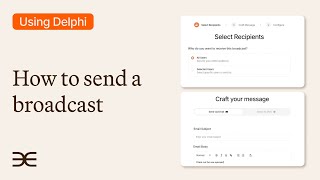
I'm going to show you how to send broadcast emails to any user who have engaged with your clone. So from the Clone Studio overview page, head to the Engage tab and on the left hand side go to Broadcast. And top right you can send a broadcast. This is a new broadcast where you can select the recipients that will get your message. You can send it to your entire audience who've engaged with your clone or select a specific user. This case I'll send to my friend Andrew and tell him about a new podcast episode that just dropped. So you can see select email. This is where you can also select an SMS message. In this case we're doing email and just typing in new podcast.
Check out the new episode and then down over here you can add an attachment and you can even put in a reply email if you wish. Go to Next and you can name this broadcast. I'll just call it Test one and then you have the option to select a destination link and this will be a button that sends in the email. You can send them directly to your Delphi's Talk page or to a custom link that you can plug in right here. I'm gonna go to the Talk page, click Send and there you go. Broadcast is sending right now and within a few seconds he'll then receive it.