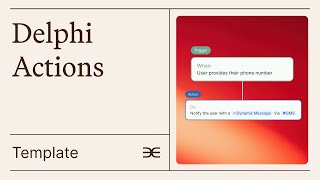
Learn to build Delphi Actions using templates. Set up a keyword alert for an upcoming date, filter it by user tags, and choose whether alerts reply in conversation or email.
Chapters
The Actions interface is where everything comes together. Scroll down the page to find our templates.
This section showcases various powerful actions and growth. Note that these categories are not exhaustive, they simply represent some of the most popular ways our creators use actions.
As an example, follow up messages are a powerful use of alerts. For instance, if you're a dating expert and a client mentions having an upcoming romantic date, you can set up an action to send a supportive email an hour after their date. The message can check how things went, offer a safe space to share their experience, and provide follow up advice if needed. This proactive approach helps you stay meaningfully connected with your audience. We'll walk you through how to set this up. First, click on any template that might interest you and you'll be taken to this building interface. We'll click on this one to retrieve the follow up message template. The first thing you'll see is the Trigger block. Triggers are events that cause your Delphi to take action. When you first open the Trigger block, you'll see various events that can activate your Delphi's automated responses. For a comprehensive guide to all possible triggers, check out this link. Alert Triggered, which we'll discuss in this video, is perhaps our most commonly used trigger. It helps you respond to specific keywords or contexts being mentioned in conversations with your Delphi. So should you want to follow up with users on their romantic date, Alert Triggered is the correct trigger to select because it activates when a user mentions a specific topic. You can either create a new alert or use an existing one. Alerts can be context based, which means they look at the full conversation history to decide when to trigger, or keyword based, which means they activate when a specific word or phrase shows up in a single message without considering the broader context. For this specific example, we'd set up a keyword alert.
First click Create Alert, then select the Add Alert button in the top right corner. We'll name our alert for whenever someone mentions having an upcoming romantic date. After adding the alert, return to the Actions interface, where you can select your newly created alert from the drop down menu after reloading the page.
Now this Filter section lets you filter actions by user tags. Through this feature, you can make it so that the trigger only activates for users who have at least one of the selected tags. This means you can create different workflows for different user segments. Your trigger will occur for everyone who has any of the selected tags. Should you want the trigger to reach all users, which is the case for this example, simply click None. Here you can specify whether to Activate the trigger the first time a user requests a reminder, or every time the user requests a reminder. The latter is probably the option that makes most sense in this case. Click Save to finalize your trigger setup. Now your Delphi will actively watch for whenever your users mention having a date. Once a trigger occurs, your Delphi can take various actions, so let's move to the actions block. In this case, you'll want to send a message to your user by, say, email. The reply in conversation option means the message appears directly in the chat thread, like a regular chat response woven into the conversation, rather than starting a new conversation. But we want our users to get a new email prompting them to come back to the platform to discuss their date. So we'll select email.
The true power of Delphi Actions lies in the instructions box. Rather than writing rigid pre written scripts, you simply provide your Delphi with instructions for the message you want to send. For example, a straightforward instruction like follow up with the user about the date they mentioned they were going on, asking them how it went gives your Delphi both context and purpose. Your Delphi will then follow these instructions to write a different message to each individual user, one that feels authentic and personal, referencing past discussion and maintaining continuity. The cherry on top is that the custom Delay feature lets you provide specific contextual instructions for when your Delphi should follow up. In this template, we're setting up messages to be sent. We want Message the user 12 hours after their date if we know the specific time one day later if we only know the day or three days after they sent the message if we have no timing information to get more details about their date's timing, you can create a two step action. When the alert triggers, Delphi sends a message asking about the timing immediately and within the conversation. Ensuring the custom delay has the information needed for the follow up. The key for both instructions and custom delay is being as detailed as possible. Your Delphi can only take actions based on the information you provide. Keep in mind that with actions your Delphi can do far more than just sending messages to users. To explore everything you can do with actions, go here. Through this template you've learned how to set up an alert, write instructions for what your Delphi should say, and schedule actions intelligently based on the alert's context. Don't forget to save your changes to publish your action.