How to Build the Perfect Data Analyst Portfolio Without Any Code

In this live, hands‑on workshop Kedeisha Bryan walks participants through creating a professional data‑analyst portfolio website using Canva’s free website templates—no coding required. She begins by ensuring everyone has a Canva account, then demonstrates how to locate the “website” category among 18,000 templates, filter out Canva‑Pro elements, and copy a pre‑made portfolio template (shared via a shortened link). Step‑by‑step, she customises the template: uploading a LinkedIn profile photo, editing name, target role, and contact links (email, resume hosted on Google Drive, Tableau, Power BI, LinkedIn, GitHub), populating skills, and structuring project pages. For each project she outlines a concise write‑up format—purpose, tech stack, concepts, a four‑bullet summary, and optional insights/recommendations—accompanied by screenshots or dashboard images. She advises using ChatGPT to generate a 20‑second elevator‑pitch for the “About Me” section and recommends the AI‑headshot service secta.ai for a professional photo. Throughout she answers live chat questions, offers one‑on‑one troubleshooting via a Canva “studio,” and clarifies that publishing the site does not require Canva Pro (though a $10/month upgrade can be useful). Finally, she explains how to publish the site, retrieve the URL, and add it to a resume or LinkedIn featured section, while also promoting her broader data‑career coaching program and offering further help via DM.
Chapters
All right, am I live? Let's see, let me see if I am live yet. If you guys can hear me, or if anyone can hear me, please post a comment. Is everyone hearing me? Okay, the mic check okay. Let me check what YouTube looks like as well. Everyone can hear me or at least see me or post where you guys are watching at. Where are you guys located? All right, thank you. Loud and clear. Alrighty, if y'all can see my cats in the background, uh, type cat. Scott is here. Thank you, Scott, for the support. Kendall is in the building. Thank you. Yep, 2 is in the background. Um, got 2 cats in the background. All right. Dallas, Texas is in the building. Scott's in Maryland. Okay, nice. Perfect. Okay, good. So that means the camera is good if y'all can see the cats. All right, let's just wait just a little bit more. Hope, hope y'all having a great Saturday. Hope y'all have a great Saturday. Hope y'all had a great week. We're going to learn how to build our own portfolio without any code, and honestly, it's probably going to take probably 20 minutes, if that. We're going to build it with Canva today, so I'm going to show you guys first all the fun stuff Canva has, and then I'm just going to share a template so that we can just kind of get started. But just waiting a little bit more, a little bit more time. If you guys have questions, we will have a— I'll hold a Q&A or so at the end too. But if you guys also have questions along the way, please post them and I will answer. Razor, if you guys have a— if you have a Canva account, put a 1 in the chat. If you have a Canva account, you know what I'm talking about. If you've never used Canva before, type 2. And let me share. Yep, Teo has a Canva account. So this is Canva. I'm sharing my screen with an incognito browser. So, okay, good, everyone. Okay, good. Ones, ones. Good, good. You already have a Canva account? Good. This is going to go a lot more smoothly. Canva's free. All right, Kendall, just go to canva.com and see a— let me see. I don't think that's going to post to LinkedIn. Let me post that to LinkedIn. It's just canva.com. Oh, okay, Donald, you've used it but don't have an account. Okay, if you don't have an account, super easy to get started. So canva.com, that's canva.com. And then we'll just go to sign up and you can just continue with your Google. I have my Google, so you can just continue with your Google and it takes probably 10 seconds to get started. But for those who do not have a Canva account, just go ahead and do that. Take, uh, like 10 seconds to do that, and then when you're good to go, just then press a 1, or just press, uh, or type, uh, you know, good to go. Good to go. But we will be using Canva, and I want to show you guys all that Canva has to offer before I share my template. But you do need to have a Canva account to use the template, and it's, and it's free. entry. So, so for those who already have Canva, great, amazing. We will just wait for those who don't have one. But if you are just signing up for Canva, just press good to go, or just type good to go so I know that y'all are ready to get started. But First, I'm going to show you guys all the probably thousands. Yes. Skip to the free trial or no, it's free. You don't have to sign up for Pro. Scott's good to go. You don't have to pay nothing. All right. You don't have to pay not a thing. You could just sign up for free. Kendall's good to go. Perfect. Good to go. All right, good to go. Nice, Donnelly. Let let us know when you're ready to go. We leave no person behind because really this it doesn't take long at all. So we have time. It's not going to take. It's not going to take very long. It's so easy. First, I'm going to show you guys all that Canva has to offer in terms of like creating a portfolio site, um, and then I'm just going to share the template that I have. But, uh, Donnelly, just post when you are good to go so that— and anyone else who is signing up for Canva. All right, good to go. Ollie's good to go. Okay, who's good to go? Perfect, perfect, perfect. All right, okay. Okay, so first let me show you guys all that Canva has to offer in terms of, uh, templates. So there's a search bar up here, right? What I want you to do is press or just type in, uh, portfolio. Just press portfolio and then you'll get to this page here. Um, there's gonna have, uh, if you have designs yourself, your designs are going to come up here. But then all the Canva templates are going to come here. As you can see, there's 18,000, right? So what you want to do is go to See All to the right side, click that, and now we have all the Canva templates, right? 18,000. All right, let me— you guys, are you guys here? Because once you're here, there's a thing called filters, all filters. There's multiple categories of different type of Canva templates. Uh, what we want is a website. So from all categories, click website, and then once you're there, you, you're gonna click apply. Uh, if My cat is kind of being crazy in the background. If it's too loud, let me know and I will kick him out. All right? If he's too loud, press cat or type in cat and I'll get him together. Otherwise, let me know if you guys are good to go at this step here, because once we click apply, then It's going to change, but are we good to go so far? Once you have website clicked in categories, you just click apply and now you have all these type of categories for Canva sites. Now, one thing to note, if you look, if you notice on the bottom right, there's a little crown on some. Those are ones for Canva Pro. Now, Canva Pro is like, don't know, $10 a month. Honestly, every person, every professional, there's some people in here trying to get their first job in data and— oh, okay. But yeah, we'll save the cash, Scott. There's some of you who can't find website template. Okay. Is everyone else okay? So let's go back. I'm gonna go back to the first page. I'm gonna go back to the home page. I'm gonna go to the search bar and I'm gonna click— I'm gonna type in portfolio again. Okay, and so we are at Canva, right on the— down here it says Canva templates. So where it says Canva templates, can't find website template. Who else can't find website template? We might have to do some troubleshooting. If anyone would like to get some one-on-one troubleshooting, let me know. I will invite you to the studio. I want to make sure we get this. If you want some one-on-one troubleshooting, Donnelly or Kendall, I will invite you to the studio. So I can help you troubleshoot. But it's basically a category. So you can also do— there's category here right below the search bar. So you can also click website here. Kendall and Donnelly, are you seeing that as well? So there's a couple of options to get to the website, but it's just a category. You can also type in website. Yep, you can also type in website. But we also want to make sure that category is— for category, we have website checked. Not seeing see all. All right, who wants to— all right, cool. All right, let's just do that too. Website. Still go to Canva templates. But you still want to make sure website for categories is checked. It's different if it's not there, then that completely throws it off, right? Because we want to create our own website. So is everyone good to go on website being checked for categories? Because otherwise you're not going to have the It's not going to be a portfolio site, it's just going to be a PDF. Donald and Kendall, are we good to go on the website category? Now, either way, I just want to share Canva has multiple, multiple, so many templates for your website. So again, I'm going to share a template for you guys to get started. But you can just roam around and see all the different type of sites that you can do. So for example, this is one. If you click on it, you can preview it, you can kind of— you can scroll down to see what it would look like. And all you would do, all we're going to do is just plug, you know, plug and edit. So if you're interested in like, say, this type of, um, portfolio site A website never appears as an option. Okay, now, hey Kendall, if you want to, um, who— if anyone wants some, uh, I'm gonna type, uh, I'm gonna share this. And Kendall, if you want, uh, some If you want to get on here, enter the studio so I can see your screen. I'm going to type in the chat. Anyone can actually join. And then I'm going to actually pin this. All right, Keno, you're good. Okay, perfect. I'm going to show— I'm going to just put this in the chat regardless if anyone wants to hop on. And then if anyone wants to hop on into the studio and share what they have at the end, that is the invitation. Okay. All right. So this is again, so this is all the website portfolio or website templates Canva has to offer. It's over 3,000. And this is just by typing in website. You can type in, again, you can type in, say, portfolio, whatever. But as long as the website category, that's really the most important part. So like this one, for example, this is one that looks really good. It's responsive too. And you can just edit these to design your own website or design your own portfolio site. So many things. So this is a lot of good things you can play with. Here. Now I'm going to share a template with you all that I created for the time being. And let's see, I'm going to share the template link. Okay. What I'm going to do is I'm actually going to shorten the link for you all so that we all have the same starting point. Are people still having the issue of not having a website? Anyone else still having that issue? Okay, good. I want to also ensure that folks who don't have Canva Pro still, you know, has access to the website option. That should That's not a pro type of thing, so it's not a paid category. So I'll go back. There's a couple ways you can get to the website option. So let's say I'm just going to— again, I'm just going to type in portfolio, whatever, at the top search bar, right where we have filters, right below the search bar. Go to category and you should see website here. There is no crown next to it, so it shouldn't be a pro category. So everyone should have that option. In the meantime though, I did post or I did share the link to the template that I created for the webinar for today. And as long as you again, as long as we have a Canva profile, you should be able to copy that and be able to— okay, so is everyone good to go on accessing the template that I shared? You should be able to click on that or pretty much copy or type out that, type out that link or type out that, you know, website link I have on the screen, and then you should be able to like make a copy, and then you should be able to be in here so it can be edited, so to speak. Put good to go, G2G, if you got through to the template and you are there to edit it. Let me know. Let me know if you were there. Not seeing. I only see Edith says good to go. Anyone else good to go? Is everyone? Did everyone else? Did everyone else write down this link I have at the bottom left? And also, I also posted it in the. Good to go. Kendall's good to go. Good, good, good. Everyone else, where though? It's right on the bottom left of the screen that you're looking at. https://bit.ly/3dkihvm. Right there. I posted it in the LinkedIn chat, but I'm not sure if you're on. If you are on. YouTube, it's also there. It's probably easier to access on YouTube because— okay, everyone's good to go. Are we all good to go? I don't mind waiting a little bit because like I said, once you got the template, it literally takes like 10 minutes to really finish. Okay. Okay, so for those who are here, it looks like most, most of us are here. If anyone needs to catch up, I'll go back. But this is a template again to get started. This is actually a template that I give to my students when they sign up to my program. So I have a program that helps career changers get their data job, get a data analyst job in less than 6 months without going back to school. So it's a one-on-one help. We meet with them one-on-one. every week. It's very personalized. And on the very first onboarding call with me, what I do is I set them up with first starting to create their portfolio. If they already have one, there's also some things that we do. But this is— I'm going to pretty much simulate the onboarding call that I do with my students to everyone here. So the first thing is if you notice, basically the first page is going to be a photo, your, your name, your target role, then links to your email, your resume, and also links to your Tableau, LinkedIn, and GitHub if you have one. And then an About Me and then list of skills. And then down there, if you scroll down, these are where you're going to be putting Data analytics concepts. So let's say if you did, you know, if you did, you know, market basket analysis, if you did, you know, cohort analysis, etc., you'd write those here. And then you want to summarize your project and say like 4 bullets, a 4-bullet summary, a 4-step summary, but summarize in 4 bullets. Sometimes I see people, they have these long drawn-out blog posts type of thing for their project write-ups. No one has time to read all that, so just summarize it here. And then I have just 2 places where you can just post or insert photos of things in your project. So good thing we can do here, let's say for example you're doing an EDA project or something in Excel or Python or whatever, you can insert a couple images of certain visuals that you did, you know, in your, in your project. Um, the second, uh, the second variation is again same thing on the left side, but this is one, say if you have a dashboard And then you can just insert a photo of your dashboard in this one here. And then let's say this is like a continuation of this one of the dashboard project. So you have a dashboard, but you know, you want to, you know, probably get— if you have a dashboard, you've done EDA, you have like multiple, say like multiple visuals, you can have multiple visuals here, you know, insights, and then explain your visual down here. So Very, very plug and play, easy, no coding necessary. So the first thing that I always have people do is, again, obviously you can put your picture in here. An easy way to do that is you go to your LinkedIn. I'm going to go to my LinkedIn and show. Go to your LinkedIn. Click on your image, your profile image, right-click and copy image. Then we're going to go back to our portfolio and then paste it. Crap. No, don't do that. Well, yeah, paste it. Then when you do that, you just click on it and drag it into the circle and it's just automatically going to populate. Did everyone see what I did there? We're just copying our LinkedIn profile photo, pasting it back into our portfolio, and then dragging it into the circle where my images— and then it automatically just populates. Did everyone get that, or was everyone good to go on that? Thanks, Scott. My career would have gotten a lot further and a lot faster if I had Kadeisha's program back in the day. Uh, yeah, Scott, that has no financial interest. Can't recommend it. Thank you. Absolutely. It's all about accelerating in this accelerating career changers' careers in this very difficult market. It's a very different market. Okay, good. Good to go. Everyone else good to go? If y'all are good to go, if y'all got here, y'all got your— if you have replaced my image with your LinkedIn profile photo, press good to go. Also, Anyone who needs like a new profile, like a new professional headshot, I'm also going to share a resource where you can get that done today as well. Because again, this is like your very first impression. You want to make sure you have a nice picture where you're smiling and friendly. All right, so is everyone good to go? Have you replaced my photo with your photo? Are we good to go there? I only see one good to go. Any, any, no one else's? Do I need to do that again? Don't need to do it again. Uh, you're just, uh, all right, Kendall's good to go. Perfect, perfect, perfect. All right, Edith is good to go. Perfect. Yep, Jessica's good to go. Perfect. Okay, good. Okay, good. Okay, and then obviously you, you replace your name, right? So when it comes down to editing anything in Canva, uh, as you can notice, if you hover around, everything has like a container, just like Tableau. Everything has a container, uh, and all you would do is double-click inside the container. And just replace first and last with your name. So you literally just do— I'm just going to do my name, and then you'll do your target role. I'm having to look for another picture. Don't want to use the one with the— oh yeah, that is true. That is one thing about when— if you have the banner, it does copy. So yeah, if you So yeah, that is to note. So definitely use one without the banner and then you put your target role. So whatever your target role is, data analyst, data scientist, if you are— I know some people in here are more up the ladder, director, you know, CAO, manager, whatever your target role is. Put it there. I'm going to put data career coach. Okay, so your name, your target role, and then here, this is something where you definitely want to pay attention. So you can insert links with Canva. I have 2 specifically here for your email and your resume. So if you click or double-click where it says email me, right now it's going to have my email. Please don't flood me with emails. But what you would do is you're just going to edit link where it says mail to. Keep that there, but you're just going to replace my email with your email. And again, please do not spam me with emails. This is my actual email, but you're just going to replace that with your own email. So I have my email there. You're just going to replace it with your email because whenever people click on it, automatically it's going to populate with their email service. So if it's like Outlook or whatever, it's just automatically going to populate. So all you have to do is click, double-click where it says email me, hit the edit link, the pencil, And then replace my email with yours, and then you're just going to click done. Now with the resume, you're going to do the same thing. Now here's what you want to do with the resume. So I want you, you all to— you also have a resume ideally in a PDF format, and all you're going to do is upload it onto Google Drive. So go to your Google Drive and just upload your resume. You're just going to upload your resume, file upload, find your resume. I did a new one last night. You're going to upload a PDF of your resume over to Google Drive. You're going to find it, you're going to share. Go to the share settings. In general access, just make sure anyone with the link can access it. Make sure it's just that viewer. Click done. And then you're just going to copy the link. Wherever that link is, you're going to go back and then replace that link there with that new link to your PDF of your Resume. Do I need to go back and do that a second time? I know that was a bit of a few steps. Essentially, all we're doing is taking our most updated resume as a PDF, uploading it to Google Drive, changing the share settings so that anyone with the link can access it, then copying the link and just editing it or— and just replacing it in the resume. Will this be recorded? Yes, this will be recorded. Yeah, this is being recorded. So yes, this will be shared if anyone missteps. But that, I would say this is probably the most step-intensive portion, just replacing the links that I have. Essentially, again, we're just replacing our email and resume with yours. So now down here, this is where— so this is anyone with Tableau. If you click on the Tableau icon and you click edit, you're just gonna replace my— this might be an old one— you're just gonna replace the Tableau public link with yours. Same thing with the LinkedIn one. If you double— if you click Click the pencil, replace my link, replace my LinkedIn URL with yours. And if you have a GitHub, again, just replace my GitHub link with your link. If you don't have a GitHub or if you have Navi Pro or something like that, you can just replace— you can replace the— you can take away the Tableau link. And what you can do is if you go on the left side, you go to Elements, you can add elements. So let's say you want to add a dashboard. If I do dashboard, I'm going to see graphics. I click graphics. Again, anything with the crown is for Canva Pro, but anything without a crown is free to add. So let's say I have Power BI, I don't have Tableau, so I don't want to have the Tableau icon there. You know, I can say, oh, actually you can. Let's see if the Power BI one is actually free. Oh, look at that. There's a Power BI icon that's free. So I can take that, minimize it. And if you have Navi Pro or, you know, whatever Most likely Navi Pro, right? Same thing. You'll click on the button, go to more, and then click link, and then you'll just enter your Navi Pro link, whatever public link to access your Power BI dashboards that you would do. That's what you would do there. Hopefully people are good to go on that. That is if you have Power BI. For those of us who are Team Tableau, right? If you're on the right team and you're on Team Tableau, then you're good to go there. All you have to do is just edit. Show the resource for the professional headshot. Yes, I will show the resource for the professional headshot right after we're done with the Project 1. I'll show the resource for that. Okay, now moving on to the right side. So one thing that I do with my students on the onboarding call, I want them— everyone should have their own elevator pitch, right? 20 seconds. Like, why would you— if you were in front of a hiring manager and they had a job in their pocket, like, what exactly, how would you showcase yourself, or how would you explain why you would be a great candidate? And basically the About Me is the elevator pitch, right? So you're basically going to replace mine with your type of elevator pitch. Let's say you don't really know what to do with that. What you can do is literally you can take your resume, you can upload it to ChatGPT and just ask it to, hey, write, you know, take my resume or analyze my resume and write a Kind of like an elevator pitch or like a professional summary or something like that. And then obviously you don't want it to be too long, so just make sure you keep prompting it to make it short. Or you can go to your— if you— everyone should have their About Me. Your About Me is also like your elevator pitch. So you can also copy and paste your About Me and do the same thing. If you— yeah, so Eric Sims has a great comment here. Elevator pitch, the tell me about yourself, has guided interview conversation. It's a great opportunity to shape the interview to work for you. That is true. The tell me about yourself question is definitely the most— probably the most scary one because— let me hide my— probably the most scary question because no one likes to talk about themselves. People like to downplay their abilities and stuff like that. But that is a question where you are going to be your biggest advocate. And essentially your About Me section on your LinkedIn and our About section here, it kind of does the same thing, right? This is like your elevator pitch. So if you don't have one right now, Everyone should have a resume. Maybe your About Me isn't really that great or isn't optimized yet on your LinkedIn. Just upload your resume into ChatGPT and say, or if you want to copy and paste it, whatever it is, and just say, hey, analyze my resume or analyze my background and write a 4 to 5 second elevator pitch. And just edit that down and put it here. Okay, so that's the About Me section. Then you have Skills. So Skills, pretty easy to understand. You're just going to write your skills. So on the left side, you can maybe focus on more hard skills. On the right side, you can do more soft skills. But this is just replace all of these with your skills and replace them with what you have right now. So when my students on the onboarding call, if they've never taken SQL before, we're not going to put SQL. If they've never used Tableau before, we're not going to use Tableau, but we're going to write down the skills that we have right now because the idea is as you do projects, you fill this out, you document what you're doing. So again, skills, you just copy, just double-click and just replace SQL and just type it. Very easy, very plug and play. Okay. All right. Is everyone good to go on the first page? So that's our first page of our portfolio. Is everyone good to go there? And is everyone ready to Get to the meat and potatoes of our portfolio. Okay, right after I cover just project 1, or just the project pages, then I'll share the headshot, the professional headshot resource. But is everyone good to go on page 1? Press good to go to let me know that we're ready. Let's move on. I don't see no good to go yet. It tells me— are we stuck? Where are we stuck? All right. Jessica says we're ready. All right. So, so when it comes down to project write-ups, I'm going to actually share A, like, probably one of the best project write-ups I've seen, or just one of the best portfolios I've seen in a while, actually. This was actually from a previous supervisor that I had. If you guys look up Christopher Nelson, Right, and you go to his feature. This is his, this is his, um, features, this is his, um, portfolio, and it's just a PDF file. But his write-up is what's very, very good. Let me see if I will open it up. Okay, so it's just a PDF, right? This is— it's not a website, it's none of that, it's no bells and whistles. But it's a very good write-up, very simple, very effective. Purpose, concepts, tech stack, summary, process, and then pictures, pictures on the right side. Just look how pretty and effective that looks. Pictures of the process and different types of pictures. That's essentially what, what, what a portfolio is all about. A portfolio is all about showcasing your skills. And as a— whether you're— if we're trying to be a data analyst, we don't need to have fancy websites or anything like that. So again, this is just a PDF and it looks good, but the write-up is really well done. But I would say the pictures on the right side also really amplifies it. So I pretty much— the template that you have, I pretty much use this as a very good kind of guide or kind of you know, kind of guide to, to it. Because like, again, it's, it's, it's good. It's pictures and then the process. Now you take away the pictures, it's, it's just, it's just a bunch of text, right? It's, it's a, it's a double, it's a one-two punch. You gotta have 2. But it's not, it's not— maybe because of the way it looks, it's, it doesn't, um, like it's all on one page. You don't have to scroll down like a blog. You can consume everything in one glance. So that's really the power of what a really good concise portfolio can look like. Now, again, you can just go on Chris's page and download or just look at it. It's in the featured section. If you— any of my students, I've shared this in our Discord and the Slack channel as well. But that is basically The, um, that was basically the inspiration of basically this, the project write-ups that I have. All right, so there's a couple different types, right, or a couple different sections. You write your project purpose, simple. Your tech stack, uh, what tools you use. So if you use Python, you use Excel, if you used, um, Tableau, Power BI, you put it here. Concepts of the areas of data that you did. So again, if you did like cohort analysis, if you just did like— if it was a data cleaning project, like heavy data cleaning, you know, if you did like time series, whatever it is, you put it here. Then again, probably one of the most important things, summarize it in 4 bullets or 4 steps, 4-bullet summary or 4-step summary, whatever you want to do. But we don't— again, the Main thing is we want the reader or the hiring manager to be able to consume or get the gist of our project in one glance. There's not a bunch of scrolling you have to do, all in one glance. And so to add pictures, I'm going to use— I'm actually going to use— let me go to my Tableau Public. Page or something. Um, actually, all you have to do to replace the photo, same thing how we replaced, uh, the profile photo, but all you have to do is— and I'm going to probably open up one of my projects for my students. And maybe open up a workbook. Actually, yes, I'm gonna share the— all right, I'm gonna, I'm gonna share the resource about that. Um, it's been a while. Okay, so let's say I have a— all right, so this is, let's see, All right, so this is just a Tableau project. Key Insights. Donnelly asked, what about Key Insights? What about Key Insights recommendations? For instance, if I analyze a crime set, want to give recommendations based on findings. Okay, perfect. So let me get, let me get to that. This, let me get to that. Um, so, uh, Donnelly, so what you can do if you want to do recommendations. You could probably remove purpose, or you could probably remove maybe concepts or something, or you can replace the 4-step summary and process and just do insights and recommendations if you'd like. Yeah, so this is again, so you guys are like, I'm giving you guys a template. If you guys want to replace summary, or what you can do is if you have space, you can copy that and you can do insights and summary if you want. If you want to remove purpose or concepts, you can do that. Again, you just don't want it to be wordy. So key insights is good. One thing I will say, these pictures here, so I'm going to go back and do actually. This is just a project that I did with my students, a live project. Let's say, for example, if I want to do— we're talking about insights here. Let's just say I wanted to use this photo or this visual as a key insight. For example, I want to save this. I'm not sure how to— I can't remember how to save for Tableau ones, but I'm just going to take a screenshot for the time being, right? Just for the time being, just for it to show. I'm going to take that, I'm going to save it. I'm just going to save it to my computer. No, actually, no, I'm just going to copy it. I don't have to save it. I'm just going to copy it. And then let's say I want to paste it somewhere. I actually don't have to replace it with these images, but let's say I want to post it in here as an insight. I can do that and then write a description below that. I can copy this, I can paste and just write, say, like an insight on most calls happened on— what is that? Tuesday. So that's a way you can pretty much talk about individual insights in a project. And that kind of dives into the second variation that I shared. So for this portion here, for Project 2, you would just paste your dashboard. And then for further analysis, you can again paste individual, like, you know, pictures and add your insights there. But again, you can replace the 4-step summary or you can replace the concepts if you want and add your insights. And go from there. But the central thing about this webinar is that you guys have free rein to do whatever, but it's a great starting point. So again, you can just edit these if you want to replace any of these recommendations, you can. But at least you all know that you can get this done in literally like 20 minutes. If you all have anyone who's been doing products already, you can easily Just fill this out with your best three to five projects in like thirty minutes, and yeah. Any other questions? Like I said, it wasn't going to take long. Like doing anything working with Canva is super quick, super super quick. Any other questions? We are. Almost, uh, 13 minutes left to the top of the hour. So any general questions or any other questions? Anyone want to share what they have so far? Oh, uh, before I get asked again, so let's say you don't have a professional photo. Listen, say do not go and And go to your local— go to secta.ai. Let me go to secta.ai. $49 and get your professional headshot. I'm telling you, it is worth it. It'll be the best $49 you've ever spent. Best $49 you've ever spent. You need a good professional headshot. You don't want to have a, you know, do it— if you do it yourself, like, if you know how to make it look good, that's fine. But you want to have a good professional headshot that makes you look professional. This is a very, very good website. There's many, like, AI photos or whatever photo sites. This is very good. I recommend this all the time. I recommend this all the time. It's just such a I'm going to post it in chat. Let's see. And I'm going to set the AI. So for your professional headshot, again, the best for— and you get like, I don't know, You get a lot of photos. Do they own copyright? As in they— what do you mean? I don't— do they own copyright as in they can use your image? I'm going to say no. Honestly, when it comes down to copyright and AI, listen, that is way over my pay grade. If you've been using ChatGPT, or any AI at all. I mean, that's way above my pay grade. I'm going to say no, I don't think so. You're welcome, Catherine. Thank you for showing up. Thank you for showing up again. Like I said, the template for those, again, it's very— like I said, I told you it was going to be very straightforward. It's going to be super straightforward. That's why I took the time to, like, if anyone was stuck, it's super straightforward plug and play. If you want to replace any of these text boxes with resources or not resources, but like recommendations, you could also copy this, bring it up, and then copy that and actually have probably more space for recommendations if you want. It's a little bit But yeah, there's a lot of things you can do. It's very plug and play. I recommend just in general, again, there's way more. Okay, Scott answered that. Thank you. Scott is an AI expert. AI images cannot be copyrighted by law. Good. Perfect. Okay, so Again, plug and play. If you've never used Canva before, this is very easy to use. And I showed you at first all the different types of websites, portfolio sites and portfolio templates that's out there. Yes, it will be available. The recording will be available, Emily. It will be available. I'll probably— I will— it's gonna be available. And I'll actually— yes, it's being recorded. Actually, it's on my YouTube right now. So technically, um, I would go to my YouTube channel. It's actually being recorded on my YouTube right now. You can actually just watch it on YouTube. Hold on. You can actually just watch it on YouTube, like, right now. You can, or right after it's over. Any other— we got 8 minutes left. All right, Scott says AI art cannot be copyrighted because it doesn't meet the human authorship requirement of U.S. copyright law. That means that the output generated, generated by AI image generators using text prompts is not eligible for copyright protection. Uh, yeah, so anyone who has a copyright question, you're good to go. Do we click on publish website after? Yes. Thank you. I forgot I was, I was getting caught up. Yes. So click Publish Website. Preparing design. And then it's there. That's your website. Go to View Website. Like I say, website. Scroll down. There it is. That's why in the beginning where I said Make sure the category you click is website. Um, will the template link be available? Uh, yes, I will, I will edit the, um, I'll make sure I edit the, uh, description to put the template link. So that's why it's good to rewatch it on YouTube because I, I'm not gonna be able to do that on LinkedIn. Um, so yes, so that's why again it's important that When it comes to the category, you clicked, you had website checked because that published website is not available for those other ones. And this is your actual, again, this is your actual URL, right? This is your URL. And what you would do is when you go on your, this is just some other extra sauce. Go on your resume, right? Oh, crap. Go on your resume. You have portfolio at the top, and then just put that same link, that Canva link. That's the sauce. That's how you do it. Highly recommend also, just like how Chris had his portfolio in his featured section, y'all should have your portfolio in your featured section. Right? You can press a, uh, probably go to your featured section, um, add a link, add your portfolio sites. What's the site? What's my— you copy and paste your portfolio site, press add, it's gonna pop up. And then, you know, use like a— you put a thumbnail there, you know, put a thumbnail there. Uh, no, you don't need Canva Pro, um, to publish. Uh, if there is something with Canva Pro, if it says something about Canva Pro, that means that I think there might be, um, there might be an element on here that is Pro-specific, but it's gonna say what it is. But you don't, you don't have to, you don't need Canva Pro to publish. I, I definitely verified that with my students there. That's why I was saying it was important not having elements that have a Pro, because it's— then it won't publish. But you don't need to have Canva Pro to publish. And again, it's only at the end of the day, it's really, it's really a— everyone should have their own professional website. Um, as far as a career, your professional career, you always want to have a website. So I do think that a Canva Pro for $10 a month, I think, I do think that's a good investment just in general. But no, you don't need Canva Pro to, to publish. Any other questions? Got about 4 minutes to the top of the hour. All right, no, no other questions. Okay. All right, there's no other questions. Or, you know, if you're interested, if you're stuck in your job search, or if you're stuck in your career, you're having trouble getting your data analyst job or whatever job that you're trying to go for, please send me a DM and I'll see what I can do to help. Loud noise. But otherwise, no one else have any questions, then I will, uh, let y'all go. Have y'all— hope y'all have a good rest of your Saturday, and, uh, bye-bye.
More from Kedeisha


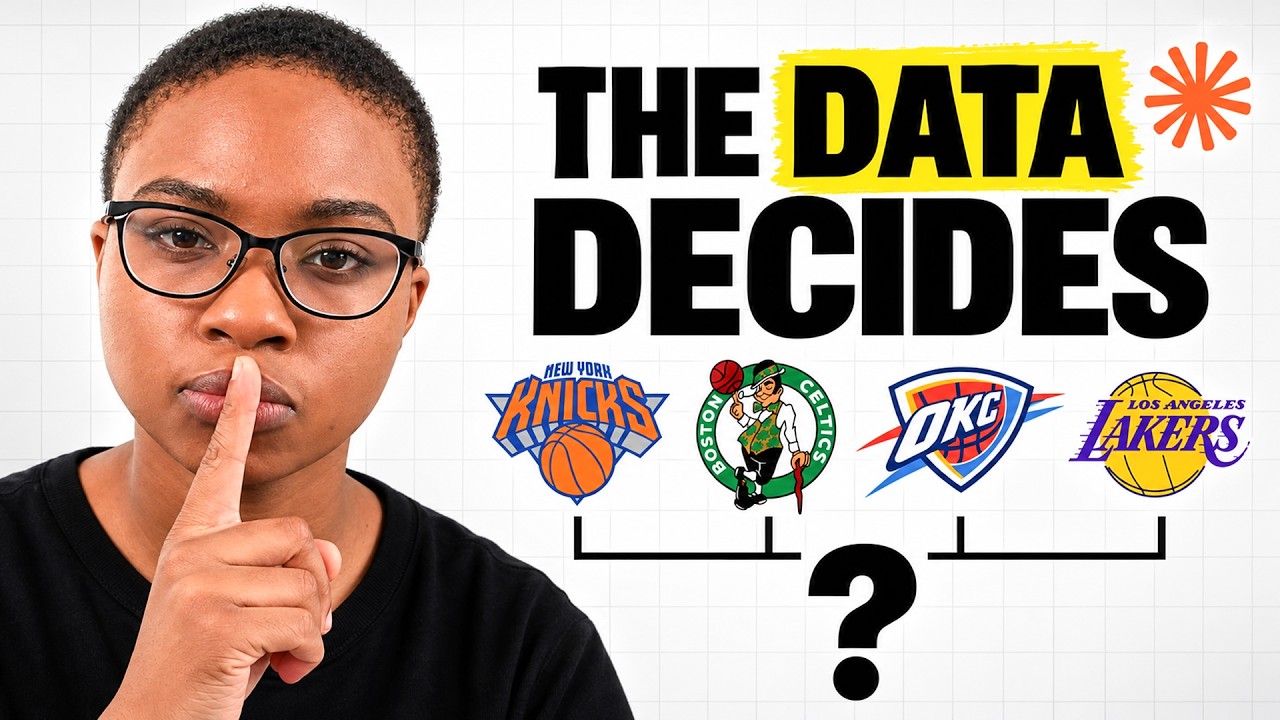
Data Analyst Portfolio Project with AI | NBA Championship Prediction Model (End-to-End Project)