This content was created by Tanya Hughes. This content was uploaded by Tanya Hughes. This is a YouTube video titled "Writing a MOO App" created on January 2, 2026, providing a tutorial on how to write and find the Mutual of Omaha E application, including steps for account sign-in, application initiation, and client information entry.
Chapters
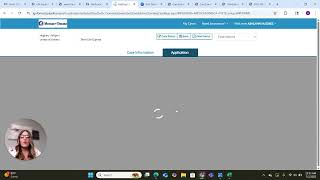
Okay, in this video I'm going to show you how to write and find the Mutual of Omaha E application. So if you can see, as you can see on my screen, you're going to click the sign in and you're looking for sales Professional access, also known as spa. So you'll click Spa. If you haven't made an account yet at this point you would click register but hopefully you've made an account by this step and you're going to click sign in. Normally Mutual Omaha, it does have a two step verification, so you will get a text message or an email. Just make sure you put in that verification code and you'll be good. Off here to the left you should see where it says Electronic applications. You're going to click electronic Applications and you're going to go down to Life E app and click Start. And your page should look a little something like this. Okay, now when I'm starting a new E application I'm going to click Start New case and then at this point I'm going to fill in the application. Okay, so I'm going to put name and then right here I'm going to put the text like the state that they're in. So for this purpose I'm going to put Texas, then the product type. So if I'm doing an iul, I would do Index Universal Life. If I'm doing a final expense it would be a whole life. And if I'm doing a term it would be term. So I'm going to click Term. For this purpose I'm going to click Find available products. You always want to do this bottom one right here which is Term Life Express. And then you're going to click Select. Okay and now it's going to load up your information because this is you as a producer. So I'm doing my own application. So this would be me as the producer and I'm going to click Select User and this is all my information and I'm going to make sure my address is correct, my email is correct, all that stuff. And then at this point I'm going to put in the client's information. So I'm going to put in their date of birth. And this is I'm going to go through the application with the client. So I'm going to ask them their date of birth, I'm going to ask them their height and their weight. And then I'm going to get their address and I will get their social and I say now they are going to run your prescriptions how they do that's all based off of your social. What's your social? And at this point you would put in their Social Security number. Okay. Okay. So you're gonna put in their address, their phone number and then are they United States citizen? Yes. If they're not, you should not be writing Mutual Omaha. And then are they a smoker? I'm not. So I'm gonna put no. Make sure you ask each individual question. You will confirm this information. Obviously my social is incorrect, but I'm still going to put yes for this purpose. And then you click confirm and then you go next. Now Mutual OMaha is a two step signature process. So don't just get the first signature and think you're done. It is two steps. So you're going to click next. The first step is the HIPAA form. So this is allowing the company to, to run your clients prescriptions. So I, for this purpose I'm going to click present. But if you click not present then you would send them a text or an email. So actually we'll go ahead and do a text and then you would walk them through this. How you walk them through it is they get a text, they click that link, they put in the last four of their social and they click I agree. Okay, but I'm going to click present. So this kind of gives you an idea of what they're looking at. This is what they see. So then they just click I agree and then they click next.