How to Access xCloud Site Files Using FileZilla Remote SFTP Client?
24 Jun 2024 · 2 min
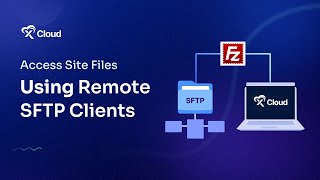
1:31
M Asif Rahman shows how to connect to xCloud site files through FileZilla. Log into the xCloud Dashboard, grab your SSH credentials from Access Data, paste them into FileZilla on port 22, and browse your wp-content folder.
Questions this video answers
June 24, 2024.
M Asif Rahman.
22.
Chapters
More from M

youtube.com
How to Deploy EmDash CMS in One Click on xCloud: A Fast, Lightweight WordPress Alternative
1d ago

youtube.com
Self-Host OpenPanel in One Click on xCloud: A Privacy-Friendly Google Analytics Alternative
1w ago

youtube.com
xCloud September 2026 Release Notes: Site Security Pro, AI Caching, Docker Backups & More | xCloud
1w ago







youtube.com
xCloud August 2026 Recap: App-First Deployment, 250+ One-Click Apps & DeepSeek Harness Hosting
1mo ago

youtube.com
Deploy Vaultwarden Password Managed on xCloud (Self-Hosted Open Source Password Manager)
1mo ago